Inspection Management
1. Module Overview
Core Function: The Inspection Management module is a core tool for quality monitoring and sampling inspection during product production. It supports users to create, manage, and execute inspection tasks, record detailed inspection results, and perform data traceability and analysis through a configurable reporting system, thereby ensuring product quality meets preset standards.
- Component Identifier: InspectionManagement
- Component Name: Inspection Management
- Component Category: run (Plugin)
3. Function Introduction
Interface Overview
The Inspection Management module mainly consists of four function tabs: Inspection Task Management, Inspection Record, Inspection Traceability Report, and Report Configuration. Users can switch by clicking the tabs at the top.
3.1 Inspection Task Management
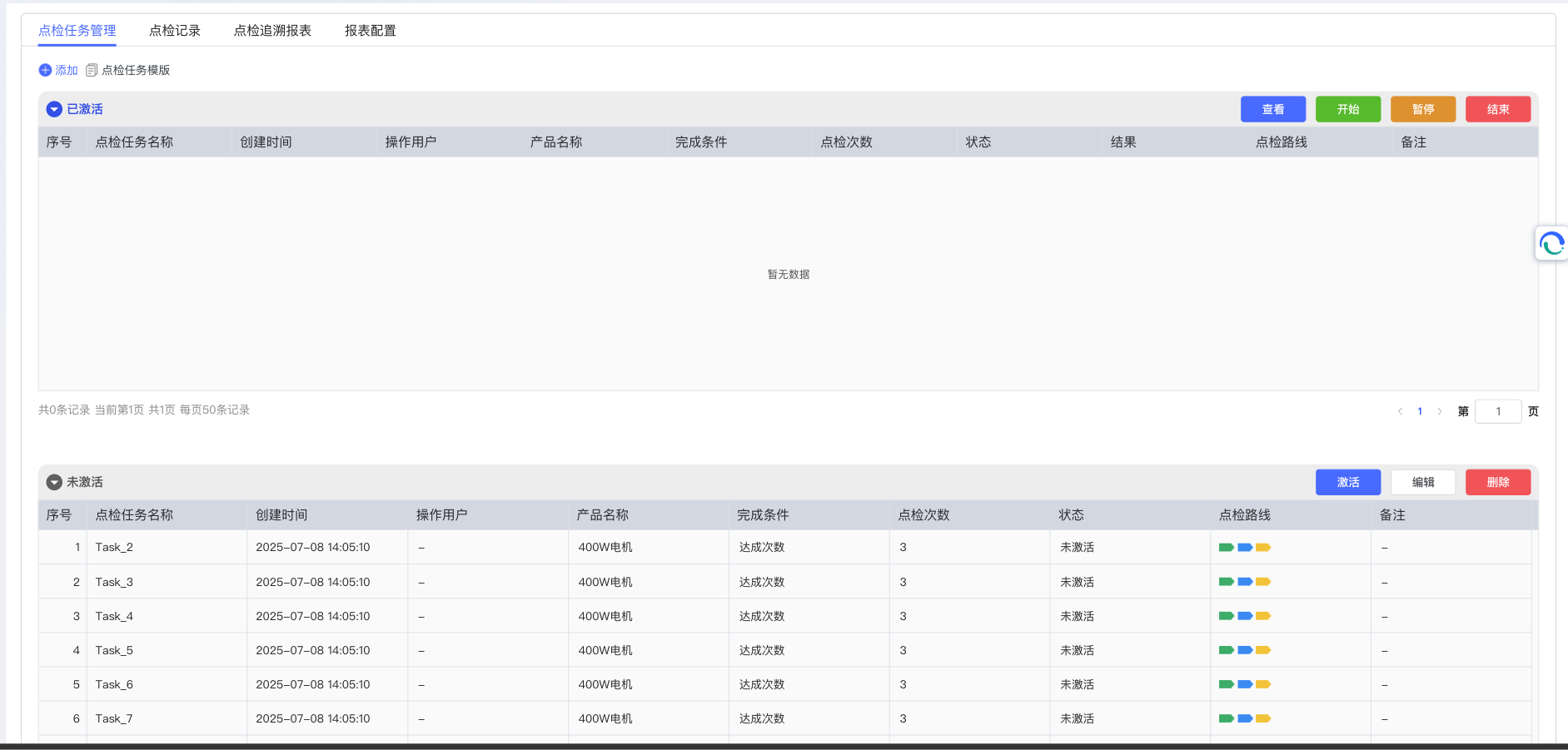
This is the entry page of the module, used to manage the life cycle of all inspection tasks. The interface is divided into Active and Inactive areas.
- Active List: Display tasks currently being executed or waiting to be executed.
- Operation Buttons:
View: View configuration details of active tasks.Start: Start an active but not yet started task.Pause: Temporarily suspend a running task.End: Manually terminate a task regardless of whether it is completed.
- Operation Buttons:
- Inactive List: Display tasks created but not yet ready for execution.
- Operation Buttons:
Activate: Move the task to the "Active" list to enter the pending state.Edit: Modify the configuration information of the task.Delete: Permanently remove the task from the system.
- Operation Buttons:
- List Field Description:
Inspection Task Name: Custom name of the task.Creation Time: Date and time the task was created.Operating User: User who created or last modified the task.Product Name: Product associated with the task.Completion Condition: Criterion for task termination, such as "Achievement Count".Inspection Count: Total number of inspections to be performed.Status: Current status of the task (e.g., Inactive).Inspection Route: Indicates the process nodes involved in the inspection.
- Other Controls:
Add TaskButton: Located in the upper right corner of the page, used to create new tasks.RefreshIcon: Located on the right side of the page, used to manually refresh data in both lists.Pagination Control: Located at the bottom of the list, used to browse multi-page data.
3.2 Add and Configure Task
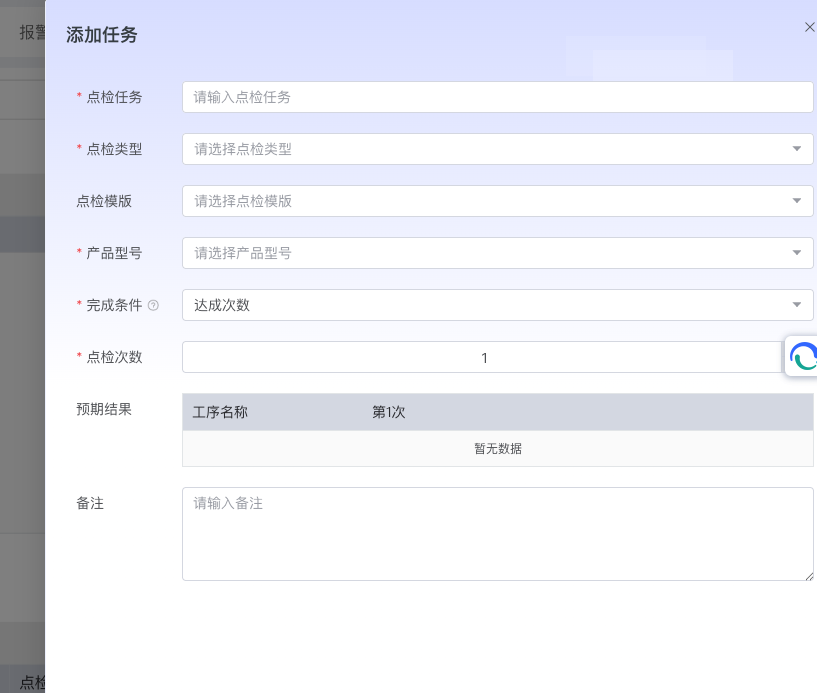
Click the "Add Task" button to pop up the task configuration dialog box.
- Required Fields:
Inspection Task: Enter a descriptive name for the task.Inspection Type: Select the nature of the inspection from the dropdown menu (e.g., First Article Inspection, Patrol Inspection).Inspection Template: Core configuration. Click to select or manage preset "Inspection Task Templates".
- In the template management popup, you can
Add,Edit,Create Copy, orDeletetemplates, and quickly search via theSearch Box.
- In the template management popup, you can
Product Model: Select the product corresponding to this task from the dropdown menu.Completion Condition: Select the task termination method from the dropdown menu, such as "Achievement Count". TheInfo Iconnext to it provides a detailed explanation of the condition.Inspection Count: Set the total number of times to execute.
- Expected Result:
- This area will automatically load the list of processes to be inspected based on the selected template.
- Users need to set the expected qualification standard (
OKorNG) for each process in each inspection.
- Other:
Remark: Enter any additional information about this task.Confirm/Cancel: Save or discard task creation.
3.3 Inspection Record and Result Viewing
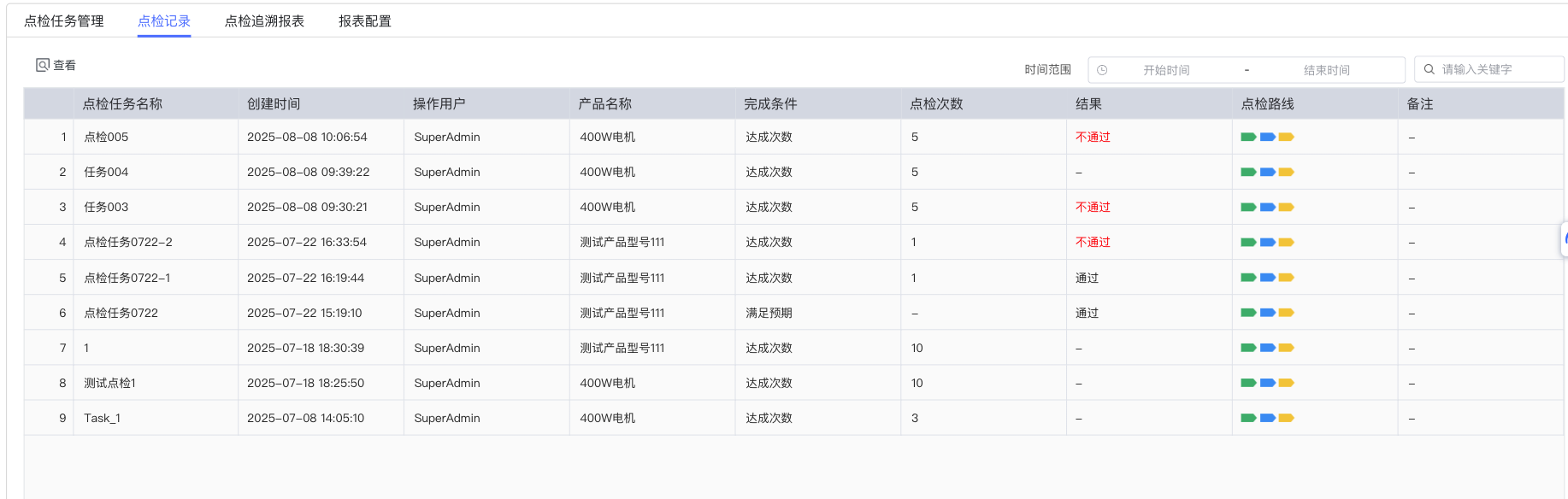
The Inspection Record tab is used to display the execution history of all tasks.
- Filter Function: The top of the page provides a
Time Rangeselector and anInput Boxto search by task name or keyword. - View Result: Click the
Viewbutton in the list to open result details.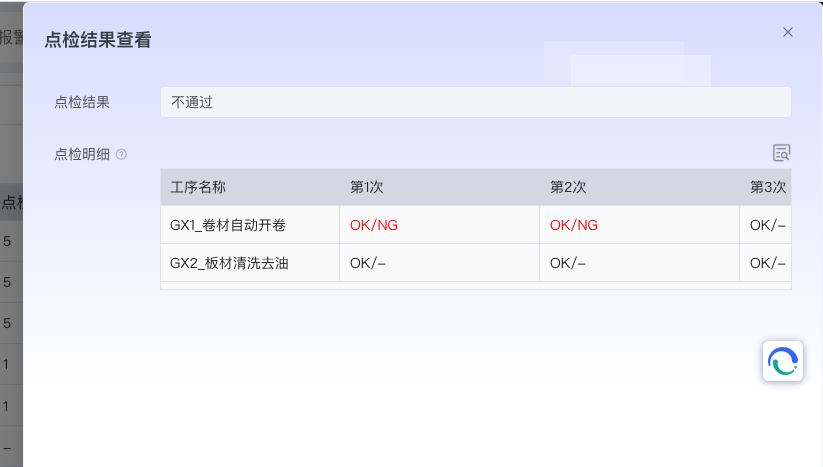
Inspection Result: Display the overall judgment result of this task (e.g., Fail).Inspection Detail: Clearly display the specific results (OK/NG) of each process in previous inspections in a matrix table format. TheCopy Iconnext to it can quickly copy the detailed content.
- View Detailed Parameters: For records requiring in-depth traceability, click the
View Detailed Parametersbutton.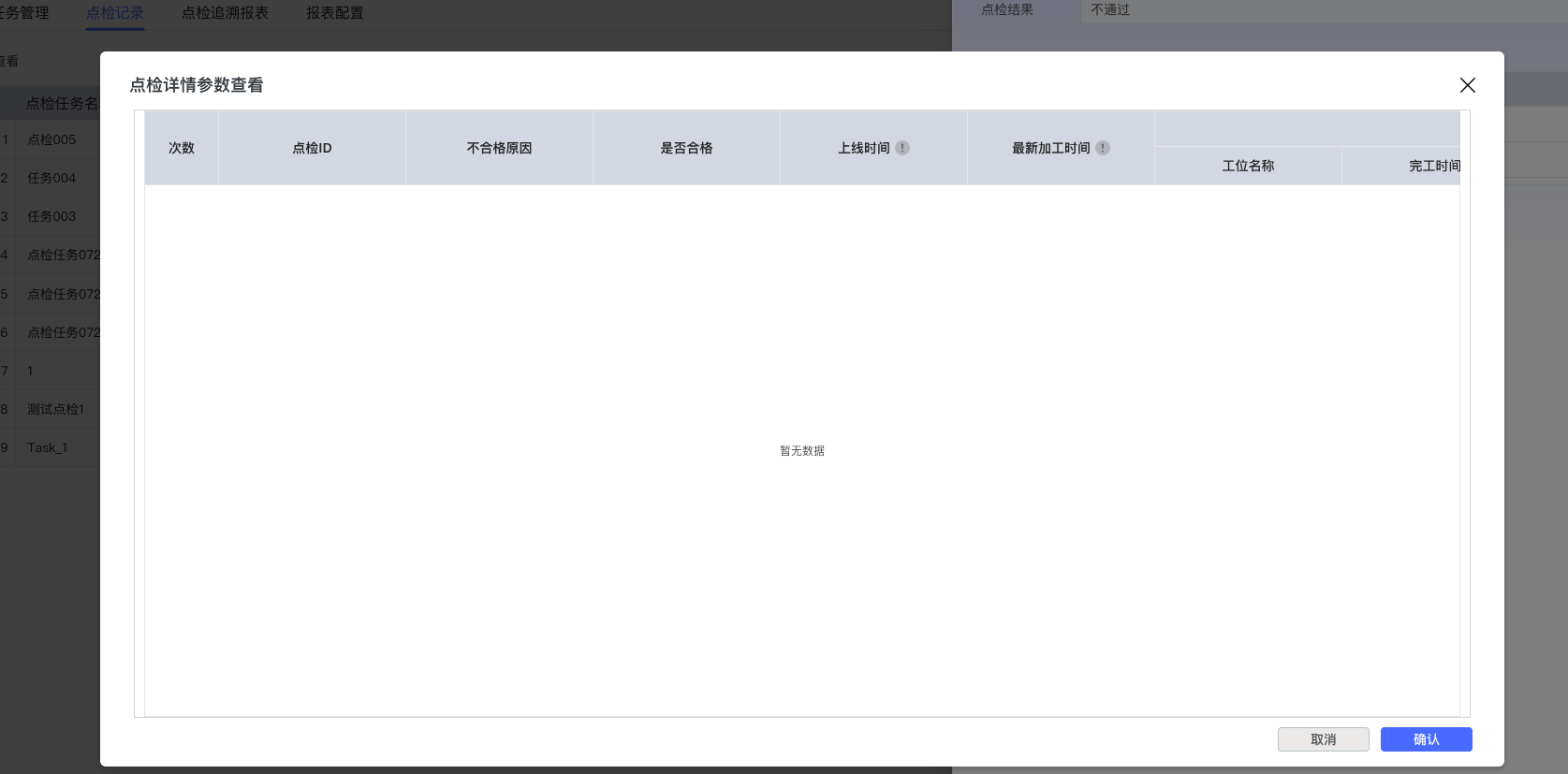
- This view provides more detailed data, such as
Total Inspection ID,Failure Reason,Online Time,Station Name, etc., for refined quality problem analysis.
- This view provides more detailed data, such as
3.4 Inspection Traceability Report
The Inspection Traceability Report is a powerful data analysis tool that provides rich filtering conditions.
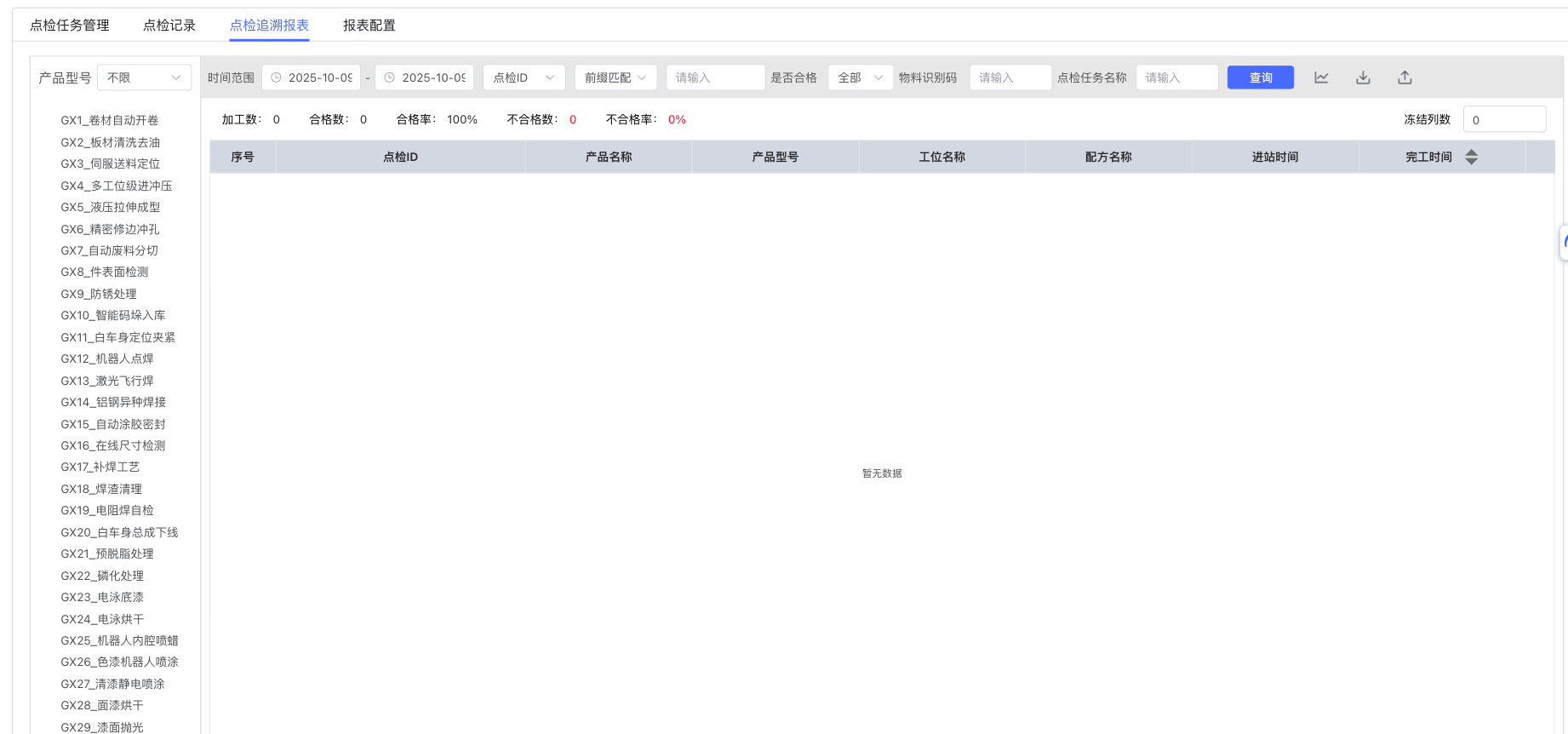
- Filter Conditions:
Product Model: Filter by product model.Time Range: Filter by inspection time period.Inspection ID: Search precisely by unique total inspection ID.Data Matching: Select matching mode.Is Qualified: Filter by "Qualified" or "Unqualified".Material Code/Batch Code: Trace by material information.Inspection Task Name: Filter by task name.
- Operation Buttons:
Query: Execute filtering.Export: Export current query results as a file.Print: Print current report.
- Statistical Information: Statistical data will be displayed above the filter results, such as
Processed Count,Qualified Count,Qualified Rate, etc.
3.5 Report Configuration
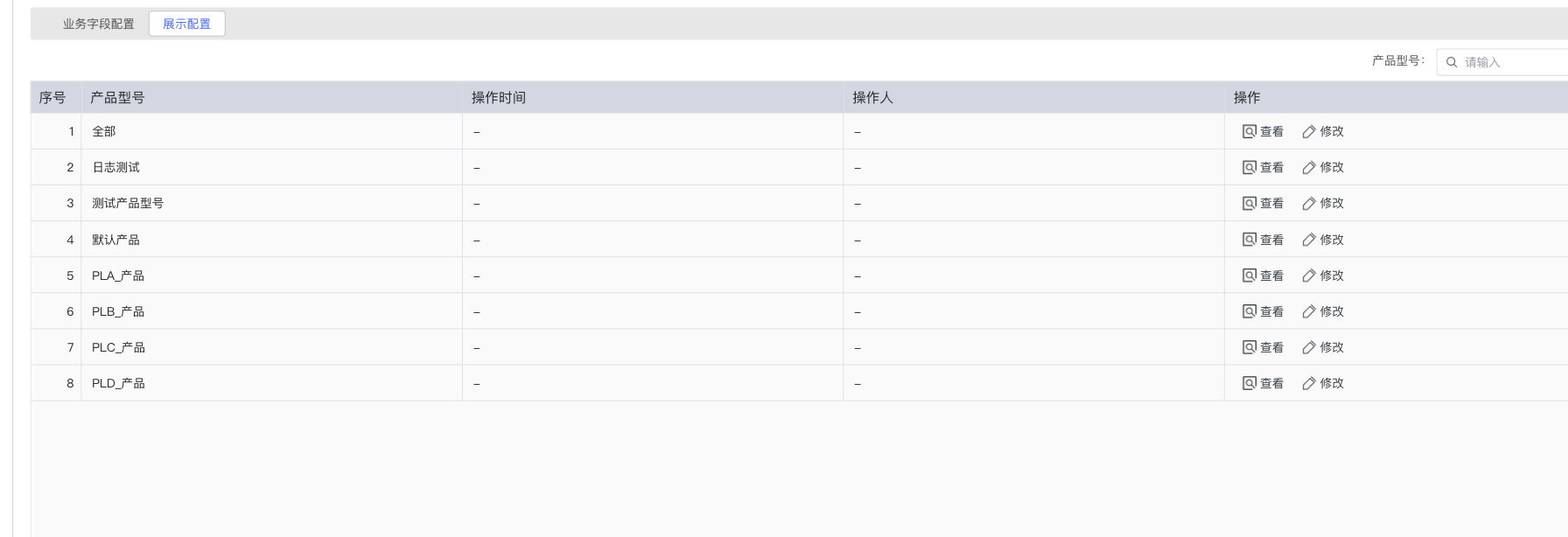
The Report Configuration tab allows users to highly customize the content and fields of the traceability report.
-
Business Field Configuration:
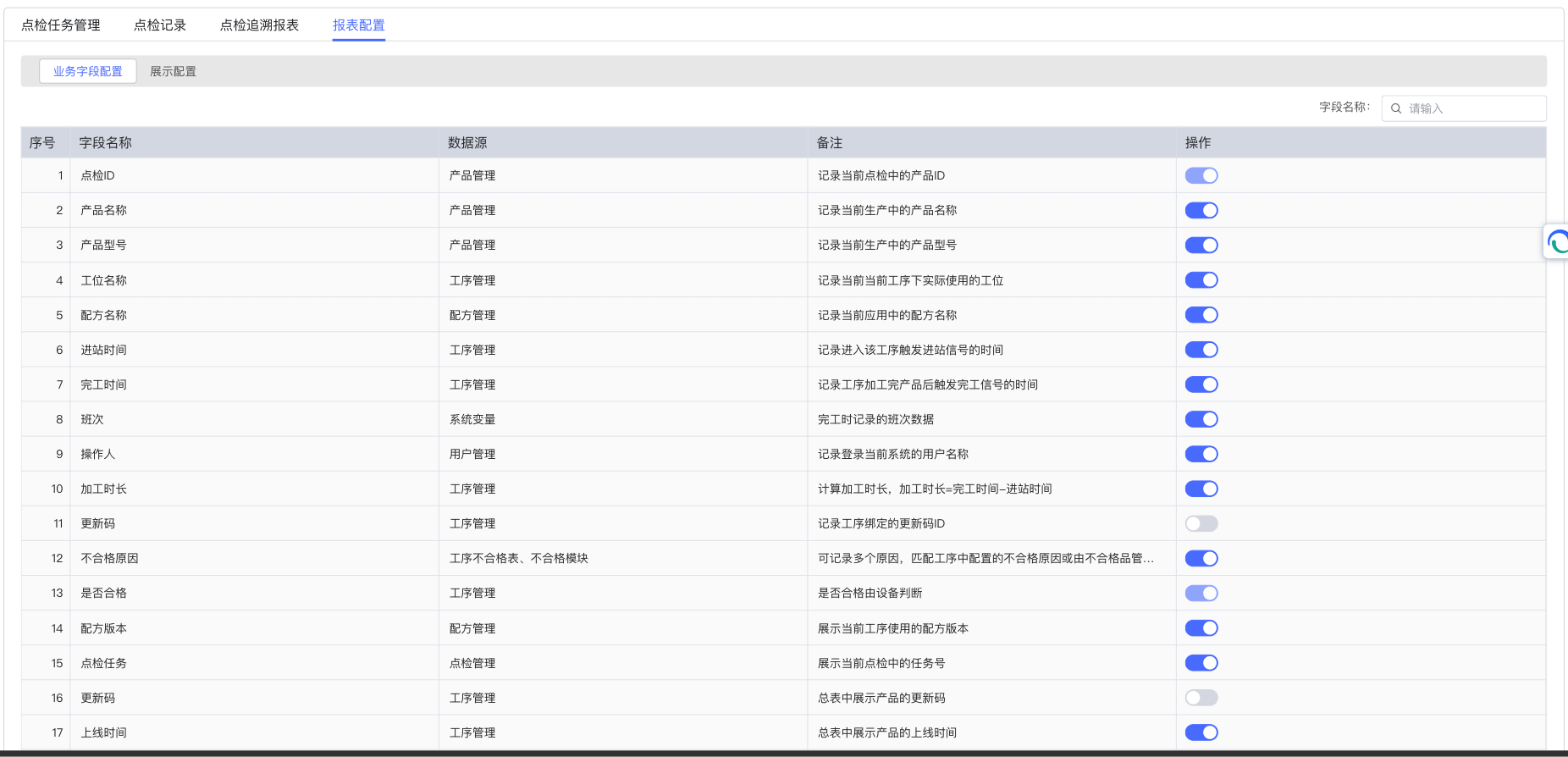
-
Display Configuration: