Manual Board
1. Manual Board Configuration
- Component ID: SopWidgetBox
- Component Name: Manual Board
- Component Category: run (Plugin)
The Manual Board component is located in the plugin module "Manual Board" component, formerly named sop component box, and contains the following components:
- Process Filter
- Step List Component
- SOP File Display Box
- Statistical Parameter Display Box
- Production Parameter List
- Production Material List
- Material Input Box
- Production Control
- Batch Material Operation
- Step Monitoring Display Box
- Process SOP Display Box
1. Process Filter
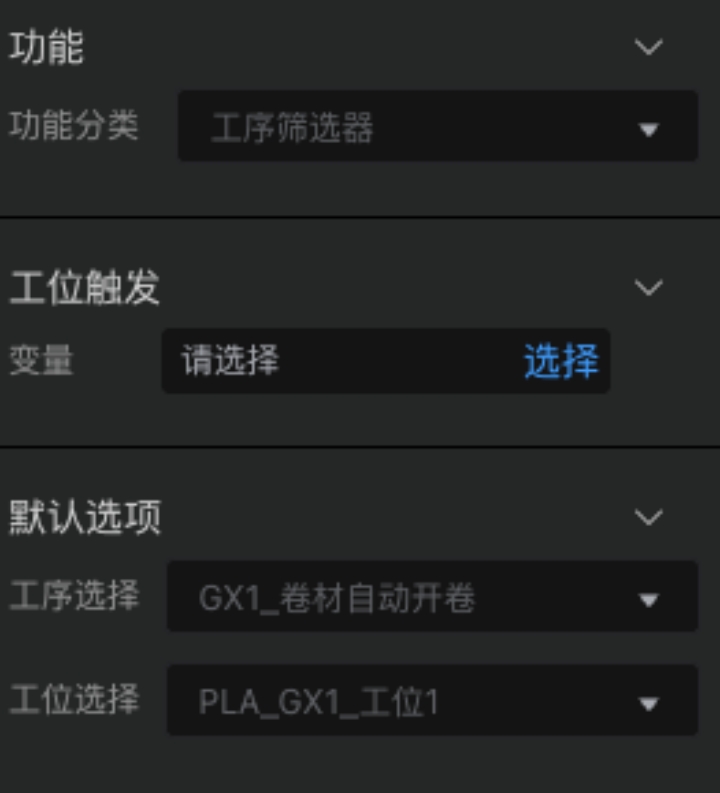
The Process Filter is the entry component of the Manual Board and acts as a trigger for other components. When different stations are selected, it initializes all components on the current page, including sockets, data, message notifications, etc. Currently supported settings include: Default Options, Station Trigger, SOP Selection (Deprecated), etc.
(1) Station Trigger
Station Trigger is a new feature in version 2.7.0. It allows binding a corresponding variable, meaning when the station changes, the selected station is passed to the selected variable, achieving the purpose of associating with CMS system variables for custom functions.
(2) SOP Selection
Currently deprecated. If you encounter issues, please upgrade the version or follow the FAQ below.
 |  |
|---|---|
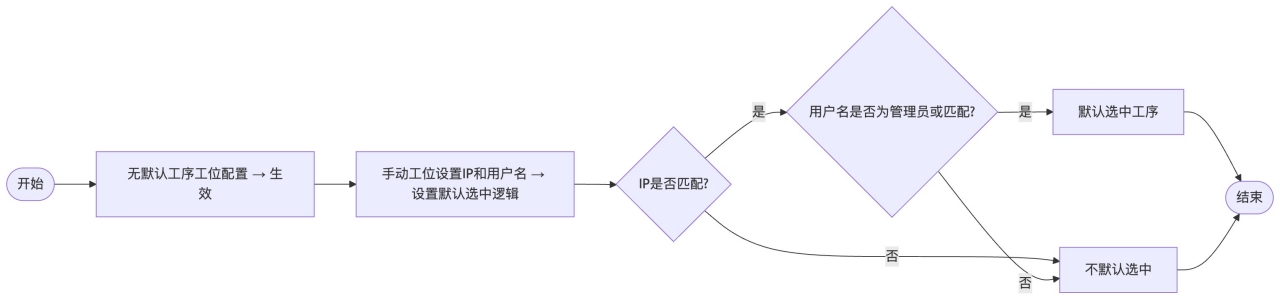
(3) Process/Station Default Selection Function (Supported in 2.6.1)
- Takes effect when no default process/station configuration is set.
- When the manual station has IP and username set, the default selection logic is set.
- When the IP matches, the process is selected by default. It checks if the username is an administrator or matches; if it matches, it is selected; otherwise, it is not selected by default.
2. Step List Component
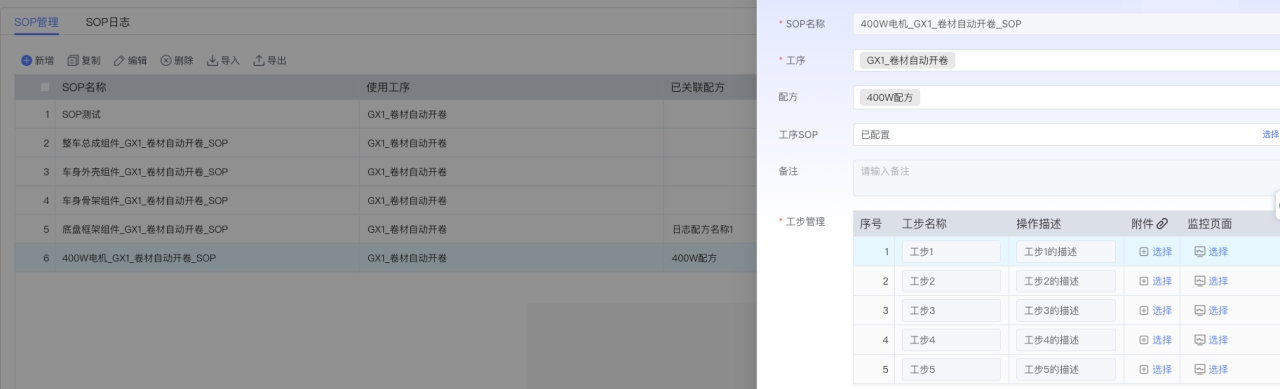
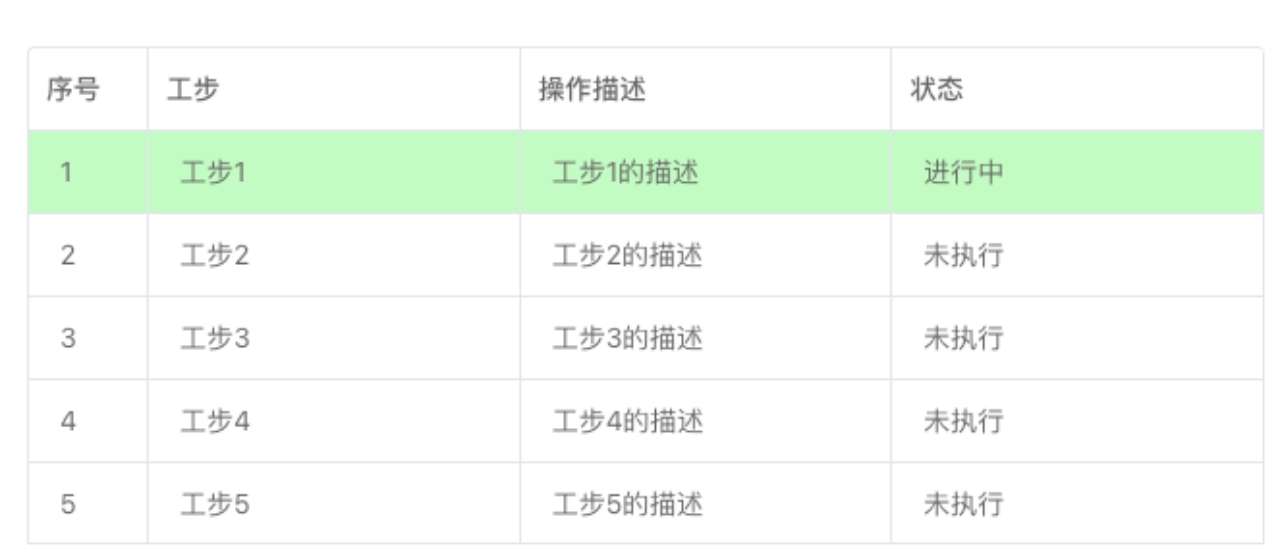
The data for the Step List Component comes from SOP Management, by binding processes and recipes. Creating steps displays the following effect:
3. SOP File Display Box
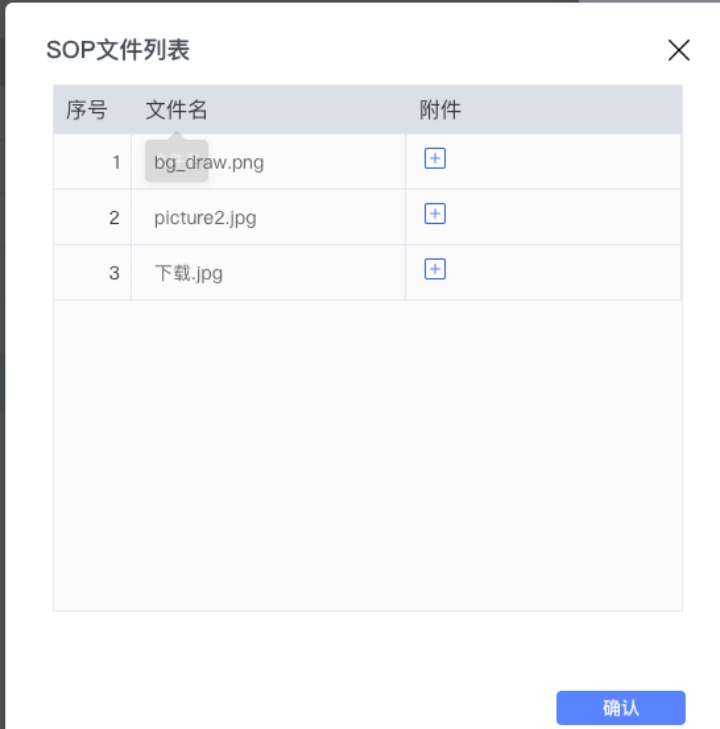
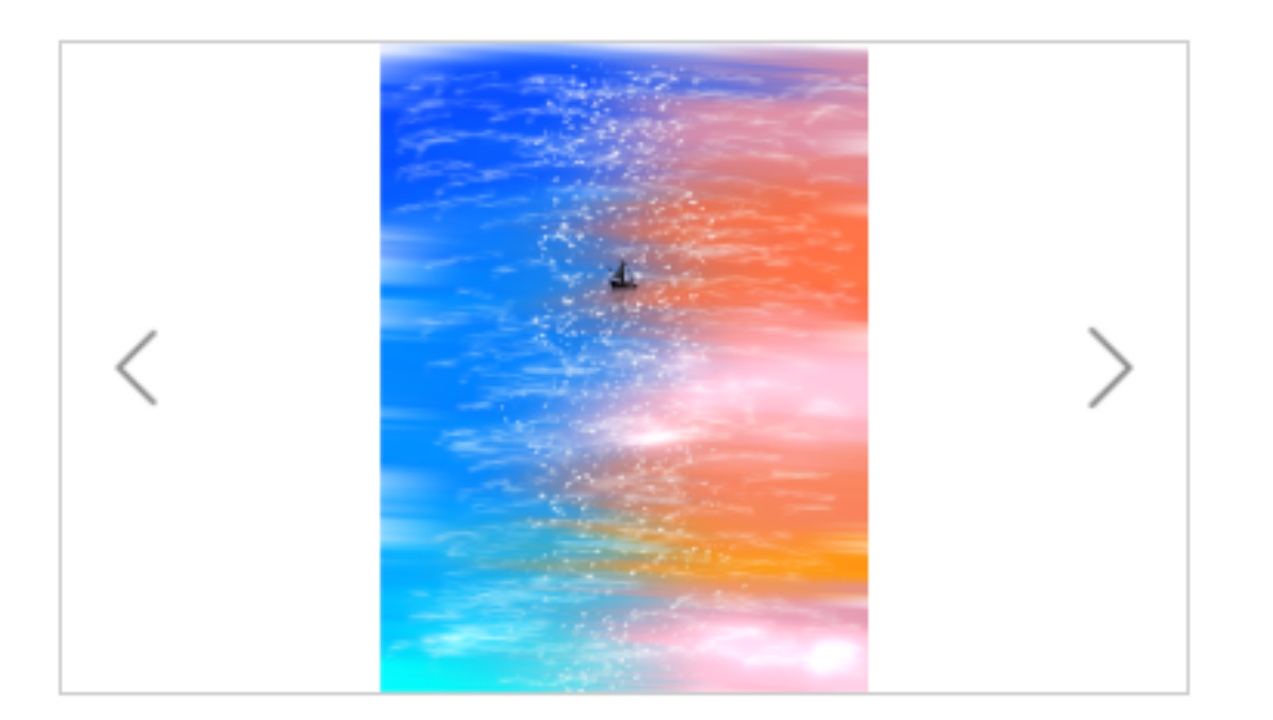
The data for the SOP File Display Box component also comes from SOP Management, supporting the display of images, videos, PDFs, etc.
 |  |
|---|---|
Switch using left and right arrows.
Although the data for the SOP File Display Box comes from SOP, when configuring, please note that the SOP File Display Box and Step List Component are associated. That is, if there is no Step List Component in the page canvas, the SOP File Display Box will not have data.

4. Statistical Parameter Display Box
 |  |
|---|---|
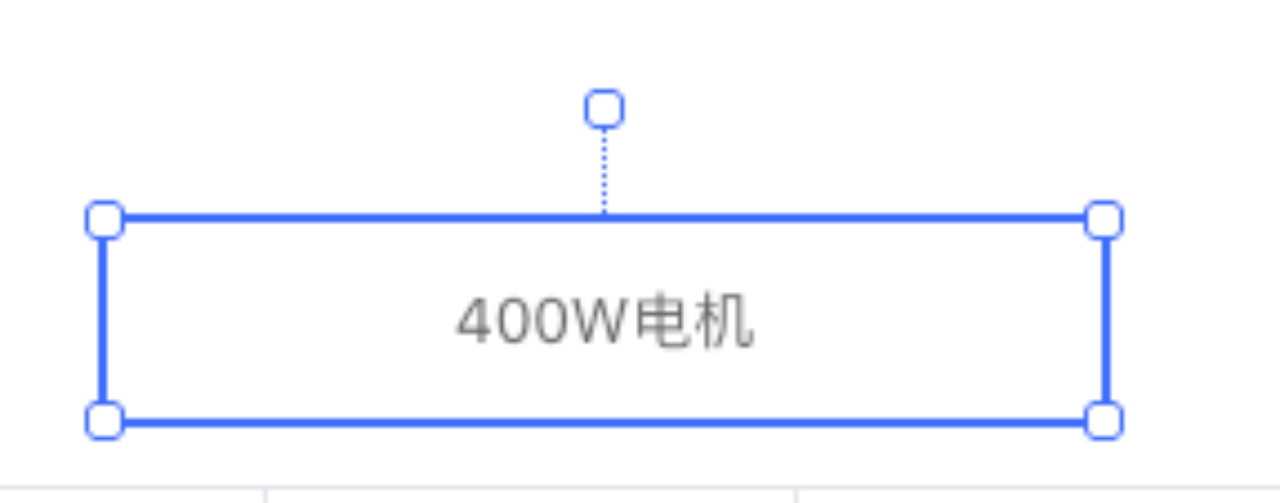
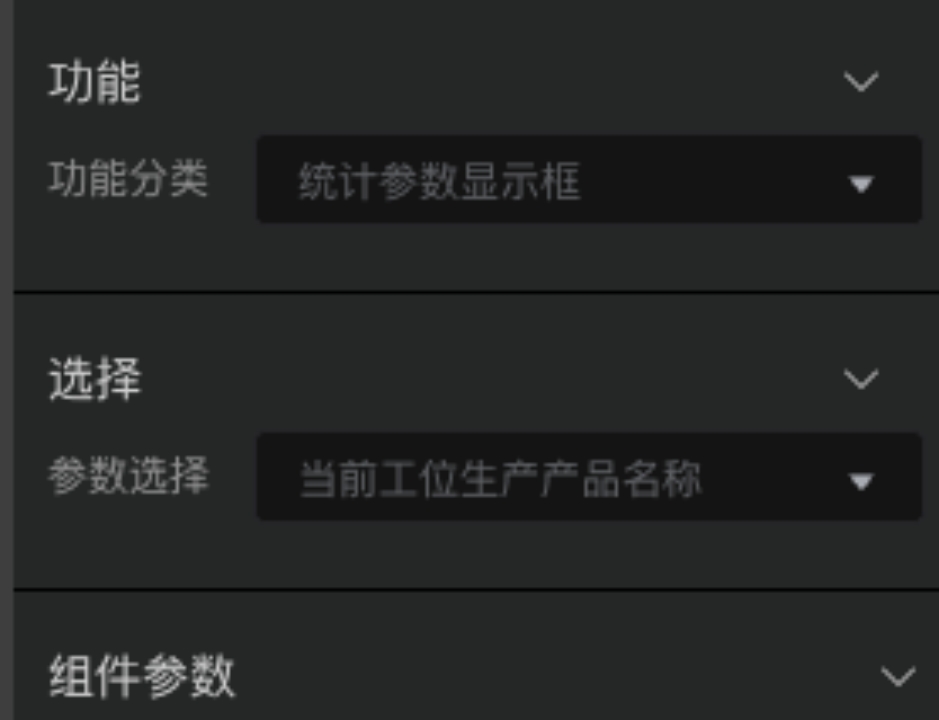
The Statistical Parameter Display Box is used to display business fields of the current process/station, including but not limited to product name, product model, production work order number, etc.
This data displays real-time data by configuring bound variables in the business field settings.
5. Production Parameter List
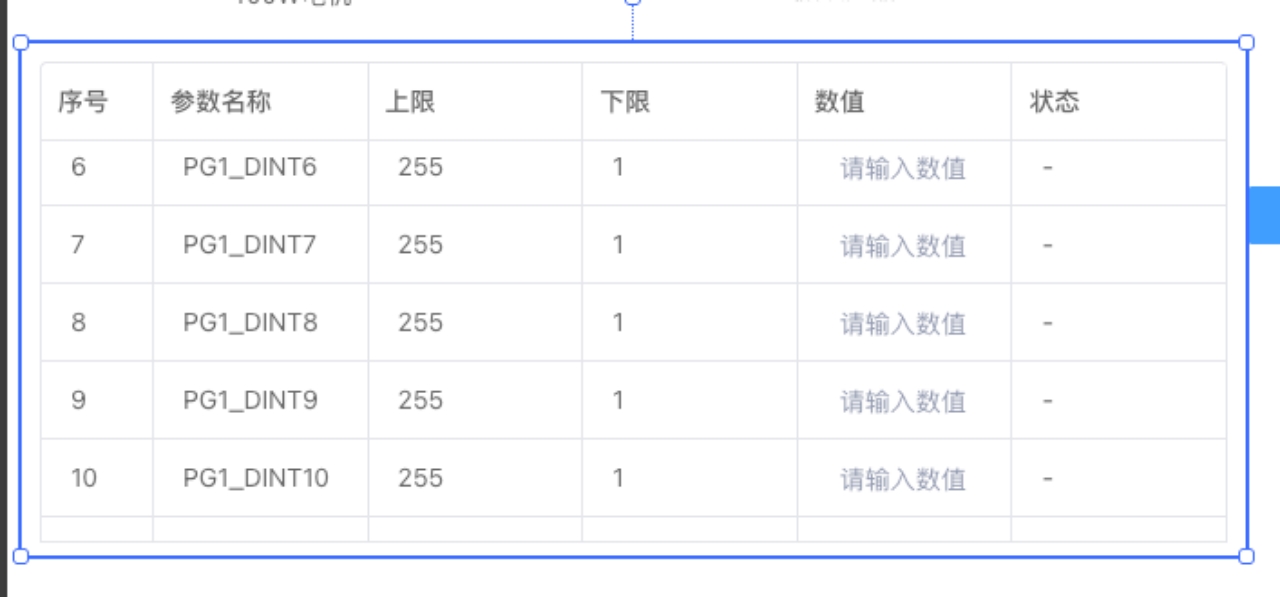
The data for the Production Parameter List comes from Recipe Management, where upper and lower limits can be configured, values bound, etc.
6. Material Input Box
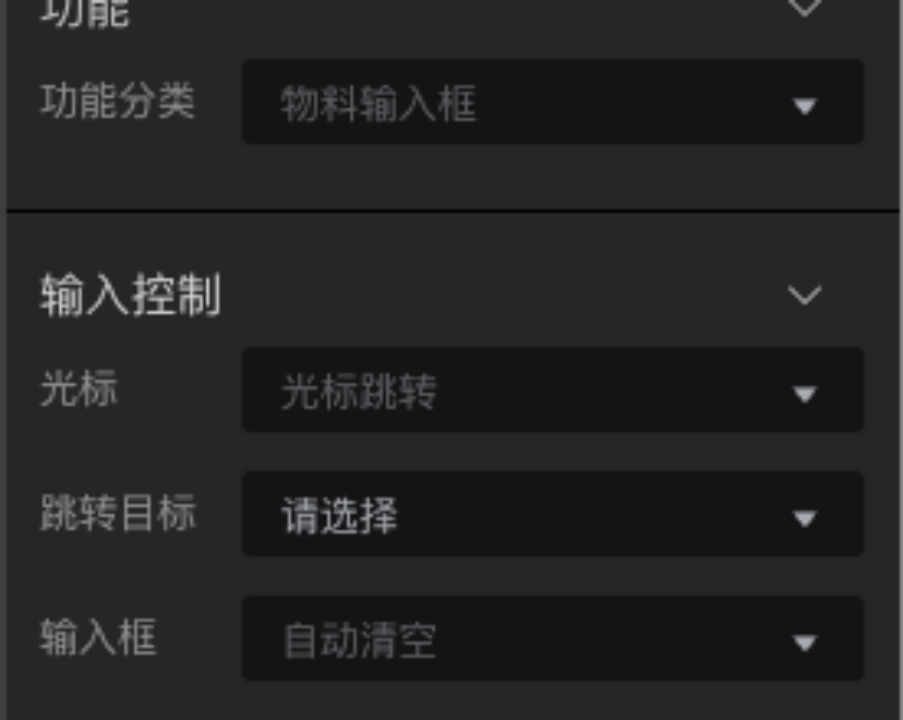
The Material Input Box triggers material verification and writing of material codes via input/scanning. It generally needs to be used in conjunction with the Production Material List component. It features cursor jumping and cursor retention functions, and supports automatic clearing, etc.
 |  |
|---|---|
7. Production Material List Component
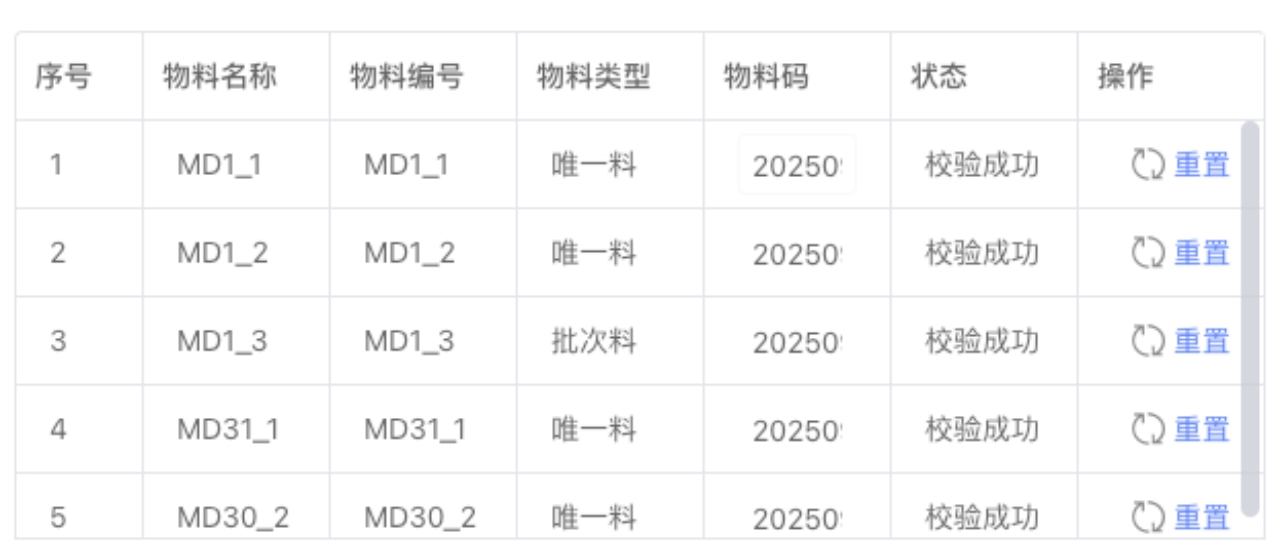
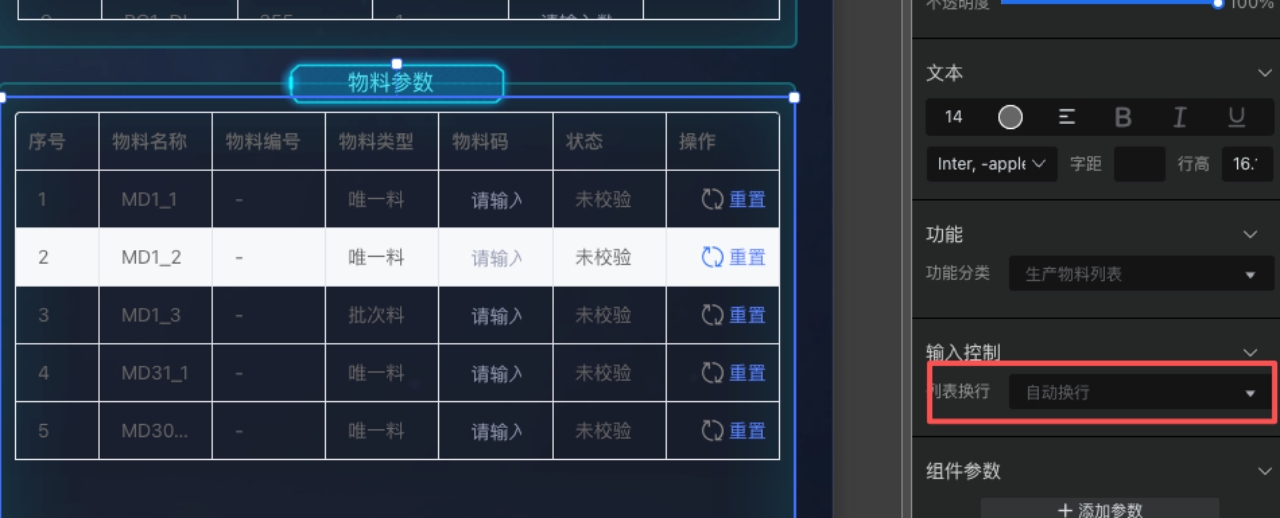
This component supports manual line wrapping and automatic line wrapping.
- Automatic Line Wrapping: After entering according to the material code rules and pressing Enter to trigger material code verification, if successful, it will jump to the next line of the material input box.
- Reset: Clicking reset will clear the material code for the current line.
8. Production Control
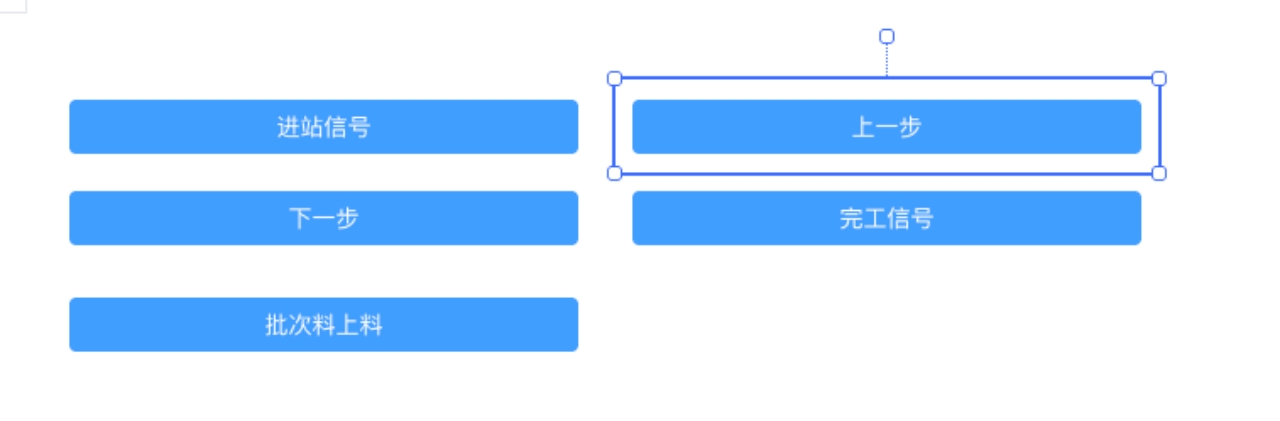
The Production Control component is divided into several types of components, including: Button Component, Read/Write Box Component.
Please pay attention to the configuration process and ensure no variables are missing.
Notes:
Step 1:
Open the Process Management component, right-click the list, select Parameter Configuration.
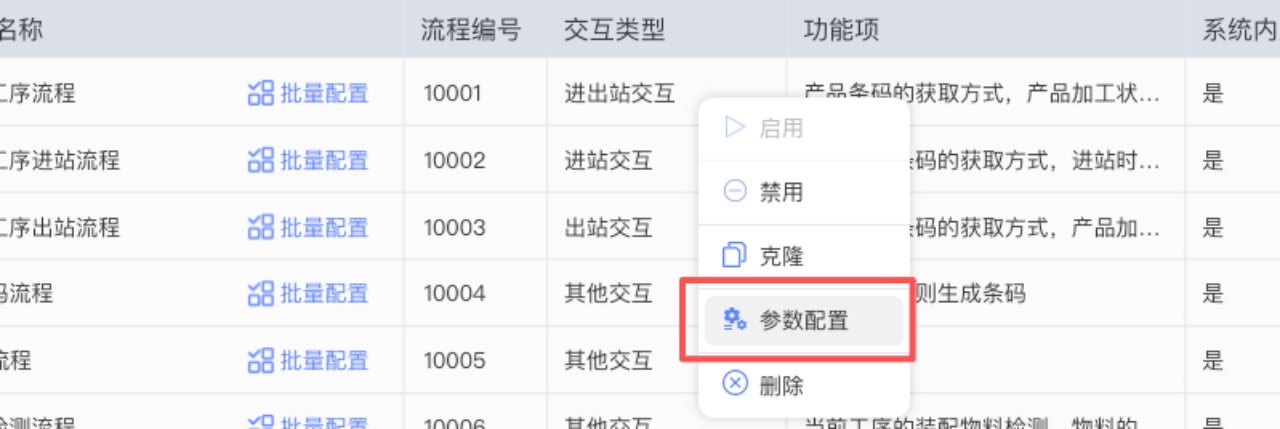
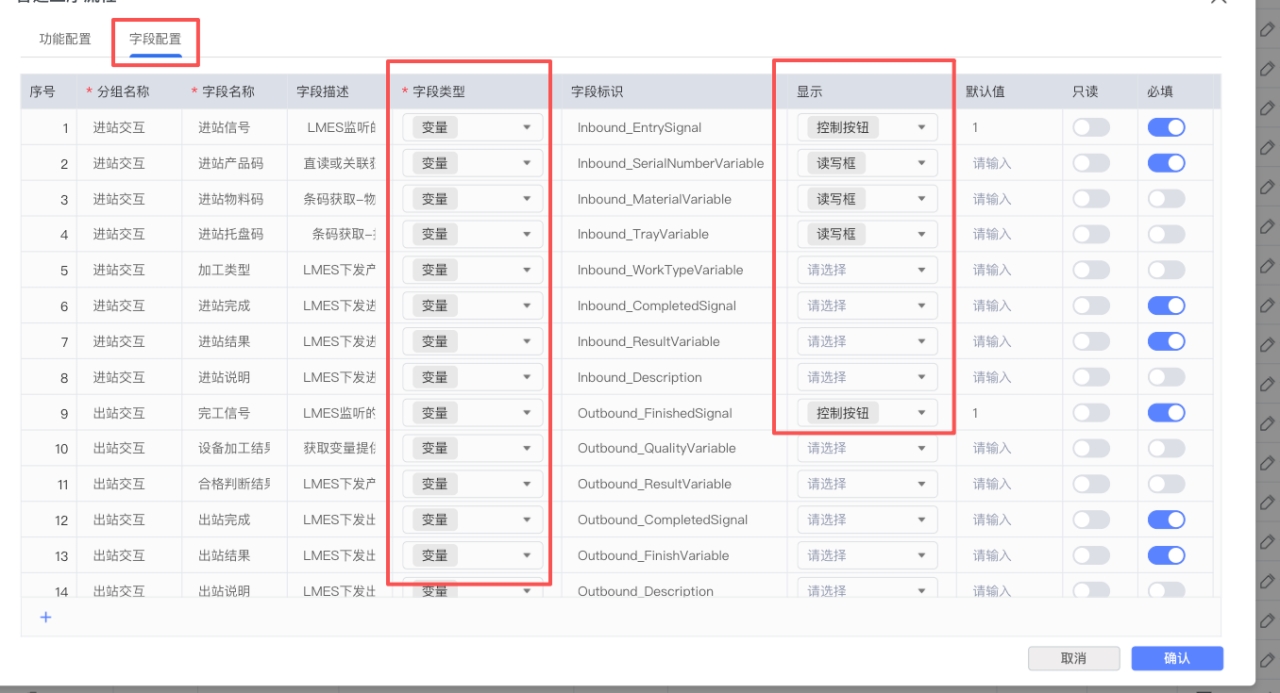
Open the popup and switch to Field Configuration. Select the field type and control button type according to requirements.
Step 2:
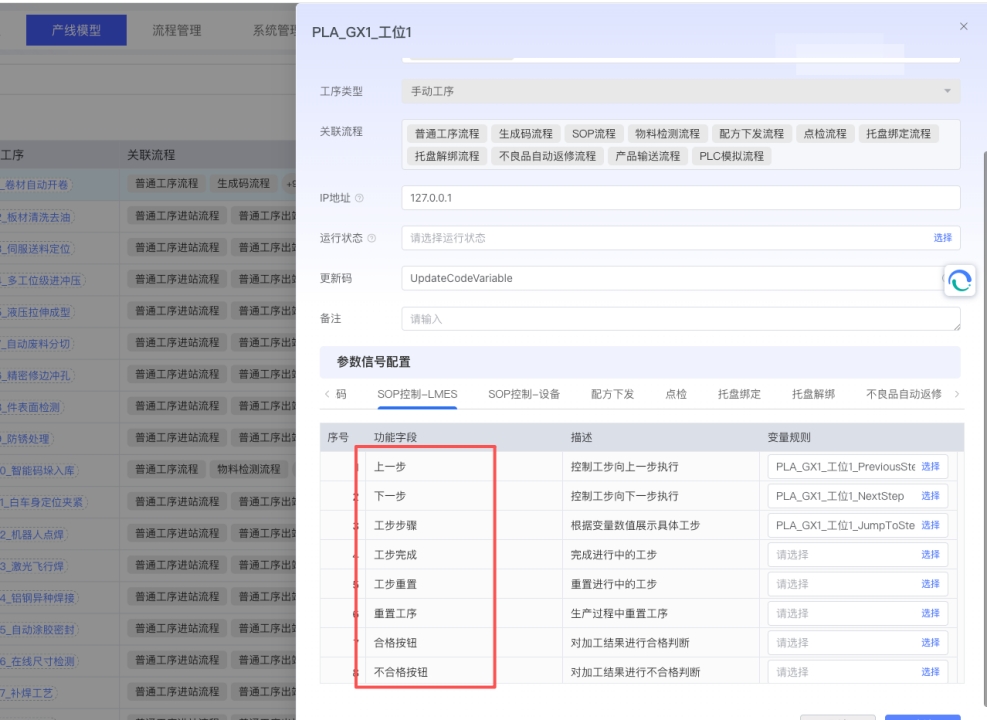
Open Process Management, switch to the Station tab, and configure the corresponding variable rules through Parameter Signal Configuration.
Step 3:
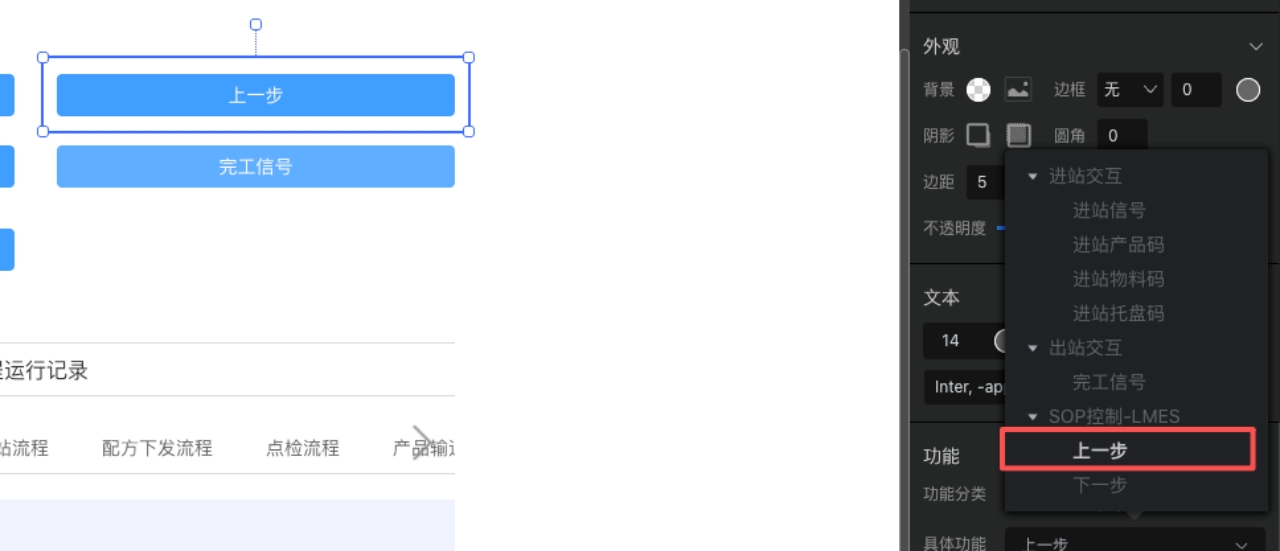
Complete the configuration in CMS. Whenever a button is clicked, the default value configured in Process Management will be issued.
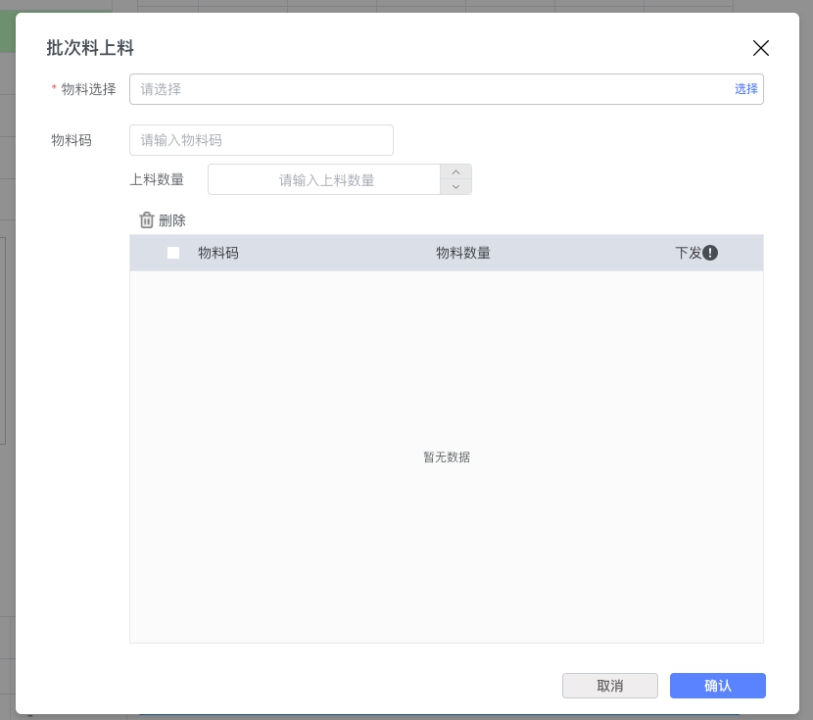
9. Batch Material Operation
10. Step Monitoring Display Box
 |  |
|---|---|
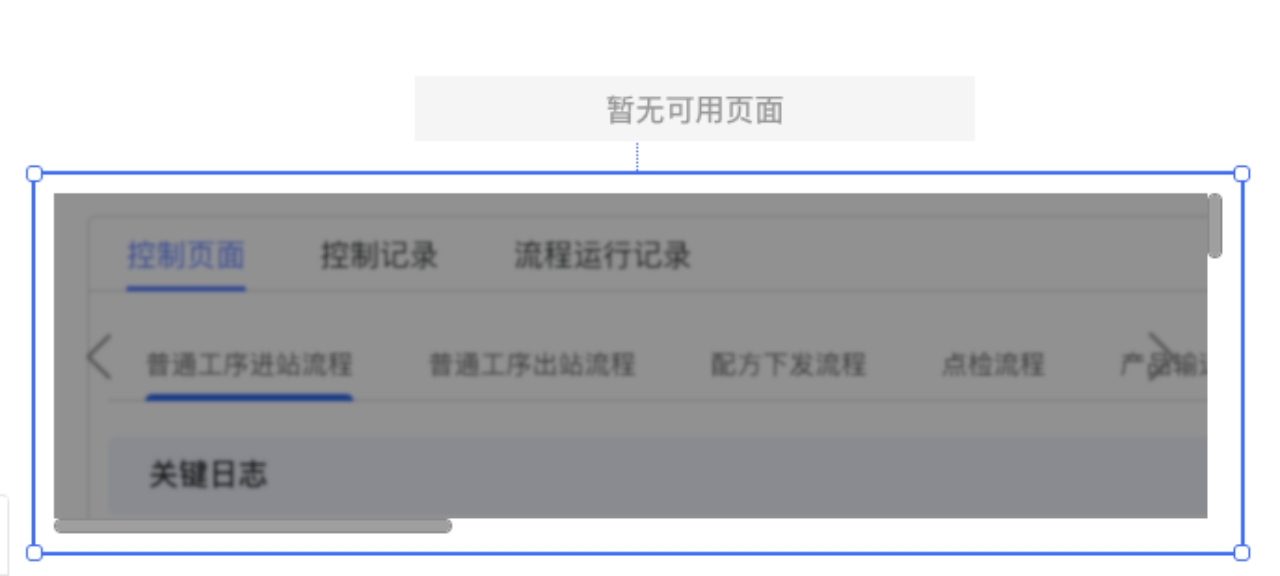
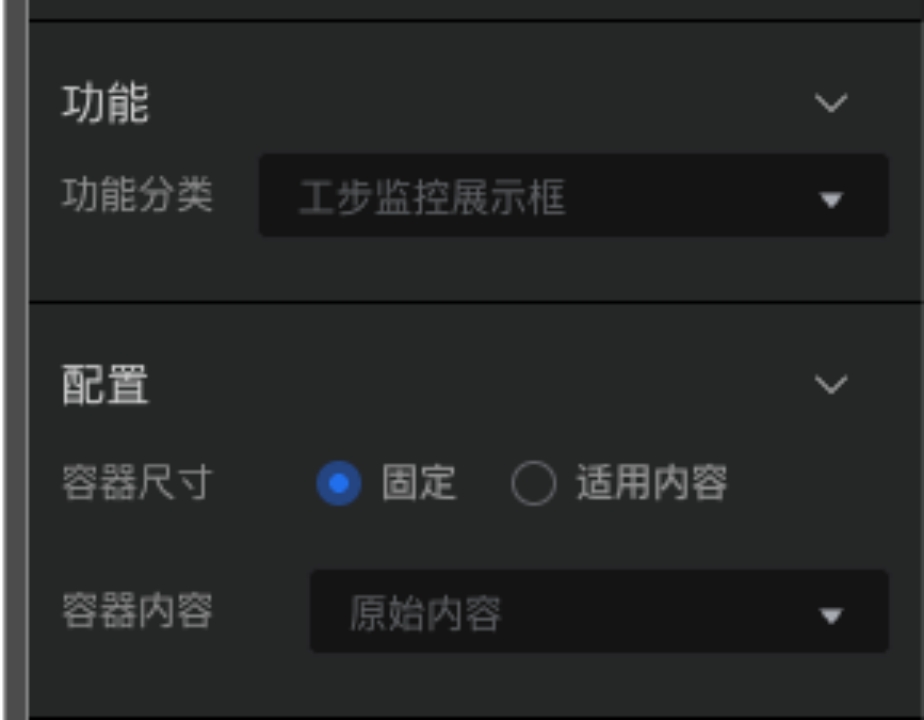
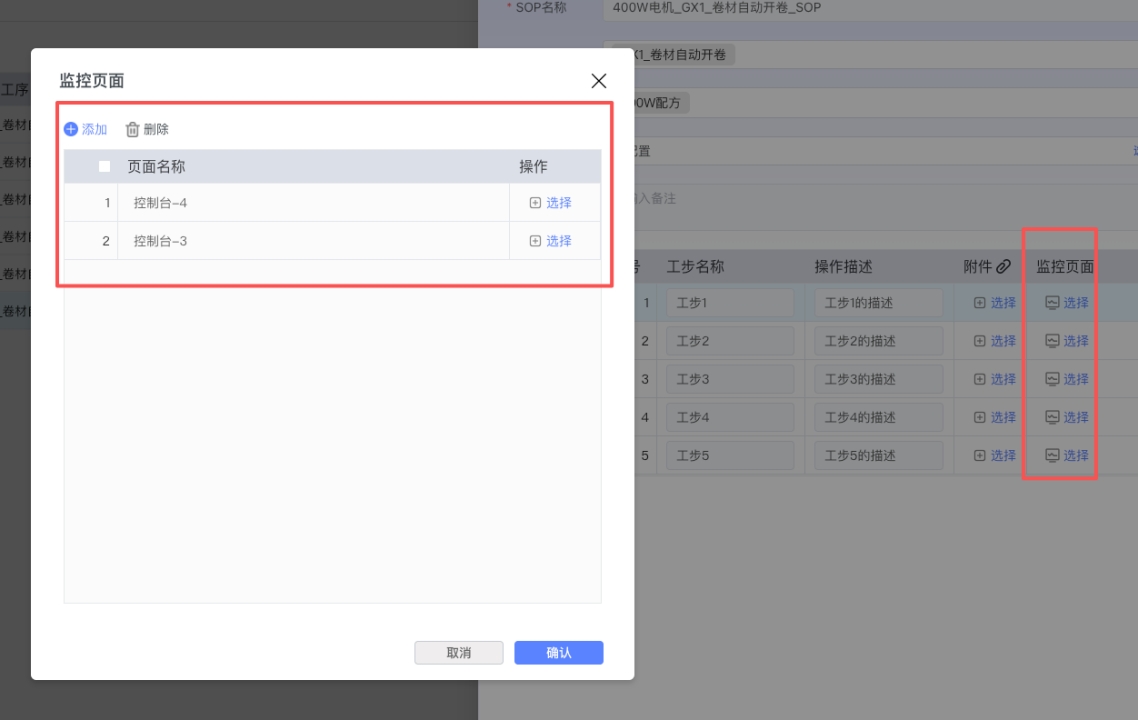
The Step Monitoring Display Box can be configured in SOP Management and then displayed in the Runtime version. It supports switching pages left and right. In the Development version, the container size and content can be configured.
11. Process SOP Display Box
 |  |
|---|---|
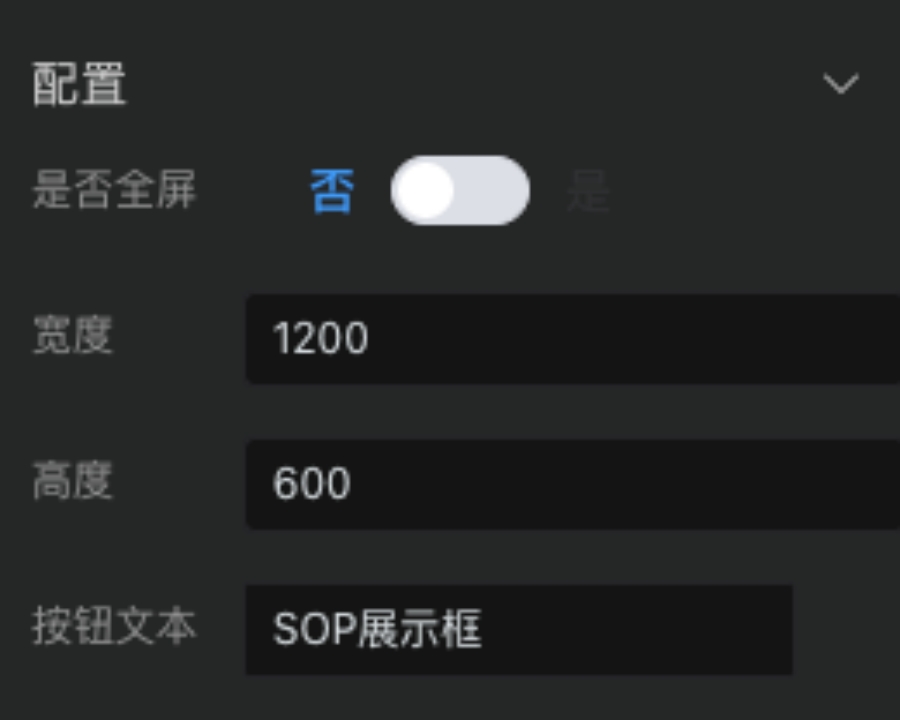
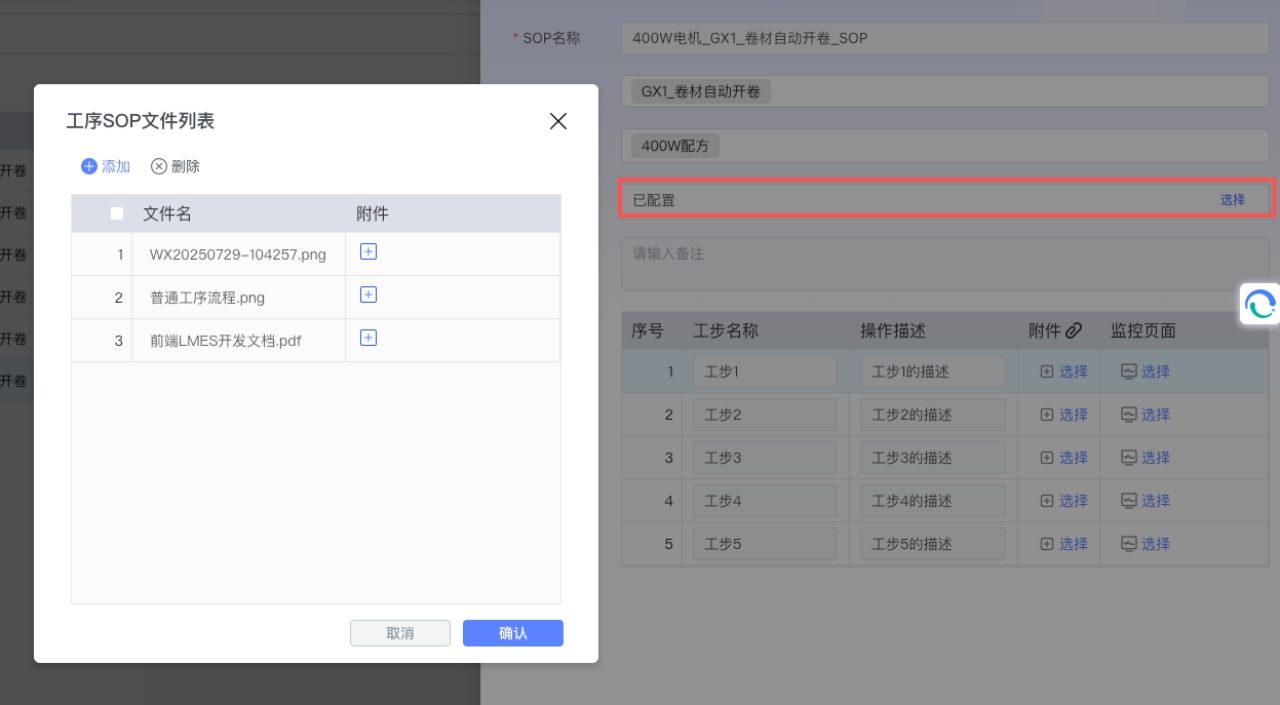
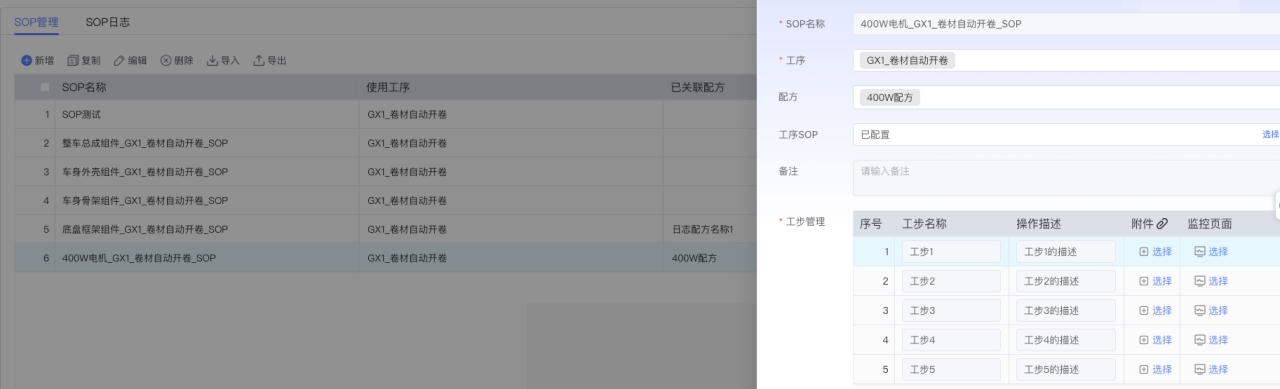
The Process SOP Display Box needs to be configured in SOP Management and supports displaying images, PDFs, videos, etc.
2. FAQ
The following summarizes some common issues:
1. Component Display and Configuration Issues
-
The Manual Board needs to trigger other components (such as the SOP Display Box) through the Process Filter to display, and the process type must be a manual process.
-
When configuring the Manual Board, ensure that the Process Filter exists; otherwise, the components will not take effect.
-
Abnormal display on some pages under the same configuration (e.g., only one displays) may be caused by permission or Socket push issues.
-
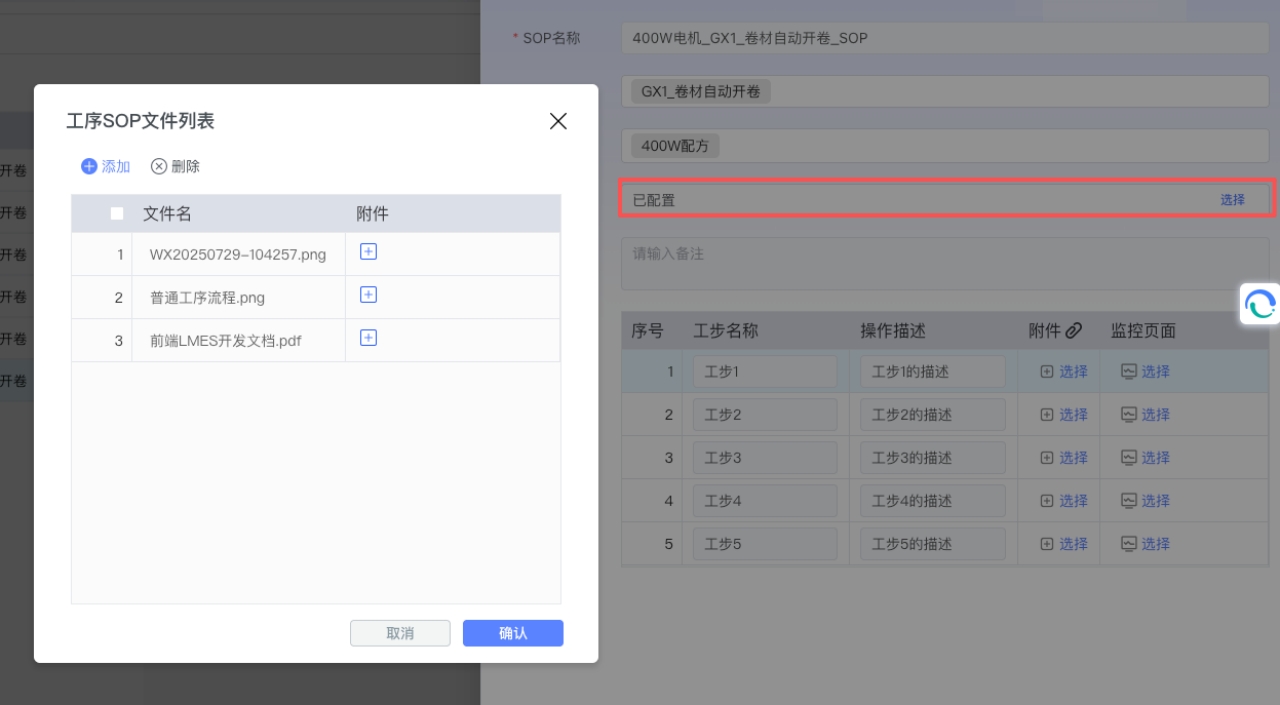
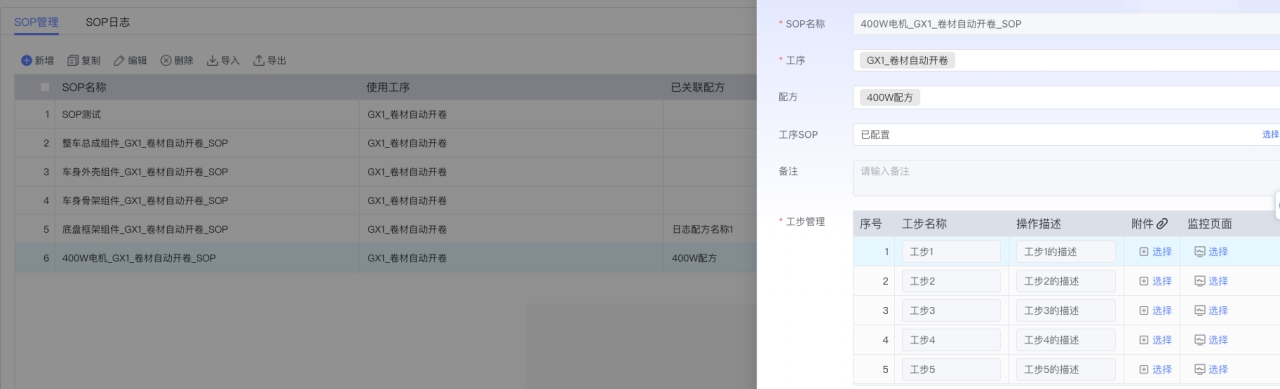
There is a difference between SOP File Display and Process SOP. The former is at the step level, and the latter is at the process level.
2. Data Display Anomalies
-
Indicator data does not update after successful station entry, and needs to switch pages and return to display normally; material data disappears after switching pages and needs to re-trigger station entry.
- The issue of indicator data not updating after station entry has been fixed in 2.6.1, supporting switching different stations and reading variable content in real-time.
- If material data disappears after switching pages, re-trigger station entry or check if the work order exists.
-
Opening the Manual Board, a process/station is selected, but there is no data.
- First determine if the current product code has entered the station. After filling in the product code, press Enter and click Station Entry.
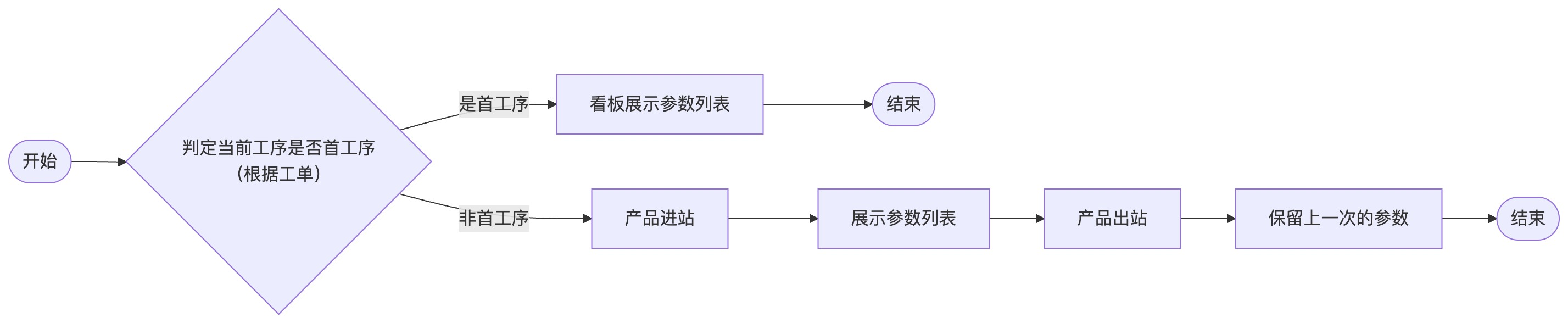
- If there is data after entry, but no data after refreshing the page, check if there is a work order configuration in Work Order Management. Data display follows the logic push below.
-
SOP file does not display, and there is no image or file when switching.
- Check Step Management -> Attachments in SOP Management. If data exists, click preview to see if the file preview is normal.
-
SOP Process Preview 404
- Same as above, check SOP Management Step Configuration.
-
Material input box jumps to the material parameter list after scanning is completed.
- Known bug, fixed in 2.6.1.
- If you do not want to apply the patch, you can use a temporary solution: modify the input control of the material parameter, changing automatic line wrap to manual line wrap.
3. Component Function Unresponsive
-
Production Control component button click does not take effect
- Clicking the production button essentially triggers by changing the variable. The default value of the variable is in Process Management -> Right Click -> Parameter Configuration -> Default Value.
- In addition, the input box in Production Control is also triggered by changing the variable via Enter.
-
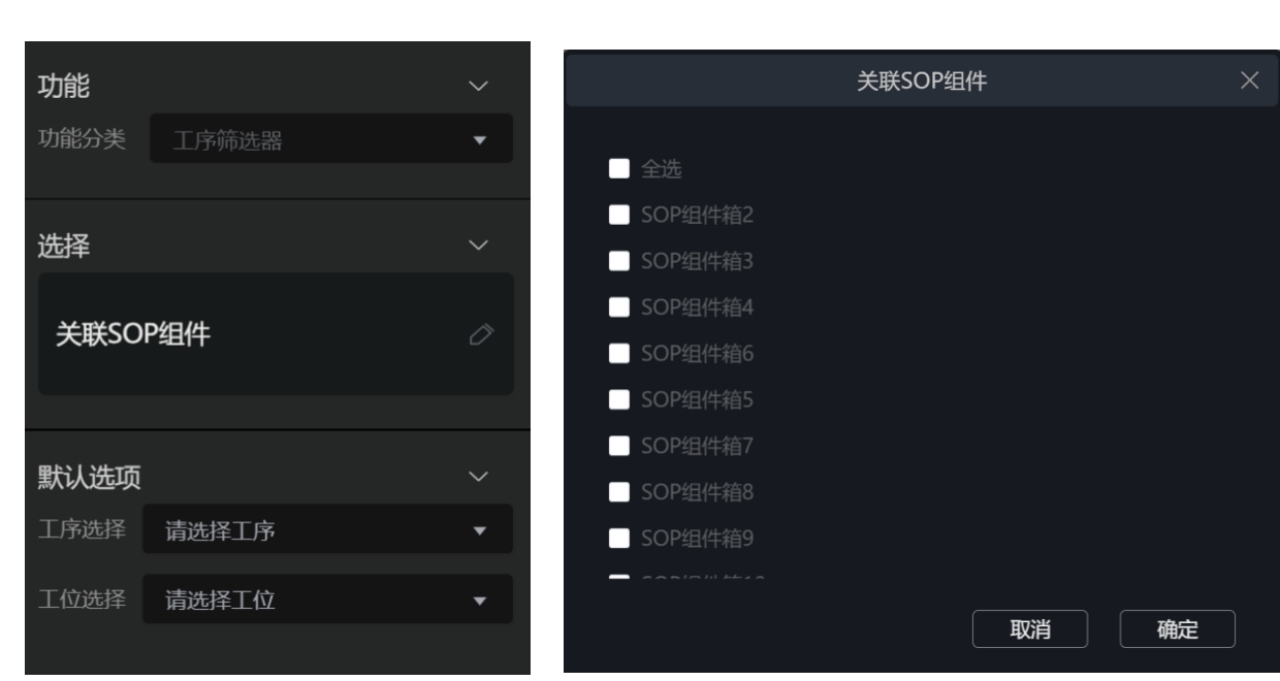
Process Filter Configured the Process Filter, but the dragged-in components did not update with the station.
- Method 1: Check Process Filter -> Associate SOP Components -> Open Popup -> Check all associated SOP components.
- Method 2: Upgrade to the new version. The new version has removed the SOP association function, and dragged-in components automatically complete the association.
-
404 Frequent Request Issue
- Frontend component version and backend version are inconsistent, /hubs/v1/easy-notice.
- Upgrade the frontend patch to the latest version. The latest version has modified the reconnection mechanism.
-
Input product code and press Enter/Click Station Entry with no response
- Check if the Station Entry button has default parameters configured, and check if Process Management has configured variables for that flow.
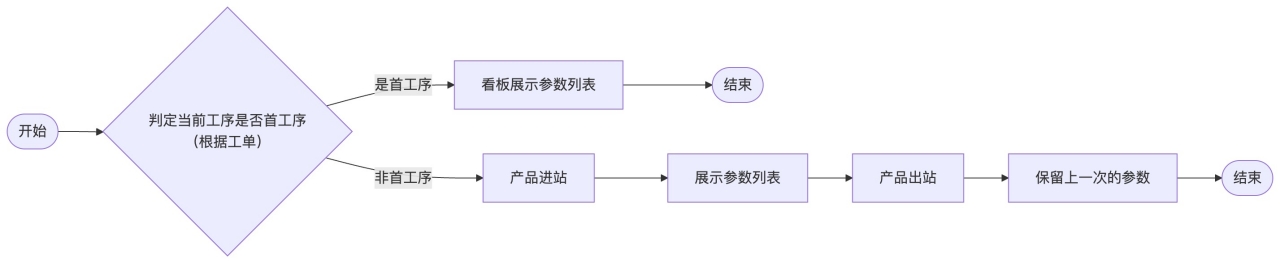
3. Future Improvements
1. SOP Socket Unification
Currently, multiple sockets connecting simultaneously may cause server performance degradation. The specific reason stems from the initial SOP selection function, which previously supported different process filters to trigger different components. Later, considering that a page will only have one board, this function was removed.
Subsequent Optimization: Aggregate multiple sockets into one to improve performance and debug efficiency.
2. Add SOP Log Tool
Add data trigger and log recording components to quickly locate issues.