Metric Configuration
1. Module Overview
Core Functions: The "Metric Configuration" module is a flexible configuration center used to dynamically manage business metrics (also called "business fields" in the system) at various levels in the production process. Users can configure the data metrics to be monitored, collected, or calculated and their corresponding variable values for three different levels of nodes: Complete Production Line, Process Segment, and Specific Workstation. This module is a key foundation for achieving refined and digital management of the production process.
- Component ID: BusinessFieldSetting
- Component Name: Business Field Setting
- Component Category: run (plugin)
2. Scenario Description
- You will need to use this module in the following business scenarios:
- New Production Line/Workstation Commissioning: Configure production metrics that need to be tracked for new production units (including process segments and workstations), such as output, qualification rate, equipment status, etc.
- Process Flow Changes: When production processes are adjusted and monitoring parameters need to be added, removed, or modified for a process segment or workstation.
- Data Dashboard Customization: Configure data sources required for large screens or reports, associating metrics on the interface with calculation variables in the backend.
- Batch Configuration Updates: When the same metric needs to be uniformly adjusted for multiple workstations, the import/export function can be used for efficient operations.
3. Function Introduction
-
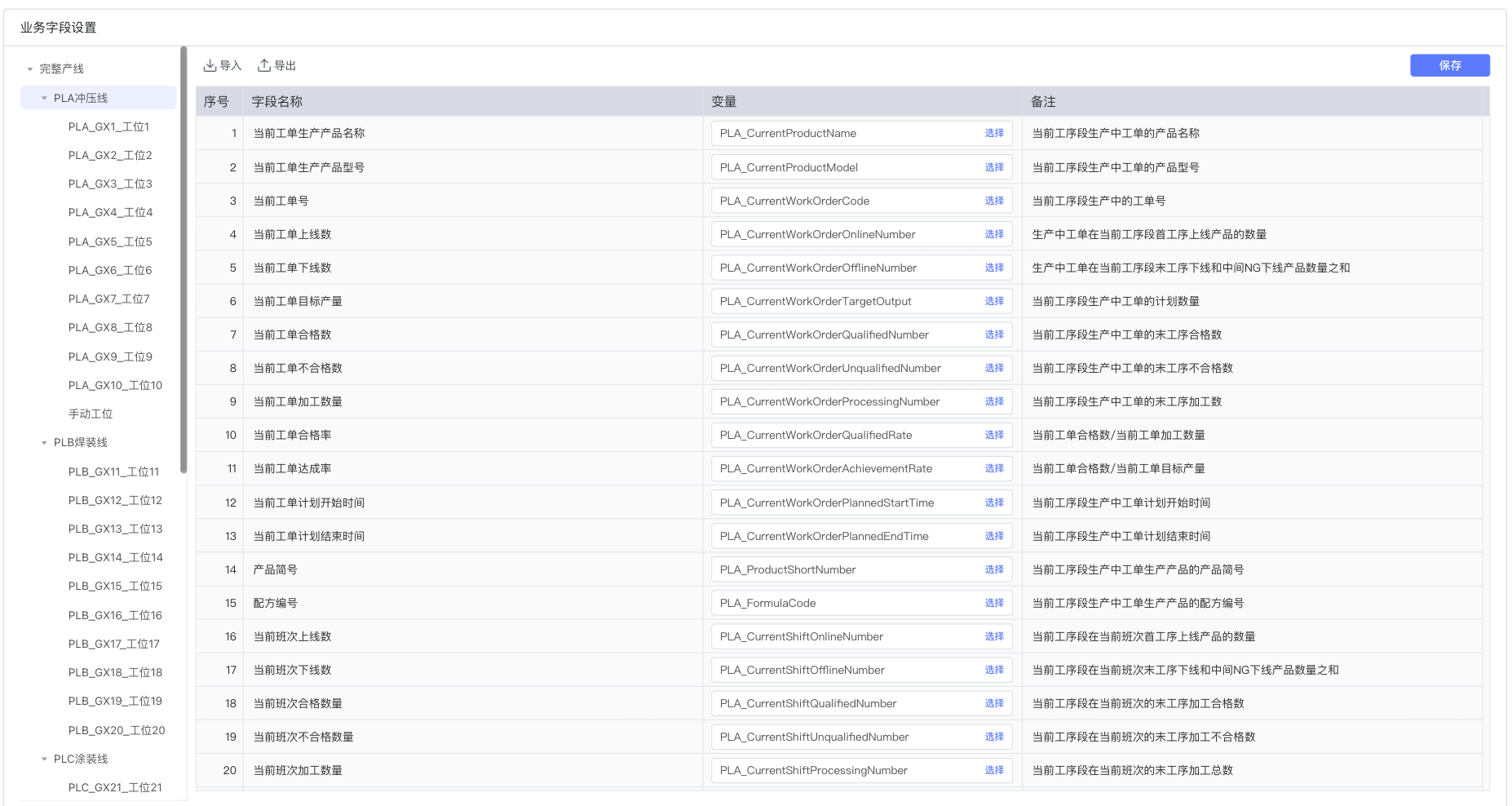
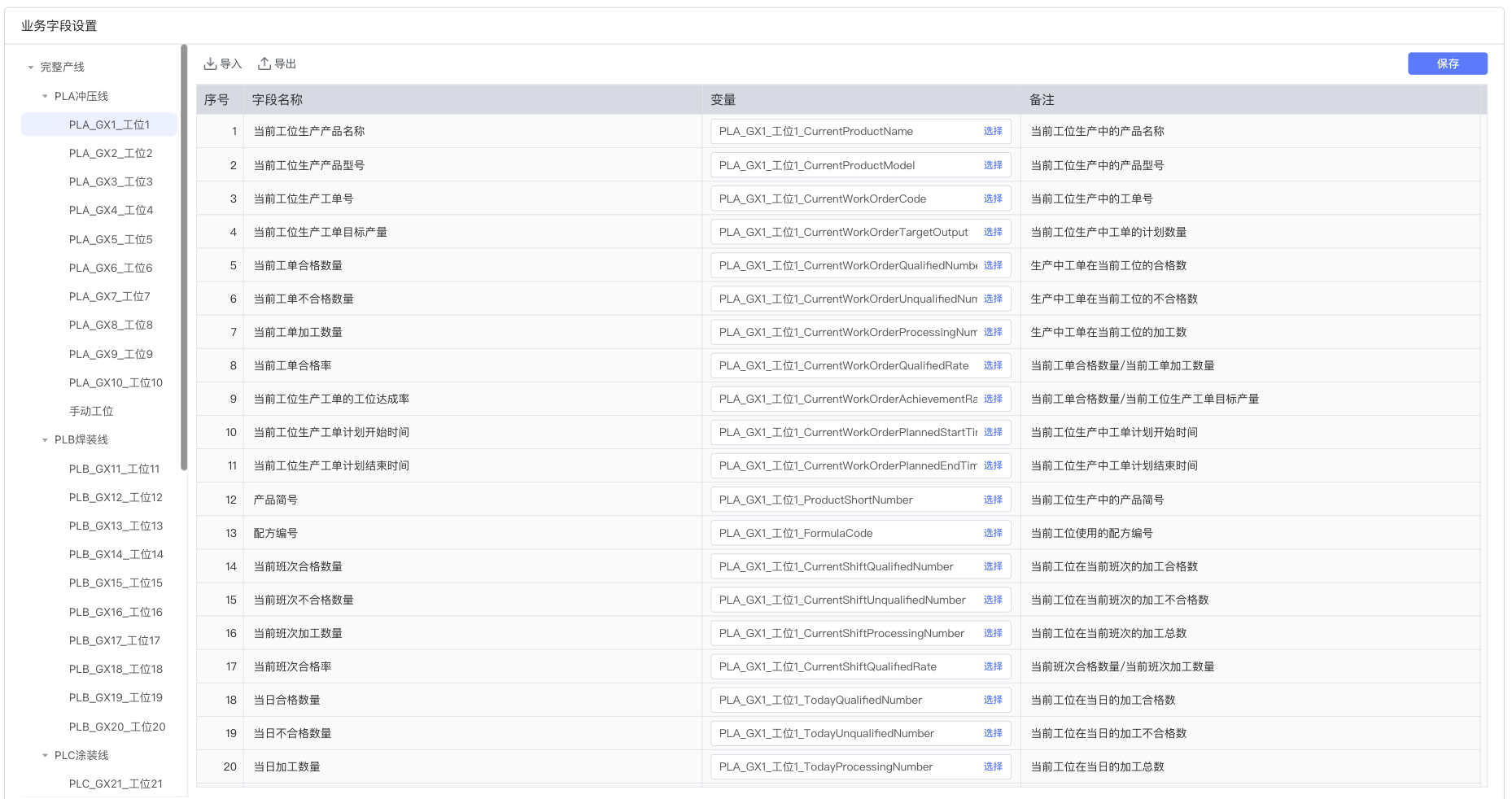
Interface Overview: The module interface is mainly divided into left and right areas. On the left is the "Production Line Hierarchy Navigation Tree", which clearly displays the complete hierarchical relationship from "Complete Production Line" to "Process Segment" (such as "PLA Production Line Group" in the screenshot) to specific "Workstation" in a tree structure. On the right is the main operation area, including function buttons (Import, Export, Save) and the "Metric List" of the currently selected node.
-
3.1 Production Line Hierarchy Navigation
- The navigation tree on the left is your starting point for metric configuration. It fully displays the three-level structure:
- Top Level Node: "Complete Production Line", used to configure global metrics.
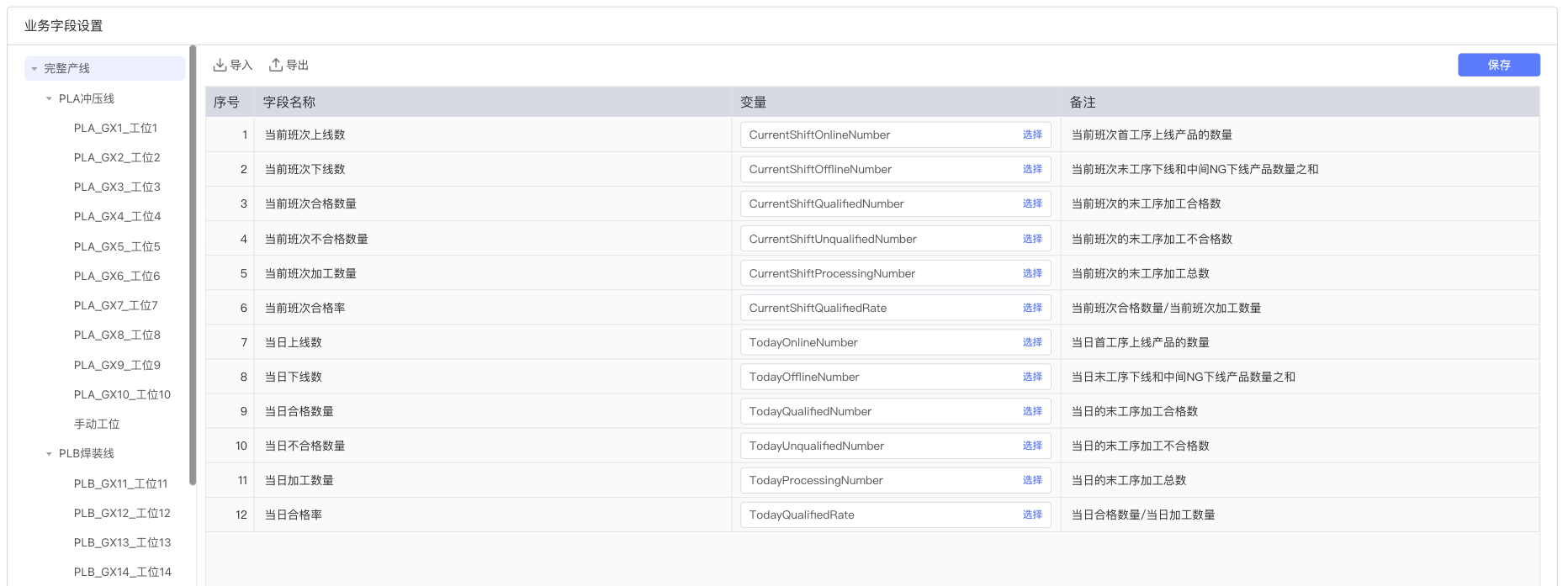
- Middle Level Nodes: "Process Segment", such as "PLA Production Line Group" and "PLB Production Line Group" in the screenshot, used to configure aggregated or specific metrics within the process segment scope.
- Bottom Level Nodes: Specific "Workstations", such as "PLA_GX1_Workstation1", used to configure unique operation or monitoring metrics for that workstation.
- Top Level Node: "Complete Production Line", used to configure global metrics.
- By clicking on any node in the tree, you can load and display its exclusive metric list on the right side.
- The navigation tree on the left is your starting point for metric configuration. It fully displays the three-level structure:
-
3.2 Metric List and Configuration
- After selecting a navigation tree node, the right table will display all configurable metrics for that node.
- Field Name: The name of the metric, such as "Current Shift Batch Online Count", "Current Order Planned Quantity", etc., predefined by the system and cannot be modified.
- Variable: This is the core configuration item of this module. You need to fill in the specific numerical value or system-defined variable name for the corresponding "Field Name" in this column. This value will serve as the data source for metric calculation or display.
- Remarks: Supplementary explanation for "Field Name", helping to understand the business meaning and statistical scope of this metric.
- Save: After making any modifications to the "Variable" column, be sure to click the "Save" button in the upper right corner to make the configuration take effect.
-
3.3 Import/Export
- To facilitate batch operations and configuration backup, this module provides powerful Excel import/export functionality.
- Export: Click the "Export" button, and the system will generate an Excel file with the metric configuration information for all current production line nodes. In the file, each production line node (whether complete production line, process segment, or workstation) will correspond to an independent worksheet (Sheet), with the worksheet name being the node name.
- Import: Click the "Import" button and select an Excel file that meets the format requirements for upload. The system will match production line nodes based on the worksheet names in the file and batch update the "Variable" values of corresponding metrics.
5. Best Practices and Precautions
- Exact Match: When using the import function, please ensure that the worksheet (Sheet) names in Excel are completely consistent with the node names in the navigation tree on the left side of the system, otherwise the system will not be able to recognize and update the configuration.
- Data Type: Although the "Variable" column is a text input box in the interface, different metrics may require specific types of data in the backend (such as numbers, text, etc.). Please input compliant data according to the metric's "Remarks" description.
- Backup Configuration: Before making large-scale modifications or using the import function, it is recommended to use the "Export" function to backup the current full configuration to prevent misoperations.
- Hierarchical Configuration: The system supports metric configuration at three levels: Complete Production Line, Process Segment, and Workstation. Please configure at the correct level according to business needs:
- Complete Production Line: Used to statistically analyze macro data for the entire production line (such as daily total output).
- Process Segment: Used to statistically analyze aggregated data for specific production stages (such as qualification rate for a painting segment).
- Workstation: Used to configure the workstation's own micro and real-time data (such as current order, current shift output).