Product Transport
1. Module Overview
Product Transport is a key functional module in the LMES system used for configuring and controlling the physical movement of products on the production line. Through a visualized graphical interface, it allows users to precisely define various parameters of product transport, including transport dimensions, station selection, transport modes, and visual effect control. This module plays an important role in production process modeling and operation management, ensuring that products can be accurately transferred between stations according to predetermined paths and methods.
- Component Identifier: ProductDelivery
- Component Name: Product Transport
- Component Category: run (Plugin)
Core Function: Achieve intelligent transport control of products on the production line through parameterized configuration, supporting multiple transport modes and visual effect customization.
2. Scenario Description
In intelligent manufacturing production lines, products need to flow between different stations. For example:
- Assembly Line Scenario: Products need to be transported from the loading station to the assembly station, and then to the inspection station.
- Machining Scenario: Workpieces need to move between multiple machining stations according to specific paths.
- Quality Inspection Scenario: Products need to be transported to the quality inspection station for inspection.
The Product Transport module allows production managers to visually configure these transport processes, precisely control the speed, range, and visual presentation of transport, ensuring the smooth operation of the production process.
3. Function Introduction
Interface Overview
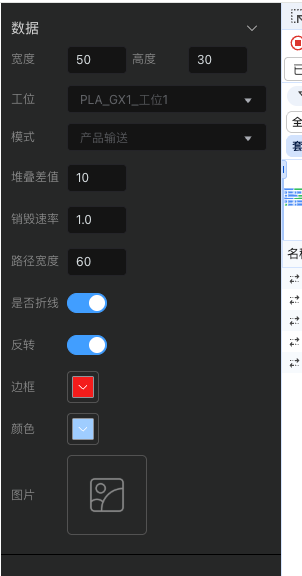
The Product Transport module adopts a left-side configuration panel design, providing complete transport parameter setting functions. As shown in the figure below, the interface is divided into a "Data" configuration area and a visual preview area. All core configuration items are concentrated in the dark panel on the left, and the white area on the right is used for real-time preview of transport effects.
3.1 Transport Dimension Configuration
Transport dimensions define the spatial occupation range of products during transport. As shown at the top of the configuration panel, this function provides two key parameters:
- Width: Numerical input box, used to set the width value of product transport (set to 50 in the example)
- Height: Numerical input box, used to set the height value of product transport (set to 30 in the example)
These two parameters jointly determine the visual size of the transport path, helping users accurately present the movement range of products in the 3D view.
3.2 Station Selection
The Station dropdown selector is used to specify the target transport station for the product. Clicking this dropdown box allows selection from the list of stations configured in the system, shown as "PLA_GX1_Station 1" in the example. This selector is associated with the station definition in production line modeling, ensuring that products can be accurately transported to the specified location.
3.3 Transport Mode Configuration
The Mode selector is the core function for controlling product transport behavior. As shown in the figure, clicking the dropdown arrow expands two transport mode options:
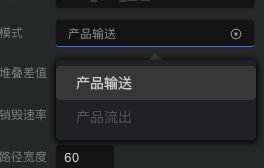
- Product Transport: Standard product transmission mode, used for normal product flow between stations
- Product Outflow: Transport mode for products leaving the current station or production line
In the current interface, "Product Transport" mode is selected, which is suitable for most production scenarios.
3.4 Speed and Distance Control
The middle of the configuration panel provides three refined numerical parameter controls:
- Stacking Difference: Set to 10, used to control the spacing offset when multiple products are stacked
- Correction Speed: Set to 1.0, used as the speed adjustment coefficient when performing position correction during transport
- Path Width: Set to 60, defining the actual width dimension of the transport path
These parameters jointly ensure the precision and smoothness of the transport process.
3.5 Visual Effect Switches
The configuration panel provides four switch controllers for managing the visual effects of the transport process:
- Show Polyline: Blue switch (enabled), controls whether to display the polyline trajectory of the transport path in the view
- Reverse: Gray switch (disabled), controls whether the transport direction is reversed
- Border: Red switch (selected), controls whether to display the border line of the transport area
- Color: Blue square (selected), used to set the color identification of the transport path
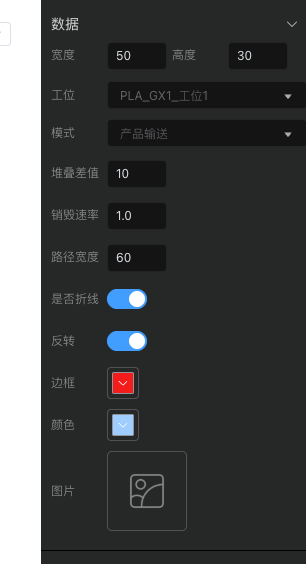
These switches allow users to customize the visual presentation of transport according to actual needs.
3.6 Image Association
At the bottom of the configuration panel, there is an Image upload/selection area, displayed as a box with an icon. Users can click this area to associate relevant image resources for product transport, which is very useful when visual display of product appearance or transport status is needed.

4. 3D Visualization Effect
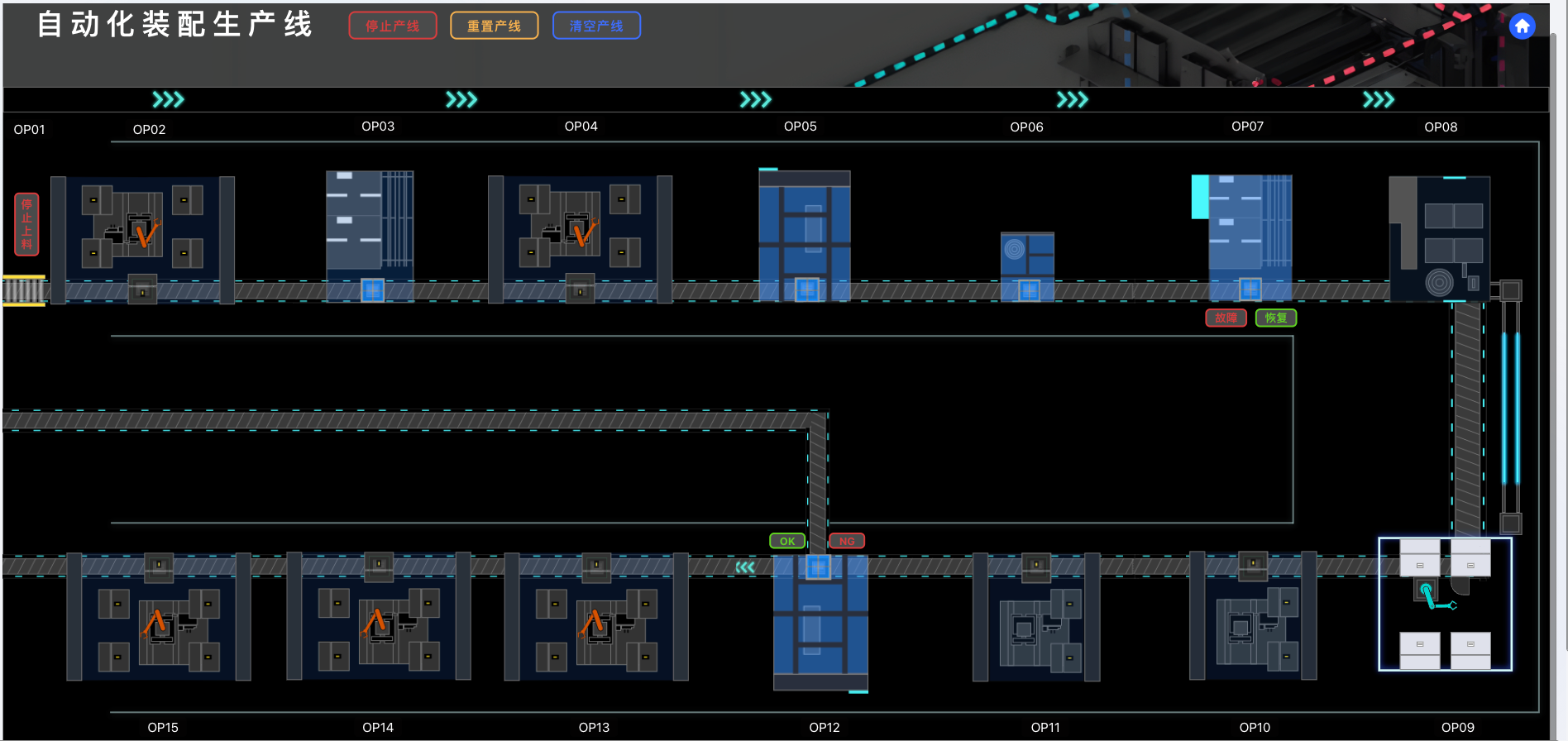
After configuration is complete, the system will render the transport effect in real-time in the view. As shown in the figure below, this is a typical product transport visualization scenario:
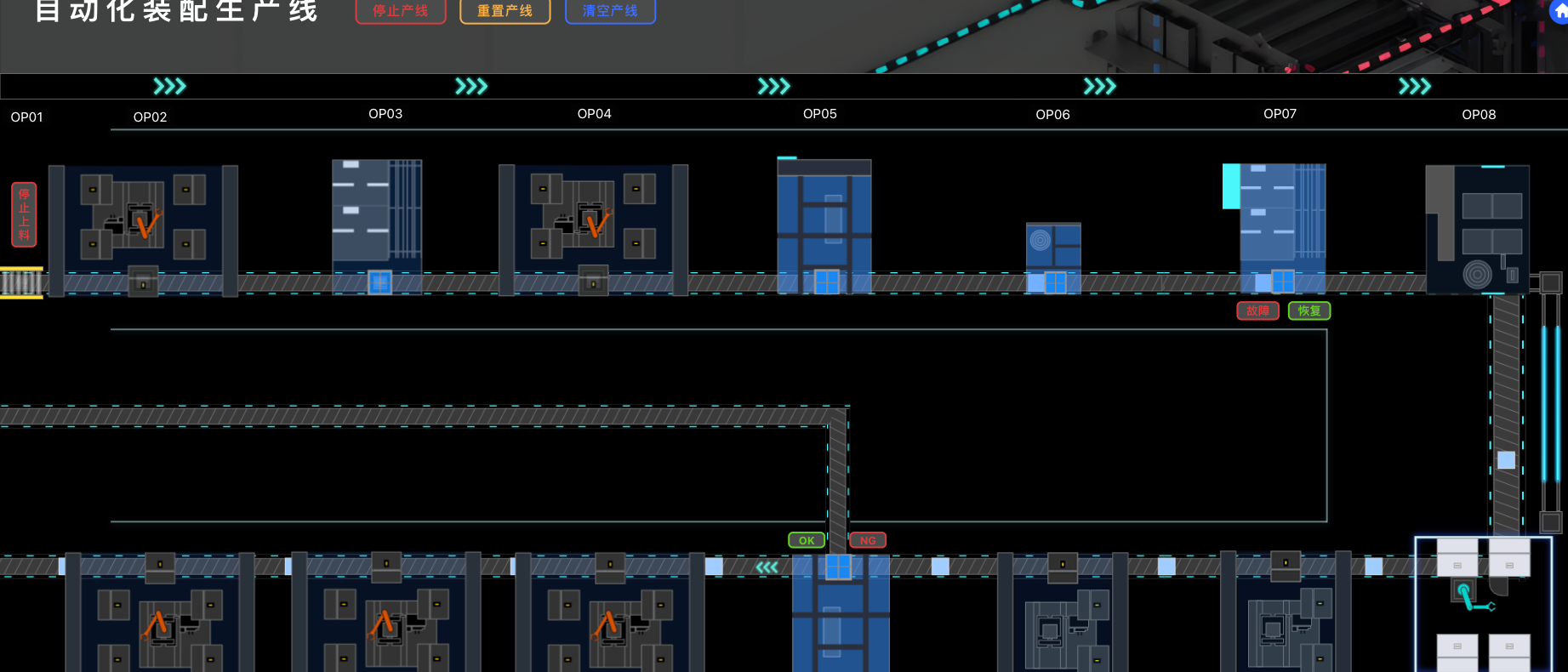
In this 3D view, we can clearly see the following key elements:
4.1 Conveyor Belt Display
The area marked by the red border in the figure is the visualization effect of the conveyor belt generated based on the configuration parameters. This conveyor belt has the following characteristics:
- Blue Cube Products: Multiple blue cubes are displayed on the conveyor belt, representing products or workpieces being transported
- Conveyor Texture: The surface of the conveyor belt presents a diagonal texture, simulating the appearance of a real conveyor belt and enhancing visual realism
- Product Spacing: It can be seen that a certain spacing is maintained between products, which is the effect controlled by the "Stacking Difference" parameter
- Path Width: The width of the conveyor belt corresponds to the configured "Path Width" parameter (60)
5. Best Practices and Precautions
Configuration Suggestions
- Dimension Setting: Width and height should be set according to actual product dimensions, reserving appropriate margins to avoid visual collisions.
- Station Selection: Ensure that the selected target station has been correctly configured in production line modeling.
- Mode Selection:
- Use "Product Transport" mode for flow between stations.
- Use "Product Outflow" mode for products going offline or leaving the production line.
- Speed Parameters: Correction speed is recommended to be set between 0.5-2.0. Too large or too small may affect transport stability.
- Stacking Difference: Set reasonably according to product dimensions to avoid products overlapping visually or having excessive spacing.
Through the flexible configuration and intuitive 3D visualization of the Product Transport module, you can precisely control the product flow on the production line and achieve efficient and visualized production management. The real-time 3D simulation function provided by the system allows you to pre-verify configurations in a virtual environment, greatly improving production line debugging efficiency.