Production Line Information
1. Module Overview
Core Function: The Production Line Information module is the core functional module in the LMES system for monitoring and analyzing the overall operating status of the production line. This module provides a panoramic display of production line configuration information, including real-time summary and statistical analysis of key data such as processes, stations, and parameter configurations. At the same time, the module supports the production line information snapshot function, allowing users to save the current production line status as a historical record, facilitating tracing and comparative analysis of changes in production line configuration.
- Component Identifier: ProductionLineInfo
- Component Name: Production Line Information
- Component Category: run (Plugin)
2. Scenario Description
The Production Line Information module is mainly applied in the following business scenarios:
- Production Line Configuration Review: Production management personnel need to comprehensively understand the overall situation of the current production line's process quantity, station distribution, parameter configuration, etc.
- Monthly Data Archiving: Automatically or manually record production line configuration snapshots when running the program every month to form a historical data archive.
- Configuration Change Traceability: Trace historical changes in production line configuration by comparing production line information snapshots at different time points.
- Data Statistical Analysis: Based on dimensions such as process segments and processes, statistically analyze the distribution of various parameters.
- Problem Troubleshooting: When production anomalies occur, quickly locate configuration problems by viewing production line information.
3. Function Introduction
Interface Overview
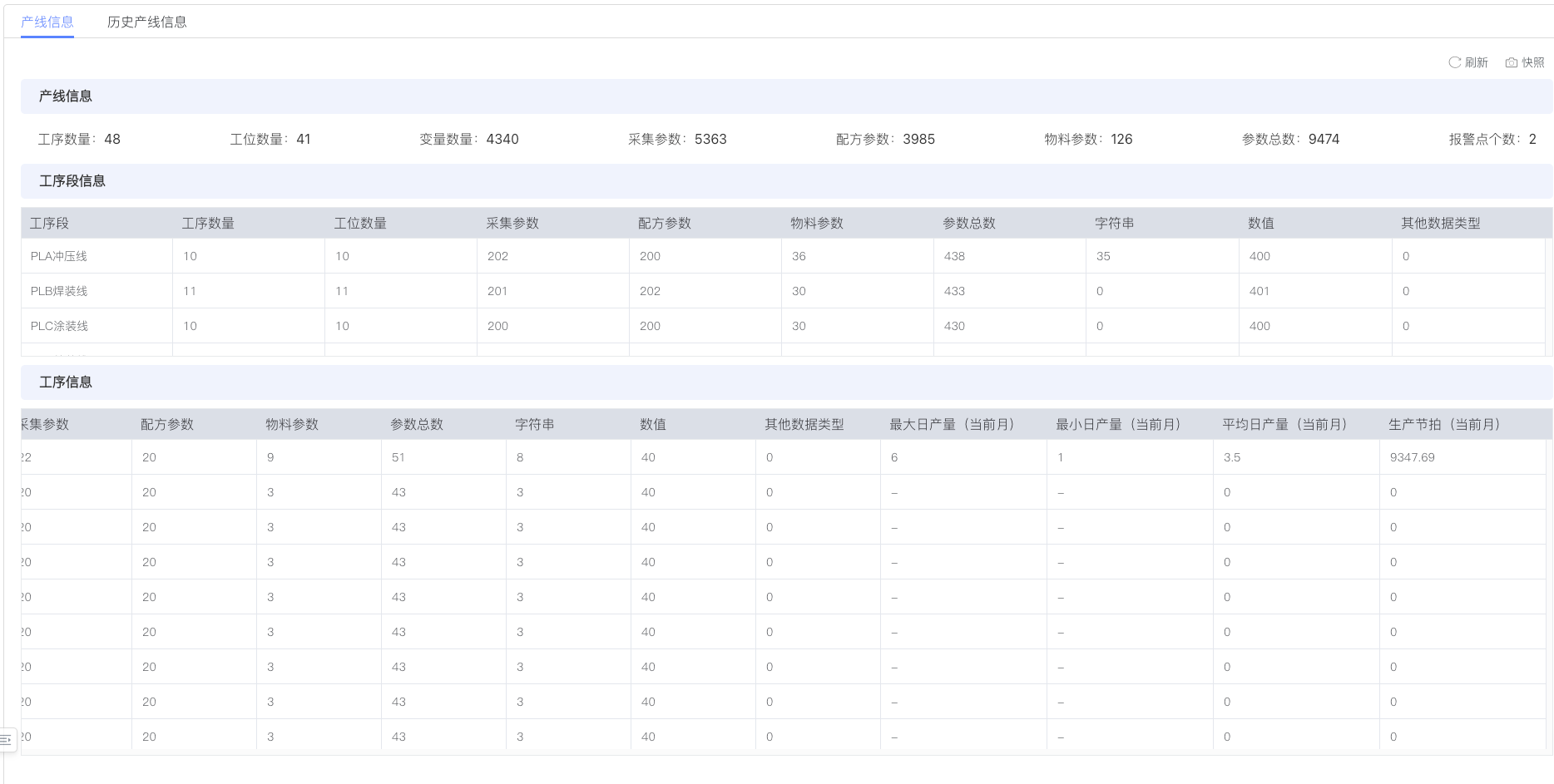
The Production Line Information module uses a tab layout, divided into two main views: "Production Line Information" and "Historical Production Line Information". As shown in the figure below, the top of the interface provides mode switching and configuration management toolbars, and the main area displays detailed data of the production line in the form of cards and tables.
3.1 Production Line Information View
3.1.1 Top Toolbar
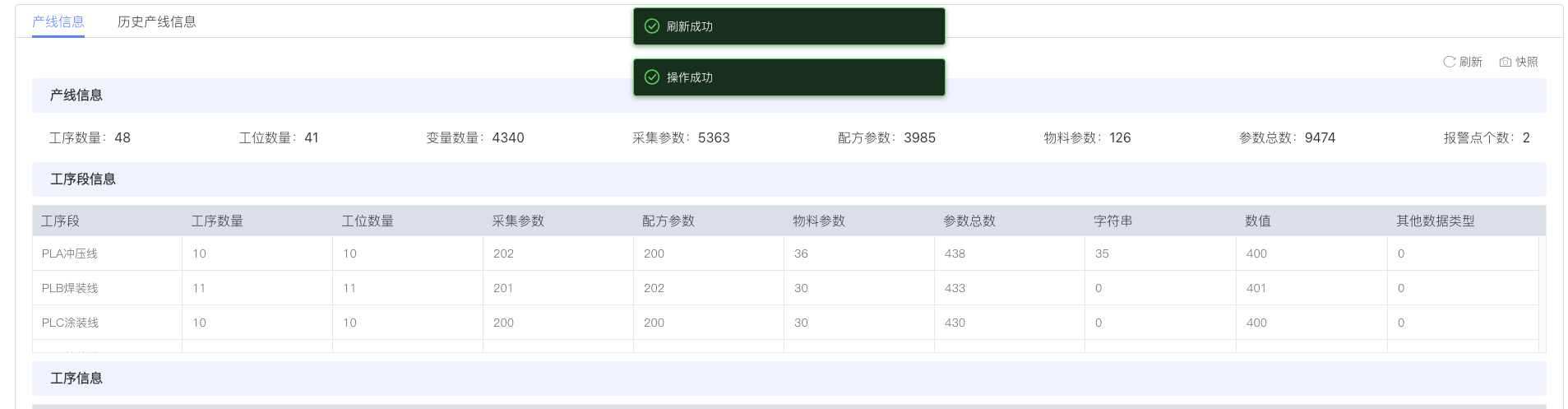
- Refresh Button: Click to immediately reload the latest production line information data. After the system executes successfully, a green "Refresh Successful" prompt bar will be displayed at the top of the page.
- Snapshot Button: This is one of the core functions of the Production Line Information module. After clicking this button, the system will perform the following operations:
- Export and save the production line information of the current page as a PDF document.
- Simultaneously record all production line data at the current moment into the historical database.
- Add a new snapshot record in the "Historical Production Line Information" view, marked as "Manual Snapshot".
After the operation is successful, the page will display a green "Operation Successful" prompt bar, as shown in the figure below:
Automatic Snapshot Mechanism In addition to manually clicking the snapshot button, the system also supports the automatic snapshot function. When the program runs every month, the system will automatically execute a snapshot operation to record the production line configuration data of the current month as historical information without manual intervention.
3.1.2 Production Line Information Overview Card
The "Production Line Information" area displays the core statistical indicators of the current production line in the form of cards, providing a global overview of the production line configuration:
- Process Quantity: The total number of processes currently configured on the production line (Example: 48).
- Station Quantity: The total number of stations configured under all processes (Example: 41).
- Variable Quantity: The total number of variables defined in the system (Example: 4340).
- Collection Parameters: The total number of configured data collection parameters (Example: 5363).
- Recipe Parameters: The total number of configured recipe parameters (Example: 3985).
- Material Parameters: The total number of parameters related to materials (Example: 126).
- Total Parameters: The aggregate number of all types of parameters (Example: 9474).
- Alarm Point Count: The total number of currently configured alarm points (Example: 2).
These indicators provide users with an intuitive understanding of the scale of production line configuration, facilitating rapid assessment of system complexity.
3.1.3 Process Segment Information Table
The "Process Segment Information" table groups statistics according to the process segments of the production line, displaying detailed configuration data under each process segment. The table contains the following columns:
| Column Name | Description |
|---|---|
| Process Segment | Name identifier of the process segment (e.g., PLA Stamping Line, PLB Welding Line, PLC Painting Line) |
| Process Quantity | The number of processes included in this process segment |
| Station Quantity | The total number of stations configured under this process segment |
| Collection Parameters | The number of collection parameters for this process segment |
| Recipe Parameters | The number of recipe parameters for this process segment |
| Material Parameters | The number of material parameters for this process segment |
| Total Parameters | The sum of all parameters for this process segment |
| String | The number of parameters of string type |
| Numeric | The number of parameters of numeric type |
| Other Data Types | The number of parameters of other data types |
Through this table, users can clearly understand the parameter distribution of the production line in different process segments.
3.1.4 Process Information Table
The "Process Information" table provides the most granular process-level data display. As shown in the figure below, the table lists the complete configuration information of each process in detail:
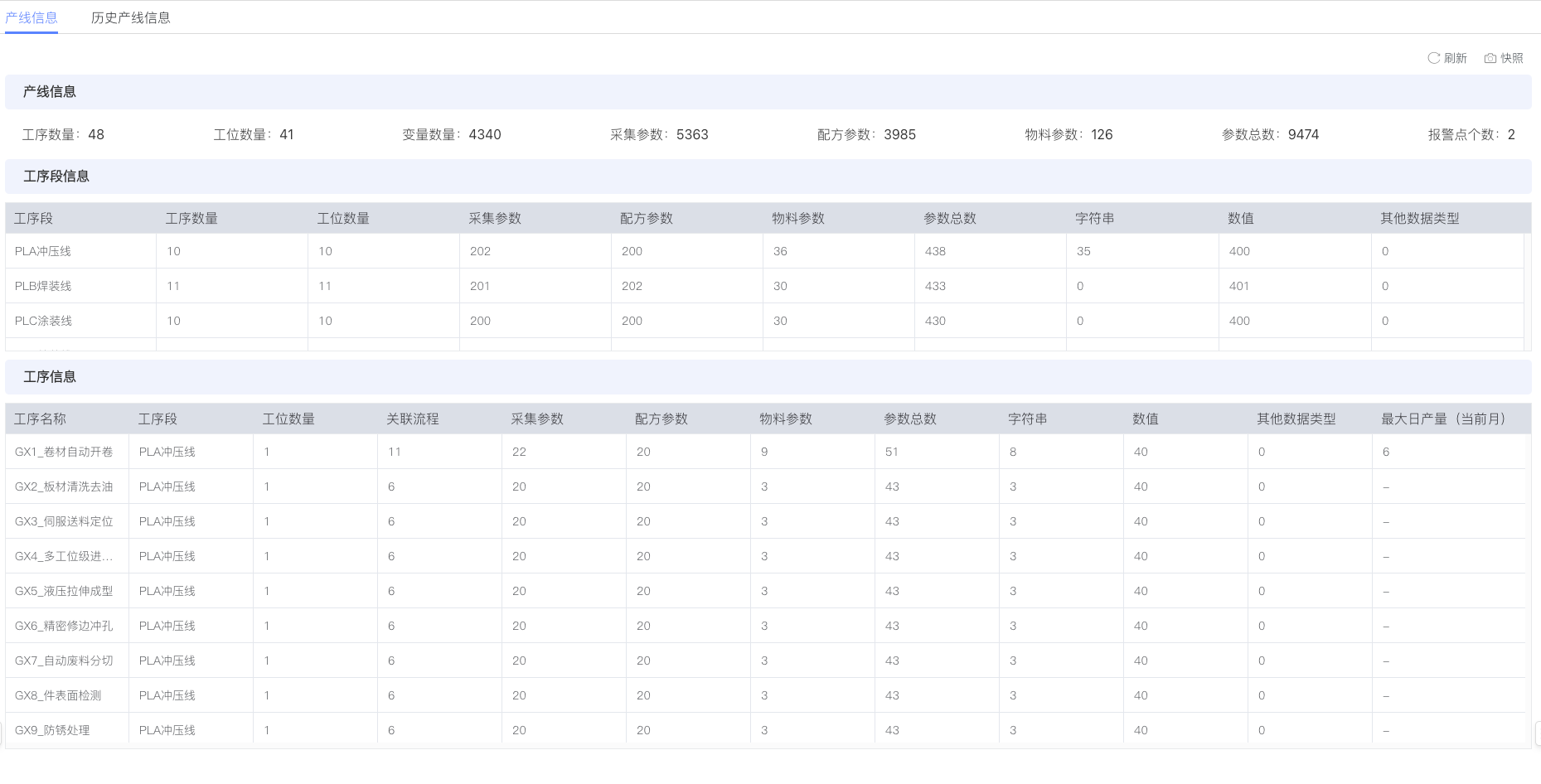
The table contains the following columns:
| Column Name | Description |
|---|---|
| Process Name | Name of the specific process (e.g., GX1_Coil Automatic Uncoiling, GX2_Sheet Cleaning and Degreasing) |
| Process Segment | The process segment to which this process belongs (e.g., PLA Stamping Line) |
| Station Quantity | The number of stations configured for this process |
| Associated Flow | The number of business flows associated with this process |
| Collection Parameters | The number of data collection parameters for this process |
| Recipe Parameters | The number of recipe parameters for this process |
| Material Parameters | The number of material parameters for this process |
| Total Parameters | The sum of all parameters for this process |
| String | The number of parameters of string type |
| Numeric | The number of parameters of numeric type |
| Other Data Types | The number of parameters of other types |
| Max Daily Output (Current Month) | The maximum daily output of this process in the current month |
| Min Daily Output (Current Month) | The minimum daily output of this process in the current month (some processes may display "-" indicating no data) |
| Avg Daily Output (Current Month) | The average daily output of this process in the current month |
| Production Cycle Time (Current Month) | The production cycle time of this process in the current month |
The "Max Daily Output", "Min Daily Output", "Avg Daily Output", and "Production Cycle Time" fields in the Process Information table statistically analyze the production data of the current month. These data will be recorded in historical information along with the monthly automatic snapshot.
3.2 Historical Production Line Information View
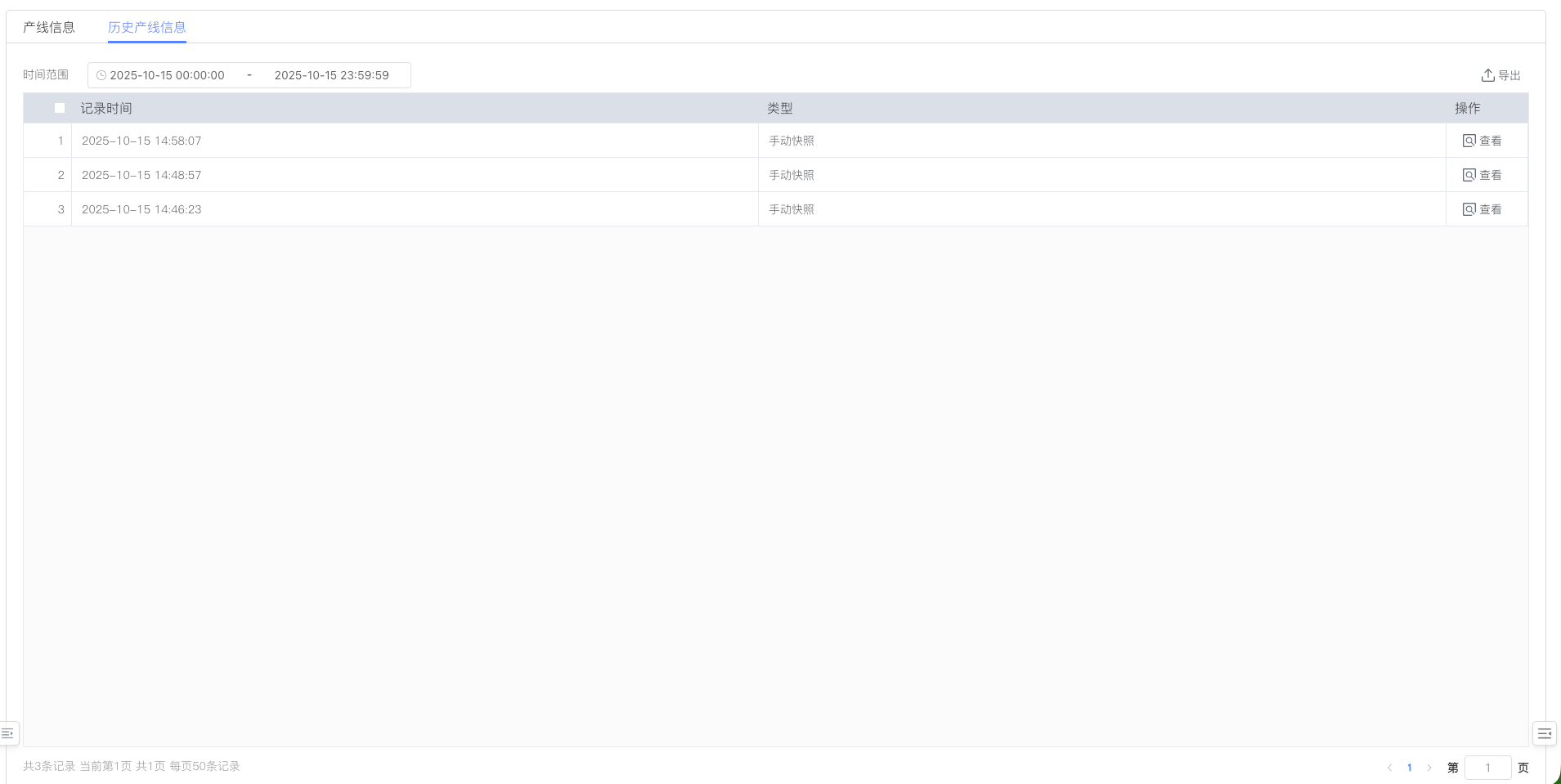
Click the "Historical Production Line Information" tab at the top of the interface to switch to the historical data viewing view, as shown in the figure below:
3.2.1 Time Range Filter
The top left of the interface provides a "Time Range" selector, containing two date and time selection boxes connected by a "-" symbol:
- Start Time: Select the start date and time of the query (Default format: YYYY-MM-DD HH:mm:ss)
- End Time: Select the end date and time of the query
Users can filter historical snapshot records within a specified period by adjusting the time range.
3.2.2 Export Function
The top right of the interface provides an "Export" button (download icon). Clicking it can export the historical record list under the current filter conditions as an Excel or other format file, facilitating offline analysis.
3.2.3 Historical Record List
Historical records are displayed in table form, containing the following columns:
| Column Name | Description |
|---|---|
| Record Time | Creation time of the snapshot record (Format: YYYY-MM-DD HH:mm:ss) |
| Type | Type identifier of the snapshot, including: • Manual Snapshot: Created manually by the user clicking the snapshot button • Automatic Snapshot: Automatically created by the system every month |
| Operation | Provides a "View" button (icon). Click to view the details of the production line information at that time point |
3.2.4 View Historical Snapshot Details
Click the "View" button in the historical record list, and the system will pop up a modal dialog box displaying the complete production line information snapshot saved at that time point, as shown in the figure below:
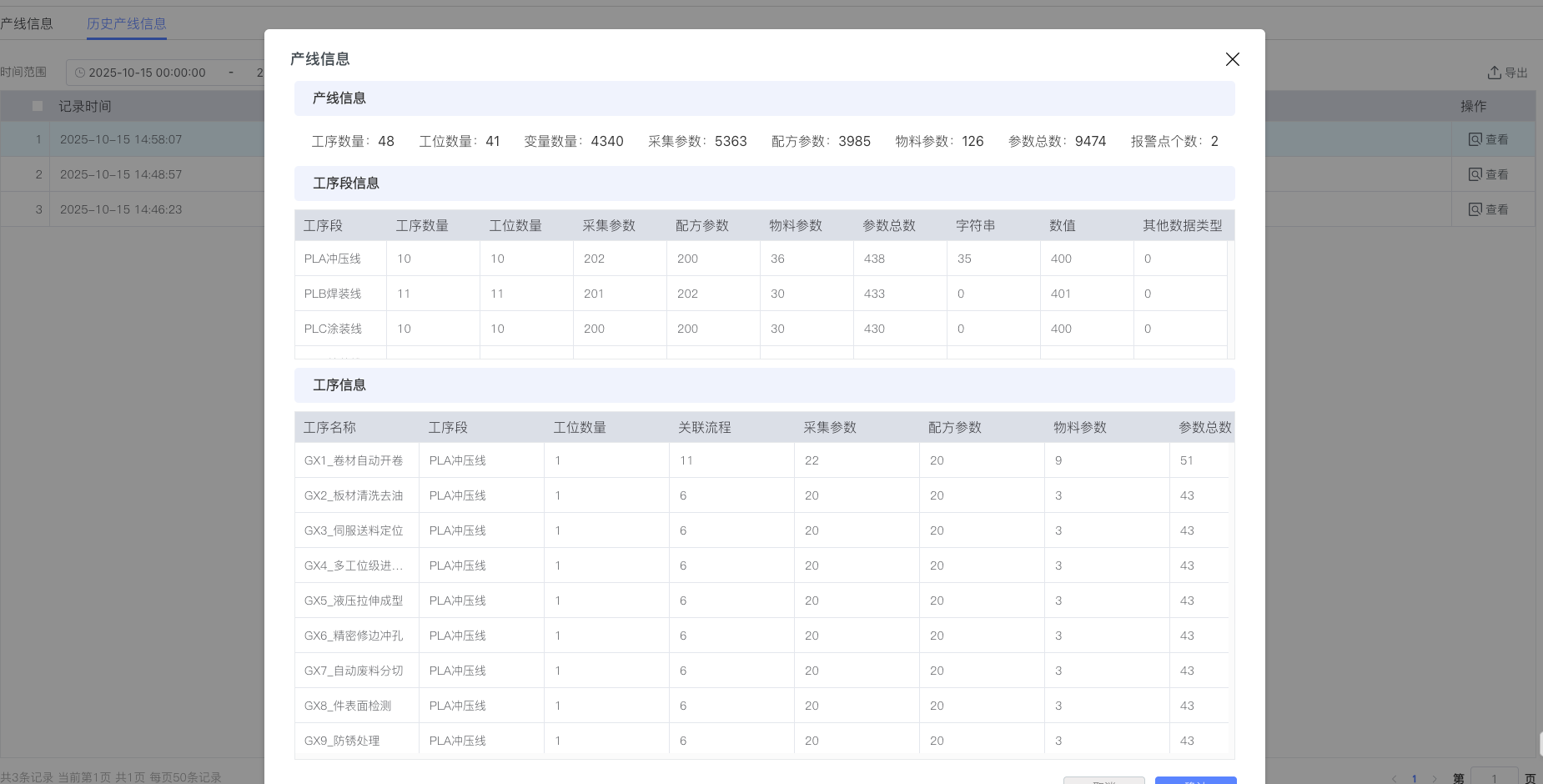
The dialog box content includes:
- Production Line Information Overview: Displays 8 core statistical indicators at the snapshot moment
- Process Segment Information Table: Process segment configuration data at the snapshot moment
- Process Information Table: Detailed process configuration data at the snapshot moment (including monthly production data)
The top right of the dialog box provides a "×" close button, and the bottom provides two operation buttons:
- Cancel: Close the dialog box without performing any operation
- Confirm: Confirm viewing and close the dialog box (blue main button)
3.2.5 Pagination Control
The bottom of the historical record list provides a complete pagination control, displaying information including:
- Total X records
- Current page X
- Total X pages
- 50 records per page
Users can browse historical records on different pages through the pagination control.