Production Tracking
1. Module Overview
Core Function: The Production Tracking module is used for real-time monitoring of the production flow of products in the workshop. Through this module, you can view the processing status, quality status, and progress information of products in each process at any time, helping you discover production anomalies in time and improve management efficiency.
- Component Identifier: ProductionTracking
- Component Name: Production Tracking
- Component Category: run (Plugin)
This module mainly has the following capabilities:
- Real-time display of the latest production data without manual refresh
- Filter and view data by product model and process
- Quickly identify non-conforming products through color identification
- Customize display fields to adapt to different viewing needs
2. Scenario Description
The Production Tracking module is applicable to the following typical scenarios:
Scenario 1: Real-time Monitoring of Production Progress The workshop supervisor needs to know the processing status of a certain product model in key processes in real-time. Open the production tracking interface, select the corresponding product model and process, and you can see the latest completed product information, including entry time, completion time, processing duration, etc., to quickly judge whether production is normal.
Scenario 2: Rapid Discovery of Quality Problems When non-conforming products appear on the production line, the product information will be displayed in red in the table, and the specific reason for non-conformance will be displayed. Quality inspection personnel can immediately discover the problem and take corresponding measures.
Scenario 3: Tracing Product Processing History When it is necessary to view the processing records of a certain product in different processes, by switching the process filter, you can view the completion status of the product in each process, realizing the full traceability of the production process.
3. Function Introduction
Interface Overview
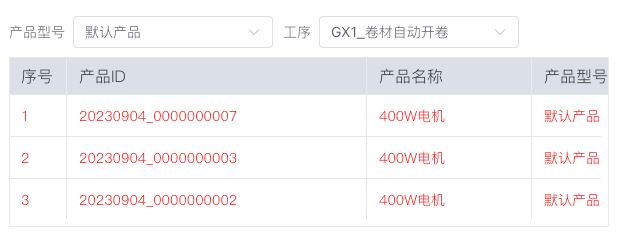
The production tracking interface is divided into upper and lower areas: the top is the filter condition area, where you can select the product model and process to be viewed; the bottom is the data table area, which displays production records in real-time. Non-conforming products will be displayed in red font, facilitating your quick identification.
3.1 Filter Condition Settings
The top of the interface provides two filter selectors to help you quickly locate the data you need to view:
Product Model Selection (Left Dropdown Box):
- Click the dropdown box to display the list of all product models configured in the system
- Select "Default Product" to view data for all products
- After selecting a specific model (e.g., "GX1_Coil Automatic Uncoiling"), the table only displays the production records of that model
Process Selection (Right Dropdown Box):
- The process list will automatically update based on the product model you selected
- Processes may be divided into two levels: process groups and specific processes
- After selecting a specific process, the table displays the real-time production data of that process
Usage Instructions:
- When opening the interface for the first time, the two selectors will display default values
- Select the product model first, then select the process
- After selection is complete, the table will automatically load the corresponding real-time data
- When switching filter conditions, the table data will automatically refresh
3.2 Production Data Viewing
The table area displays detailed production records, where each row represents the completion information of a product. The content of the fields displayed in the table is determined by the system's traceability table configuration, and different products and processes may display different business fields.
Field Source Description:
- The fields displayed in the table are set by the system administrator in "Traceability Configuration"
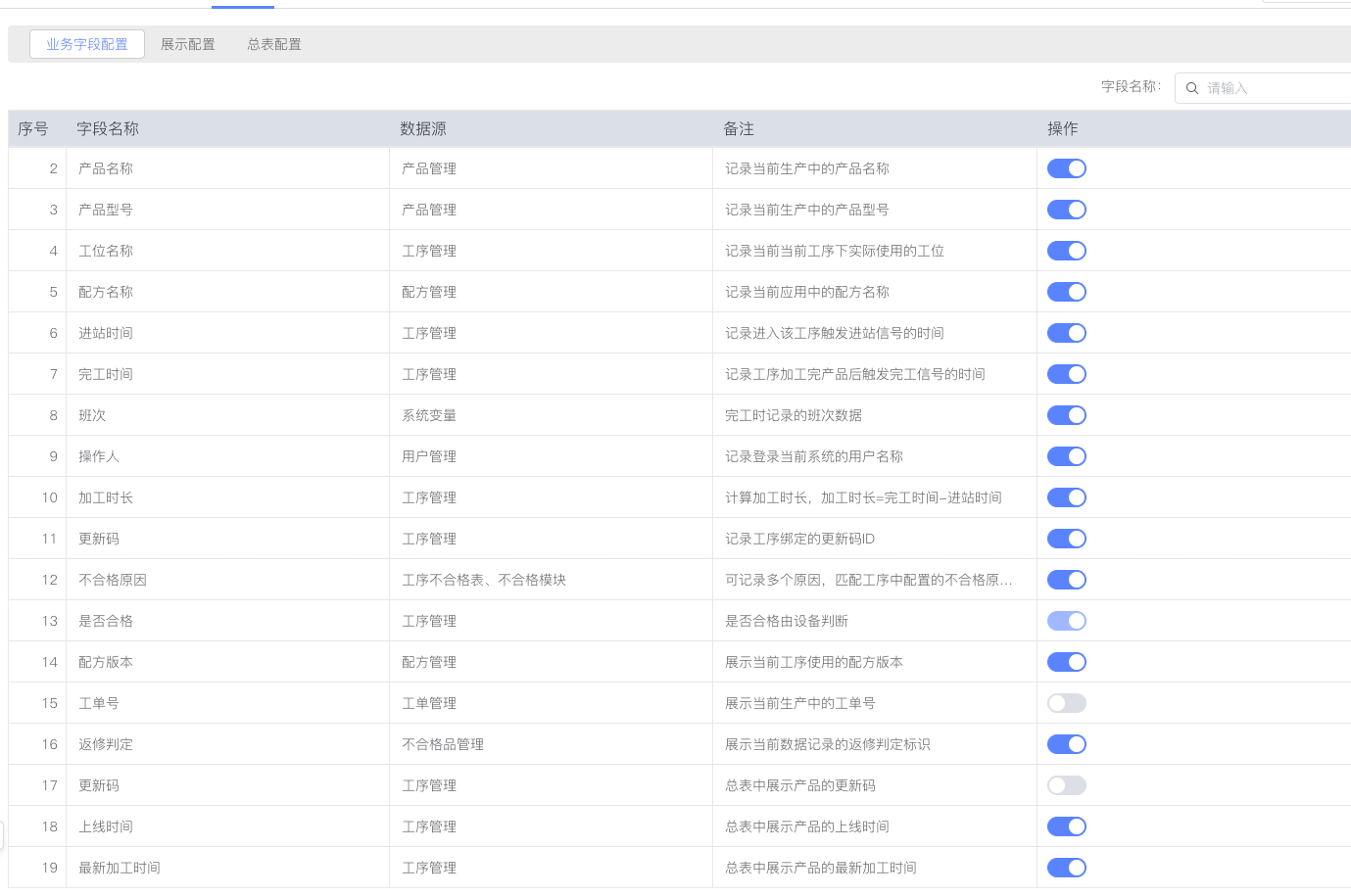
Data Update Description:
- Data automatically updates in real-time without manual page refresh
- Newly completed products will automatically appear in the first row of the table
- New data rows will have a 5-second blue background animation effect to remind you to pay attention
- By default, the latest 3 records are displayed, and the display quantity (1-50 records) can be adjusted in the configuration
Color Identification:
- Black Font: Indicates the product is qualified (Status is "OK")
- Red Font: Indicates the product is unqualified (Status is "NG"), needing focus
3.3 Custom Display Fields
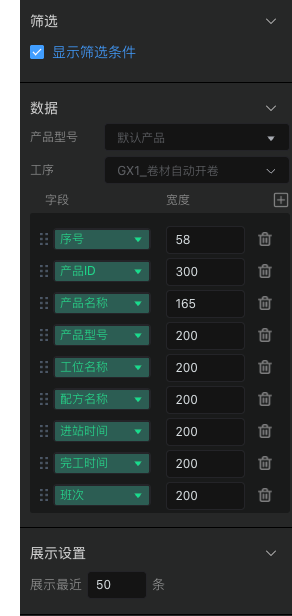
The Production Tracking module supports flexible field configuration functions. You can adjust the displayed fields, order, and column width of the table according to actual needs.
Configuration Interface Description:
As shown in the figure above, the configuration interface contains the following areas:
-
Data Area (Top):
- Product Model: Select the product model to be configured (e.g., "Default Product")
- Process: Select the specific process to be configured (e.g., "GX1_Coil Automatic Uncoiling")
- Fields: Click the "+" button on the right to add new fields to the display list
-
Field List (Middle):
- Displays all currently selected fields
- Each field row contains: Field Name (Green Dropdown Box), Column Width Setting, Delete Button (Trash Can Icon)
- The ":::" drag handle on the left allows dragging up and down to adjust the field display order
-
Display Settings (Bottom):
- Display Quantity: Set the number of data rows displayed in the table (Default 3)
Configuration Steps:
-
Enter Configuration Mode:
- Switch to edit mode
- Click to select the Production Tracking component
- Find the configuration area in the property panel on the right
-
Select Configuration Object:
- Select the product to be configured in the "Product Model" dropdown box
- Select the process to be configured in the "Process" dropdown box
- Different products and processes can have different field configurations
-
Add Fields:
- Click the "+" button on the right side of "Fields"
- The system will list all available business fields configured for that process in the traceability table
- Select the fields needed for display to add to the list
-
Adjust Field Order:
- Move the mouse to the ":::" icon on the left side of the field row
- Hold down the left mouse button and drag the field row up and down
- Fields at the top will be displayed on the left side of the table
-
Set Column Width:
- Fill in the column width value in the number input box on the right side of the field row
- Unit is pixels (e.g., 58, 300, 165, 200, etc. in the example)
- Set width reasonably according to field content length
-
Delete Fields:
- Click the trash can icon on the right side of the field row
- The field will be removed from the display list
- Does not affect field configuration in the traceability table
-
Save Configuration:
- Click save after completing configuration
- Switch back to running mode to view the effect
3.4 Show/Hide Filter Conditions
According to different usage scenarios, you can choose to show or hide the top filter conditions:
Show Filter Conditions (Applicable Scenarios):
- Need to frequently switch to view data of different products or processes
- Comprehensive monitoring page for management personnel
- Need flexible query and comparison of different data
Hide Filter Conditions (Applicable Scenarios):
- Workshop large screen dashboard, fixed display of a certain product and certain process
- Avoid misoperation by operators
- Make the interface more concise and the table display area larger
Setting Method: In the component configuration interface, check or uncheck the "Show Filter Conditions" option.
3.5 Adjust Display Data Volume
You can control how many latest records the table displays:
- Default Display: 3 records
- Settable Range: 1-50 records
- Setting Method: Fill in the number in the "Display Quantity" input box at the bottom of the component configuration interface
4. Usage Suggestions
4.1 Usage of Filter Conditions
Suggestion 1: Fixed Monitoring Scenario
- If it is a workshop large screen or dedicated dashboard, it is recommended to hide filter conditions
- Set the product and process during configuration to avoid misoperation during runtime
- Make the interface more concise and data more stable
Suggestion 2: Flexible Query Scenario
- If used by management personnel, it is recommended to keep filter conditions
- Can switch different products and processes at any time, facilitating comparative analysis
- Suitable for troubleshooting and data statistics
4.2 Optimization of Field Display
Tip 1: Field Sorting
- Put the most important information on the left, such as Product ID, Qualified Status, Non-conformance Reason
- Secondary information can be placed on the right, scroll horizontally to view when needed
- Reduce eye movement distance when viewing
Tip 2: Column Width Setting
- Short content fields (such as No., Status) set narrower widths
- Long content fields (such as Product ID, Time) set sufficient widths
- Avoid content truncation or wasted space
- It is recommended to set an initial value first, and fine-tune after running and viewing
Tip 3: Customized by Product
- Different products may focus on different fields
- Can configure exclusive field combinations for each product
- Improve the pertinence of information viewing
Tip 4: Field Simplification
- Avoid adding too many fields leading to excessively wide tables
- Only display the fields most needed for the current business scenario
- Reduce horizontal scrolling operations and improve viewing efficiency
4.3 Tips for Data Viewing
Tip 1: Focus on Red Data
- Red indicates non-conforming products, needing focus
- View the "Non-conformance Reason" field to understand specific problems
- Handle and follow up in time
Tip 2: Observe Data Updates
- New data will appear at the top of the table and flash with a blue background
- If there is no new data for a long time, it may be production stagnation or system anomaly
- Pay attention to completion time to judge production rhythm
Tip 3: Multi-Process Comparison
- By switching the process selector, you can view the situation of the same product in different processes
- Compare processing duration of different processes to discover bottleneck processes
- Trace the complete processing path of the product