Workstation Control Panel
1. Module Overview
Core Functions: The Workstation Control Panel is a specialized tool in the LMES system for real-time monitoring and controlling processes associated with processes. It is the preferred tool for real-time monitoring and troubleshooting. It provides functions such as visual monitoring of process instances, real-time log viewing, variable status monitoring, and remote intervention operations.
- Component ID: ConsoleManagement
- Component Name: Console
- Component Category: run (plugin)
User Value: This module enables operators and engineers to intuitively understand the operational status of workstation processes, quickly locate and resolve problems occurring in the production process, and ensure the smooth progress of the production process. Through the Workstation Control Panel, users can perform necessary manual interventions in a timely manner, such as process reset operations, effectively reducing production interruption time.
2. Scenario Description
The Workstation Control Panel is mainly applicable to the following business scenarios:
- Process Preview: The Workstation Control Panel allows intuitive preview of the structure and execution path of the entire process flow, helping operators and engineers understand in advance the design logic and key links of the process, providing reference for production preparation and abnormal handling. The process preview function allows users to view various nodes, branch conditions, and execution sequence of the process without actually executing it, helping to quickly understand the working principle of complex processes.
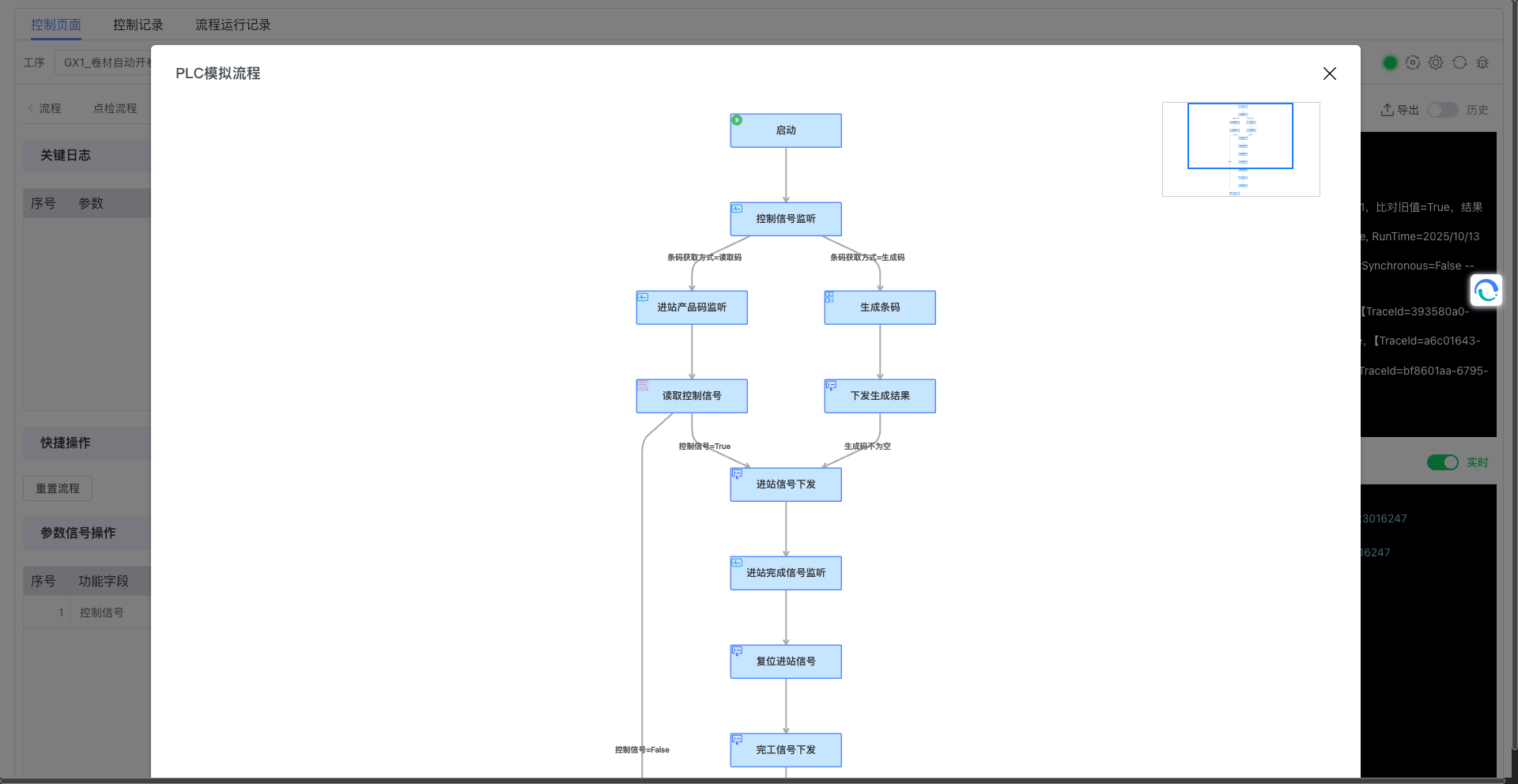
-
Production Monitoring: View in real-time the operational status of workstation processes, including whether the process is running, stopped, or in an abnormal state.
-
Troubleshooting: When abnormalities occur during the production process, quickly locate the cause of the problem by viewing real-time logs and variable status.
-
Process Intervention: Manually intervene in the process when needed, such as resetting the process to restore normal production. The system will pop up a confirmation dialog to prevent misoperation:
-
Process Debugging: For newly added or modified processes, perform real-time debugging and verification.
-
Production Exception Handling: When process abnormalities occur, handle them promptly through the Workstation Control Panel to avoid affecting overall production progress.
3. Function Introduction
Interface Overview
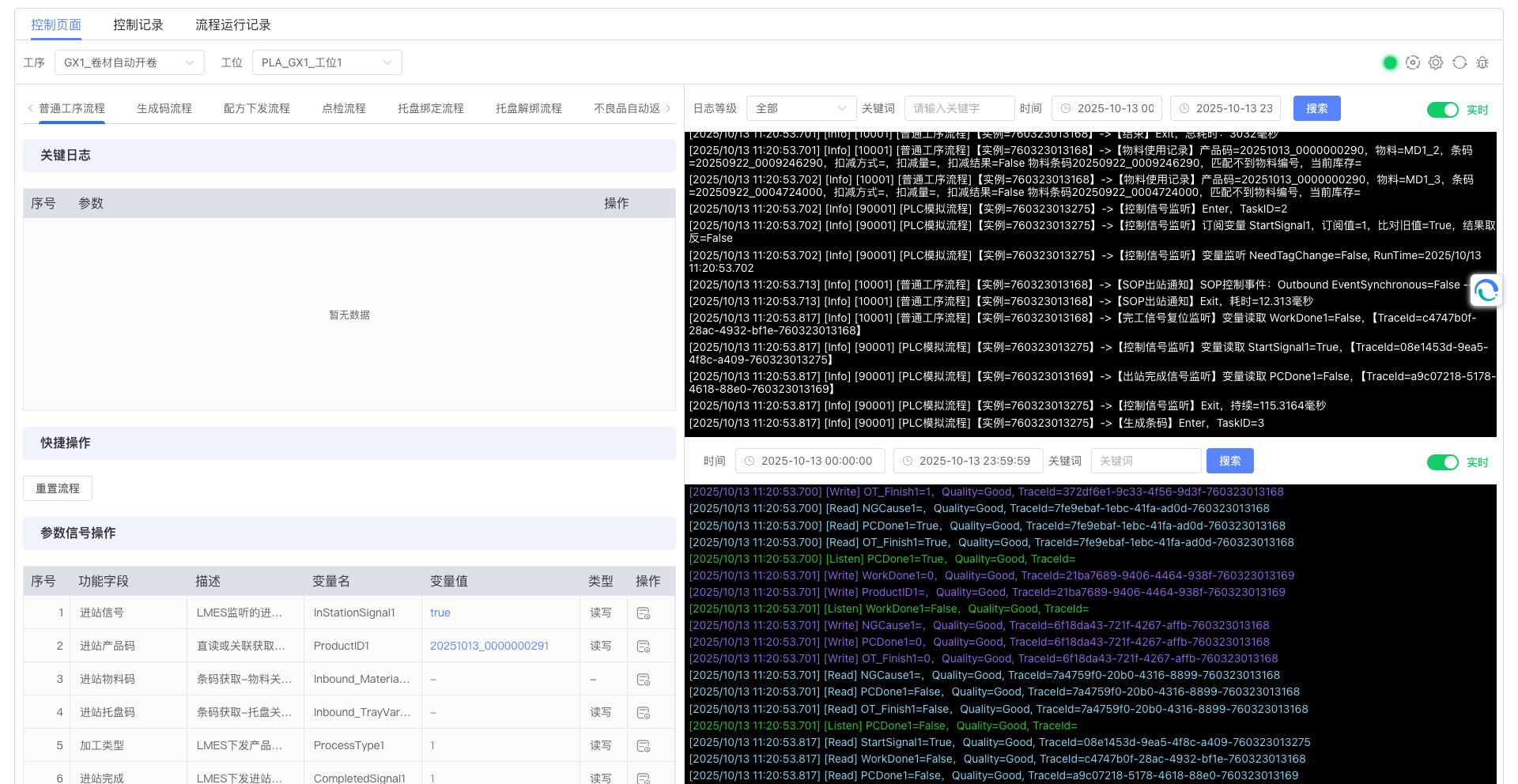
The Workstation Control Panel interface provides functional areas for process status display, real-time log viewing, variable monitoring, and operation control. Through this interface, users can comprehensively understand the operational status of workstation processes and perform necessary operations.
The dropdown selector in the interface is shown in the figure:
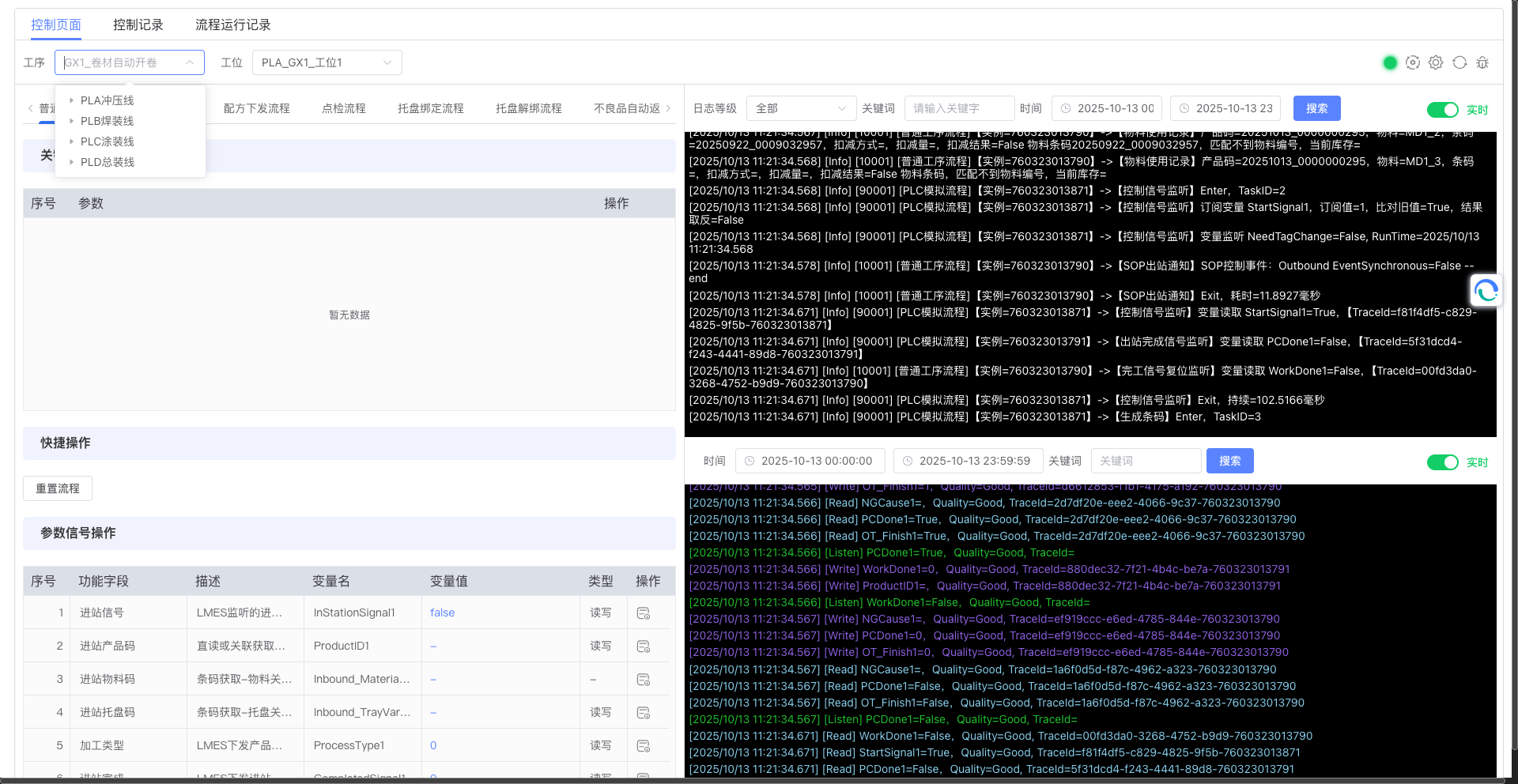
The complete Workstation Control Panel interface is shown in the figure:
- Top Operation Area: Contains process/workstation selection dropdown boxes, view process, one-click restart and other quick operation buttons. Among them, the "View Process" button is the entry point for the process preview function. After clicking, it will display the complete structure and execution path of the current process flow in a visual way. When clicking the one-click restart button, the system will pop up a restart confirmation dialog:
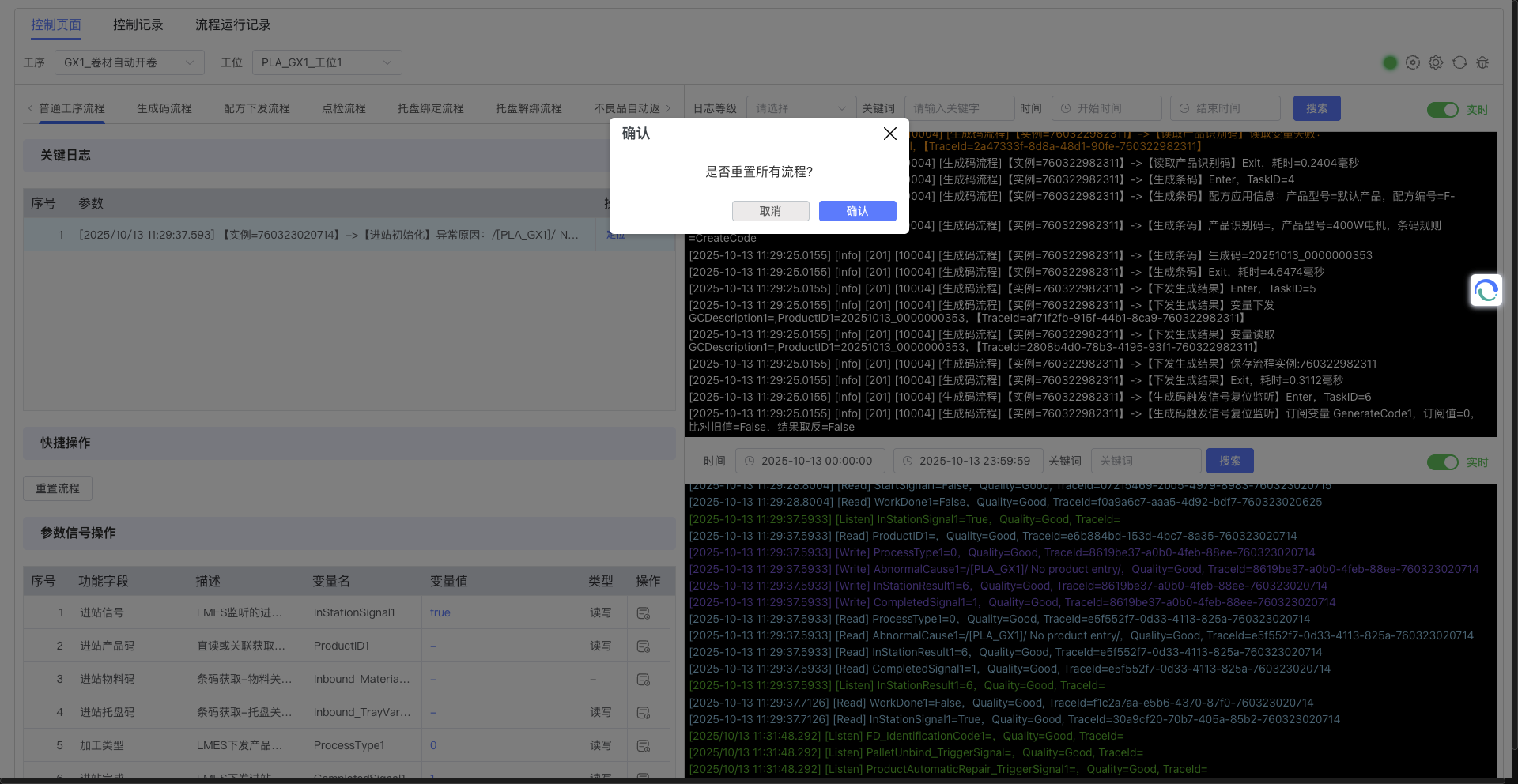
- Main Functional Area: Divided into three core sections:
- Key Log Area: Displays the latest important log information. Each log is equipped with a locate button for quick location to related processes
- Quick Operation Area: Provides common operation buttons such as reset process and search
- Parameter Signal Operation Area: Used to monitor and control equipment parameters
- Process Type Tabs: Supports multiple different types of processes, including ordinary process flows and code generation processes
- Log Filtering and Display Area: Located at the bottom of the interface, provides filtering functions such as log level, keywords, time range, and displays operational logs of various processes in real-time
- Real-time Update Mechanism: Data in all areas supports real-time update, ensuring users obtain the latest equipment status information
3.1 Real-time Log Monitoring
The Workstation Control Panel provides powerful real-time log monitoring functions, which are the core tools for troubleshooting.
The log monitoring area is shown in the figure:
- Log Types: The console will push in real-time all logs of processes associated with the current workstation, including
flowlog(process logic log),tracelog(traceability data log), andwarnlog(warning/error log). - Real-time Update: Logs will automatically update in real-time without manual file refresh.
- Error Identification: Error information will be displayed in red in the warning log window, making it easy for users to quickly identify problems.
- Process Tracking: Through the process log window, you can view detailed steps of process execution and locate the last successfully executed log to determine the problem point.
In actual operation, when abnormalities occur, the log monitoring area will display detailed error information, for example:
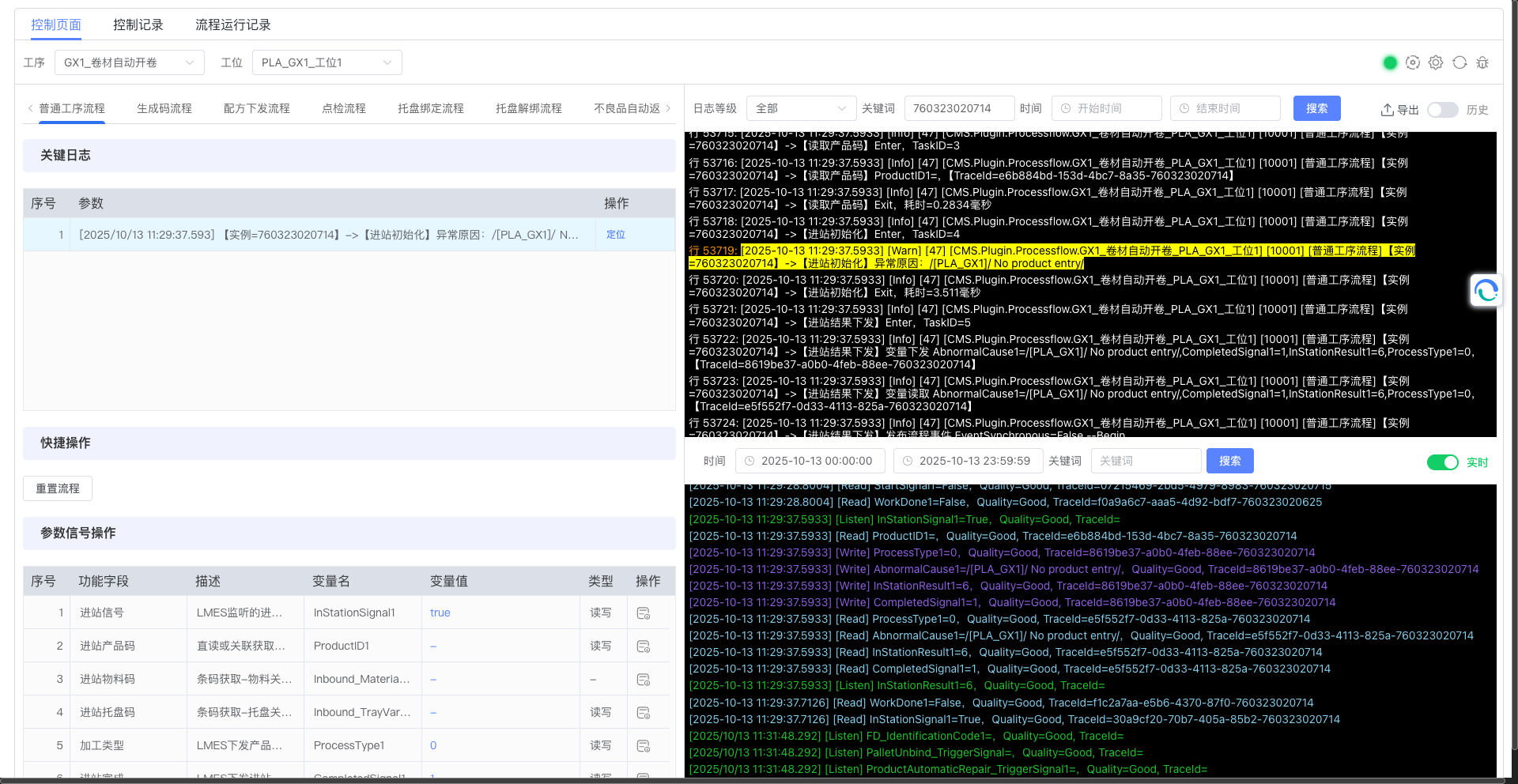
When clicking the "Locate" button in the key log area, the system will automatically fill in the instance ID into the search box, facilitating users to quickly locate related logs.
- Log Filtering Function: The interface provides multiple filtering tools, including log level dropdown (to select logs of different severity levels), keyword search box, time range selector, and node name filter, helping users quickly locate required log information.
- Log Display Format: Each log includes timestamp, log level, process type identifier, and detailed log content, clearly displaying process operational status and abnormal information.
- Multiple Process Type Support: Supports simultaneous monitoring of logs for multiple process types, including ordinary process flows and PLC simulation processes.
- Real-time/Non-real-time Mode Switching: The lower right corner of the interface provides a "Real-time" switch, enabled by default. When enabled, logs will automatically update in real-time; when disabled, logs will stop auto-refreshing, and users can focus on viewing historical log information.
- Log Retrieval Function: Through the combination filtering of log level, keywords, and time range, specific condition logs can be precisely retrieved. After setting filter conditions, click the "Search" button to execute the retrieval operation.
3.2 Real-time Variable Monitoring
The real-time variable monitoring function allows users to view in real-time the current values and changes of all PLC variables defined in the process.
- Real-time Update: Variable values update in real-time, reflecting the latest status of equipment.
- Status Judgment: By observing the variable monitoring area, users can check whether PLC signals change as expected and judge whether the process is executing normally.
- Troubleshooting: When abnormalities occur in the process, variable monitoring can help users determine whether the problem is caused by abnormal equipment signals.
The variable monitoring area is shown in the figure:
- Parameter Signal Operation Area: Contains 14 key parameters including check-in signal, product code, check-out signal, etc. Each parameter is equipped with a send button, supporting manual intervention of parameter values. Under the ordinary process flow tab, the parameter signal operation area contains 14 parameters including check-in signal, check-in product code, etc.
- Multiple Variable Monitoring: Supports simultaneous monitoring of 37 variables, including input signals such as InStationSignal1 and output signals such as OutStationSignal.
- Write Permission Support: Some variables have write permissions, and users can modify variable values as needed to achieve precise equipment control.
- Parameter Send Function: For variables with write permissions, users can directly click the "Send" button of the corresponding parameter on the interface to manually modify and send variable values to the PLC, achieving remote control and intervention of equipment. This is particularly useful in emergency situations or during testing phases.
3.3 Process Status Visualization
The Workstation Control Panel provides clear process status visualization functions, allowing users to intuitively understand the current status of the process.
- Status Indication: Can clearly display whether the current process is running, stopped, or in an abnormal state.
- Process Instance ID: Displays the instance ID of the current process, facilitating users to precisely track all related logs for a single process execution in the logs.
- Key Log Display: The system will display important abnormal information in the key log area and provide a locate button for users to quickly find related logs.
3.4 Remote Control Operations
The Workstation Control Panel allows operators or engineers to directly perform remote control operations on processes from the interface.
- Process Reset: When the process is abnormal or needs to restart, the process can be reset through the Workstation Control Panel. After clicking the reset button, the system will pop up a confirmation dialog to prevent misoperation.
- Optimized Reset: The optimized reset process ensures that after updating the process, the reset can obtain the latest process information.
- Process Instance Records: Added process operation record function, providing process instance records for the past seven days, facilitating troubleshooting of problems existing during process operation.
4. Operation Guide
4.1 Enter Workstation Control Panel
- Enter the LMES system through the software operation URL.
- Navigate to Production Operation Management -> Process Control -> Workstation Control Panel module.
- Select the workstation that needs to be monitored.
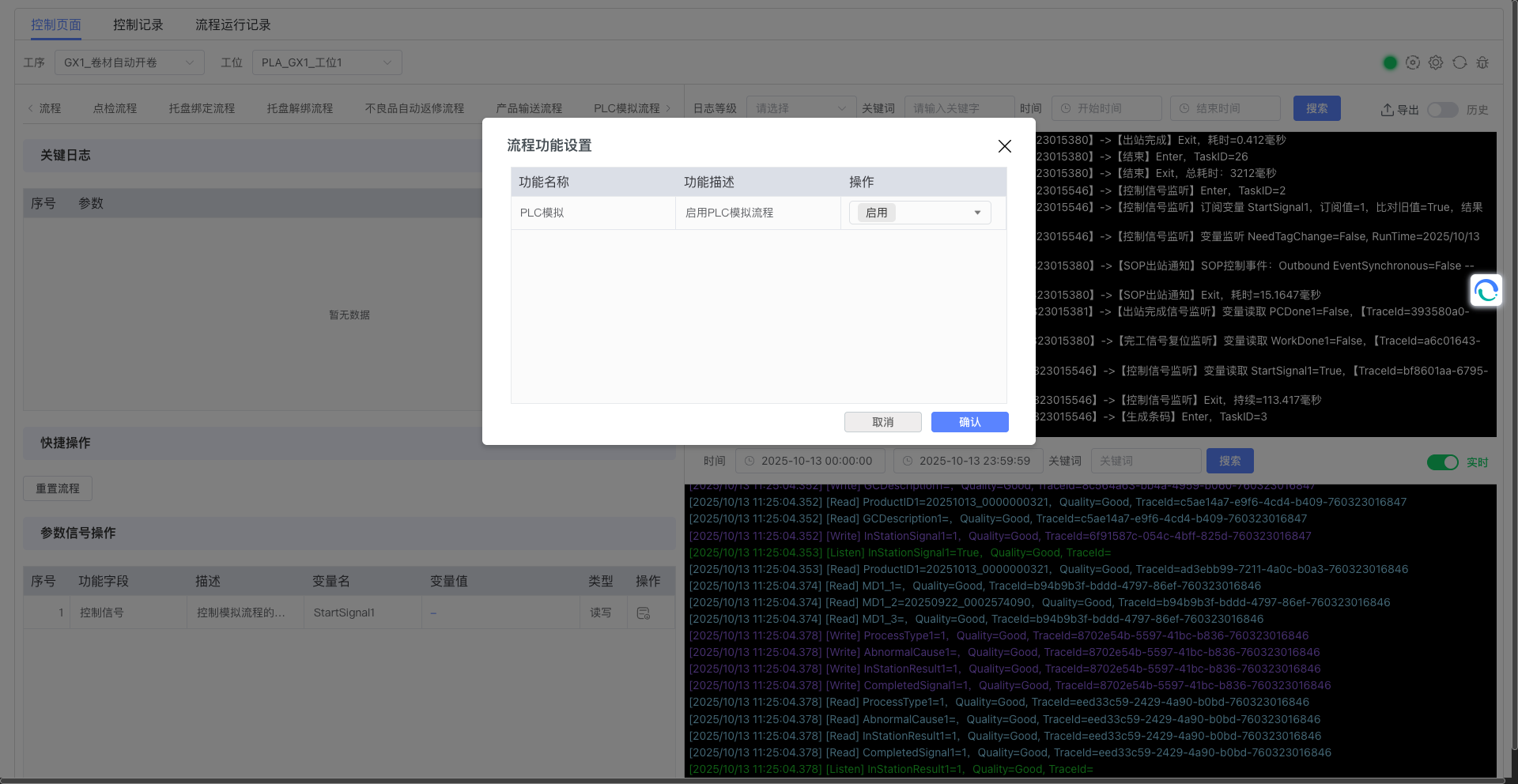
The system settings modal is shown in the figure:
4.2 Troubleshooting Steps
When problems occur with the check-out process, you can troubleshoot according to the following steps:
The complete Workstation Control Panel interface is shown in the figure:
- Open Workstation Control Panel: Enter the console interface of the corresponding workstation.
- View Key Logs: First check the key log area at the top of the interface to quickly understand whether there is abnormal information.
- Filter and Analyze Detailed Logs:
- In the bottom log filtering area, use the log level dropdown to select "Error" or "Warning" type to quickly locate problem logs
- You can enter keywords or select a specific time range to narrow the search scope
- View detailed steps of process execution, locate the last successfully executed log to determine the problem point
- As needed, click the "Real-time" switch in the lower right corner of the interface to toggle the real-time update status of logs. After closing real-time mode, you can more conveniently view and analyze historical logs without being affected by new logs constantly refreshing.
- Check Variable Status: Observe the variable monitoring area to check whether PLC signals (such as check-in signal, check-out signal, etc.) change as expected.
- Perform Necessary Intervention: According to the troubleshooting results, perform corresponding processing, such as resetting the process.
4.3 Reset Process Operation
When the process needs to be reset, you can operate according to the following steps:
-
In the Workstation Control Panel interface, find the reset button.
-
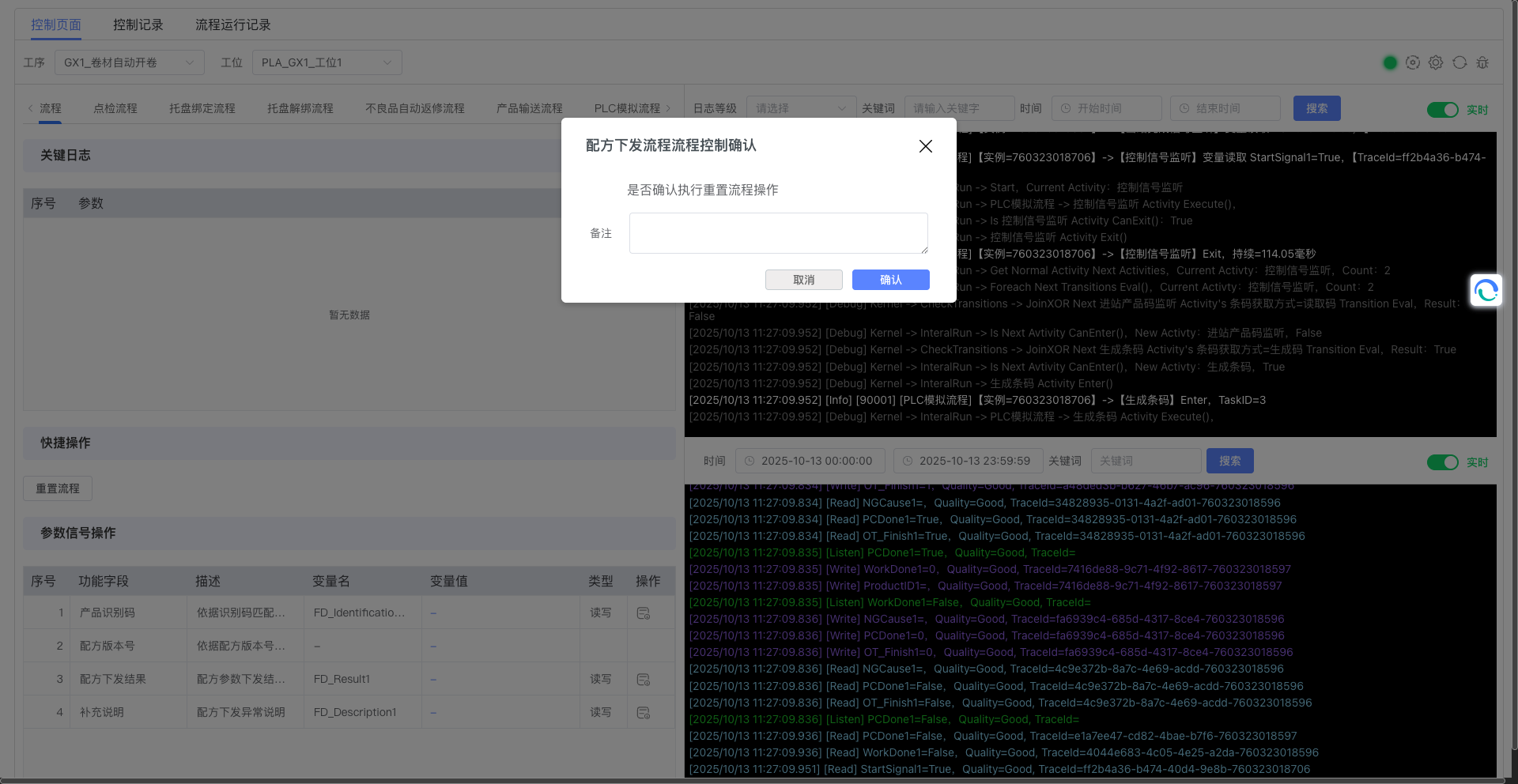
Click the reset button. The system will prompt for confirmation and pop up a confirmation dialog containing a remarks input box:
-
After entering remarks information, click the confirm button, and the process will be reset to the initial state.
Note: Resetting the process will interrupt the currently executing process. Please ensure operation at an appropriate time.
4.4 Parameter Send Operation
When manual intervention of equipment parameters is needed, you can perform operations through the parameter send function:
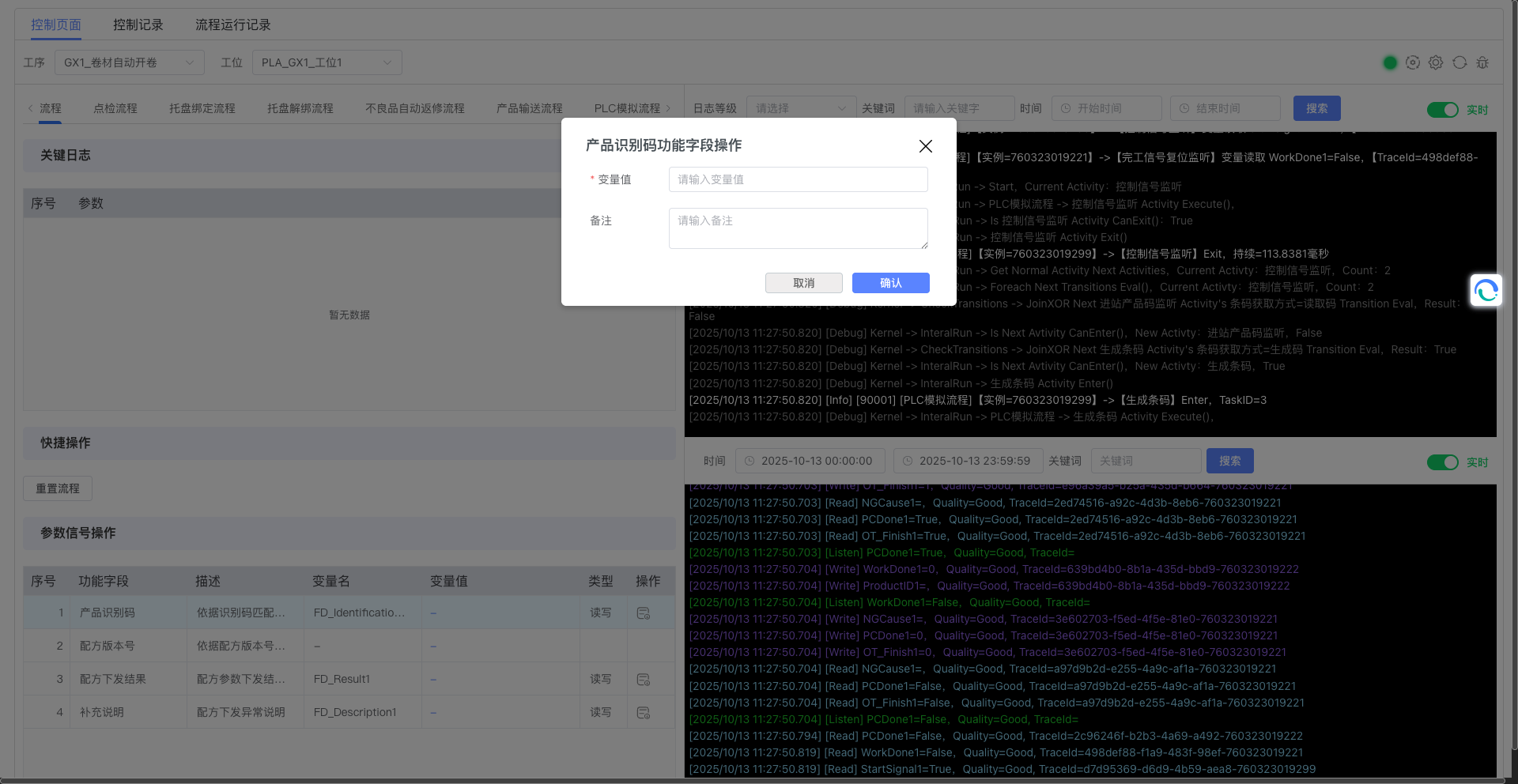
The parameter send dialog is shown in the figure:
- In the parameter signal operation area, find the parameter item that needs to be modified.
- Confirm that the parameter has write permission (displayed as "Read-Write" in the "Type" column).
- Click the "Send" button on the right side of the corresponding parameter.
- In the pop-up dialog, enter the new parameter value and remarks information.
- After confirming there are no errors, click the "OK" button, and the system will send the new parameter value to the PLC.
For example, when clicking the send button for the "Check-in Signal" parameter, the following dialog will pop up:
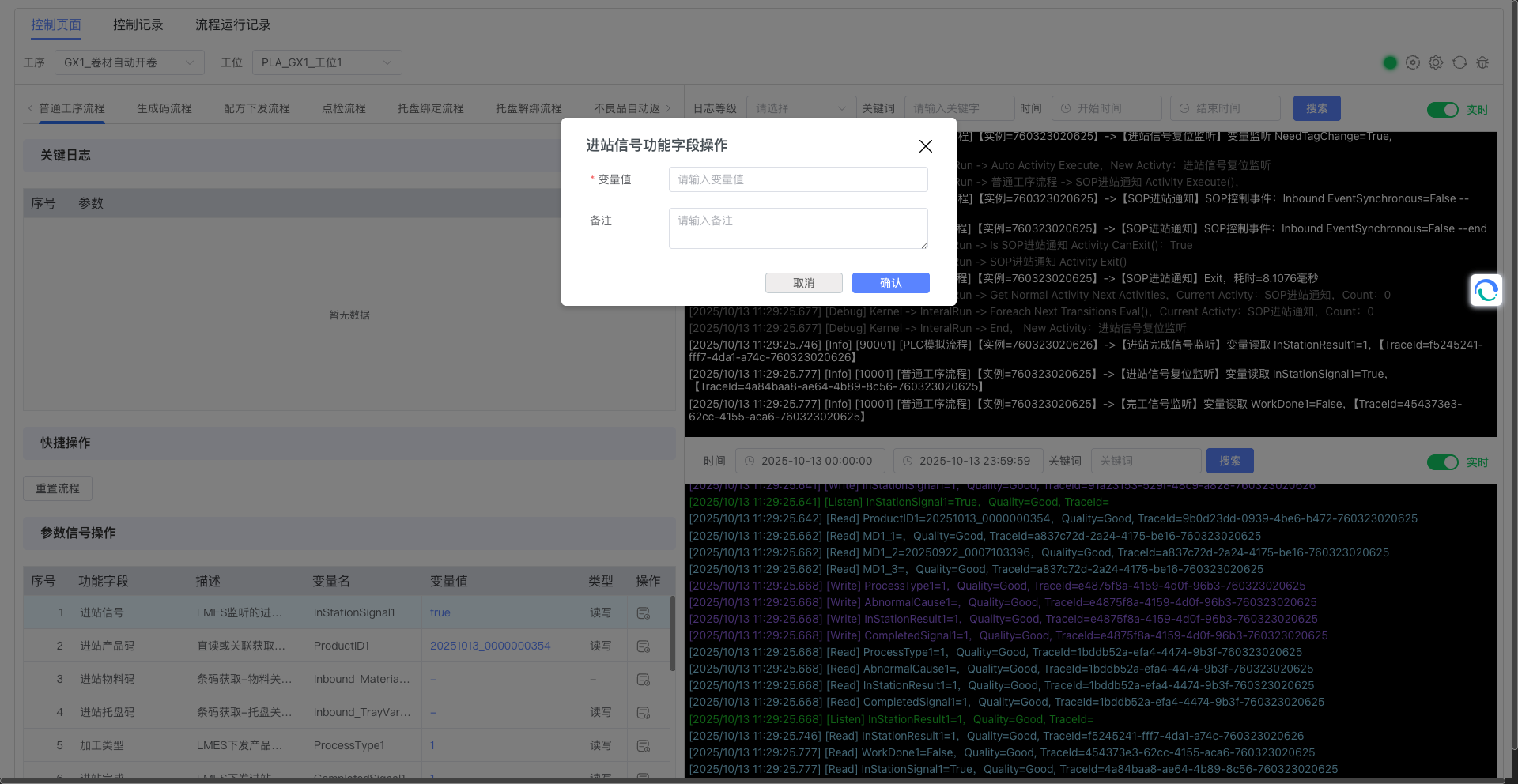
Note: Parameter send operations may directly affect the operational status of equipment. Please ensure you fully understand the meaning of parameters and possible impacts before operation.
5. Best Practices and Precautions
5.1 Process Type Tab Functionality
The LMES system supports multiple process types. Users can view parameters and status of different processes by switching tabs:
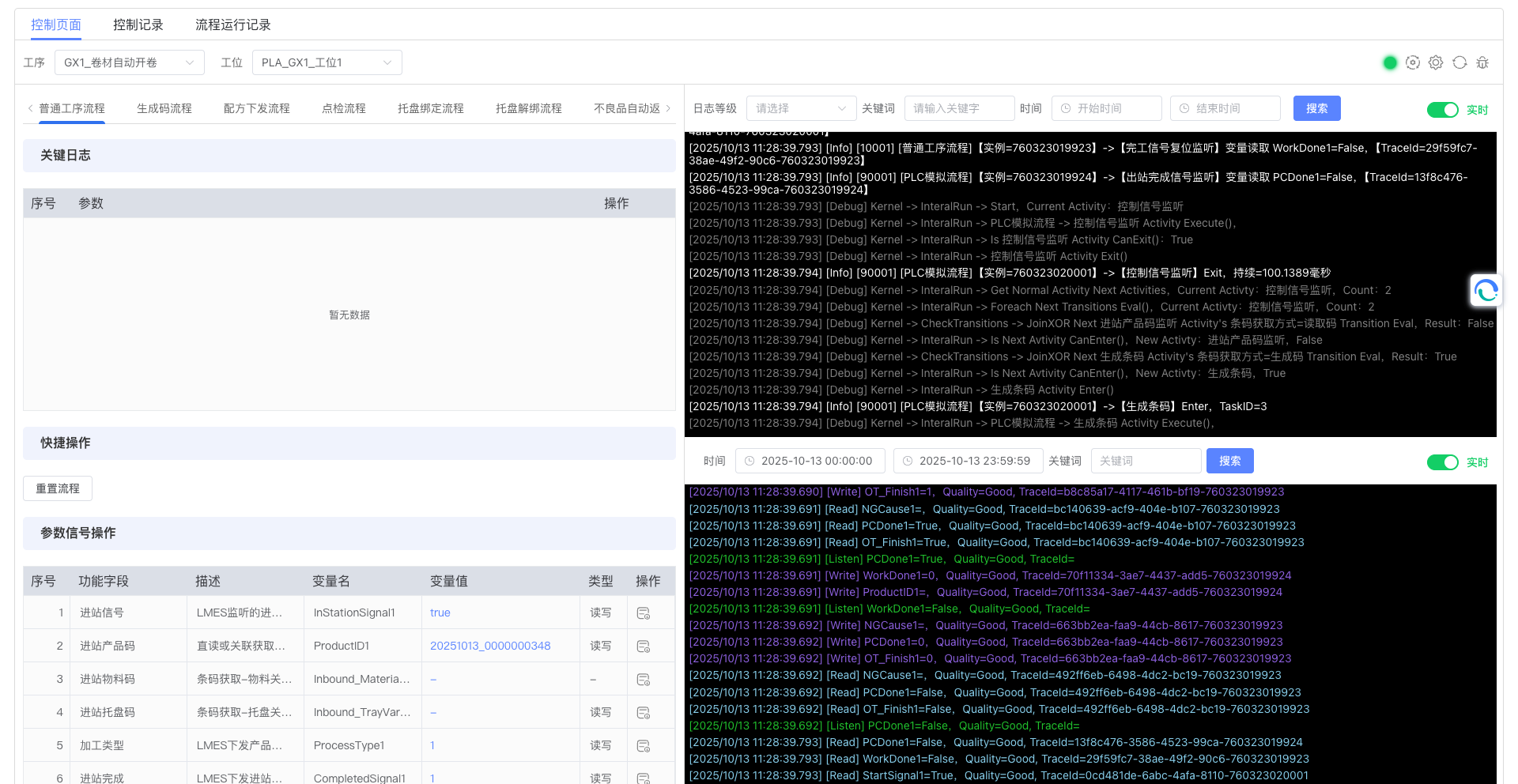
- Ordinary Process Flow: Contains 14 parameters, such as check-in signal, check-in product code, etc.
The ordinary process flow tab interface is shown in the figure:
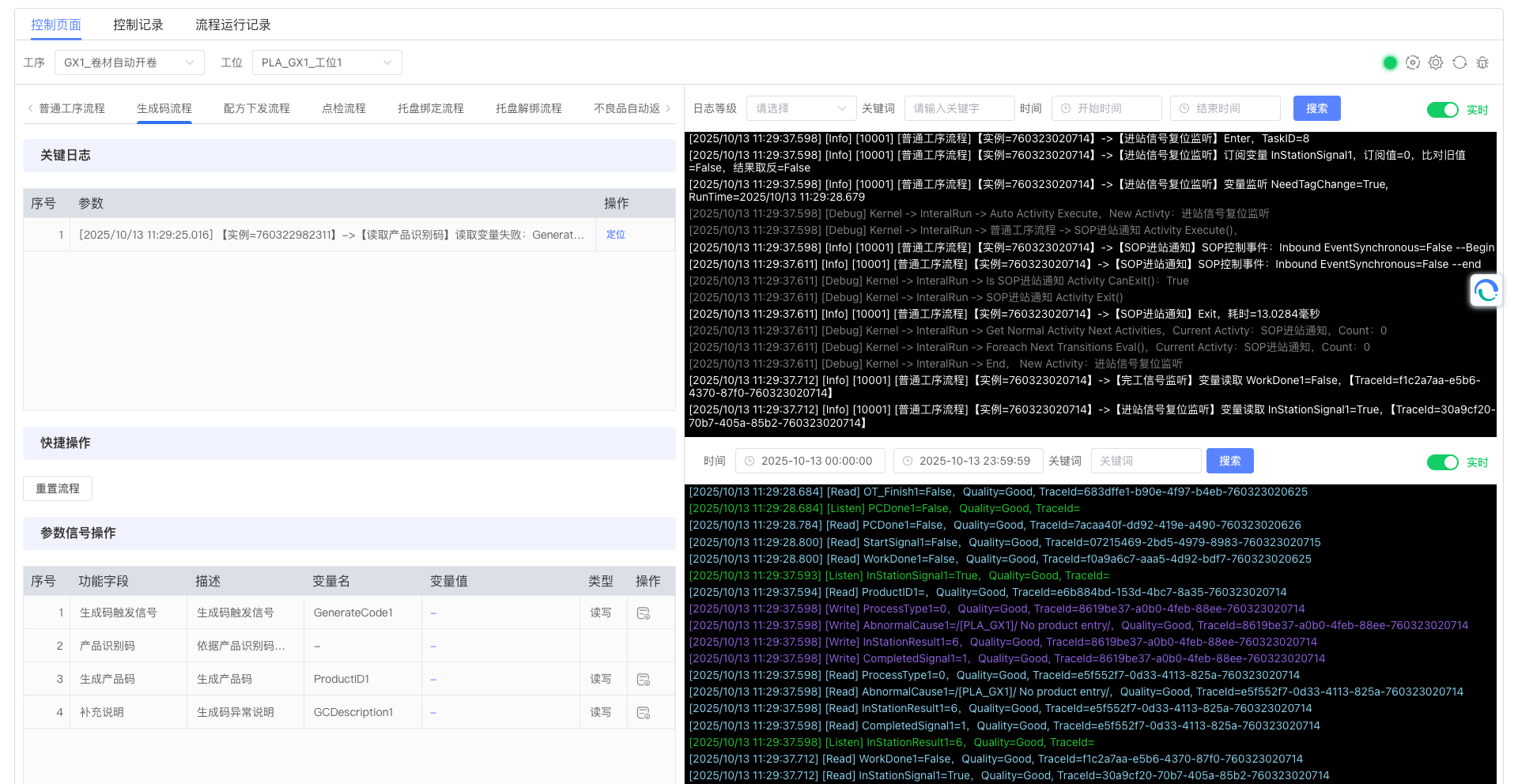
- Code Generation Process: Contains 4 parameters, such as code generation trigger signal, product identification code, etc.
Different process type tabs can help users perform precise monitoring and control for different production links. The code generation process tab interface is shown in the figure:
Best Practices
- Real-time Monitoring: It is recommended to continuously monitor the Workstation Control Panel during the production process to promptly discover and resolve problems.
- Regular Inspection: Regularly check process operation records to understand the operational status of processes.
- Troubleshooting: When problems occur, prioritize using the Workstation Control Panel for troubleshooting rather than directly viewing log files.
- Process Debugging: For newly added or modified processes, use the Workstation Control Panel for real-time debugging to ensure normal process operation.
- Log Mode Selection: When conducting detailed log analysis, it is recommended to turn off real-time mode to focus more on viewing and analyzing historical logs. After analysis is complete, remember to re-enable real-time mode to monitor the latest status.
- Parameter Intervention: In emergency situations, reasonable use of the parameter send function can quickly resolve some simple equipment problems, but the principle of minimum intervention should be followed.
Precautions
- Permission Control: Operations on the Workstation Control Panel may affect the production process. Please ensure that only authorized personnel can perform operations.
- Operate Cautiously: When performing operations such as process reset, please confirm the necessity and safety of the operation.
- Data Preservation: Before resetting the process, please ensure that necessary data and records have been saved.
- Parameter Send Safety: Before performing parameter send operations, be sure to confirm the meaning and expected impact of parameters. It is recommended to perform parameter debugging during non-peak production periods or in test environments to avoid adverse effects on production.
6. Appendix
Terminology Explanation
- Process Instance: A specific execution process of the process.
- PLC Variable: Variables in Programmable Logic Controller, used to control and monitor equipment status.
- Process Log: Detailed information recording the process execution.
- Reset Process: Operation to restore the process to its initial state.