Workstation Current Step
1. Module Overview
Core Functions: The Workstation Current Step module is used to display in real-time the process step information being executed at the workstation, helping users monitor the operational status of the workstation. This module is an important component of the LMES system management functions, providing critical process execution information for production monitoring and problem troubleshooting.
- Component ID: WorkStationStep
- Component Name: Workstation Current Step
- Component Category: run (plugin)
2. Scenario Description
In the actual production process, users need to understand in real-time the operational status of the workstation and the currently executing process steps. This module is mainly applied in the following scenarios:
- Production Monitoring: View in real-time the process node currently being executed by the workstation to grasp production progress
- Problem Troubleshooting: When abnormalities occur at the workstation, quickly locate the current execution step and historical execution records to analyze the cause of problems
- Process Traceability: By viewing detailed information about process execution, including duration, instance ID, etc., conduct production process traceability
3. Function Introduction
Interface Overview
The Workstation Current Step module provides a simple and intuitive information display interface, including two main functional areas: current step overview and detailed information query.

3.1 Current Step Overview
The current step overview area is located at the top of the interface, displaying key information about the process currently being executed by the workstation through compact information cards. As shown in the figure above, this area includes the following core elements:
- Status Indicator Light: The green dot indicator light in the upper left corner of the interface indicates that the current step is running
- Current Node Name: Displays the name of the process node currently being executed by the workstation (such as "Check-in Product Code Listener" in the example)
- Execution Time: Displays the execution timestamp of the current step, accurate to milliseconds (format: YYYY-MM-DD HH:mm:ss.SSS)
- Instance ID: The upper right corner displays the unique identifier of the current process instance, facilitating problem traceability
- More Details Entry: The "More >>" link in the upper right corner. Clicking it allows viewing more detailed process execution information
3.2 Process Execution Details Query
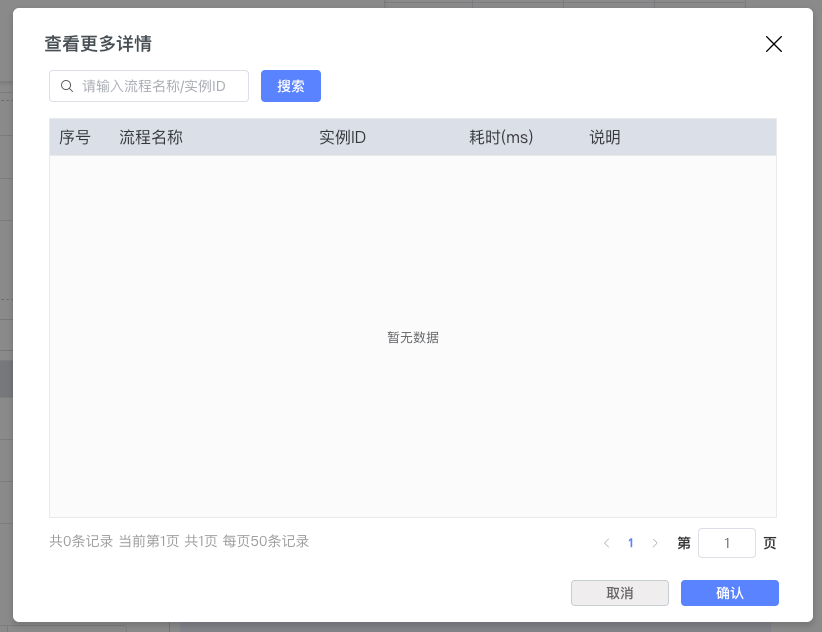
Click the "More >>" link in the upper right corner of the overview area, and the system will pop up the "View More Details" dialog for querying and analyzing all process execution log information from the current record (may include historical records from long ago).
3.2.1 Search and Filter Functions
The top of the dialog provides powerful search tools to help users quickly locate target process records:
- Search Box: Located in the upper left corner of the dialog, with a magnifying glass icon. Users can enter process name or instance ID here for precise queries. The search box displays placeholder text "Please enter process name/instance ID"
- Search Button: The blue "Search" button to the right of the search box. Click to execute the query operation based on input conditions
3.2.2 Process Execution Record Table
The table area displays process execution records that meet the search criteria, containing the following key fields:
| Field | Description |
|---|---|
| Serial Number | Sequential number of the record |
| Process Name | Name of the executed process |
| Instance ID | Unique identifier of the process instance, used to trace specific execution processes |
| Duration (ms) | Execution time of this process step, in milliseconds |
| Description | Supplementary description information for process execution |
When there is temporarily no data that meets the criteria, the center of the table will display a "No Data" prompt.
3.2.3 Dialog Operation Buttons
The lower right corner of the dialog provides two operation buttons:
- Cancel: Click to close the dialog without performing any operation, returning to the current step overview interface
- Confirm (blue button): Click to confirm viewing operation and close the dialog
The upper right corner of the dialog also provides a standard close button (×). Click to directly close the dialog.
4. Best Practices and Precautions
4.1 Usage Recommendations
- Regular Monitoring: It is recommended to regularly check workstation current steps during the production process to promptly detect abnormal execution situations
- Problem Troubleshooting: When abnormalities occur at the workstation, prioritize using the "More Details" function to view process duration and execution records, analyzing whether there are process blockages or execution failures
- Performance Analysis: Pay attention to process duration data, identify steps with excessively long execution times, providing basis for process optimization
5. Frequently Asked Questions
Q: Why does the current step always display the same node?
A: This may indicate that process execution is stuck at that node. It is recommended to view process execution details, check whether the duration is abnormal, and investigate whether the execution conditions of that node are met.
Q: How to find process execution records for a specific time period?
A: You can enter the process name or instance ID in the search box of the "View More Details" dialog to query, and the system will return matching historical records.
Q: How to interpret process duration data?
A: Duration is displayed in milliseconds (ms). Under normal circumstances, most process steps should be completed within hundreds of milliseconds. If a step takes several seconds or longer, there may be performance issues or execution abnormalities.