Work Order Management
1. Module Overview
Core Function: The Work Order Management module is a core component in the LMES system, responsible for managing the full life cycle of work orders during the production process, including operations such as work order creation, query, update, deletion, and status transition. This module ensures the orderliness of the production process and data consistency through standardized process management and operation verification.
- Component Identifier: OrderManagement
- Component Name: Work Order Management
- Component Category: run (Plugin)
2. Scenario Description
The Work Order Management module is applicable to the following business scenarios:
- Production Plan Execution: When the production plan is determined, work orders need to be created to specifically execute production tasks.
- Production Process Control: During the production process, it is necessary to control the production flow through work order status transitions, such as activating, dispatching, pausing, completing, and ending work orders.
- Production Data Tracking: Work orders can be used to track various data during the production process, such as planned quantity, actual production quantity, qualified quantity, unqualified quantity, etc.
- Production Resource Management: Work order management involves the association and management of production resources such as products, recipes, and process segments.
3. Function Introduction
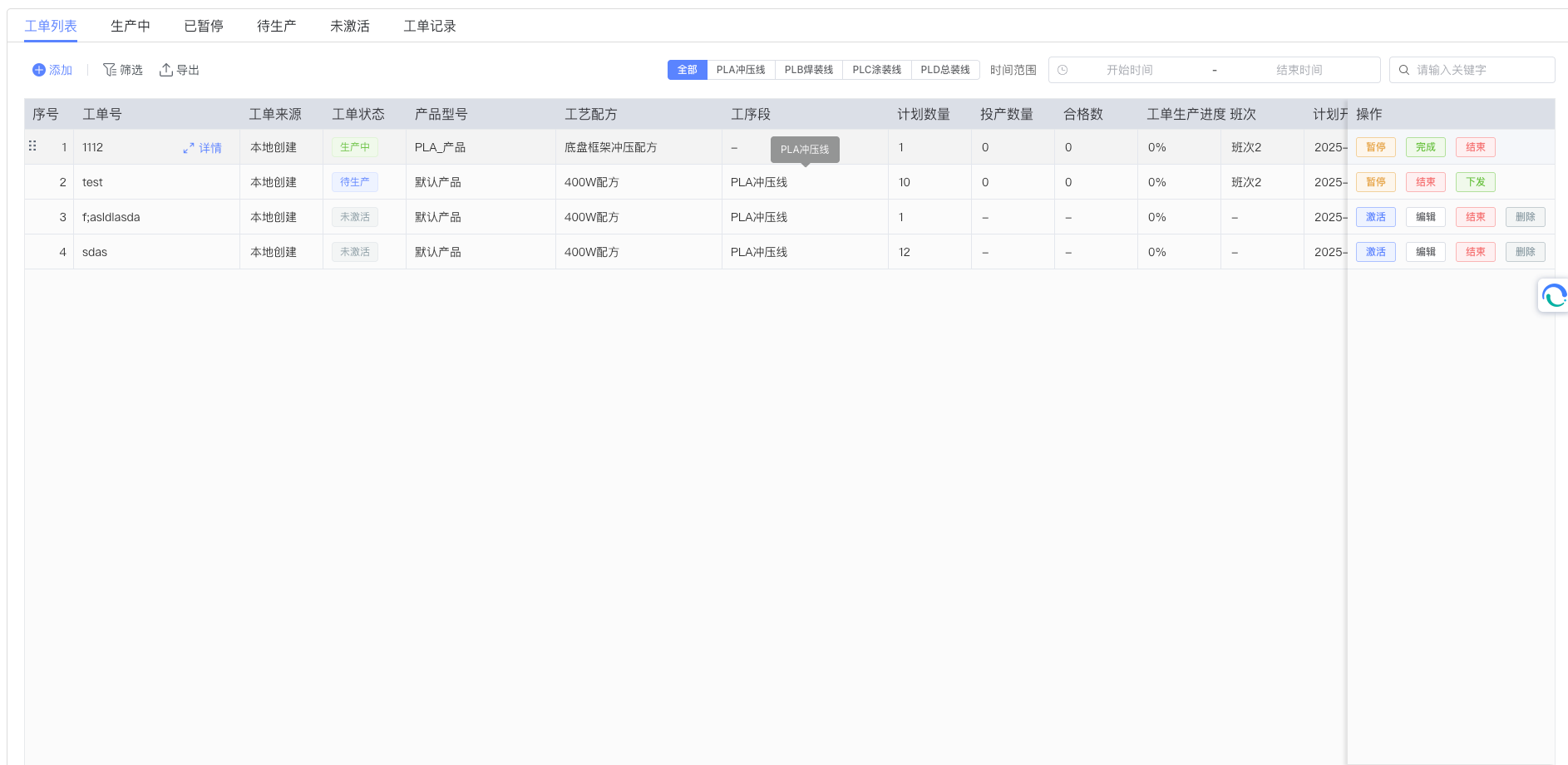
Interface Overview: The Work Order Management module provides comprehensive work order management functions, including work order creation, query, editing, deletion, and status transition. The module adopts an intuitive interface design, allowing users to easily manage and monitor all work orders.
3.1 Work Order List and Query
The work order list area is used to centrally display and manage all work orders. As shown in the figure above, the top of the interface provides a series of control tools: the "Search Box" on the right allows users to filter in real-time by work order number or keywords; the center of the interface provides a process segment filter, which allows filtering work orders by different statuses (such as "Inactive", "Pending", "In Production", "Completed", "Ended", etc.); in addition, there is a time range selector to facilitate users to filter by planned start time or planned end time.
In the work order list, each work order record displays key information such as work order number, product name, planned quantity, actual quantity, progress, and current status. Users can view detailed information by clicking on the work order in the list.
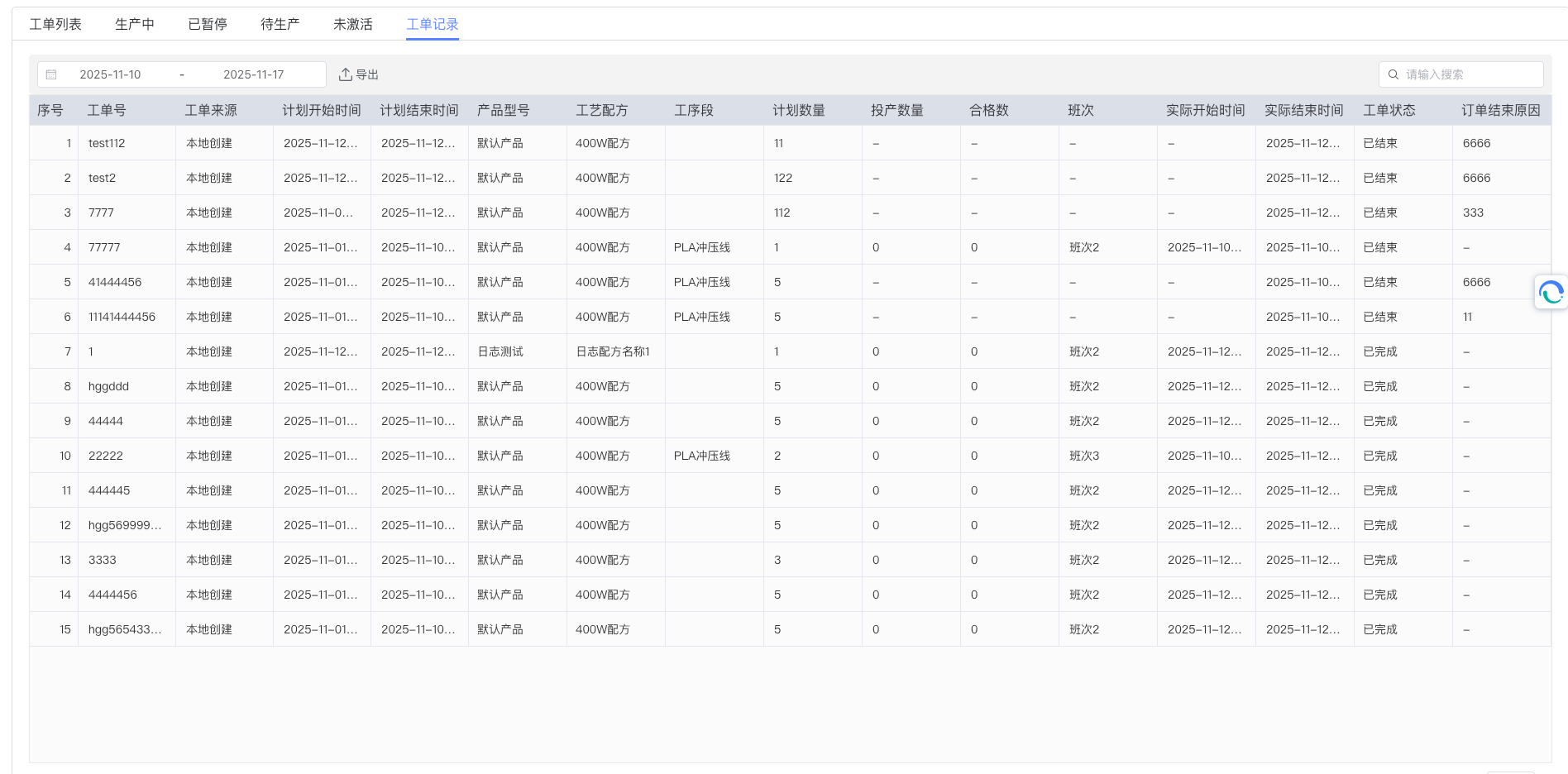
3.2 Create New Work Order
To create a new work order, please click the "Add" button at the top of the interface. The system will pop up a dialog box (see figure below) containing various basic information of the work order.
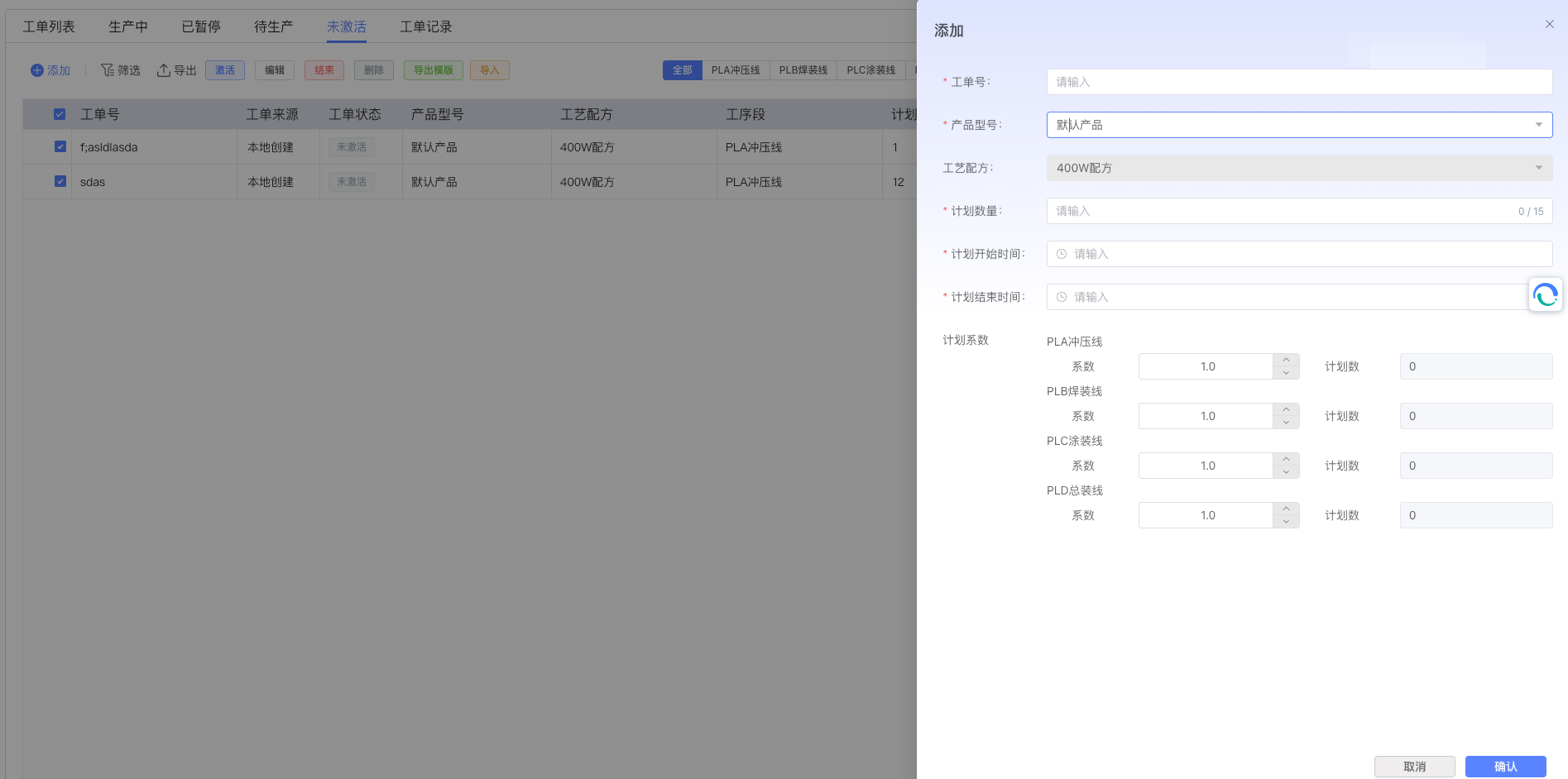
The New Work Order dialog box contains the following required and optional fields:
- Work Order Number: Required, must uniquely identify the work order
- Planned Quantity: Required, the planned production quantity of the work order
- Planned Start Time: Optional, the planned start time of the work order
- Planned End Time: Optional, the planned completion time of the work order
- Associated Product: Required, select the product information associated with the work order
- Associated Recipe: Required, select the recipe information associated with the work order
- Product and Process Segment Ratio Configuration: Optional, can configure the production ratio of the product in different process segments
After filling in, click the "Confirm" button in the lower right corner of the dialog box to complete the creation. Clicking "Cancel" will close the dialog box.
3.3 Work Order Status Transition
The Work Order Management module provides complete status transition functions, supporting the flow of work orders between different statuses:
- Activate Work Order: Transition the work order from "Inactive" or "Paused" status to "Pending" status.
- Dispatch Work Order: Transition the work order from "Pending" status to "In Production" status, indicating that the work order officially starts execution.
- Pause Work Order: Transition the work order from "Pending" or "In Production" status to "Paused" status, used for temporary interruption of production.
- Complete Work Order: Transition the work order from "In Production" status to "Completed" status, indicating that the work order production task is completed.
- End Work Order: Transition the work order from "Completed" status to "Ended" status, indicating the end of the work order life cycle.
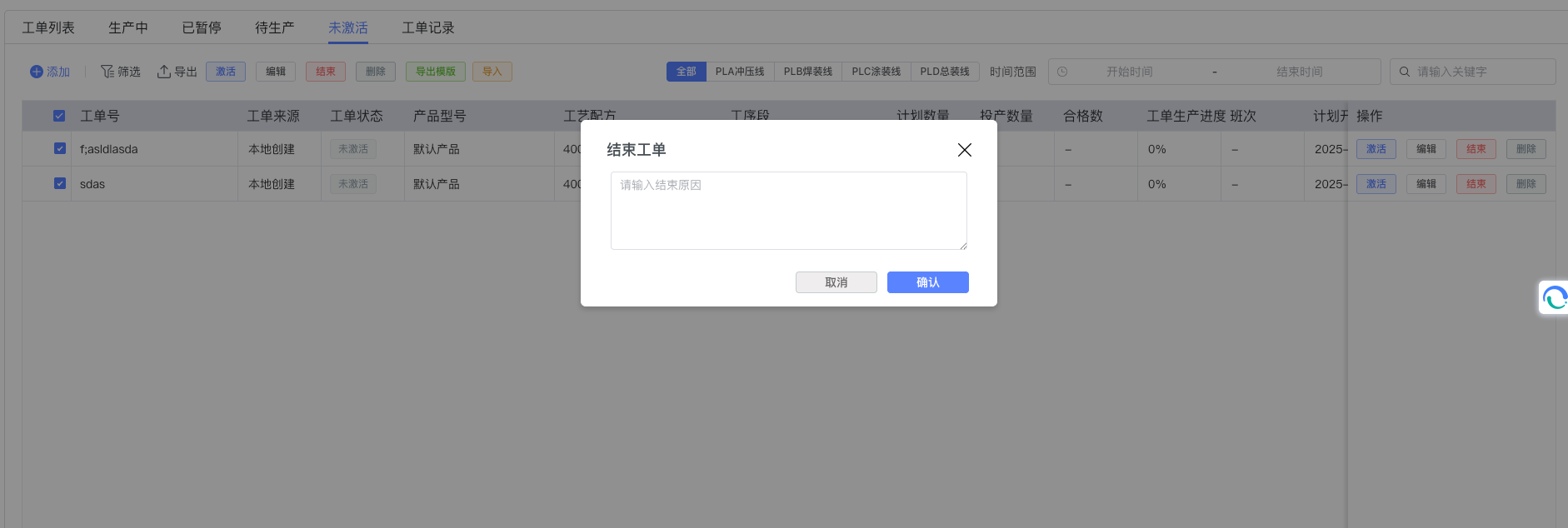
The figure below shows the operation interface for ending a work order:
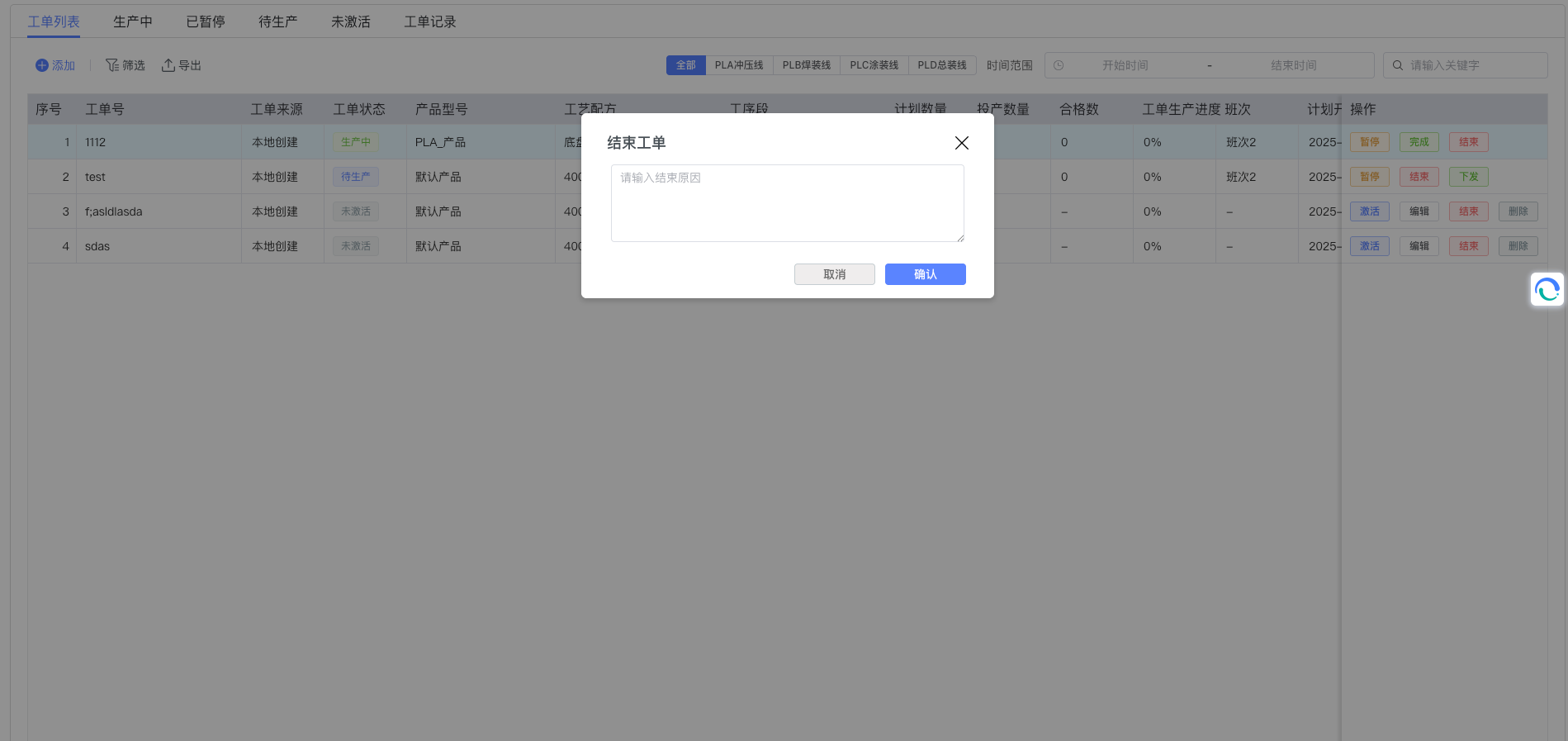
Each status transition has strict business rules and prerequisites. The system will automatically verify these conditions to ensure the standardization of the production process and data consistency.
3.4 Batch Operation
To improve work efficiency, the Work Order Management module also provides batch operation functions, supporting the same operation on multiple work orders simultaneously, such as batch activation, batch dispatch, batch pause, batch completion, and batch ending. Users only need to select multiple work orders in the work order list and then click the corresponding batch operation button.
3.5 Export Template
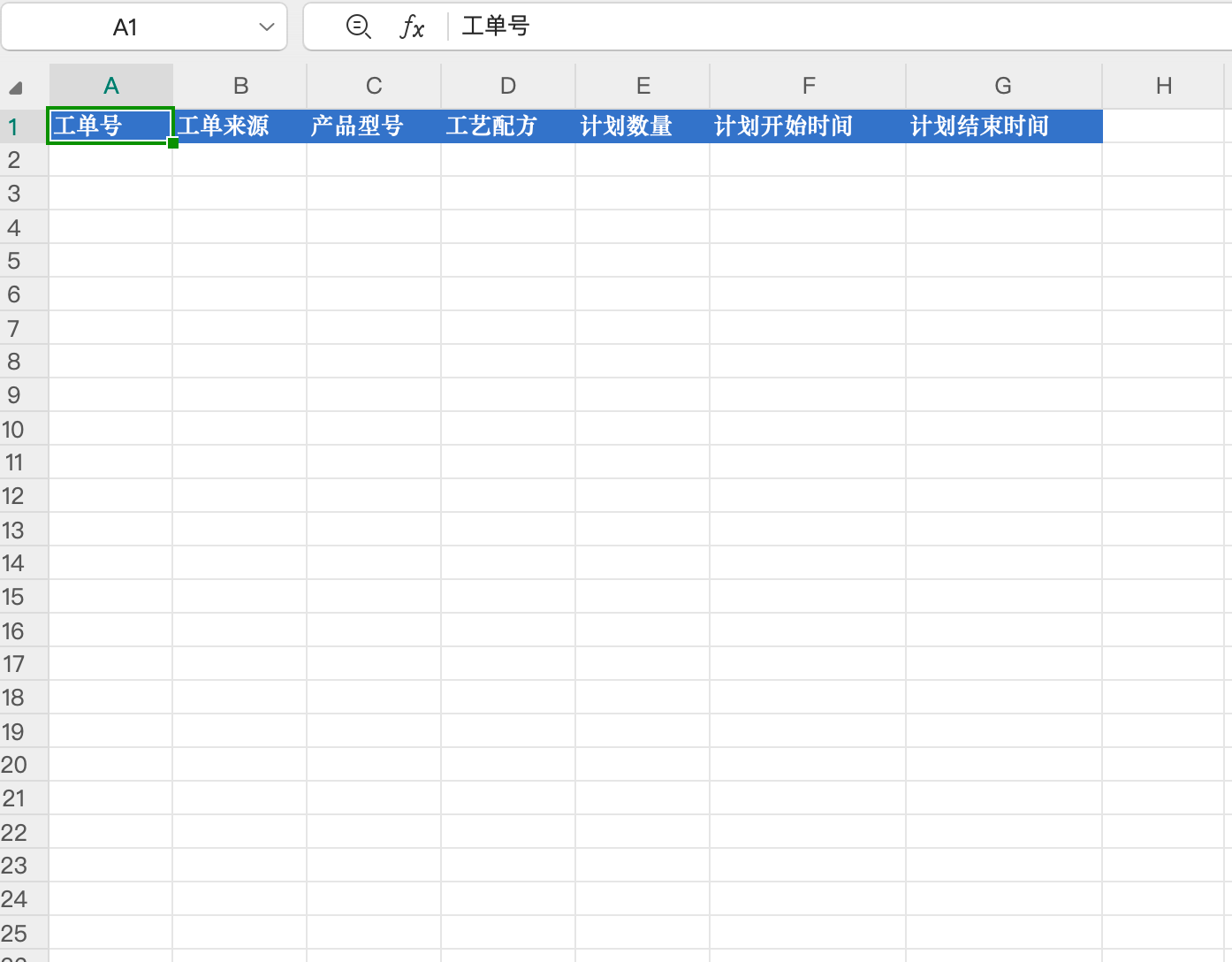
Click Export Template, a work order template will be automatically downloaded. Fill in according to the template content, and then import it to quickly complete the creation of work orders.
3.6 Production Data Statistics Description
This section details the calculation logic of production input quantity, qualified quantity, and unqualified quantity in the production management system. These indicators are statistically based on production records and are used to evaluate the production progress and quality of work orders. The system only considers valid production data and ensures that the same product is not counted repeatedly. If there are no relevant records, the system will return 0.
3.6.1 Input Quantity (Total Input Product Quantity)
Definition: Represents the number of products that have been completely put into production in the work order.
Calculation Logic: The system checks production records and counts the number of products that have both entry time and exit time in the first process.
Calculation Basis:
- Must pass through the complete process of the first process
- Only counts products with complete first process flow to avoid including unfinished or interrupted records
Example: If a work order involves 10 products, and 8 of them have completed from entry to exit in the first process, the input quantity is 8.
3.6.2 Qualified Quantity (Quantity of Products Passing Quality Check)
Definition: Represents the number of products finally determined as qualified in the work order.
Calculation Logic: The system checks production records and counts the number of products that are qualified in the last process and qualified in all processes.
Calculation Basis:
- Must pass through the last process
- Combine the result of the last process and the status of all processes to ensure only defect-free products are included
Special Note: The calculation of qualified quantity is not only based on the qualified result of the last process, but considers both the last qualified status and the overall qualified status. Only products that meet both qualified conditions will be counted.
Example: If a work order involves 10 products, and 6 of them meet the conditions of being qualified in the last process and qualified in all processes, the qualified quantity is 6.
3.6.3 Unqualified Quantity (Quantity of Products Failing Quality Check)
Definition: Represents the number of products determined as unqualified in the work order.
Calculation Logic: The system checks production records and counts the number of products that are unqualified in any process.
Calculation Basis:
- Focus on any unqualified mark to facilitate identification and improvement of production problems
- Does not necessarily have to pass through the first process or the last process
Example: If a work order involves 10 products, and 2 of them are unqualified in any process, the unqualified quantity is 2.
3.6.4 Precautions
- The calculation of these indicators is based on the sum of production records of the work order, usually Input Quantity ≈ Qualified Quantity + Unqualified Quantity
- If the calculation result does not match expectations, it may be due to missing or abnormal production records. Please check relevant data sources.
3.6.5 Difference Description with Traceability Report Process Quantity
Overall Difference:
The input quantity, qualified quantity, and unqualified quantity described in this section are aggregated indicators at the work order level, calculated based on specific filtering conditions (such as complete flow of the first process, qualified in the last process, unqualified in any process), aiming to provide an overall production overview. In contrast, the process quantity in the traceability report is usually a detailed count for each process, displaying entry, exit, or qualified/unqualified records at the specific process level, which may include all raw data without aggregation filtering.
Specific Differences:
- Input Quantity: Limited to the summary of complete records of the first process, while the traceability report may display input details of all processes.
- Qualified Quantity: Emphasizes strict conditions of last process and overall qualification, while the traceability report may list qualified quantities process by process, including independent statistics of intermediate processes.
- Unqualified Quantity: Focuses on the summary of unqualified in any process, while the traceability report may split unqualified details by process to facilitate tracking specific problem points.
Usage Suggestions:
If overall work order assessment is needed, use the indicators in this section; if fine-grained analysis is needed (such as specific process problems), please refer to the traceability report to obtain more detailed process-level data.
4. Best Practices and Precautions
4.1 Operation Precautions
- Uniqueness of Work Order Number: When creating a work order, please ensure the uniqueness of the work order number to avoid duplicate creation.
- Status Transition Order: Please perform status transition according to the normal flow of the work order to avoid skipping necessary statuses.
- Permission Management: Different user roles may have different work order operation permissions. Please confirm your operation permissions before use.
- Data Integrity: When creating and editing work orders, please ensure that complete and accurate data is filled in, especially required fields.
4.2 Common Problem Handling
- Status Transition Failure: If the status transition fails, please check whether the current work order status meets the transition conditions.
- Work Order Deletion Restriction: The system restricts the deletion of work orders with source "Locally Created" and status "Pending" or "Inactive". Please confirm the work order status and source.
- Concurrent Modification Conflict: If a concurrent modification conflict occurs, please re-acquire the latest status of the work order before operating.