BOM Management
1. Module Overview
Core Function: The BOM (Bill of Materials) Management module is a core component of the production process modeling system, used to define and maintain the material composition structure of products. This module allows users to create, edit, and manage product material lists, establish hierarchical relationships between products and raw materials, semi-finished products, and parts, and accurately record key information such as material number, name, type, and usage required for each process.
- Component Identifier: BOMManagement
- Component Name: BOM Management
- Component Category: run (plugin)
2. Scenario Description
In the production management process of manufacturing enterprises, BOM management is the bridge connecting product design and production execution. When enterprises need to plan production tasks, calculate material requirements, conduct cost accounting, or trace product quality, they all rely on accurate and complete BOM data. Typical application scenarios include:
- New Product Introduction: Establish complete material lists and process material configurations for new products.
- Process Change Management: Timely update BOM information when product processes or materials change.
- Production Plan Formulation: Calculate material requirements for each process based on BOM data.
- Cost Accounting: Conduct product cost analysis based on material usage in BOM.
3. Function Introduction
Interface Overview
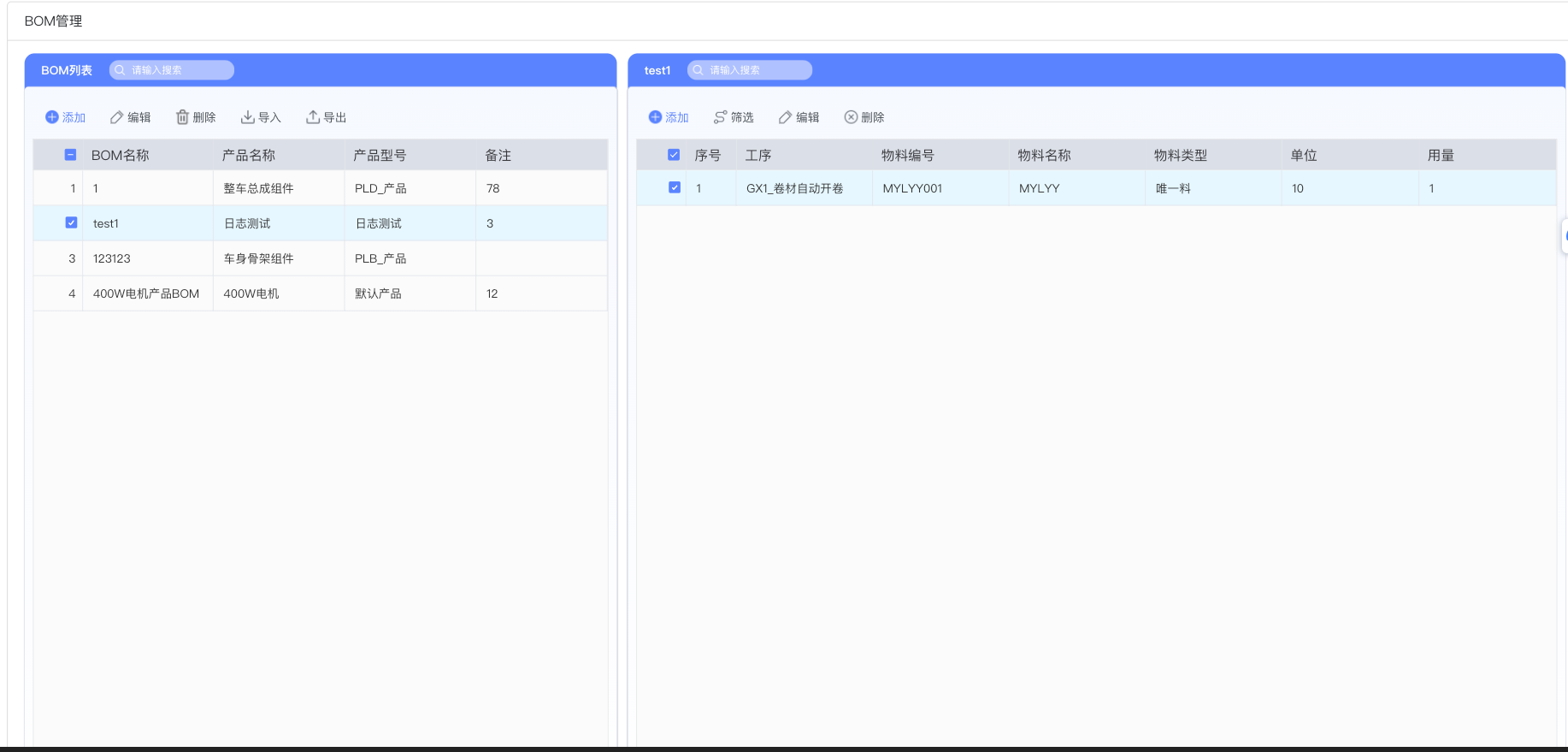
The BOM Management module adopts a split-screen design: the left side is the BOM List Area, displaying all created product BOMs; the right side is the Material List Area, detailing the material details of the selected BOM. This layout allows users to view BOM summaries and detailed material composition simultaneously, improving data viewing and editing efficiency.
3.1 BOM List Management
The BOM list area on the left is the main control center of the module, providing complete BOM addition, deletion, modification, and query functions.
Search and Filtering: A "Please enter search" search box is provided at the top of the interface, supporting quick retrieval by BOM name, product name, or product model.
Operation Toolbar: The toolbar above the list contains the following core function buttons:
- Add button (Blue circle icon): Click to pop up the "New BOM" dialog box to create a new product BOM.
- Edit button (Pencil icon): After selecting a BOM record, click to modify the basic information of the BOM.
- Delete button (Trash can icon): Delete the selected BOM record and all its associated material details.
- Import button (Download arrow icon): Support batch import of BOM data, usually accepting Excel or CSV format files.
- Export button (Upload arrow icon): Export current BOM list data as a file for backup or external analysis.
List Fields: The BOM list table contains the following columns:
- No.: Sequence number of the BOM record.
- BOM Name: User-defined BOM identifier name.
- Product Name: The product name corresponding to the BOM.
- Product Model: The model specification of the product.
- Remarks: Supplementary explanation information.
3.2 Create New BOM
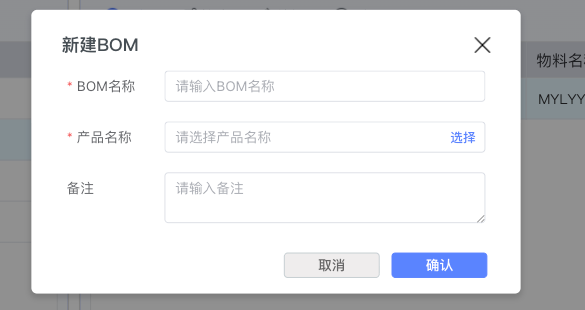
After clicking the "Add" button in the left list area, the system will pop up the "New BOM" dialog box. This dialog box adopts a simple three-field design:
- BOM Name (Required, marked with red asterisk): Need to enter a unique BOM identifier name, recommended to use meaningful naming rules, such as "ProductModel_VersionNumber".
- Product Name (Required, marked with red asterisk): There is a blue "Select" link button on the right side of this field. Clicking it will open the "Product Management" selector dialog box (see Section 3.3 for details) to select an associated product from the existing product library.
- Remarks: Optional field, used to record BOM version description, scope of application, or other supplementary information.
After filling in, click the "Confirm" button (blue) in the lower right corner of the dialog box to complete BOM creation; to cancel the operation, click the "Cancel" button (gray).
3.3 Product Selector
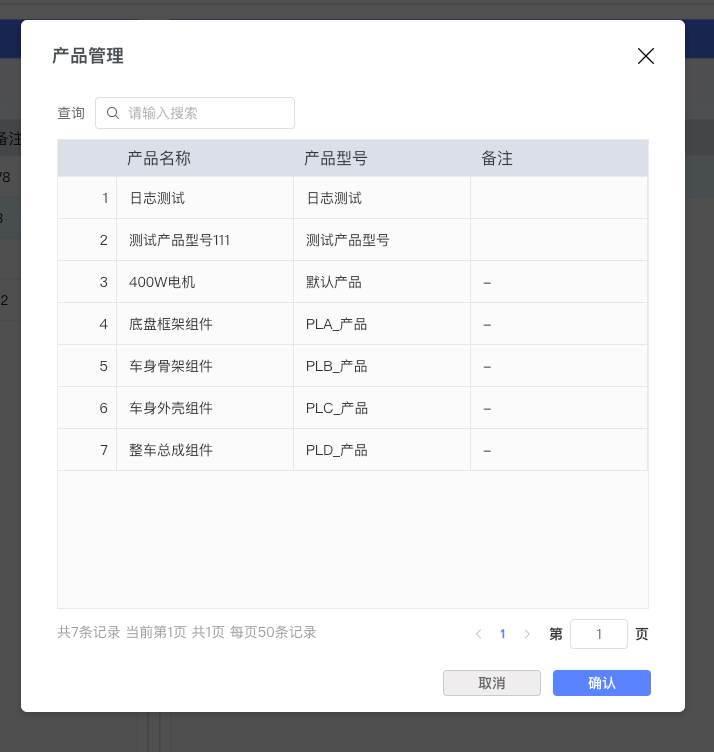
Clicking the "Select" link next to the "Product Name" field when creating a new BOM will open the "Product Management" dialog box. This dialog box provides complete product browsing and retrieval functions:
Query Function: Below the "Query" tab at the top, there is a "Please enter search" search box, supporting real-time filtering by product name or model.
Product List: Displays all available products in a table format, including the following columns:
- No.: Sequence number of the product record.
- Product Name: Full name of the product.
- Product Model: Model specification of the product.
- Remarks: Supplementary description of the product.
Pagination Control: The bottom of the dialog box provides complete pagination navigation tools, including:
- Statistics information "Total 7 records, Current Page 1, Total 1 Page, 50 records per page".
- Previous/Next page arrow buttons.
- Current page number display (Blue highlight).
- "Page" field and input box, allowing direct jump to a specified page.
- "Go" confirmation button.
After selecting the target product row in the table, click the "Confirm" button in the lower right corner of the dialog box to complete the selection; click the "Cancel" button to close the dialog box.
3.4 Material Detail Management
The material list area on the right is used to manage the detailed material composition of the selected BOM. This area adopts a tab design, displaying the BOM name label at the top (such as "test1" in the screenshot), supporting simultaneous opening of material lists of multiple BOMs for comparison.
Operation Toolbar: The following function buttons are provided above the material list:
- Add button (Blue circle icon): Add a new material detail record for the current BOM.
- Filter button (Funnel icon): May provide functions to filter materials by process, material type, etc.
- Edit button (Pencil icon): Modify the selected material detail information.
- Delete button (Circle minus icon): Delete the selected material record.
Material Detail Fields: The material list table contains the following detailed columns:
- No.: Sequence number of the material record.
- Process: Which production process the material is used in.
- Material Number: Unique identification code of the material.
- Material Name: Standard name of the material.
- Material Type: Classification of the material (such as Raw Material, Semi-finished Product, Finished Product, etc.).
- Unit: Unit of measurement (such as Piece, KG, Meter, etc.).
- Usage: Standard usage of this material in this process.
Empty State Prompt: When the material list is empty, the center of the table displays "No Data" prompt text, guiding the user to add material records.
3.5 Add Material Detail
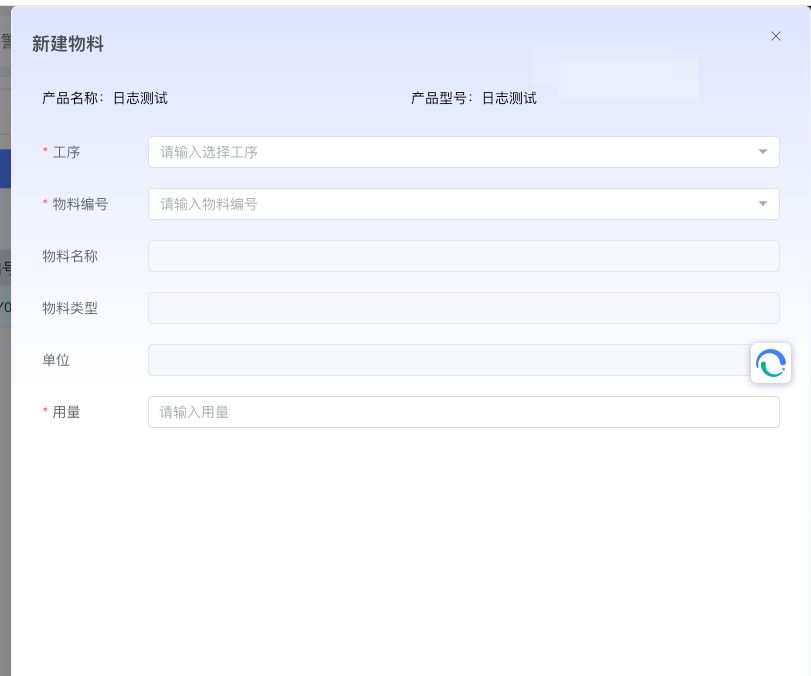
After clicking the "Add" button in the right material list area, the system will pop up the "New Material" dialog box. The design logic of this dialog box reflects the association relationship between fields and the automatic filling mechanism:
Auto-filled Fields (Displayed with gray background at the top):
- Product Name: Automatically displays the product name associated with the current BOM (e.g., "Log Test").
- Product Model: Automatically displays the corresponding product model (e.g., "Log Test").
Required Selection Fields (Marked with red asterisk):
- Process: Select the production process to which the material belongs through the dropdown selection box, prompt text is "Please select process".
- Material Number: Select the specific material code through the dropdown selection box, prompt text is "Please enter material number".
Auto-linked Fields (Automatically filled based on material number selection):
- Material Name: After selecting the material number, the system automatically fills in the corresponding material name.
- Material Type: Automatically fills in the classification type of the material.
- Unit: Automatically fills in the unit of measurement of the material.
Manual Input Fields (Required, marked with red asterisk):
- Usage: Need to manually enter the standard usage of this material in this process, prompt text is "Please enter usage".
After filling in, click the "Confirm" button at the bottom of the dialog box to add the material record to the BOM; click the "Cancel" button to abandon this addition operation.
4. Best Practices and Precautions
BOM Naming Specification
- It is recommended to use a unified naming rule, such as "ProductModel_VersionNumber_Date" format.
- Avoid using special characters or pure numbers as BOM names.
- For different version BOMs of the same product, differences should be explained in the remarks.
Material Usage Management
- Ensure usage fields are filled accurately, as this data will directly affect material requirement calculation and cost accounting.
- For decimal usage, it is recommended to retain enough decimal places to ensure accuracy.
- Regularly review material usage in BOM and update process changes in time.
Data Import and Export
- Before importing BOM data, it is recommended to export existing data as a template reference.
- After batch import, carefully check data integrity and accuracy.
- Before important BOM changes, it is recommended to export a backup first.
Process Material Configuration
- Ensure material configuration for each process is complete to avoid missing key materials.
- Pay attention to distinguishing the same material used in different processes; separate material detail records should be created.
- For optional or alternative materials, explanations can be made in the remarks.
Permission Management Suggestions
- Modification of BOM data should be strictly controlled by permissions, recommended to only allow process personnel or administrators to operate.
- Important product BOM changes should establish an approval process.
- Regularly audit BOM change records to ensure data traceability.