Barcode Management
1. Module Overview
Core Function: The Barcode Management module is the core functional module for managing product barcodes in the LMES system. It provides three major functions: barcode parsing, generation, and verification. Through unified rule configuration, this module achieves standardized management of various barcodes in the production process, ensuring the accuracy, consistency, and traceability of barcode information.
- Component Identifier: BarcodeManagement
- Component Name: Barcode Management
- Component Category: run (Plugin)
User Value:
- Solve Standardization Issues: Unify various barcode formats within the enterprise and establish a standard barcode management system.
- Improve Traceability Efficiency: Quickly extract key product information through structured barcode parsing to support precise traceability.
- Ensure Data Quality: Ensure the correctness of barcode data through verification rules and reduce manual errors.
- Support Flexible Configuration: Adapt to the barcode management needs of different product lines and process flows.
- Reduce Management Costs: Automated barcode processing reduces manual intervention and improves production efficiency.
2. Module Details
Interface Layout: The Barcode Management module adopts a modern tab design. The main interface is divided into three core functional areas: Parsing Rules, Generation Rules, and Verification Rules. Each functional area provides a complete CRUD operation interface, supporting rule creation, editing, deletion, copying, and querying functions.

Detailed UI Element Function Description:
2.1 Top Function Tabs
- Parsing Rules Tab: Manage barcode parsing configurations, decomposing complex barcode strings into meaningful data segments according to preset rules.
- Generation Rules Tab: Configure barcode generation logic, automatically generating compliant barcodes based on product information, process requirements, etc.
- Verification Rules Tab: Set barcode verification mechanisms to ensure the correctness of barcode format and content.
2.2 Operation Toolbar
- Add Button: Create new rule configurations, supporting quick addition of various rules.
- Edit Button: Modify configuration parameters of existing rules, supporting dynamic adjustment of rules.
- Delete Button: Remove rules that are no longer in use to keep the rule library clean.
- Copy Button: Quickly create similar rules based on existing rules to improve configuration efficiency.
- View Button: View rule details in read-only mode for rule review and confirmation.
2.3 Search and Filter Functions
- Quick Search Box: Support fuzzy search by keywords such as rule name and status.
- Advanced Filter: Support precise filtering by conditions such as creation time, usage status, and rule type.
2.4 Rule List Display Area
Display complete information of all rules in table form:
- Rule Name: Unique identifier of the rule for easy management and reference.
- Status: Display the current usage status of the rule (In Use/Unused).
- Barcode Composition/Check Code/Scope: Display corresponding core information according to different rule types.
- Update Time: Record the last modification time of the rule for version management.
- Remark: Detailed description and usage precautions of the rule.
3. Operation Guide
3.1 Barcode Parsing Rule Management
Task 1: Create Separator-Based Parsing Rule
-
Step 1: On the parsing rule page, click the blue "Add" button in the upper left corner, and the system will pop up the rule configuration dialog box.
-
Step 2: Configure basic rule information
- Rule Name: Enter a rule name with business meaning, such as "Production Barcode Parsing Rule_Product A".
- Barcode Example: Paste or enter an actual barcode sample, such as "20230904_00000_00001".
- Parsing Type Selection:
- Select "Separator" for handling barcodes with clear separators.
- Select "Start/End Symbol" for handling barcodes with specific start and end markers.
- Select "Fixed Length" for handling barcodes where each segment has a fixed length.
- Separator Configuration: Enter the separator used in the barcode, such as underscore "_" or other characters.
-
Step 3: Execute barcode parsing verification
- Click the "Parse" button, and the system will automatically analyze the barcode example according to the configured rules.
- View the decomposed barcode segment information in the parsing result table below:
- No.: Sequence number of the barcode segment.
- Barcode Segment Name: Assign a meaningful name to each barcode segment (editable).
- Barcode Segment Content: Display the specific content parsed.
- Digits: Character length of the barcode segment.
- Verify if the parsing result meets expectations. If not, adjust the parsing parameters and re-parse.
-
Step 4: Complete rule information and save
- In the "Remark" area, describe the purpose, applicable scenarios, and precautions of the rule in detail.
- Click the "Confirm" button to save the rule. The system will automatically assign a rule ID and update the rule list.
Task 2: Manage Existing Parsing Rules
-
View Rule Details: Select the target rule in the rule list and click the "View" button to view the complete configuration information of the rule.
-
Edit Rule: Click the "Edit" button to modify rule parameters, supporting real-time preview of modification effects.
-
Rule Status Management:
- Rules in use will display corresponding indicators in the "Status" column.
- You can adjust the enabled status of the rule through the editing function.
3.2 Barcode Generation Rule Management
Task 3: Create Barcode Generation Rule
- Step 1: Switch to the "Generation Rules" tab and click the "Add" button to start the generation rule configuration process.

-
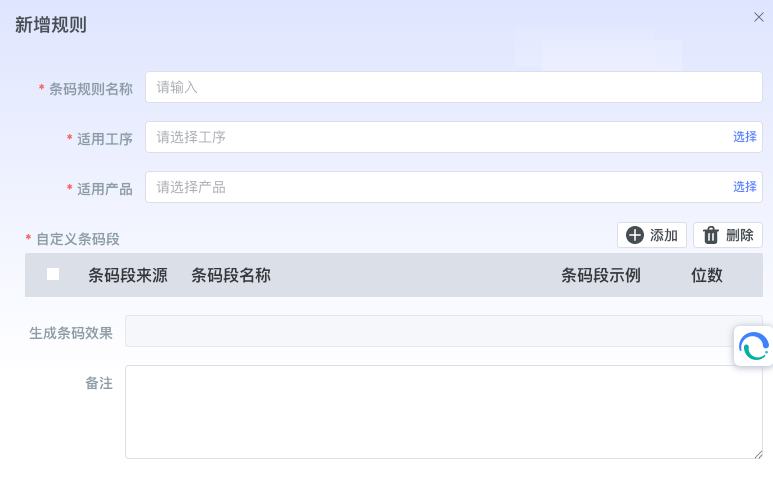
Step 2: Configure rule scope and basic information
- Barcode Rule Name: Enter a descriptive rule name, recommended to include applicable product or process information.
- Applicable Process: Click the "Select" button to select the production process applicable to this rule from the process list.
- Applicable Product: Click the "Select" button to select the product type applicable to this rule from the product catalog.
- Custom Barcode Segment: Enable this option to create a flexible barcode structure.
-
Step 3: Configure barcode segment generation rules In the barcode segment configuration table, set detailed generation parameters for each barcode segment:

-
Barcode Source: Select the source type of barcode segment data:
- Custom Name: Manually specify the identifier name of the barcode segment.
- System Field: Use system predefined data fields.
- Business Variable: Reference dynamic variables in the business process.
-
Barcode Segment Name: Assign a meaningful business name to each barcode segment.
-
Barcode Segment Content: Configure specific content generation rules according to the source type.
-
Digit Setting: Specify the fixed length of the barcode segment, supporting automatic padding.
-
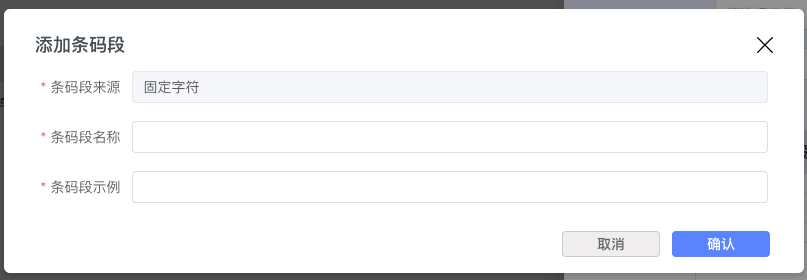
Fixed Character Digits: Set combination rules for fixed characters and variable characters.
-
Advanced Generation Options:
- Fixed Character: Support automatic increment of serial numbers.
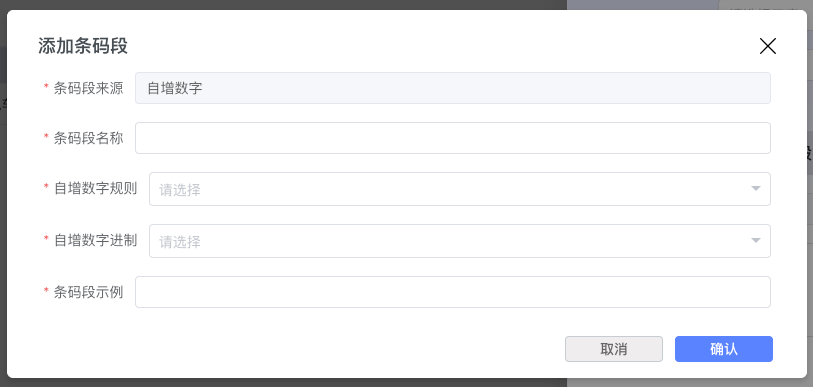
- Auto-increment Number: Support automatic increment of serial numbers.
- Associated Field: Establish association with other business data fields.
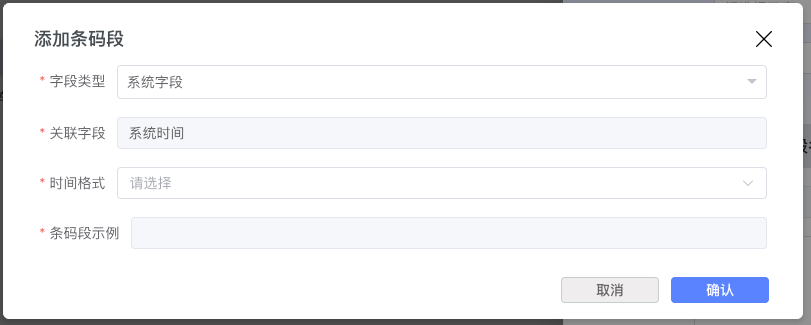
- Associated Variable: Establish dynamic association with process variables.
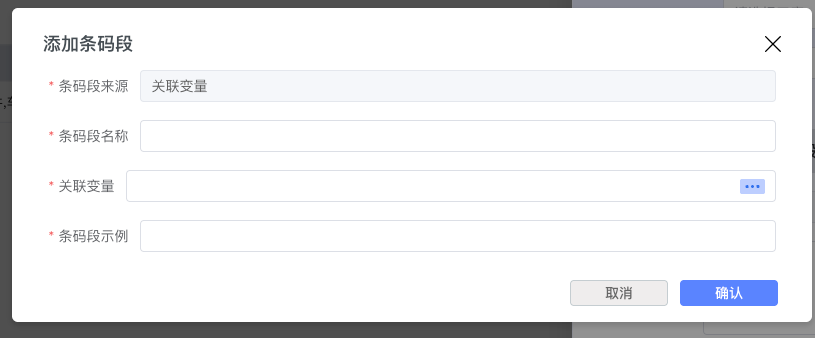
- Fixed Character: Support automatic increment of serial numbers.
- Step 4: Configure generation effect and save rule
- Generation Effect Description: Describe the expected format and business meaning of the generated barcode in detail.
- Remark Information: Record rule usage instructions, restrictions, and maintenance points.
- Click the "Confirm" button to save the generation rule.
3.3 Barcode Verification Rule Management
Task 5: Create Barcode Verification Rule
- Step 1: Switch to the "Verification Rules" tab and click the "Add" button to start verification rule configuration.
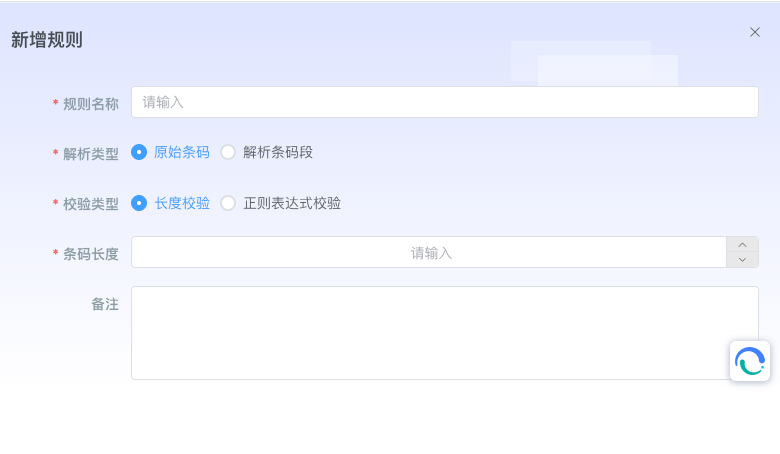
- Step 2: Configure basic verification rule parameters
- Rule Name: Enter a clear verification rule name, recommended to reflect the focus and scope of verification.
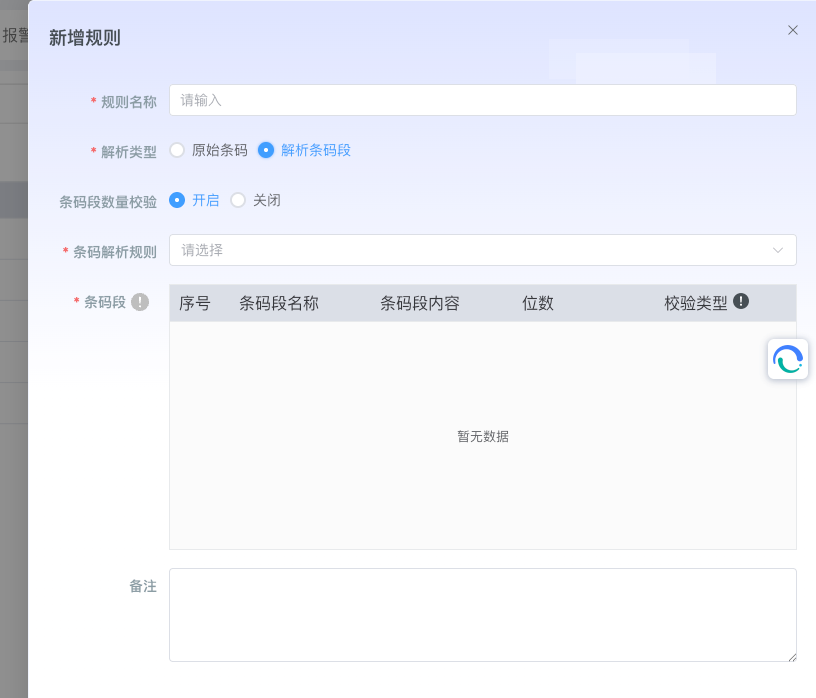
- Parsing Type Selection:
- Original Barcode: Verify the complete barcode string directly.
- Parsed Barcode Segment: Verify each barcode segment separately based on configured parsing rules.
- Barcode Segment Count Verification:
- Enable: Check if the number of parsed barcode segments meets expectations.
- Disable: Do not check the number of barcode segments, allowing flexible barcode structures.
- Barcode Parsing Rule Association: Select the corresponding parsing rule from the dropdown list to ensure consistency between verification and parsing.
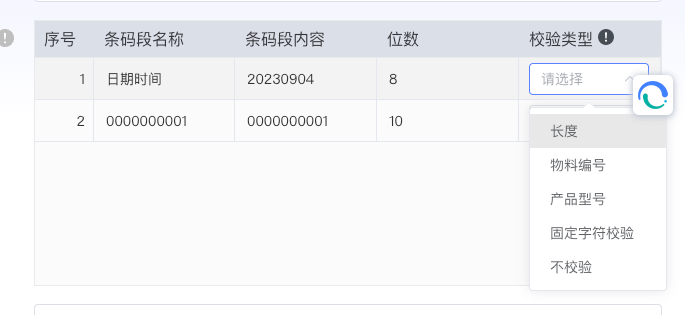
- Step 3: Configure detailed barcode segment verification rules In the barcode segment verification configuration table, set specific verification requirements for each barcode segment:
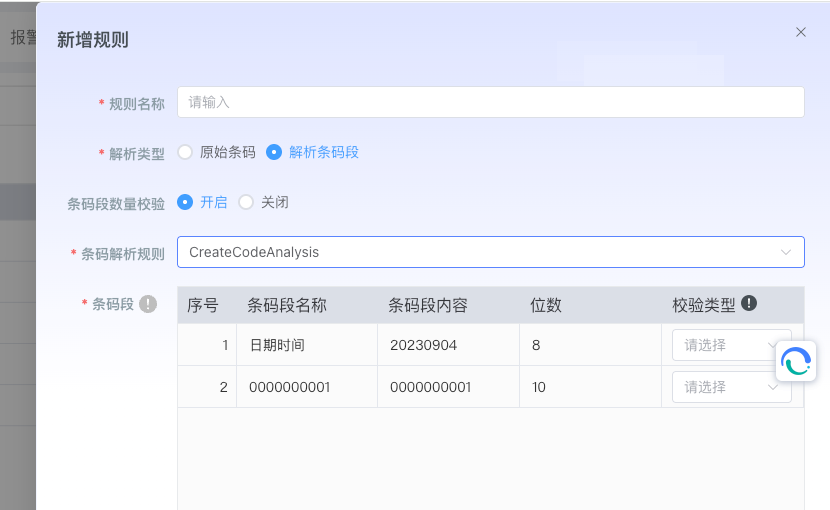
Verification Type Options:
- Length Verification: Verify if the character length of the barcode segment is within the specified range.
- Material Number Verification: Check if the barcode segment contains a valid material number.
- Product Model Verification: Verify the correctness and existence of product model information.
- Fixed Character Verification: Check if specific positions contain expected fixed characters.
- Number Format Verification: Verify if numeric format barcode segments meet format requirements.
- Date Format Verification: Check date-related barcode segment formats.
- No Verification: Skip verification for certain dynamic or optional barcode segments.
Verification Parameter Configuration:
- Set detailed parameters for each verification type, such as length range, format rules, etc.
- Support regular expressions for advanced verification configuration.
- Can set the strictness of verification (Warning/Error).
- Step 4: Complete verification rule configuration
- Remark Description: Record the business logic and special requirements of the verification rule in detail.
- Exception Handling: Configure handling strategies when verification fails.
- Click the "Confirm" button to save the verification rule.