Label Management
1. Module Overview
Core Function: The Label Management module is used to design and manage various label templates, supporting label printing and management for objects such as products, materials, and pallets. By configuring label templates, station printer associations, and data mapping rules, it achieves automated label printing functions in the production process.
- Component Identifier: LabelManagement
- Component Name: Label Management
- Component Category: run (Plugin)
User Value: This module solves the problem of unified management of label printing in the manufacturing production process. Through standardized label template configuration and flexible data mapping mechanisms, it ensures accurate printing of required product identification labels at different stations, improving production efficiency and data accuracy.
2. Module Details
Interface Layout
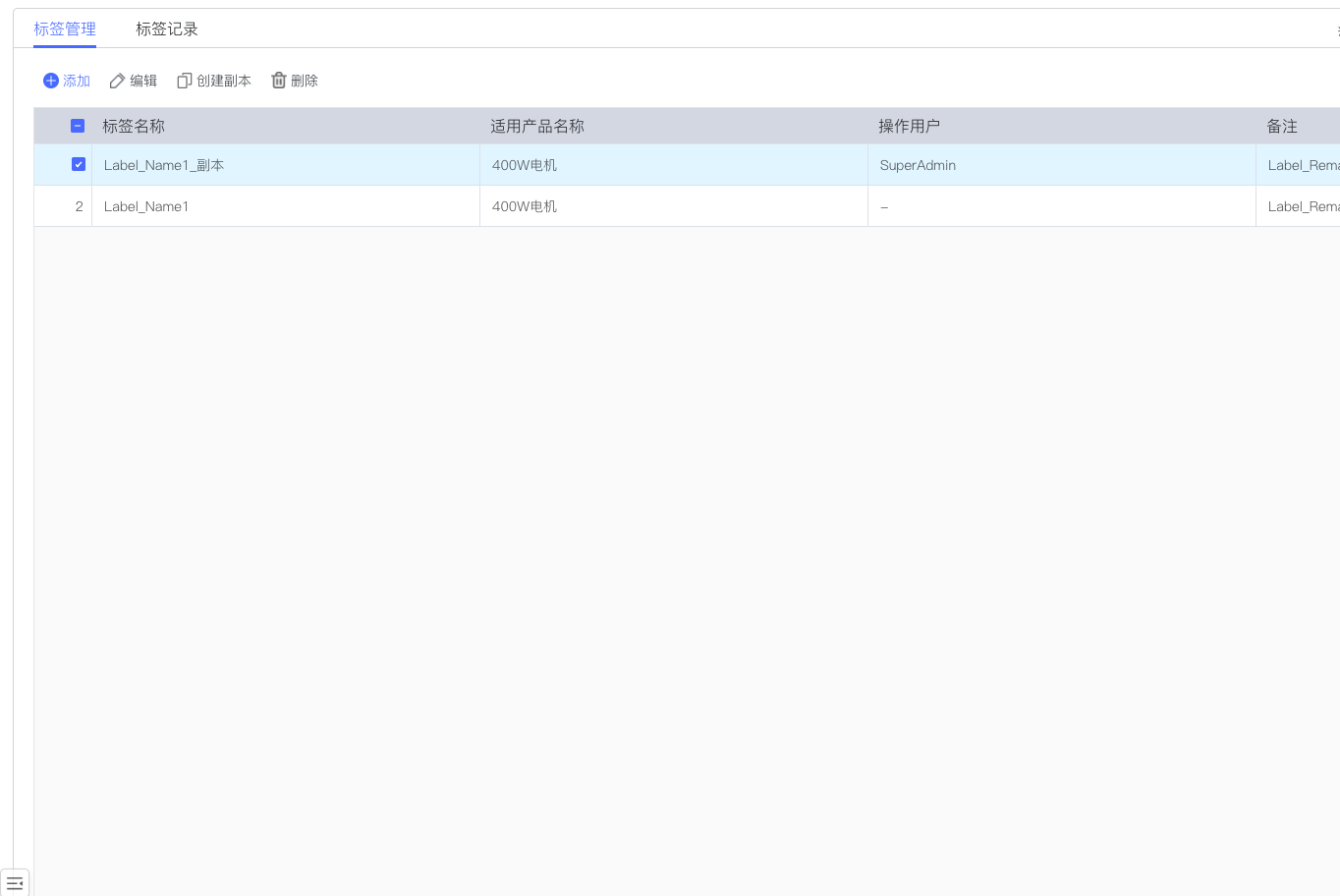
The Label Management module adopts a list-style interface design, mainly divided into a label record display area and a function operation area. The top provides operation buttons such as Add, Delete, Edit, and Create Copy, and the bottom is the label record list, supporting pagination display and search functions.
UI Element Function Description
-
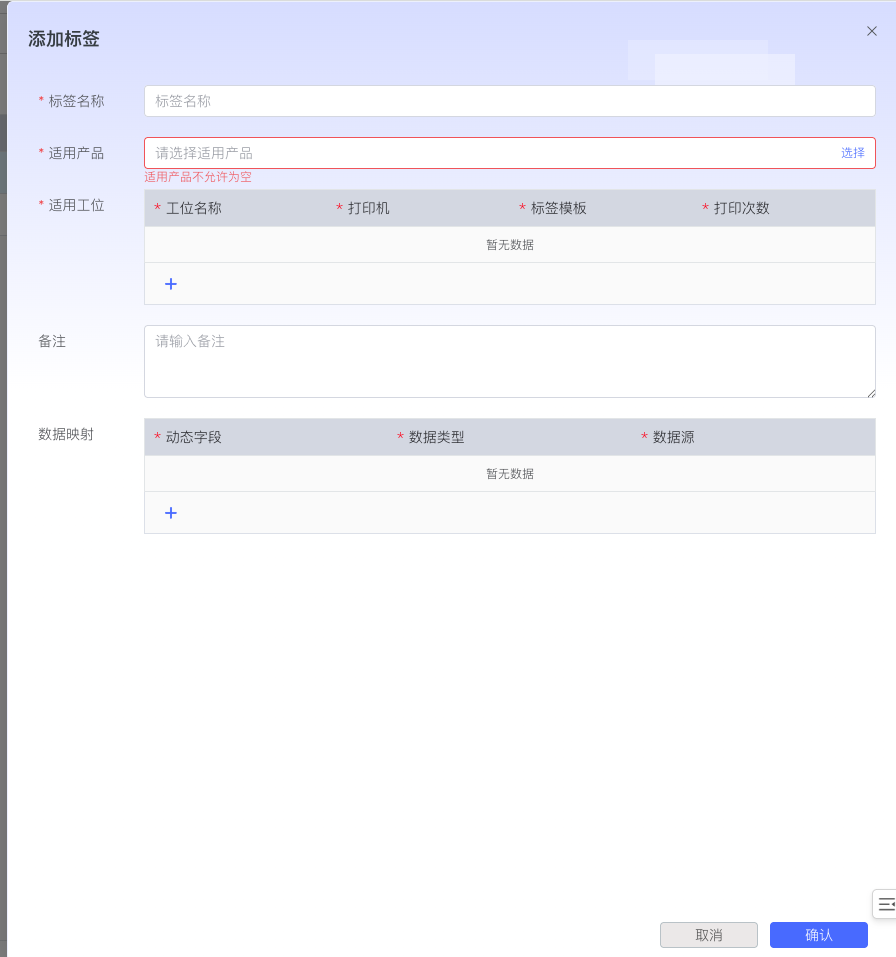
Add Button: Create a new label configuration and open the label editing form.
-
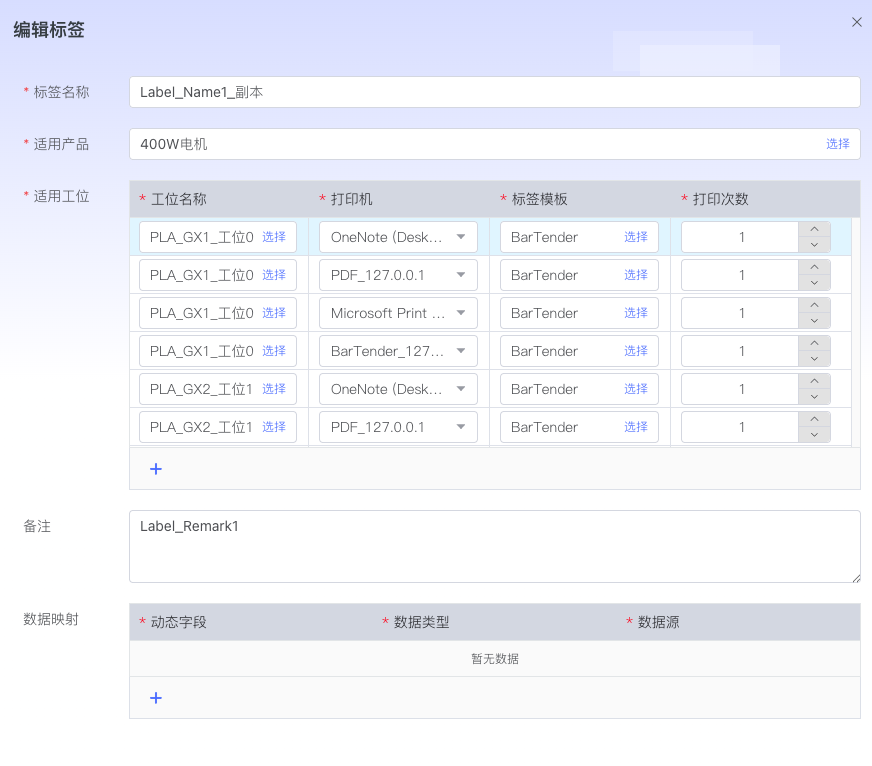
Edit Button: Modify the configuration information of the selected label and open the editing interface.
-
Delete Button: Delete the selected label record.
-
Create Copy Button: Copy a label duplicate.
-
Search Box: Support fuzzy search by fields such as label name.
-
Label Record Table: Display information such as label name, product name, applicable station, update time, operating user, remark, etc. Data is sorted in descending order by time field, with 50 records displayed per page.
3. Operation Guide
Task 1: Create New Label
-
Step 1: Click the "Add" button in the upper left corner of the page.
-
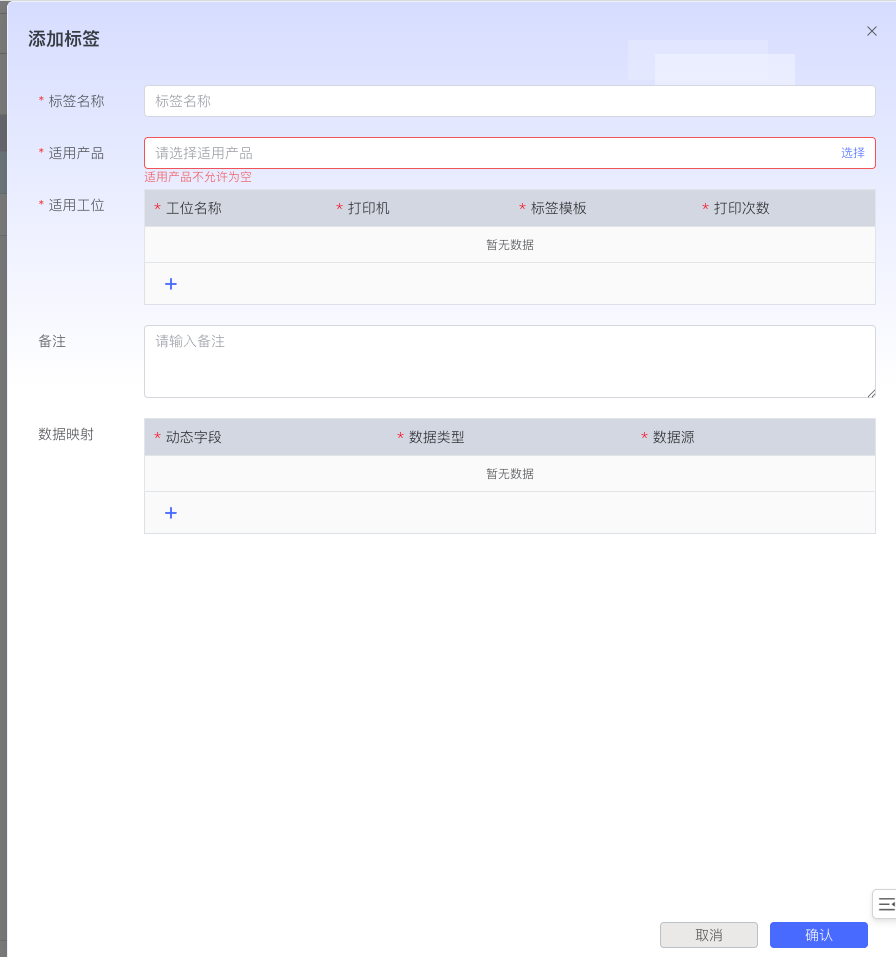
Step 2: In the popped-up "Add Label" dialog box, fill in the basic information.
-
Label Name: Enter the name of the label (required)
-
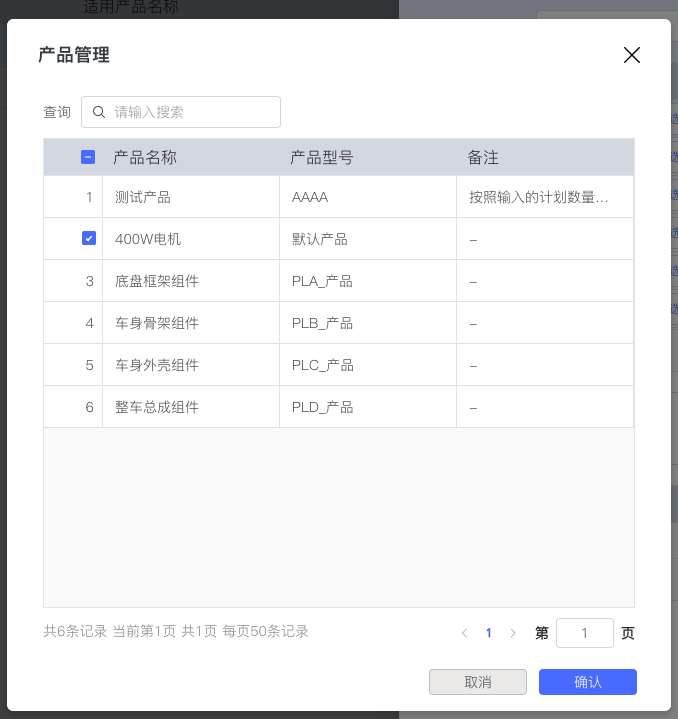
Applicable Product: Click the "Select" button to select the corresponding product from the product management list
-
-
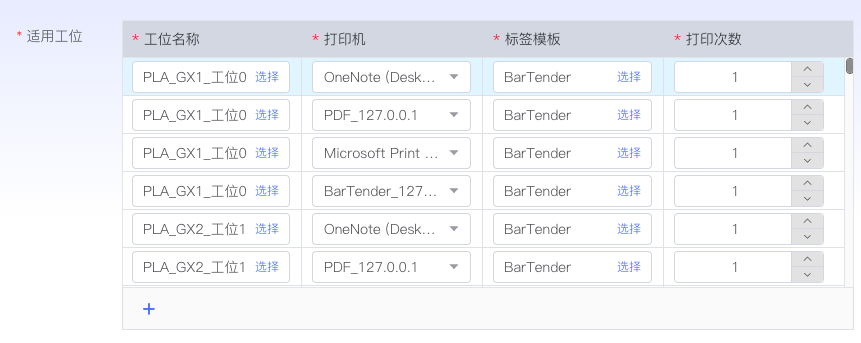
Step 3: Configure applicable station information.
-
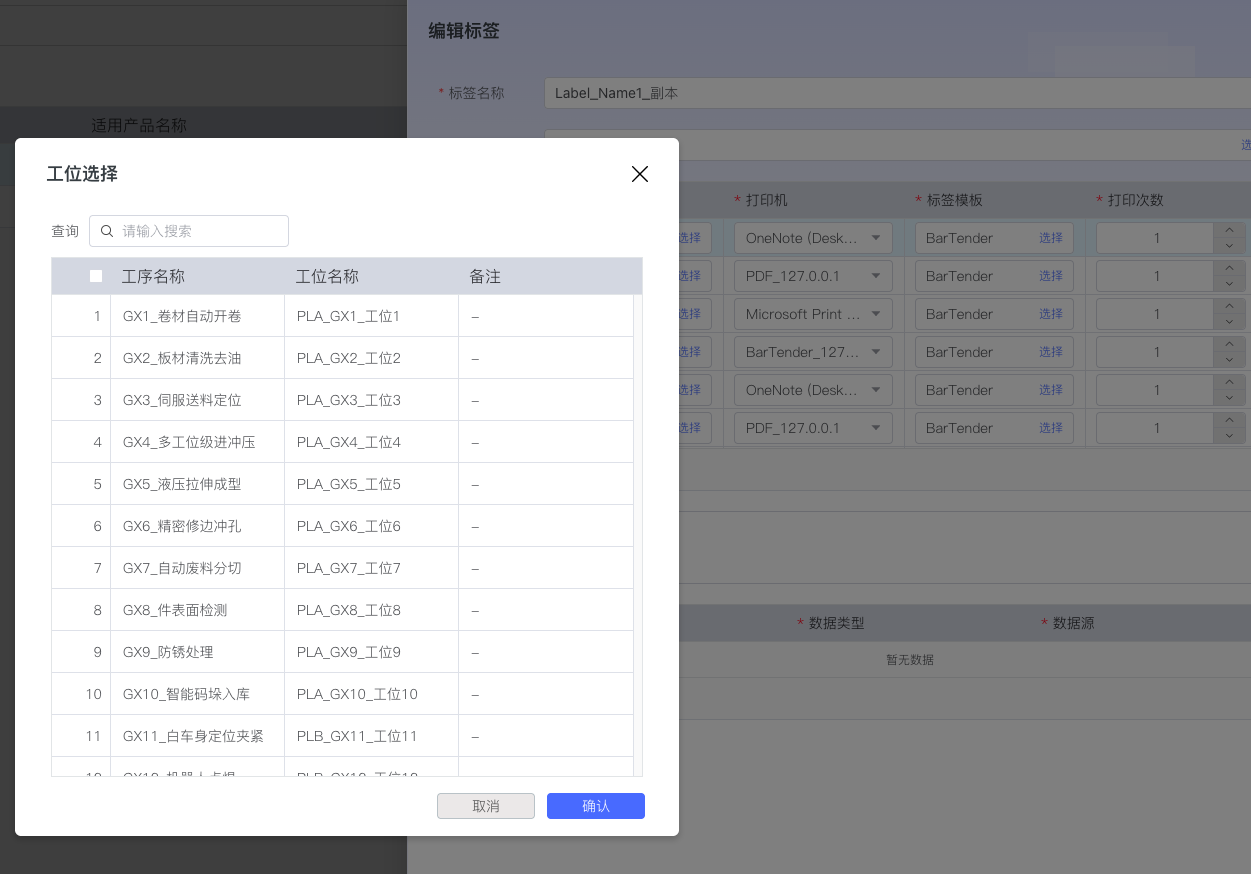
Click the "+" button in the "Applicable Station" area to add a station
-
In the station selection dialog box, select the station where this label needs to be applied
-
Configure for each station:
-
Printer: Select according to the printer automatically associated with the station
-
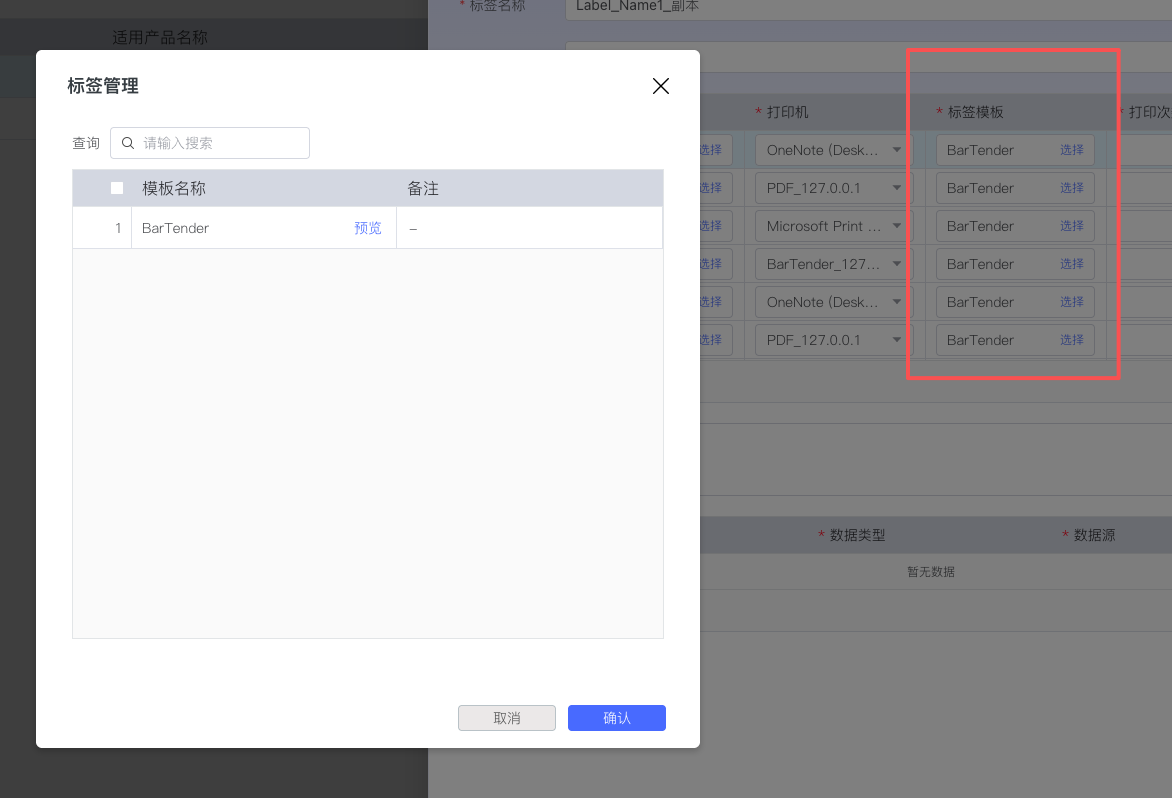
Label Template: Select the corresponding template from the BarTender template library
-
Print Count: Set the label print count for this station
-
-
-
Step 4: Configure data mapping relationships.

-
Configure for each dynamic field:
- Data Type: Select "Variable" or "Field"
- Variable Rule: Select the corresponding variable or field rule
-
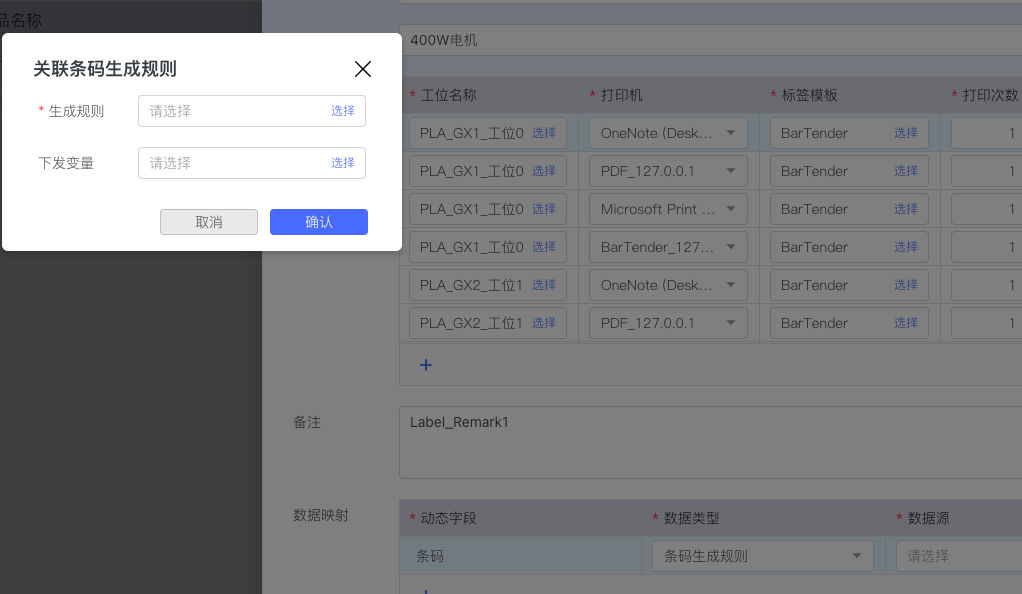
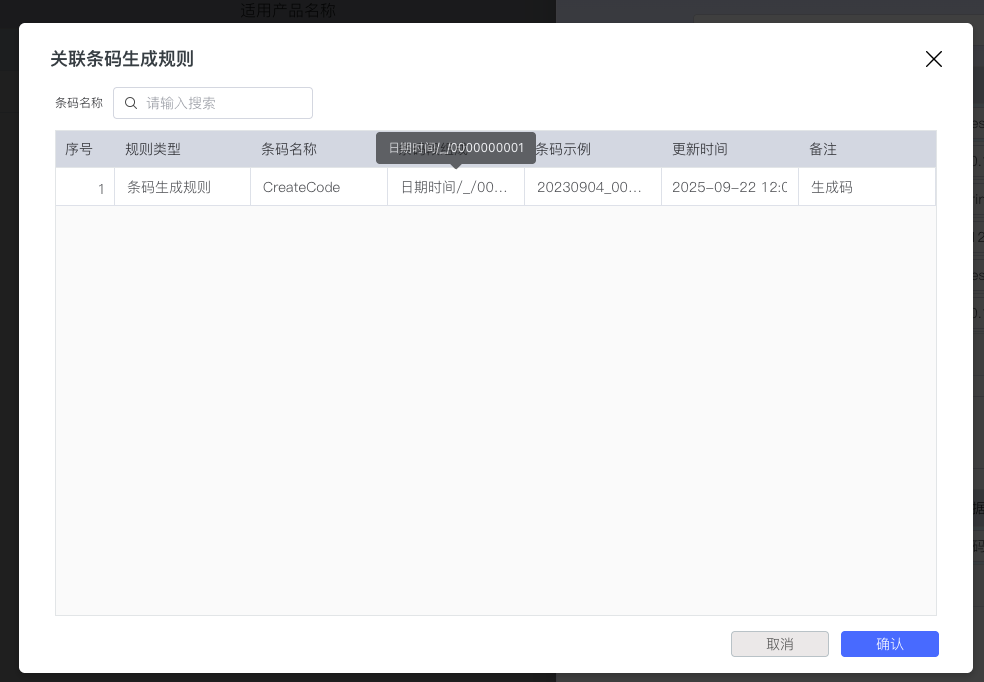
Click the "Barcode Generation Rule" selection button
-
Select a rule from the barcode generation rule list
-
-
Can optionally configure dispatch variables for variable dispatch during barcode generation
-
-
Step 6: Fill in remark information and click the "Confirm" button to complete label creation.
Task 2: Edit Label Configuration
-
Step 1: Select the label to be edited in the label record list.
-
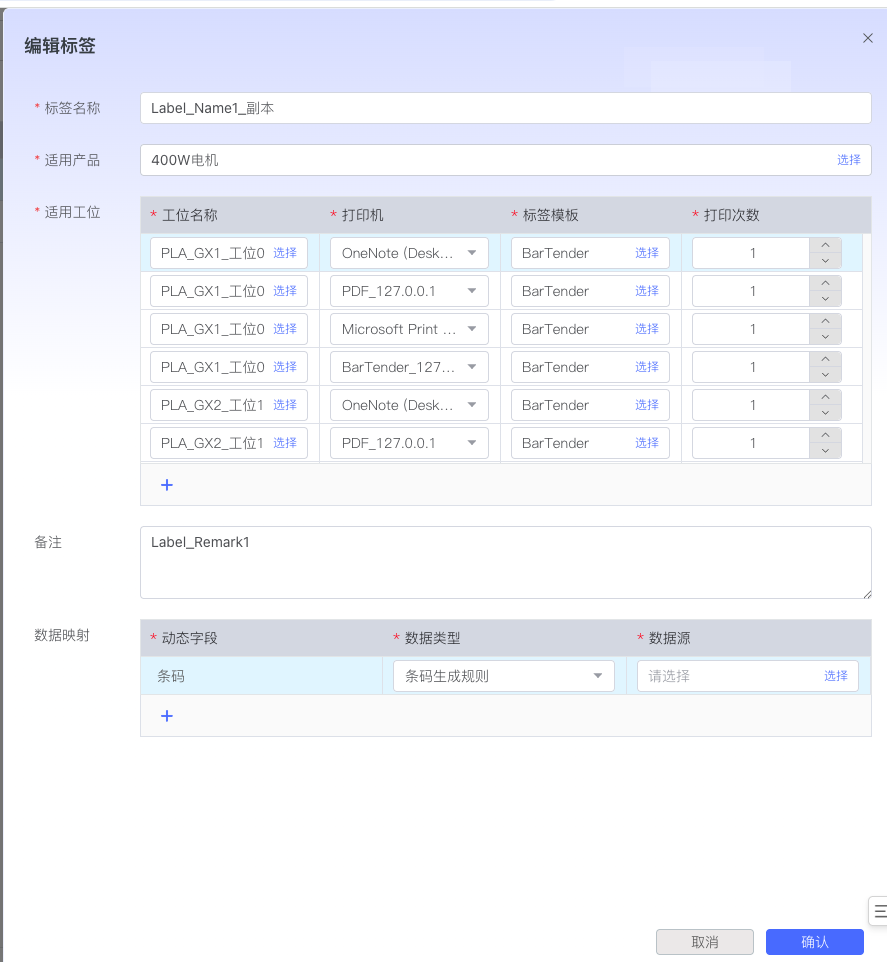
Step 2: Click the "Edit" button to open the label editing interface.
-
Step 3: Modify various configurations of the label as needed:
- Modify basic information (label name, applicable product)
- Adjust applicable station configuration (add, delete stations, modify printer and template settings)
- Update data mapping relationships
- Adjust barcode generation rules
-
Step 4: Click the "Confirm" button to save changes, or click "Cancel" to discard changes.
Task 3: Copy Label Configuration
-
Step 1: Select the label to be copied in the label record list.
-
Step 2: Click the "Create Copy" button.
-
Step 3: The system will create a copy of the label, and you can modify the configuration based on the copy.
4. Best Practices and Precautions
Configuration Suggestions
-
Label Naming: Recommend using the "Product Name + Usage" naming convention for easy management and identification.
-
Station Configuration:
- Different stations can be configured with different label templates and print counts
- Can copy and delete station configurations through the right-click menu
-
Data Mapping:
- Data mapping will dynamically refresh based on the selected station and printer
- Ensure all dynamic fields are configured with correct data types and variable rules
Operation Restrictions
-
Template Dependency: Label template data is provided by the BarTender system, ensuring the BarTender service runs normally.
-
Permission Control: Label creation, editing, and deletion operations require corresponding system permissions.
Data Description
-
Pagination Display: All list data is displayed in pagination, with 50 records per page.
-
Sorting Rule: Label records are sorted in descending order by update time, with the latest updated records displayed first.
-
Search Function: Support fuzzy search for fields such as label name, product name, and station name.
-
Barcode Generation: When printing is triggered, the system automatically generates corresponding barcode data according to the configured barcode generation rules.