Pallet Management
1. Module Overview
Core Function: The Pallet Management module is an important functional module in the LMES system used for managing pallet carriers used in the production process. It provides functions for adding, deleting, modifying, and querying pallet information, binding and unbinding pallets with products, and tracking pallet usage status.
- Component Identifier: PalletManagement
- Component Name: Pallet Management
- Component Category: run (Plugin)
User Value: This module helps enterprises achieve standardized management of production pallets, ensuring rational allocation and use of pallets during production, improving production efficiency. At the same time, through the pallet binding function, it achieves the association and traceability of products and carriers, providing important support for quality management and production process control.
2. Module Details
- Interface Layout: The Pallet Management module uses a classic list management interface design, including a top function button area, a middle data list area, and a pagination control area. The left side provides pallet status filtering, and the right side displays the detailed pallet information table.
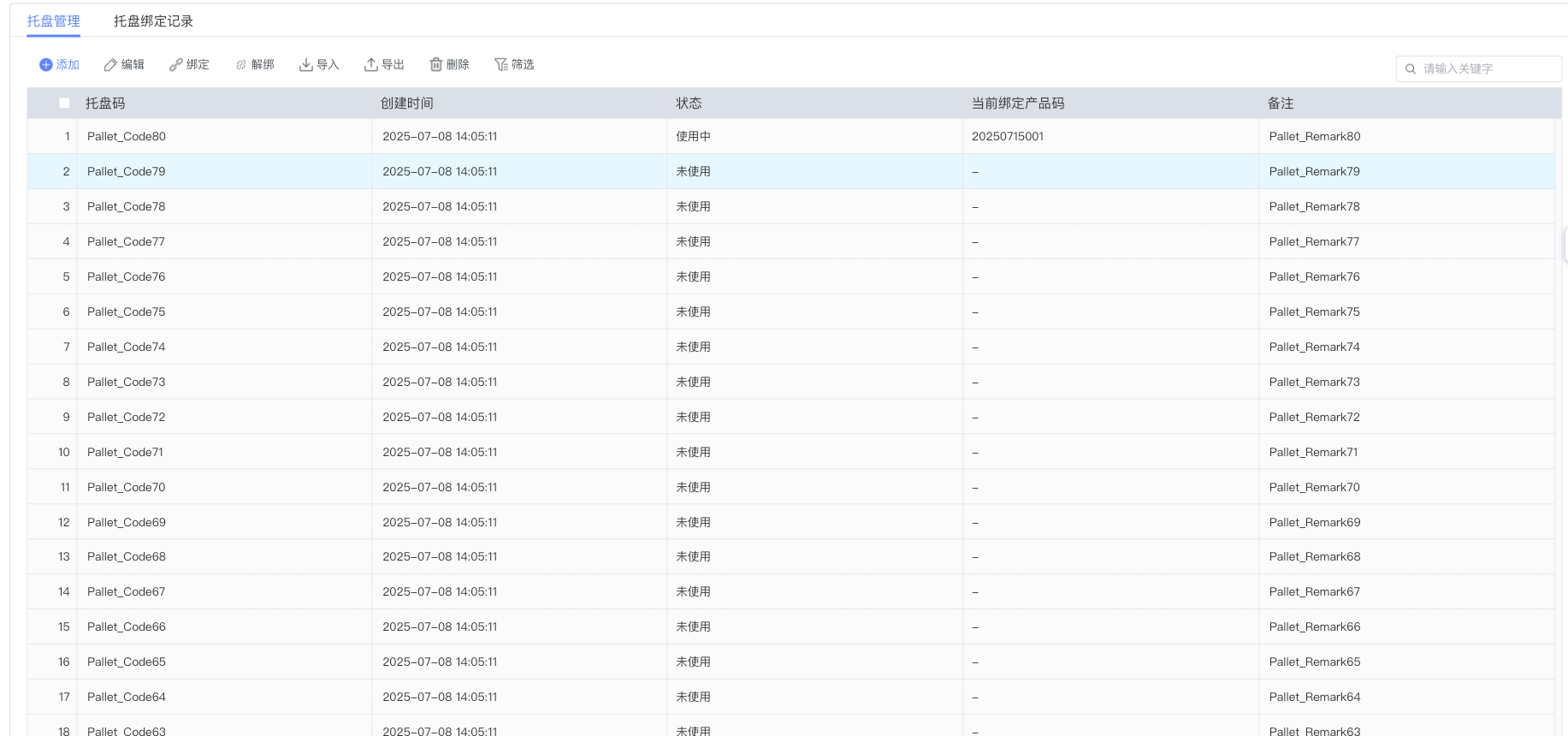
- UI Element Function Description:
- Add Button: Used to create new pallet records. Clicking it pops up the pallet information entry dialog.
- Edit Button: After selecting a pallet record, click to modify the basic information of the pallet.
- Delete Button: Delete the selected pallet record (only for unused pallets).
- Pallet Bind Button: Associate and bind the pallet with a specific product or work order.
- Pallet Unbind Button: Release the binding relationship between the pallet and the product or work order.
- Binding Record Button: View the historical binding records of the pallet.
- Status Filter: Filter data according to pallet usage status (e.g., In Use, Unused).
- Pallet Information Table: Display detailed information such as pallet code, name, specification, and status.
3. Operation Guide
Task 1: Create New Pallet
-
Step 1: On the main interface of Pallet Management, click the "Add" button in the upper left corner.
-
Step 2: In the popped-up "Add Pallet" dialog box, fill in the basic information of the pallet, including necessary fields such as pallet code, pallet name, and pallet specification.
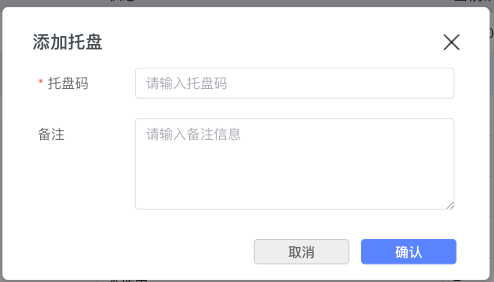
- Step 3: After confirming the information is correct, click the "Confirm" button to save the pallet information. The system will automatically return to the main interface and refresh the pallet list.
Task 2: Edit Pallet Information
-
Step 1: Select the pallet record that needs to be edited in the pallet list.
-
Step 2: Click the "Edit" button to open the pallet information editing dialog box.
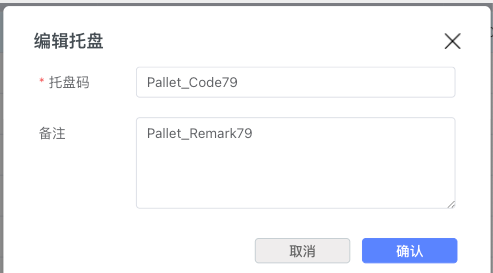
- Step 3: Modify the pallet information that needs to be updated, and click the "Confirm" button to save the changes.
Note: If the pallet is currently in use, the system will display a corresponding prompt message to remind the user of the pallet's usage status.

Task 3: Pallet Binding Operation
-
Step 1: Select the pallet record that needs to be bound.
-
Step 2: Click the "Pallet Bind" button to open the pallet binding operation interface.
-
Step 3: In the binding interface, select or enter the relevant data such as the product code to be bound.
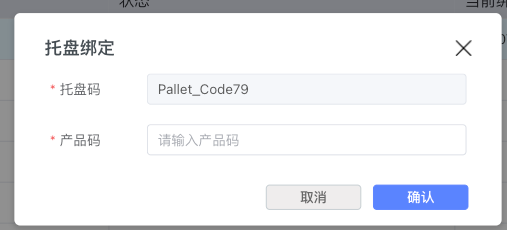
- Step 4: After confirming the binding information is correct, click "Confirm" to complete the binding operation.
Task 4: View Pallet Binding Records
-
Step 1: Select the pallet for which you want to view historical records.
-
Step 2: Click the "Binding Record" button, and the system will display all historical binding records for that pallet.
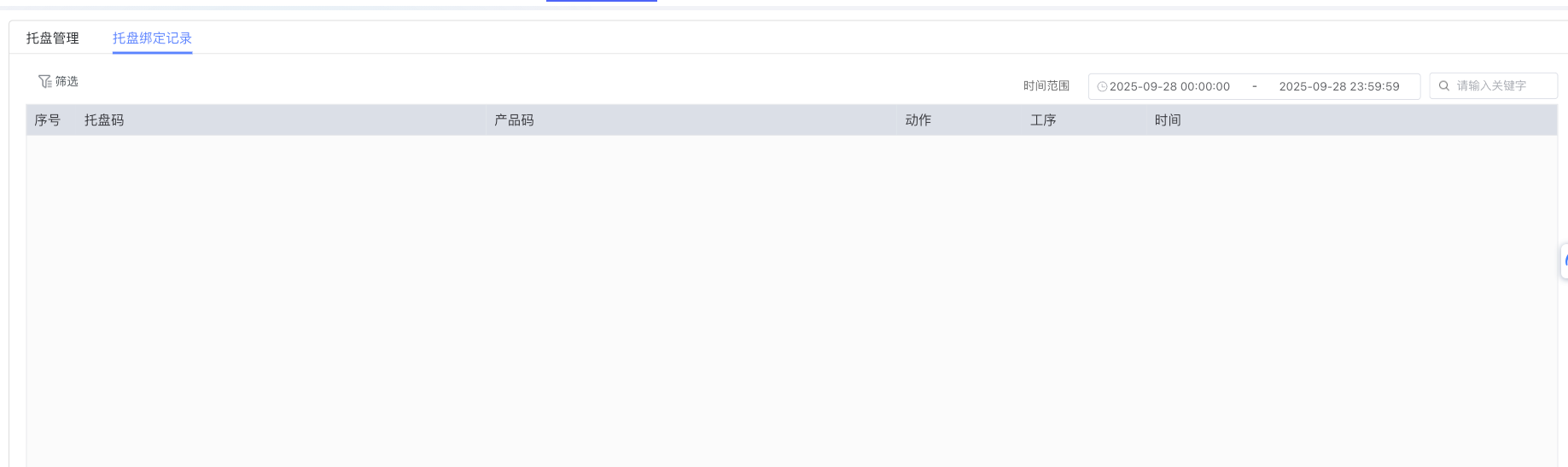
- Step 3: In the record interface, you can view detailed pallet information.
Task 5: Pallet Unbinding Operation
-
Step 1: Select the pallet record that is currently in a bound state.
-
Step 2: Click the "Pallet Unbind" button.
-
Step 3: The system will pop up an unbind confirmation dialog box, showing the current binding information and the impact of the unbind operation.
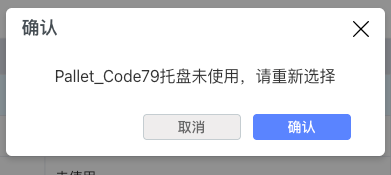
- Step 4: After confirming the unbind operation, click the "Confirm" button to complete the pallet unbinding.
4. Best Practices and Precautions
Pallet Code Management
- It is recommended to use a unified pallet coding rule to facilitate subsequent query and management.
- Pallet codes should be unique to avoid management confusion caused by duplicate codes.
Pallet Status Management
- Update pallet usage status in time to ensure data accuracy.
- Regularly check whether the actual status of the pallet is consistent with the system record.
Binding Operation Precautions
- Before binding a pallet, confirm that the pallet status is available.
- After the binding operation is completed, verify the correctness of the binding relationship in time.
- Before unbinding, ensure that the relevant production process has been completed.
Data Security
- Important pallet information modifications should retain operation logs.
- Regularly back up pallet binding records to prevent data loss.
- Restrict pallet deletion permissions to avoid accidental deletion of important data.
5. Appendix
Frequently Asked Questions
Q: Why can't I delete a certain pallet? A: Usually because the pallet is currently in use or has an association with other data. You need to release the relevant binding relationship first before deleting it.
Q: How to trace usage history after pallet binding? A: You can view the complete usage history of the pallet through the "Binding Record" function, including information such as binding time, binding object, and operator.