Process Settings
1. Module Overview
Core Function: The Process Settings module is the core functional module in the LMES system used for configuring production process control rules. It allows administrators to set quality inspection, information flow, and anomaly monitoring rules for different product models, recipes, and processes, ensuring standardized execution and quality traceability of the production process.
- Component Identifier: ProcessConfiguration
- Component Name: Process Configuration
- Component Category: run (Plugin)
2. Function Introduction
Interface Overview
The Process Settings module uses a button layout, and the main interface includes the following areas:
- Top Buttons: Provide quick switching for 6 major configuration categories
- Search and Filter Area: Located in the upper right corner, supporting keyword quick positioning
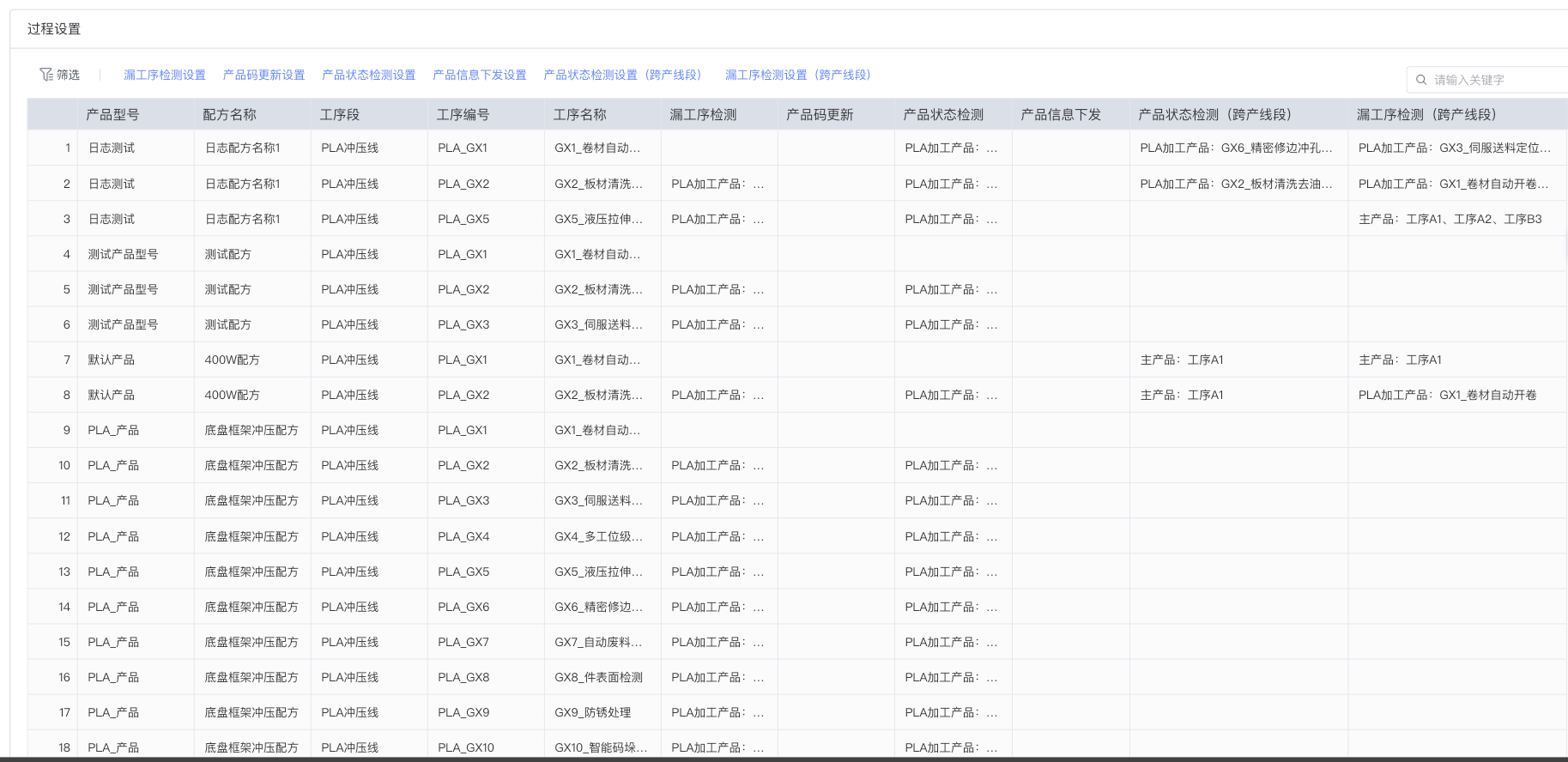
- Configuration Data Table: Display process configuration rules for all products in table form
2.1 Filter Function
The Filter tab (selected by default) is used to browse the overview of process configurations for all products. As shown in the figure above, the data table contains the following key columns:
- Product Model: Display the unique identifier of the product (e.g., "Log Test", "Test Product Model", etc.)
- Recipe Name: Associated production recipe (e.g., "Log Recipe Name 1", "Test Recipe", etc.)
- Process Number: Code of the specific process (e.g., "PLA_GX1", "PLA_GX2")
- Process Name: Readable name of the process (e.g., "GX1_Coil Automatic Uncoiling", "GX2_Sheet Cleaning and Degreasing")
- Configuration Status Column: Each column displays the configured rules for that process (displayed in the form of "Main Product: ..." or "Main Product: Process A1, Process A2...")
The Search Box in the upper right corner allows users to quickly filter configuration records by "Enter keyword".
2.2 Missing Process Detection Settings
Missing process detection is used to monitor whether the product has missed any mandatory inspection processes. Click the Missing Process Detection Settings tab, and then click the content of the "Missing Process Detection" column in a row in the table to pop up the configuration dialog box.
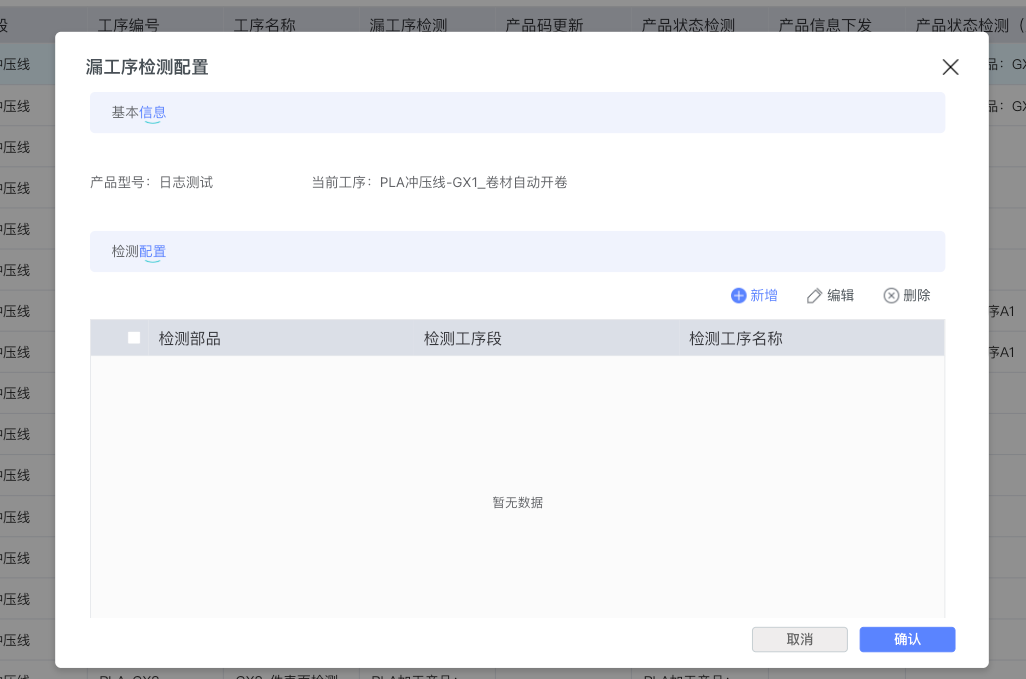
As shown in the figure above, the configuration dialog box contains:
-
Basic Information Area:
- Display the currently configured Product Model (e.g., "Log Test")
- Display the Current Process (e.g., "PLA Stamping Line-GX1_Coil Automatic Uncoiling")
-
Detection Configuration Area:
- Add Button (Blue Plus Icon): Click to add a new detection configuration
- Edit Button (Pen Icon): Modify existing configuration
- Delete Button (Cross Icon): Remove configuration item
- Data Table: Display "Detection Component" and "Detection Process Name" columns
-
Operation Buttons: The bottom right corner of the dialog box provides Cancel and Confirm buttons
After clicking the Add button, the system will pop up the process selection interface:
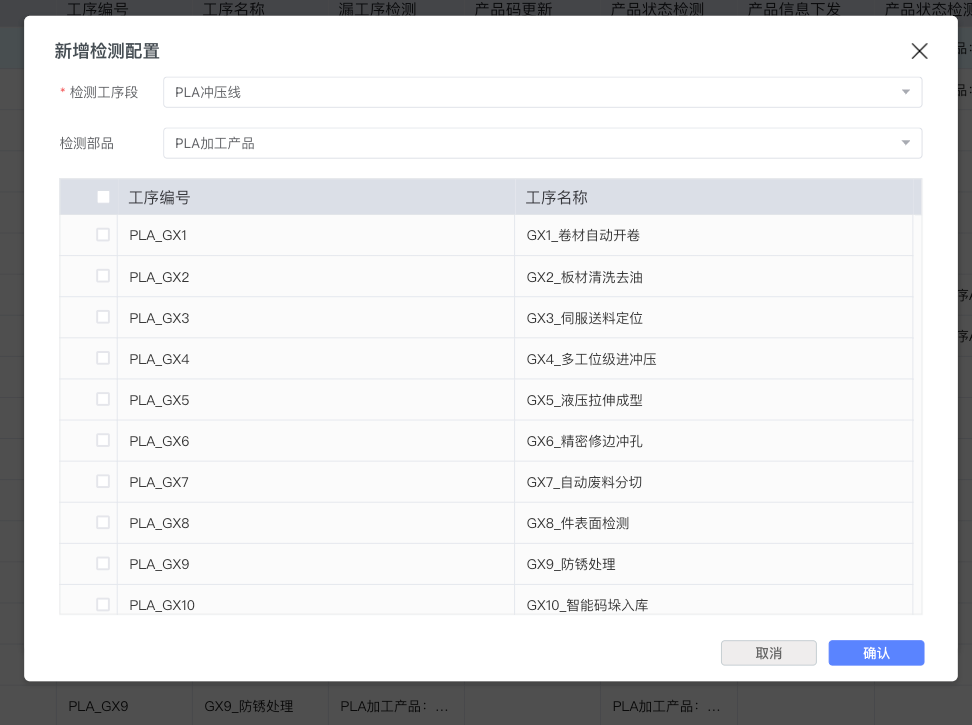
This interface contains:
- Detection Component Dropdown Box: Select the detection object (e.g., "Main Product")
- Process List Table: Contains "Process Number" and "Process Name" columns, with a Checkbox in front of each row for selection
- The list displays all available processes for the product (e.g., "PLA_GX1 - GX1_Coil Automatic Uncoiling", "PLA_GX2 - GX2_Sheet Cleaning and Degreasing", etc.)
After selection, click the Confirm button in the lower right corner to complete the configuration, or click Cancel to abandon this operation.
2.3 Product Code Update Settings
The Product Code Update function is used to specify which processes need to update the product's code information after completion. Click the Product Code Update Settings tab to configure.
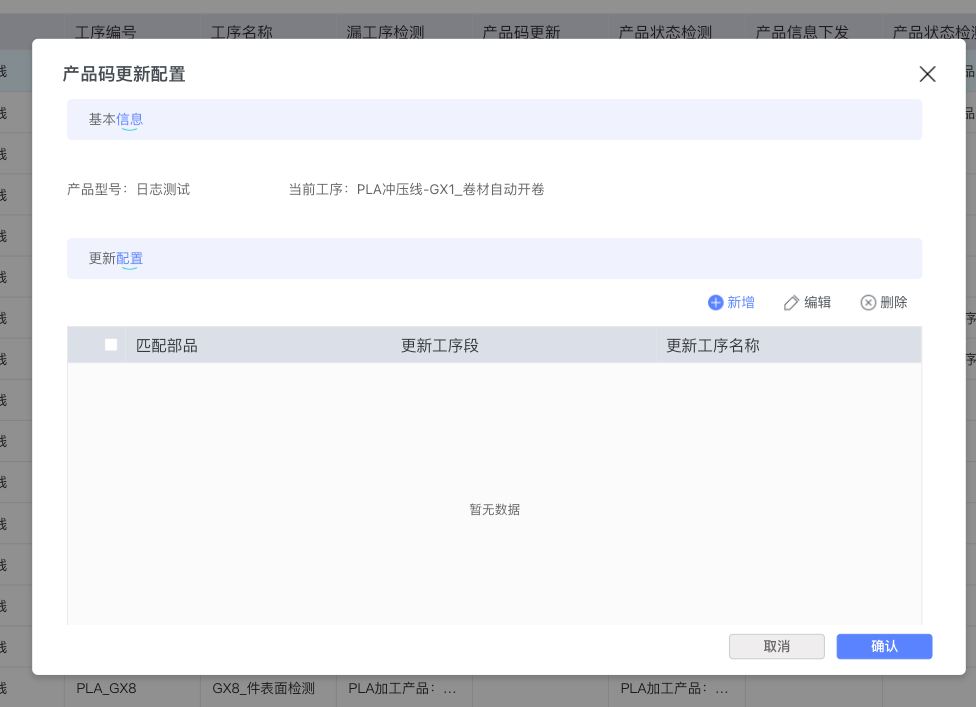
The configuration dialog box structure is similar to Missing Process Detection, containing:
- Basic Information: Display product model and current process
- Update Configuration Area:
- Toolbar provides Add, Edit, Delete three operation buttons
- Table displays "Matching Component" and "Update New Process Name"
After clicking the Add button, the process selection interface pops up:
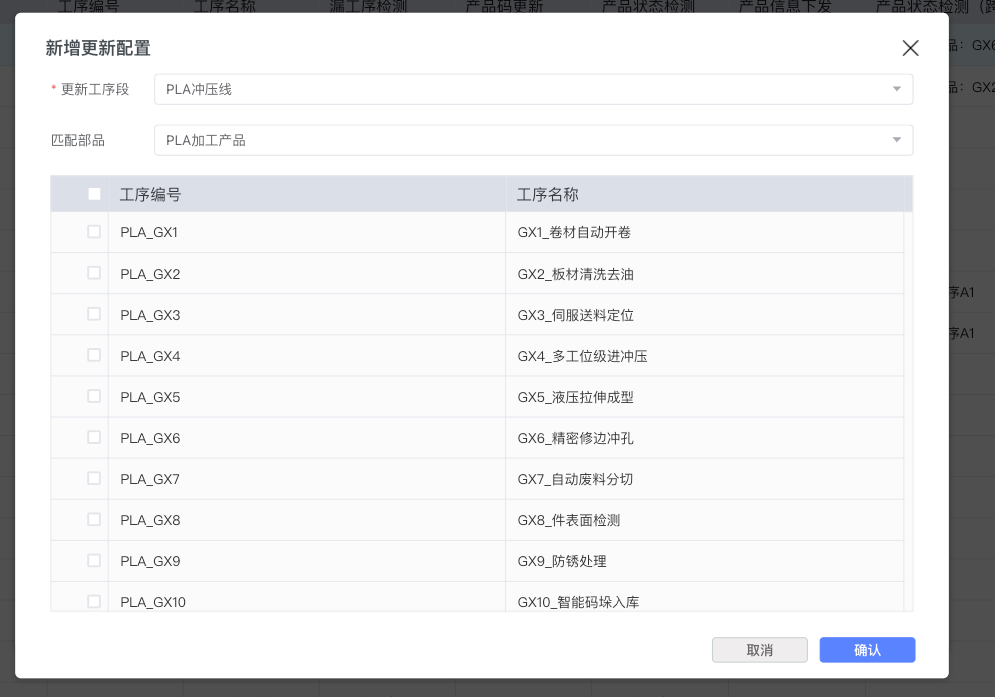
2.4 Product Information Dispatch Settings
The Product Information Dispatch function is used to configure which processes need to dispatch product information to equipment or systems. Click the Product Information Dispatch Settings tab to configure.
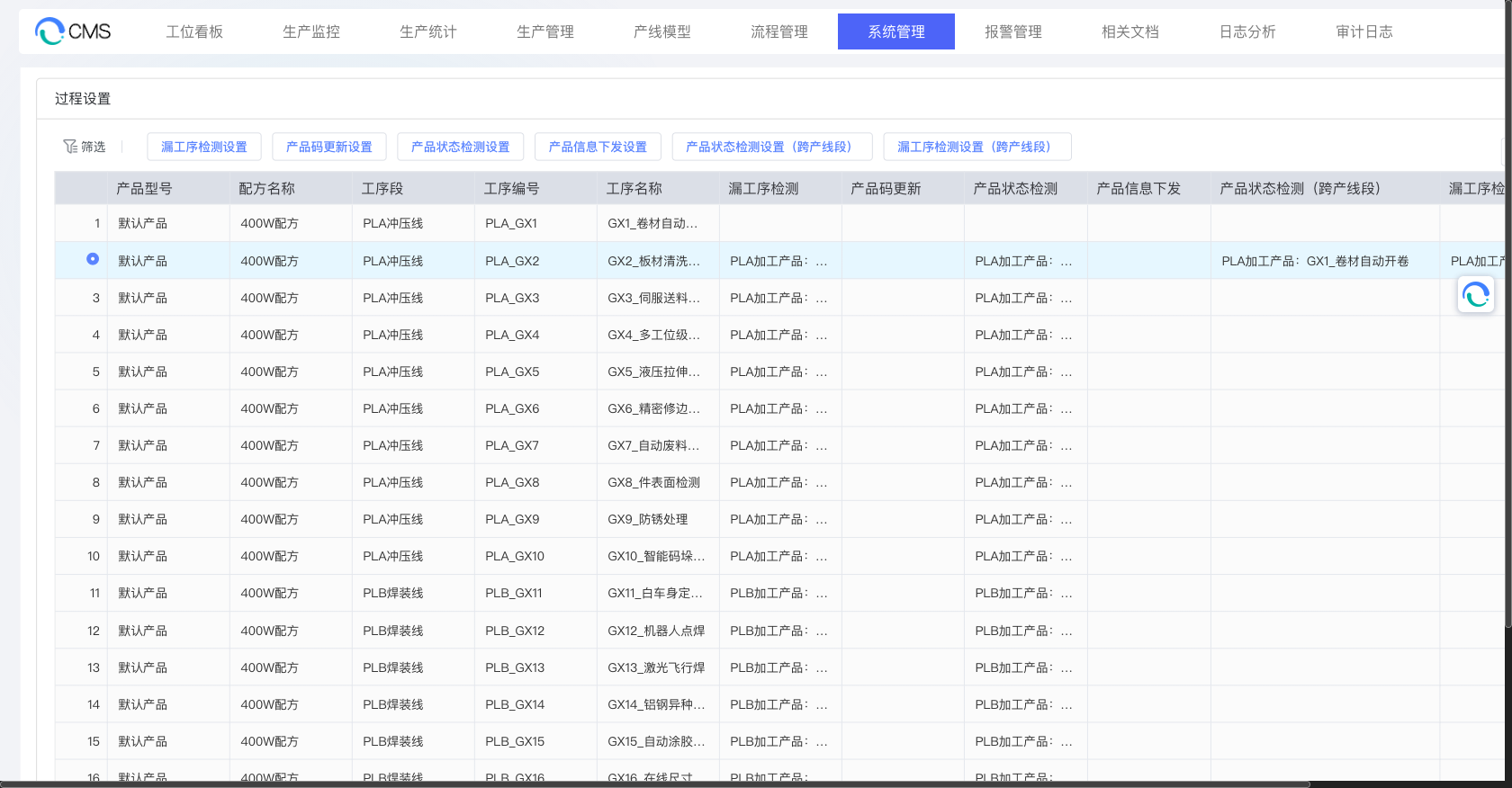
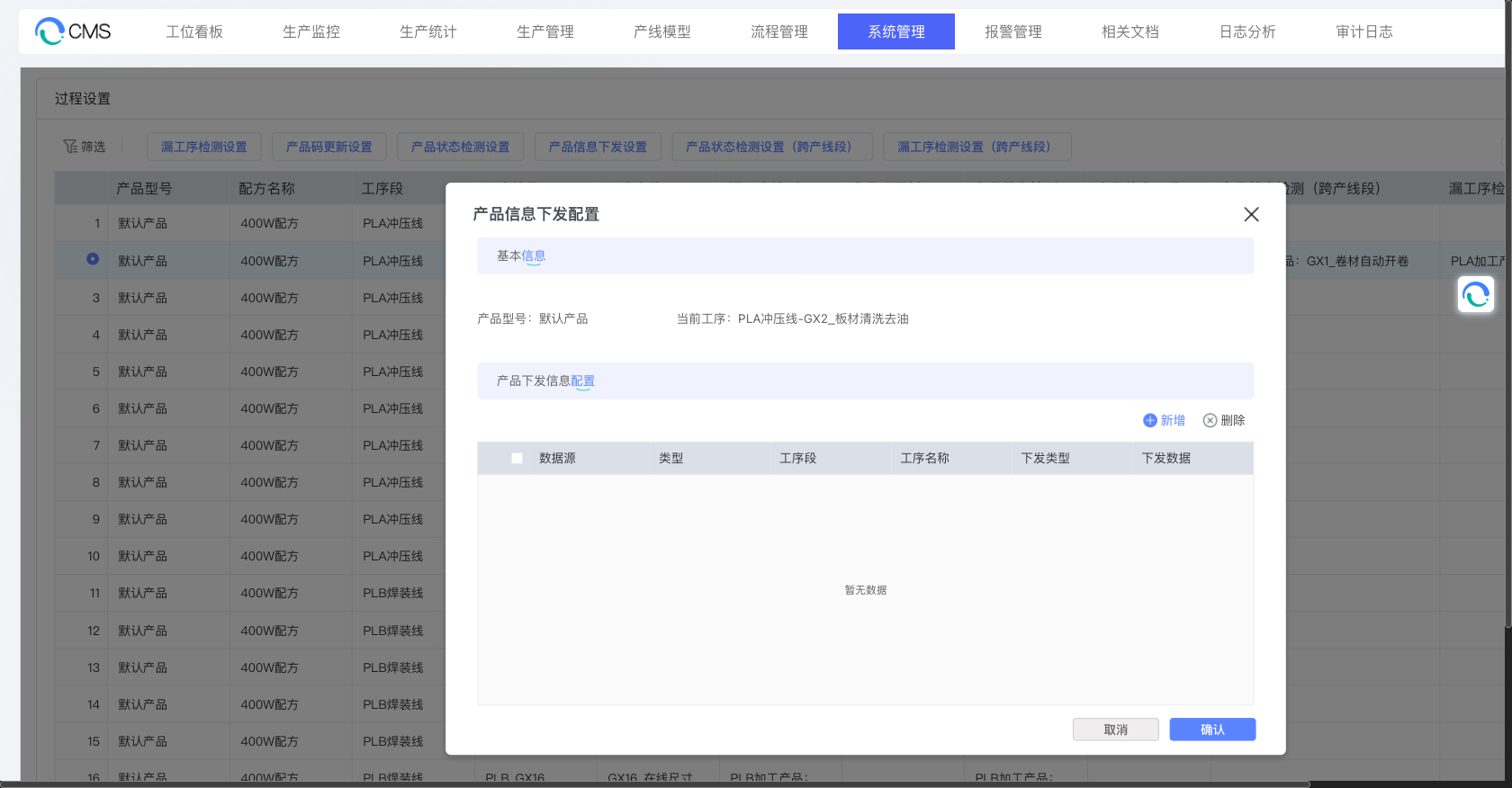
The configuration dialog box contains:
- Basic Information: Display product model and current process
- Dispatch Configuration Area:
- Operation Buttons: Add, Delete
- Data Table: Display columns such as "Data Source", "Type", "Process Segment", "Process Name", "Dispatch Type", "Dispatch Data", etc.
After clicking the Add button, the parameter configuration interface pops up:
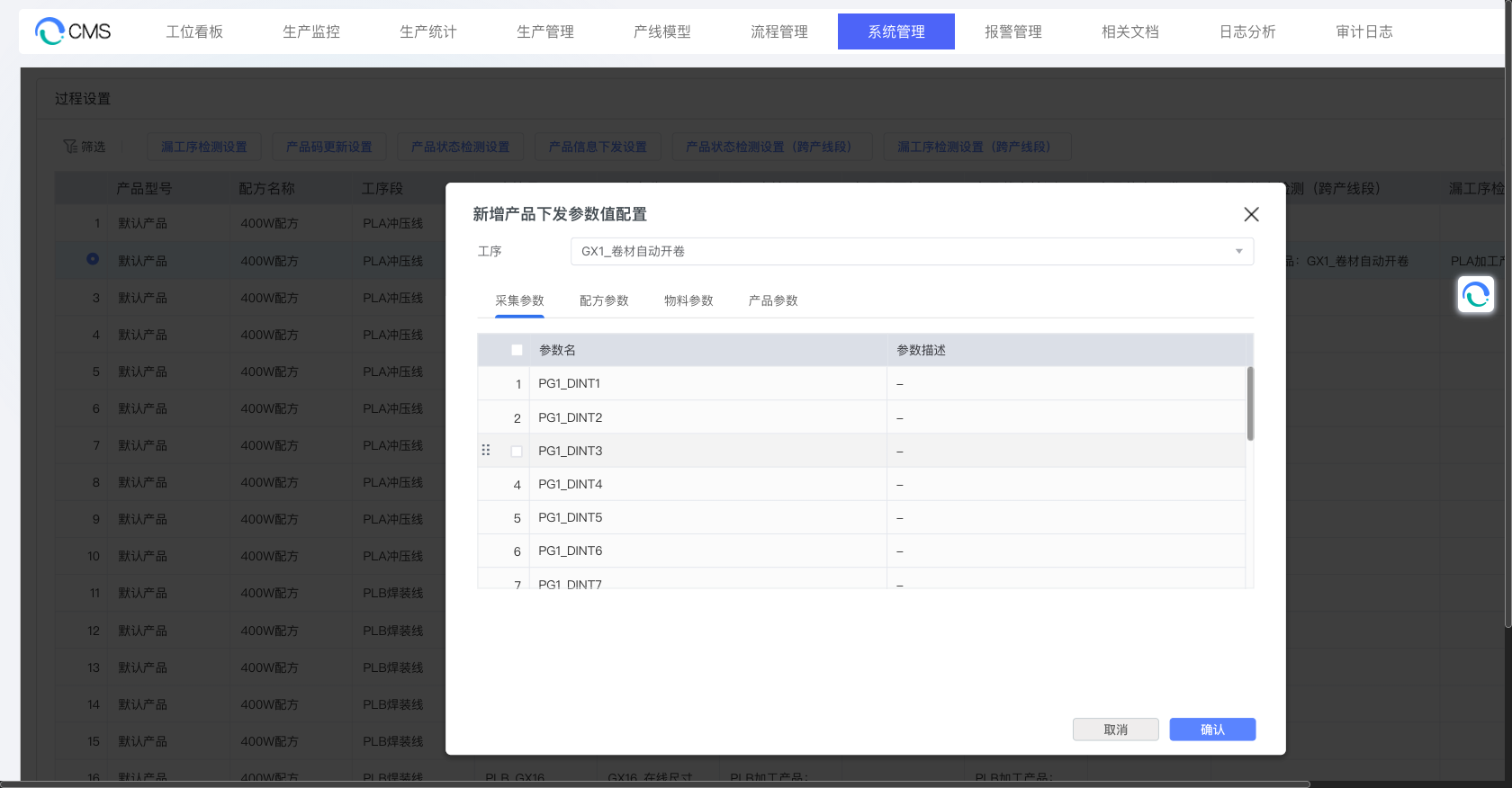
This interface contains:
- Process Selection Dropdown Box: Select the process that needs to dispatch information (e.g., "GX1_Coil Automatic Uncoiling")
- Parameter Type Tabs: Provide four parameter types for selection
- Collection Parameter: Process parameters collected by the process (e.g., PG1_DINT1, PG1_REAL1, etc.)
- Recipe Parameter: Process parameters defined in the recipe
- Material Parameter: Material-related parameter information
- Product Parameter: Product model-related parameters
- Parameter List Table:
- Contains "Parameter Name" and "Parameter Description" columns
- Each row has a Checkbox for selection
- Can select one or more parameters for dispatch configuration
Application Scenarios:
- Equipment needs to obtain product model, recipe parameters, and other information
- Need to synchronize product traceability information to third-party systems
- Pre-dispatch process parameters before key processes
- Dispatch collection parameters, recipe parameters, etc., to equipment for automated control
2.5 Product Status Detection Settings
Product Status Detection is used to verify whether the product is in the expected status when executing a specific process. Click the Product Status Detection Settings tab to configure.
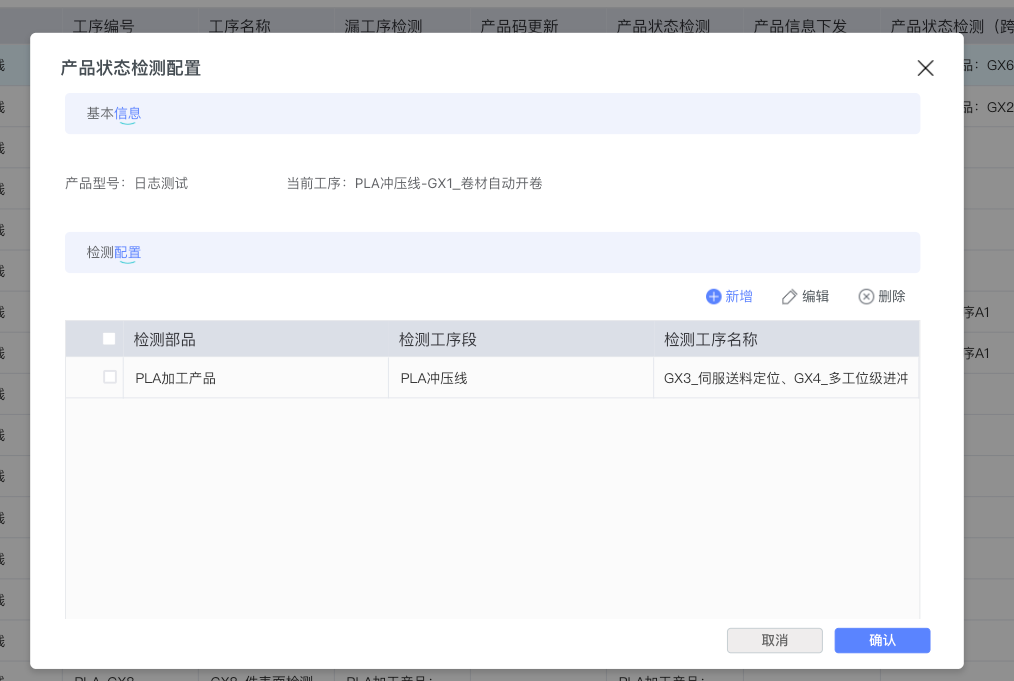
The configuration dialog box contains:
- Basic Information: Display product model (e.g., "Log Test") and current process
- Detection Configuration Area:
- Operation Buttons: Add, Edit, Delete
- Data Table: Display "Detection Component" (e.g., "Main Product", "MDI_1") and corresponding "Detection Process Name" (e.g., "GX6_Precision Trimming and Punching, GX7_Automatic Scrap Slitting")
From the table, it can be seen that the same detection configuration can be associated with multiple detection processes, separated by commas.
2.5 Product Status Detection Settings (Cross-Line Segment)
When a product needs to be produced across multiple line segments, cross-line segment status detection rules need to be configured. Click the Product Status Detection Settings (Cross-Line Segment) tab.
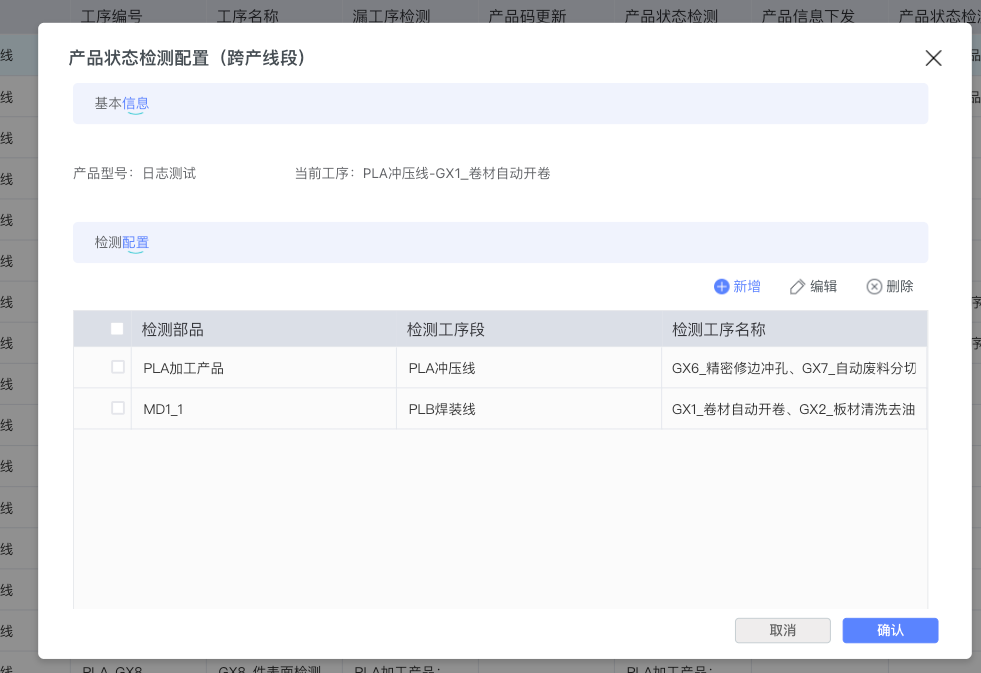
After clicking the Add button, the cross-line segment configuration form pops up:
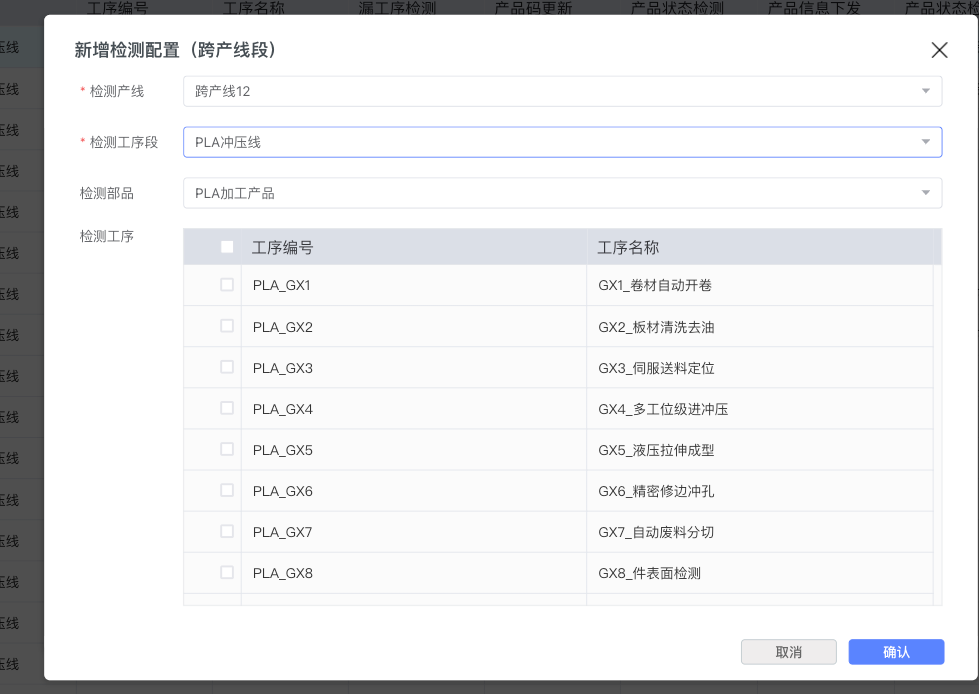
This form contains:
- Detection Line: Dropdown selection box (required, marked with a red asterisk), used to select the line where detection occurs (e.g., "Cross-Line 12")
- Detection Process Segment: Dropdown selection box (required), select specific process segment (e.g., "PLC Painting Line")
- Detection Component: Dropdown selection box, select detection object (e.g., "PLA Processed Product")
- Detection Process: Display available process list in table form
- Contains "Process Number" and "Process Name" columns
- Checkbox in front of each row for selection
- List displays all processes under that process segment (e.g., "PLC_GX21 - GX21_Pre-degreasing Treatment", "PLC_GX22 - GX22_Hardening Treatment", etc.)
2.6 Missing Process Detection Settings (Cross-Line Segment)
Cross-line segment missing process detection is used to monitor whether the product has missed key inspections during the flow across line segments. Click the Missing Process Detection Settings (Cross-Line Segment) tab.
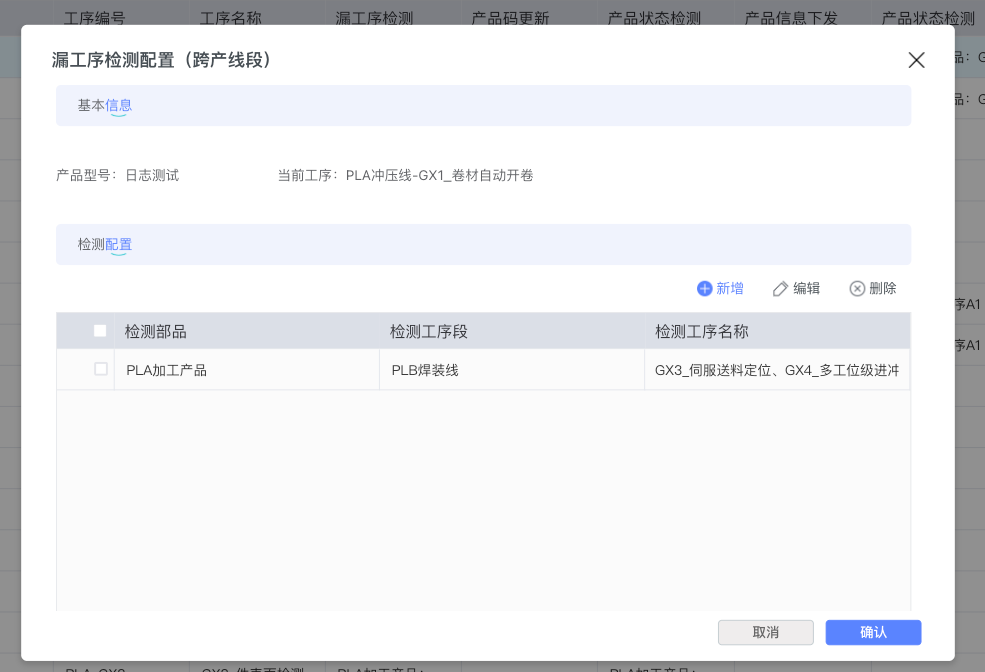
The configuration dialog box displays:
- Basic Information: Product model and current process
- Detection Configuration: Table displays "Detection Component", "Detection Process Segment", and "Detection Process Name" columns
- Example shows "PLA Processed Product" needs to detect processes like "GX3_Servo Feeding Positioning, GX4_Multi-station Progressive Stamping" in the "PLB Welding Line" segment
The configuration interface popped up after clicking the Add button is the same as the structure of the new interface for Product Status Detection (Cross-Line Segment):
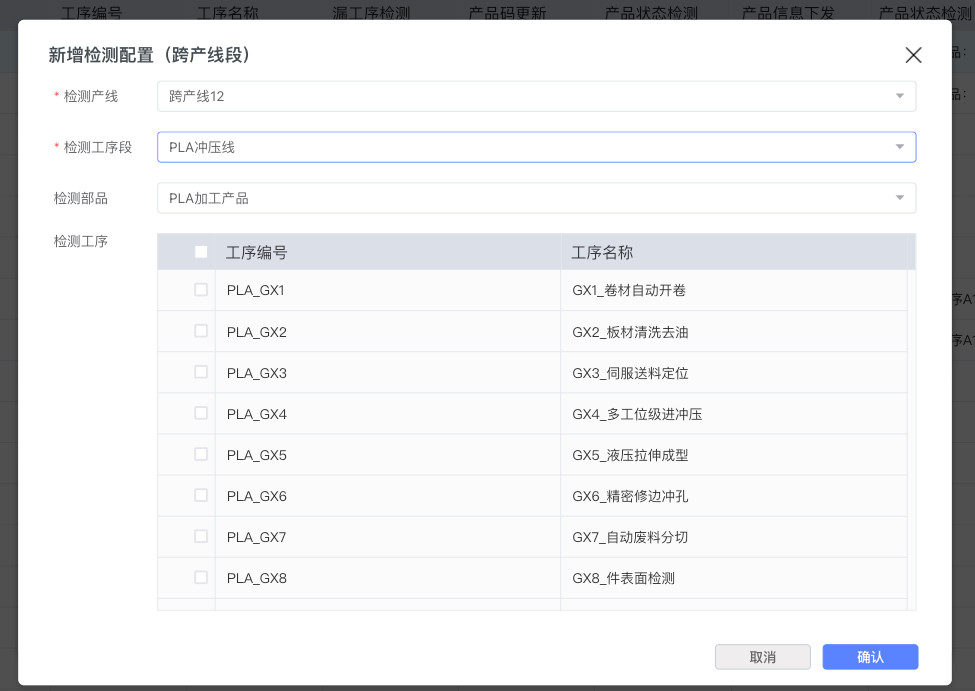
This interface also contains:
- Detection Line dropdown box (required)
- Detection Process Segment dropdown box (required, e.g., "PLA Stamping Line")
- Detection Component dropdown box (e.g., "PLA Processed Product")
- Detection Process list table, allowing multiple selection via checkboxes
2.7 General Operation Instructions
All configuration dialog boxes follow unified interaction specifications:
- Close Dialog: Click the × (Close icon) in the upper right corner
- Confirm Operation: Click the blue Confirm button in the lower right corner to save the configuration
- Cancel Operation: Click the gray Cancel button to abandon this modification
- Empty Data State: When a configuration has not added any rules, "No Data" prompt will be displayed in the center of the table
3. Best Practices and Precautions
Configuration Suggestions
- Start from Key Processes: Prioritize configuring missing process detection for quality-critical processes (e.g., first article inspection, final inspection, etc.)
- Match Status Detection with Process Sequence: Ensure that the process logic sequence configured for status detection is consistent with the actual production flow
- Be Cautious with Cross-Line Configuration: Cross-line segment configuration involves multiple production areas. It is recommended to sort out the complete cross-line flow before configuring
- Regularly Review Configuration: Update process settings configurations promptly when process flows change
Precautions
- Required Field Identification: Fields marked with a red asterisk (*) are required and cannot be saved if left blank
- Multi-select Operation: In the process selection interface, you can add multiple processes at once by checking multiple checkboxes
- Configuration Effective Timing: Configuration takes effect immediately after saving, and the ongoing production process will execute according to the new rules
- Data Integrity: Please confirm that the rule is no longer needed before deleting configuration. The delete operation cannot be recovered