Recipe Management
1. Module Overview
Core Function: The Recipe Management module is a complete recipe life cycle management system, providing recipe creation, configuration, application, monitoring, and log tracking functions.
- Component Identifier: FormulaManagement
- Component Name: Recipe Management
- Component Category: run (Plugin)
User Value: This module helps users establish a standardized production recipe system, achieve unified management and version control of recipe parameters, ensure consistency and traceability of the production process, and improve production efficiency and product quality.
2. Module Details
2.1 Interface Layout Overview
The module adopts a tab design, divided into four main functional areas: Recipe Management, Recipe Application, Recipe Log, and Recipe Run Log. Each tab focuses on different stages of the recipe life cycle.
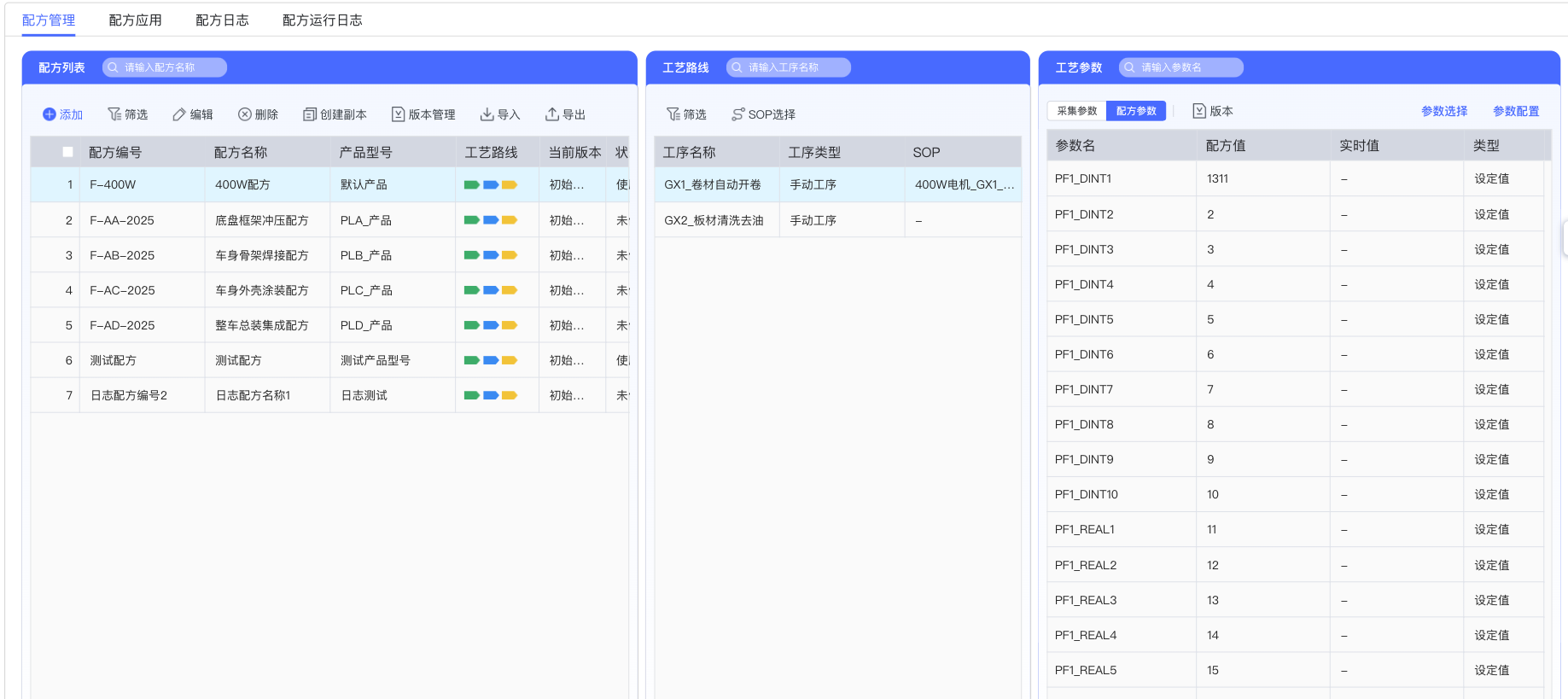
2.2 Recipe Management Area
Recipe List Functions:
- Recipe Number Column: Display the unique recipe identifier assigned by the system
- Recipe Name Column: Display the user-defined recipe name
- Product Model Column: Associated product type identifier
- Process Route Column: Display the process flow route corresponding to the recipe
- Current Version Column: Display the recipe version status (e.g., "Initial Version")
- Status Column: Display the usage status of the recipe (In Use/Unused)
Operation Function Area:
- Add Button: Create a new recipe
- Import/Export Buttons: Batch processing of recipe data
- Edit/Delete Buttons: Modification and removal of recipes
- Create Copy Button: Create a copy of the recipe
- Version Management Button: Recipe version control function
2.3 Process Route Area
The Process Route area displays the production process flow associated with the recipe:
- Process Name: Display specific process steps (e.g., "GX1_Coil Automatic Uncoiling")
- Process Type: Identify the classification of the process (e.g., "Manual Process")
- SOP Configuration: Standard operating procedure corresponding to each process
2.4 Process Parameter Area
Collection Parameter View:
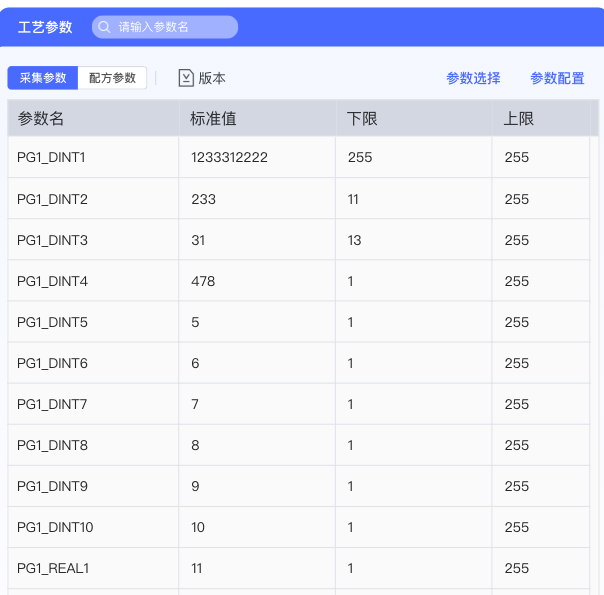
- Parameter Name: System parameters such as PG1_DINT1, PG1_DINT2, etc.
- Standard Value: Target set value of the parameter
- Lower Limit/Upper Limit: Allowed range control of the parameter
Recipe Parameter View:
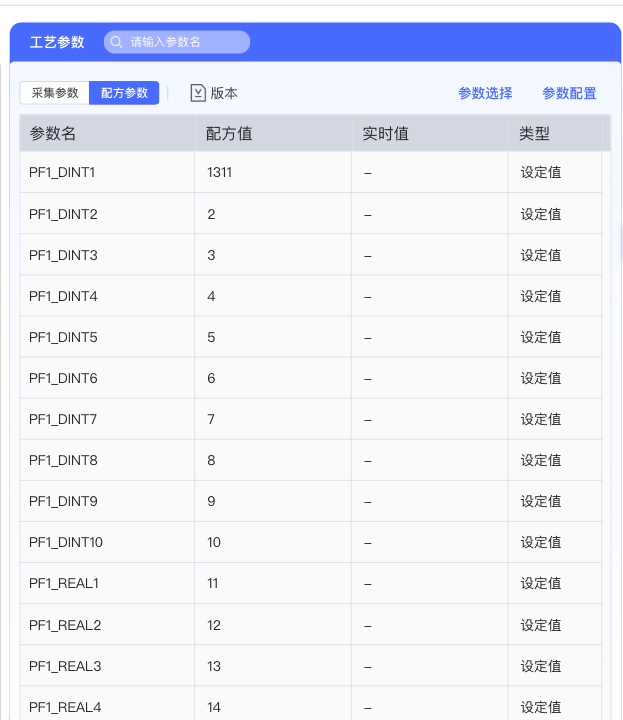
- Parameter Name: Parameter identifier associated with the recipe
- Recipe Value: Parameter value set in the recipe
- Real-time Value: Actual parameter value during current production
- Type: Classification of the parameter (e.g., "Set Value")
3. Operation Guide
3.1 Create New Recipe
Step 1: Start New Recipe Process
Click the "Add" button in the Recipe Management area to start the new recipe creation process.
Step 2: Fill in Basic Recipe Information
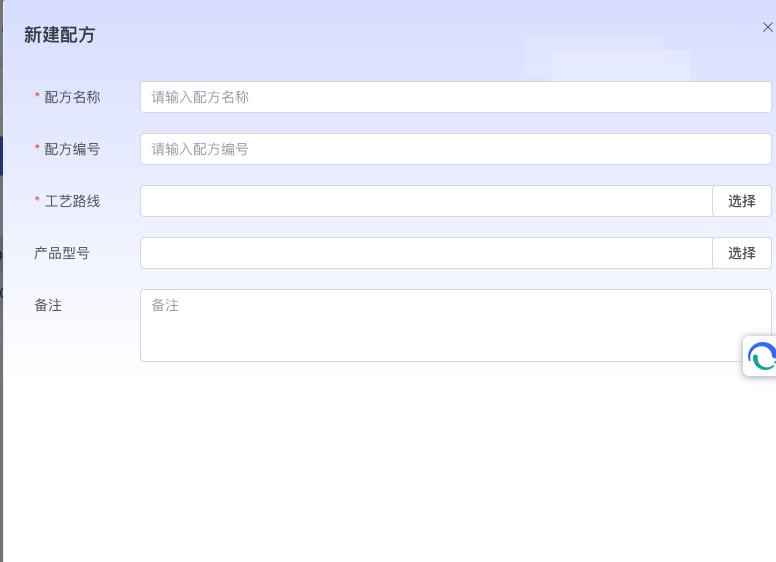
Complete the following configurations in the New Recipe dialog box:
- Recipe Name*: Enter a meaningful recipe name (required)
- Recipe Number*: Enter a unique recipe identification number (required)
- Process Route: Click the "Select" button to configure the process flow
- Product Model: Click the "Select" button to associate a product
- Remark: Add recipe-related explanatory information
Step 3: Configure Process Route
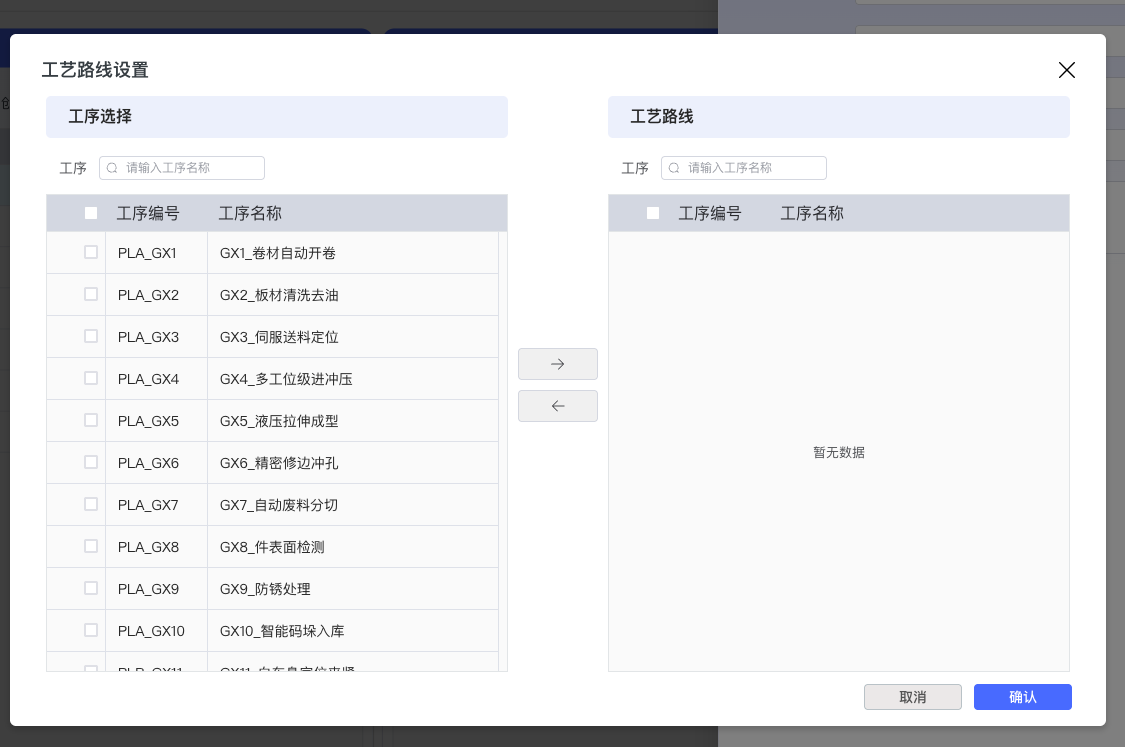
In the Process Route Settings dialog box:
-
Process Selection Area (Left):
- Browse the available process list
- Use the search function to quickly locate processes
- Check the required process items
-
Process Route Area (Right):
- View selected processes
- Use the arrow buttons in the middle to add/remove processes
- Confirm the completeness of the process route
-
Click the "Confirm" button to complete the process route configuration
Step 4: Select Product Model
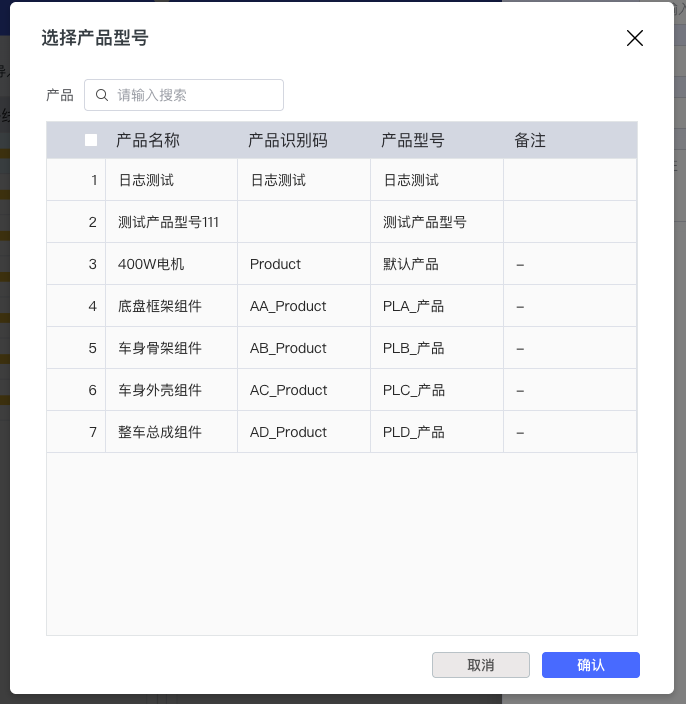
In the Product Model Selection dialog box:
- Browse the product list and view product details
- Select the matching product model (e.g., "Log Test", "400W Motor", etc.)
- Confirm the accuracy of product information
- Click the "Confirm" button to complete product association
Step 5: Configure SOP Standard Operating Procedure
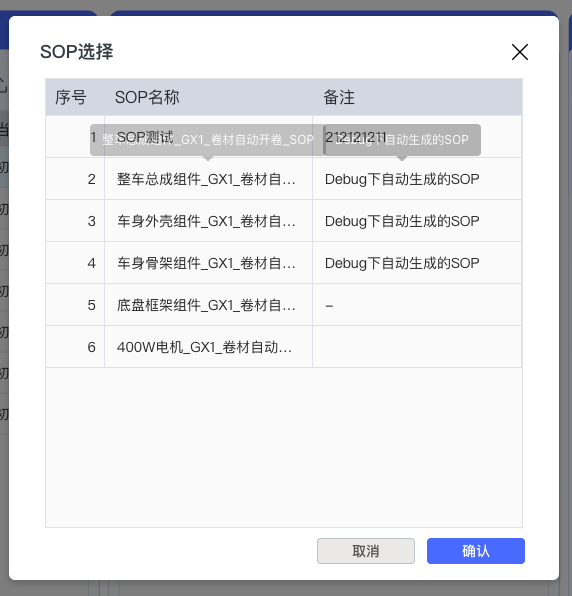
In the SOP Selection dialog box:
- View the available standard operating procedure list
- Select the SOP suitable for the current process
- View detailed remark information of the SOP
- Click the "Confirm" button to complete SOP configuration
3.2 Process Parameter Configuration
Step 1: Parameter Selection Operation
Collection Parameter Selection:
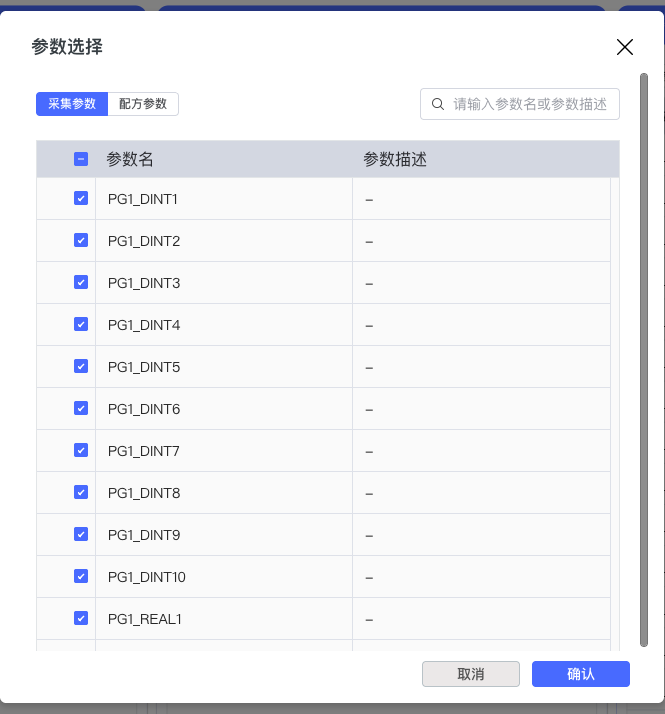
In the Collection Parameter tab:
- Browse system available collection parameters
- Use the search function to quickly locate parameters
- Check the parameter items to be included in the recipe
- View parameter description information
Recipe Parameter Selection:
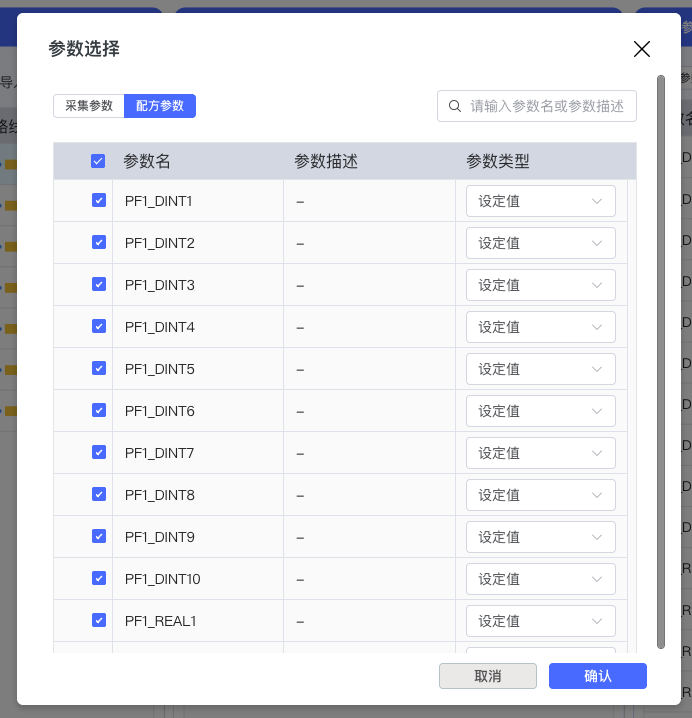
In the Recipe Parameter tab:
- View selected recipe parameters
- Set the type for each parameter (select via dropdown menu)
- Configure specific attributes of the parameter
- Confirm the completeness of parameter configuration
Step 2: Parameter Configuration Operation
Collection Parameter Configuration:
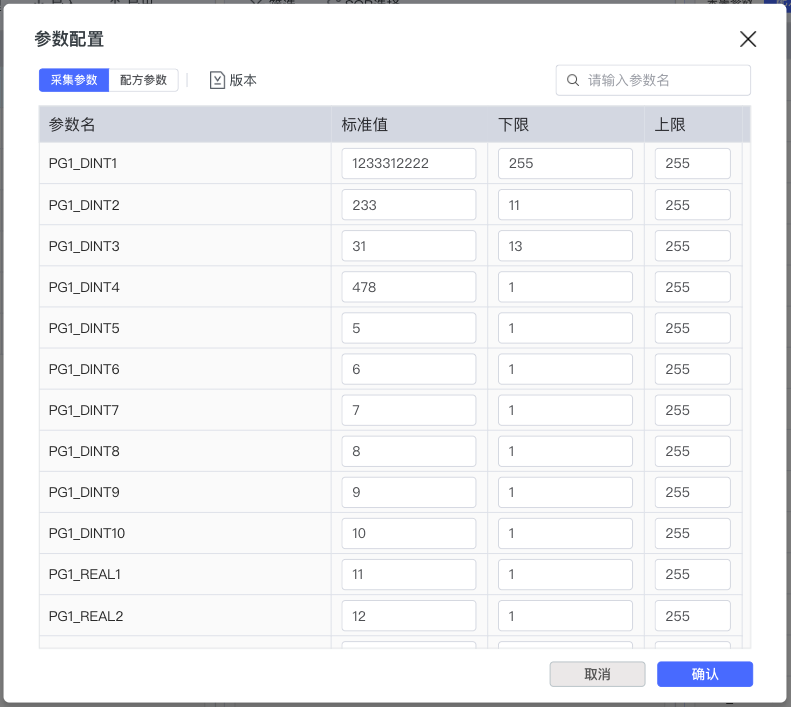
In the Collection Parameter configuration interface:
- Set standard values for each parameter
- Configure the lower and upper limit control range of the parameter
- Use the search function to manage a large number of parameters
- Ensure all key parameters have appropriate configurations
Recipe Parameter Configuration:
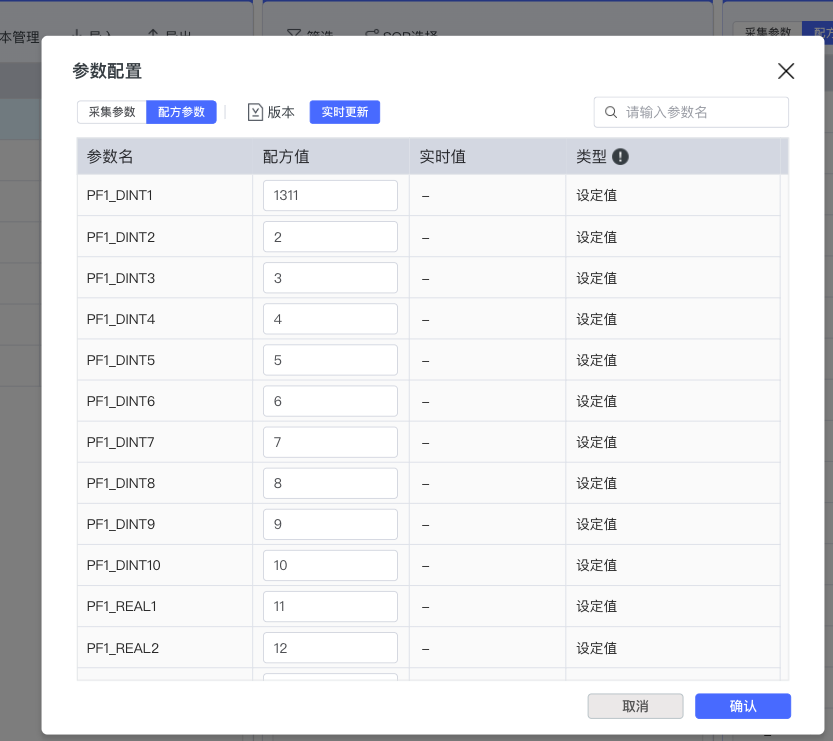
In the Recipe Parameter configuration interface:
- Set recipe values for parameters
- Monitor real-time value status of parameters
- Confirm parameter type settings
- Verify the validity of the configuration
3.3 Recipe Version Management
Version Update Process
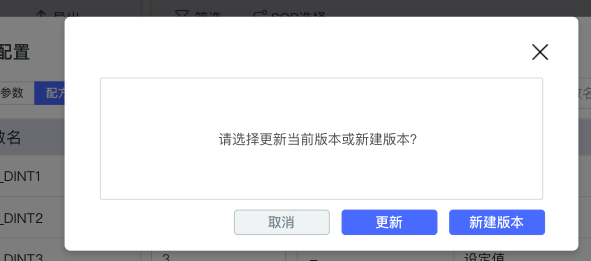
When a recipe needs to be modified, the system provides version management choices:
- Update Option: Modify based on the current version
- New Version Option: Create a brand new recipe version
- Cancel Option: Abandon the current modification operation
Modification Confirmation Mechanism
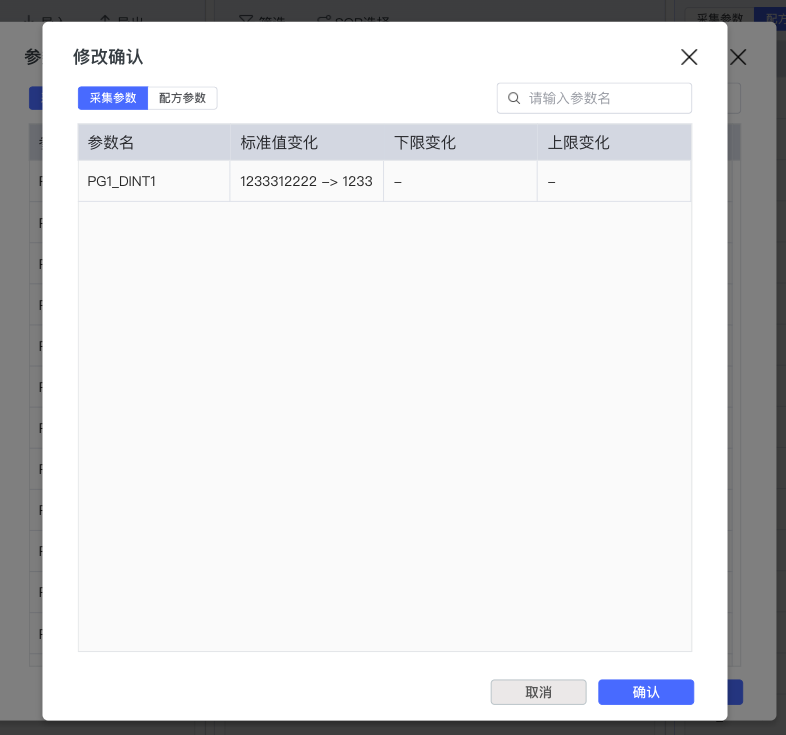
The modification confirmation dialog box displays:
- Parameter Name: The modified parameter identifier
- Standard Value Change: Comparison of values before and after modification
- Lower Limit Change: Change situation of lower limit parameters
- Upper Limit Change: Change situation of upper limit parameters
- Provide a final confirmation mechanism to ensure modification accuracy
3.4 Recipe Status Prompt
Recipe In-Progress Prompt
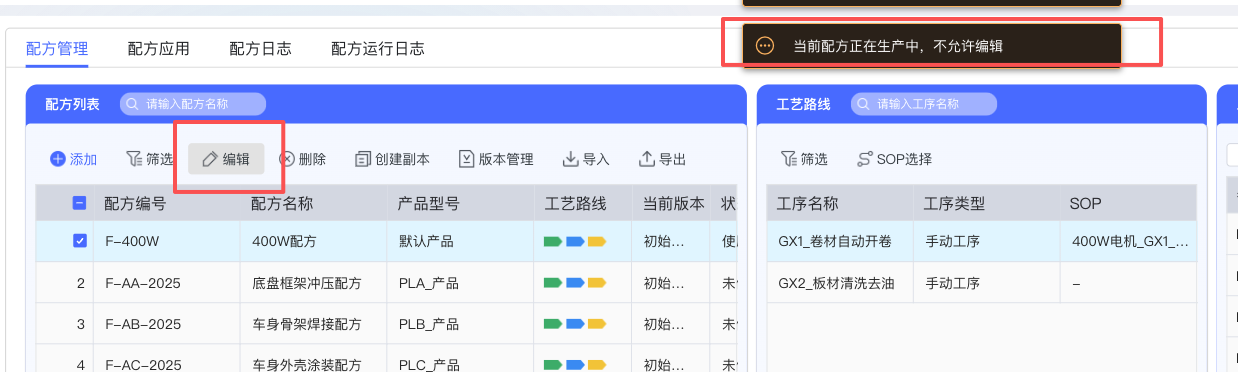
The system provides real-time status prompts:
- Reminder of current recipe usage status
- Operation guidance information
- Ensure users understand the current recipe management status
4. Recipe Application Management
4.1 Recipe Application Overview
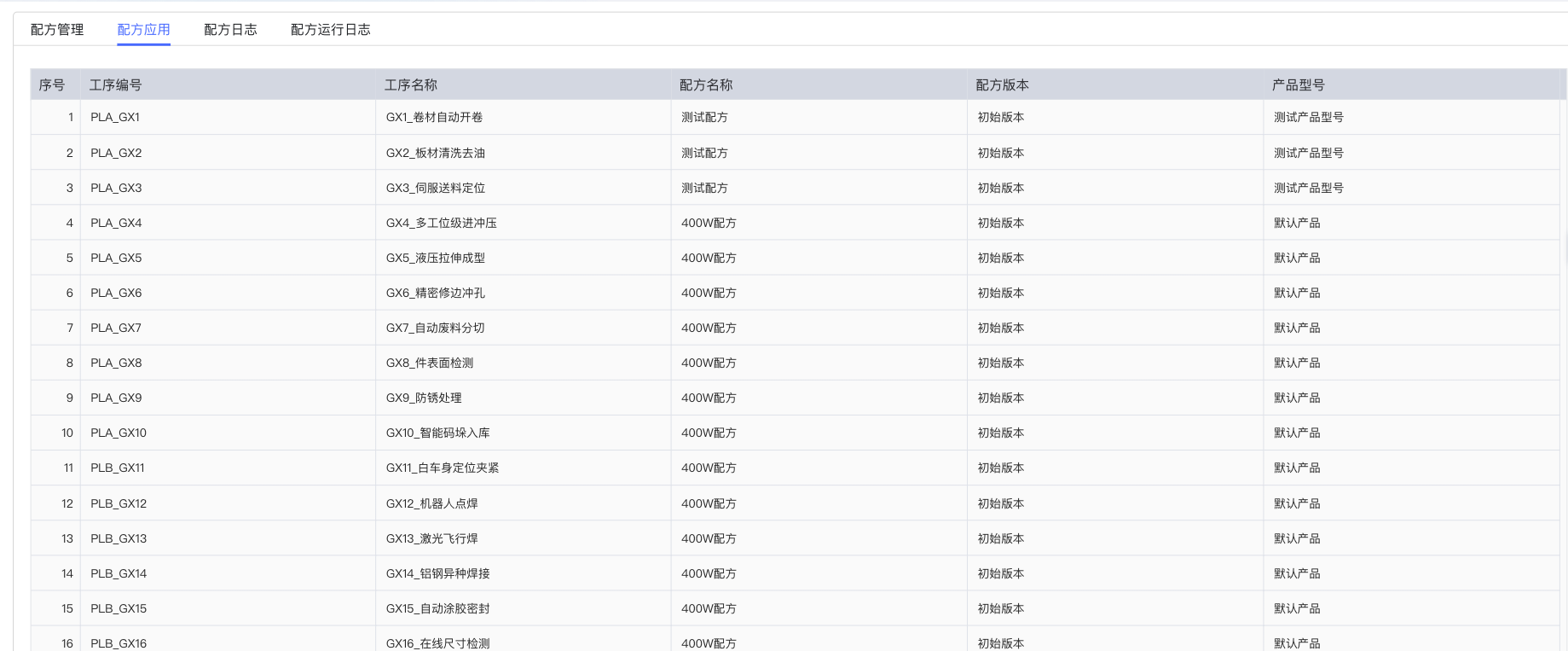
The Recipe Application page provides practical application management of recipes in the production environment:
Application Information Display:
- No.: Sequence number of the application record
- Process Number: Identification code of the production process
- Process Name: Specific process operation name
- Recipe Name: Applied recipe identifier
- Recipe Version: Recipe version information used
- Product Model: Associated product type
Functional Features:
- Real-time display of recipe application status in each process
- Support dynamic association management between recipes and processes
- Provide visual monitoring of recipe application
5. Log Management Function
5.1 Recipe Log
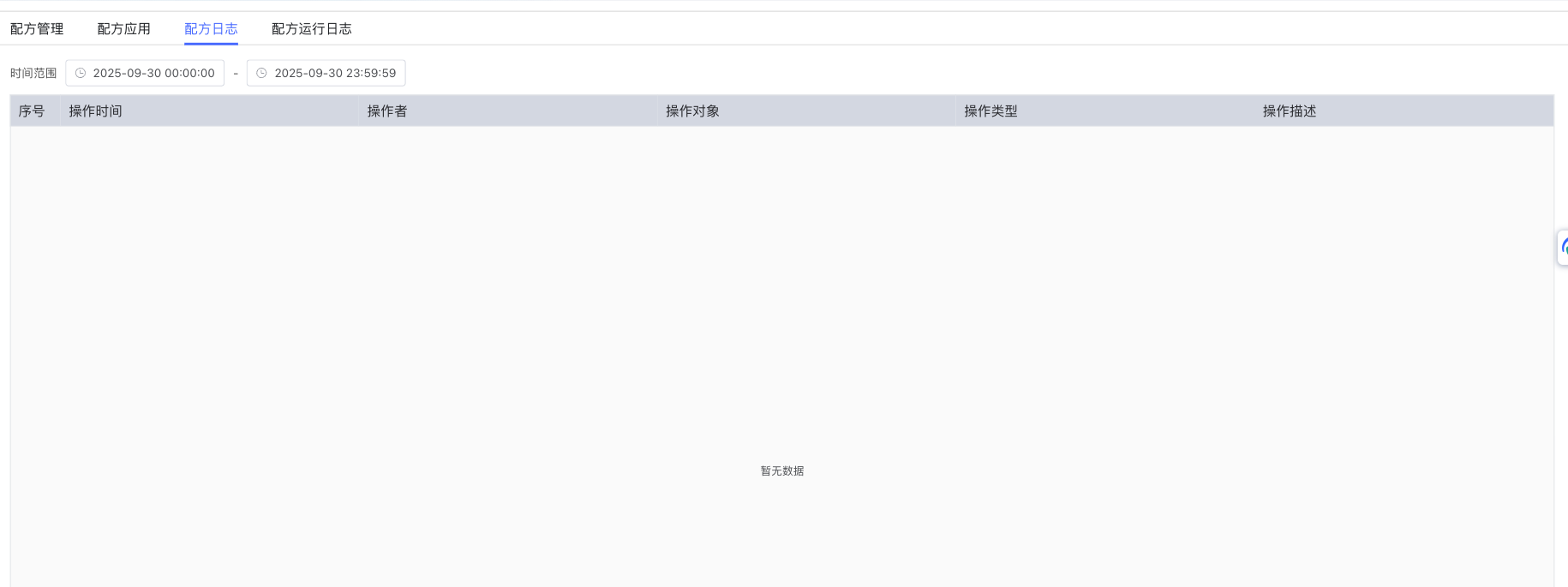
The Recipe Log provides complete operation tracking functions:
Query Function:
- Time Range Selection: Support filtering log records by time period
- Date Control: Precise start and end time selection
Log Record Content:
- No.: Sorting number of the log record
- Operation Time: Specific operation timestamp
- Operator: User identity performing the operation
- Operation Object: The recipe or related object being operated on
- Operation Type: Classification of operation (Create, Modify, Delete, etc.)
- Operation Description: Detailed description of the operation content
5.2 Recipe Run Log
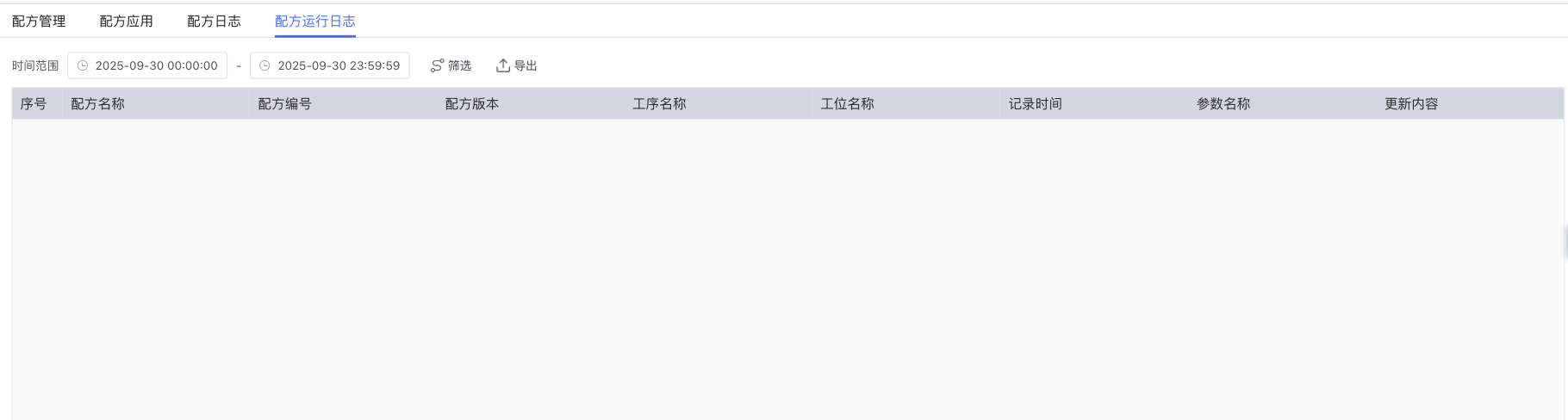
The Recipe Run Log records actual running data during the production process:
Query Control:
- Time Range Filter: Support data query for specified time periods
- Filter Function: Provide data filtering options
- Export Function: Support export operation of running data
Running Data Record:
- No.: Sequence number of the running record
- Recipe Name: Recipe identifier used
- Recipe Number: Unique code of the recipe
- Recipe Version: Recipe version used during operation
- Process Name: Executed process step
- Station Name: Specific production station
- Record Time: Timestamp of data recording
- Parameter Name: Involved process parameters
- Update Content: Parameter change or update information
6. Best Practices and Precautions
6.1 Recipe Management Best Practices
Recipe Creation Specification:
- Standardized Naming: Adopt "Product Type_Process Feature_Version Number" naming format
- Numbering System: Establish a systematic recipe numbering rule
- Association Integrity: Ensure correct association of process route, product model, and SOP
- Parameter Rationality: Set parameter ranges based on actual process requirements
Version Control Strategy:
- Version Management Principles:
- Minor adjustments: Use "Update" function to modify the current version
- Major changes: Choose "New Version" to keep historical records
- Change Tracking: Fully utilize the modification confirmation function to ensure traceability of changes
- Version Identification: Add clear descriptions and identifiers for each version
6.2 Parameter Configuration Guide
Parameter Setting Principles:
- Standard Value Setting: Determine based on process requirements and historical data
- Range Control: Rationally set upper and lower limits to balance quality control and production efficiency
- Parameter Classification: Correctly distinguish between set value and process value types
- Real-time Monitoring: Use recipe parameter view to monitor parameter status
Parameter Optimization Suggestions:
- Regular Assessment: Adjust parameter configurations based on production feedback
- Data Analysis: Analyze parameter performance using running logs
- Continuous Improvement: Optimize parameter settings based on quality indicators
7. Troubleshooting
7.1 Frequently Asked Questions
Q: What to do if the process route selection is empty when creating a recipe? A: Please confirm that corresponding process information has been configured in the system, or contact the system administrator to add necessary process data.
Q: Cannot find the required parameter during parameter configuration? A: Check if the parameter is defined in the system, use the search function to find it precisely, or confirm parameter permission settings.
Q: How to restore to a historical version after recipe version update? A: You can view historical versions through the version management function and select the corresponding version to restore as needed.
Q: Excessive running log data affects query speed? A: It is recommended to use the time range filter function to narrow the query range, or archive historical data regularly.