Process Configuration
Process Configuration is the core foundational function of the LMES system, used to define and manage business process templates during production. Through visual process design tools, you can build standardized and reusable process templates to achieve coordinated control between production equipment, operating systems, and management systems.
- Component ID: FlowManagement
- Component Name: Process Management
- Component Category: run (plugin)
Core Functions
Process Engine
- Provides a rich library of process node types, supporting various nodes such as device interaction, data processing, conditional judgment, etc.
- Supports orchestration of complex process logic including serial, parallel, and branching
- Implements standardized interaction interfaces with PLC, special equipment, and third-party systems
Process Templates
- Can be referenced by processes, workstations, or other business objects to automatically create process instances
- Supports parameterized configuration, allowing the same template to adapt to different production scenarios
- Provides batch configuration functions for quickly completing process deployment across multiple workstations
Design Principles
- Follows the design principle of "whoever owns the signal is responsible for handshake delivery"
- Ensures maintainability and extensibility of process templates
- Supports process version management and change traceability
1. Function Overview
1.1 Process Management Main Interface
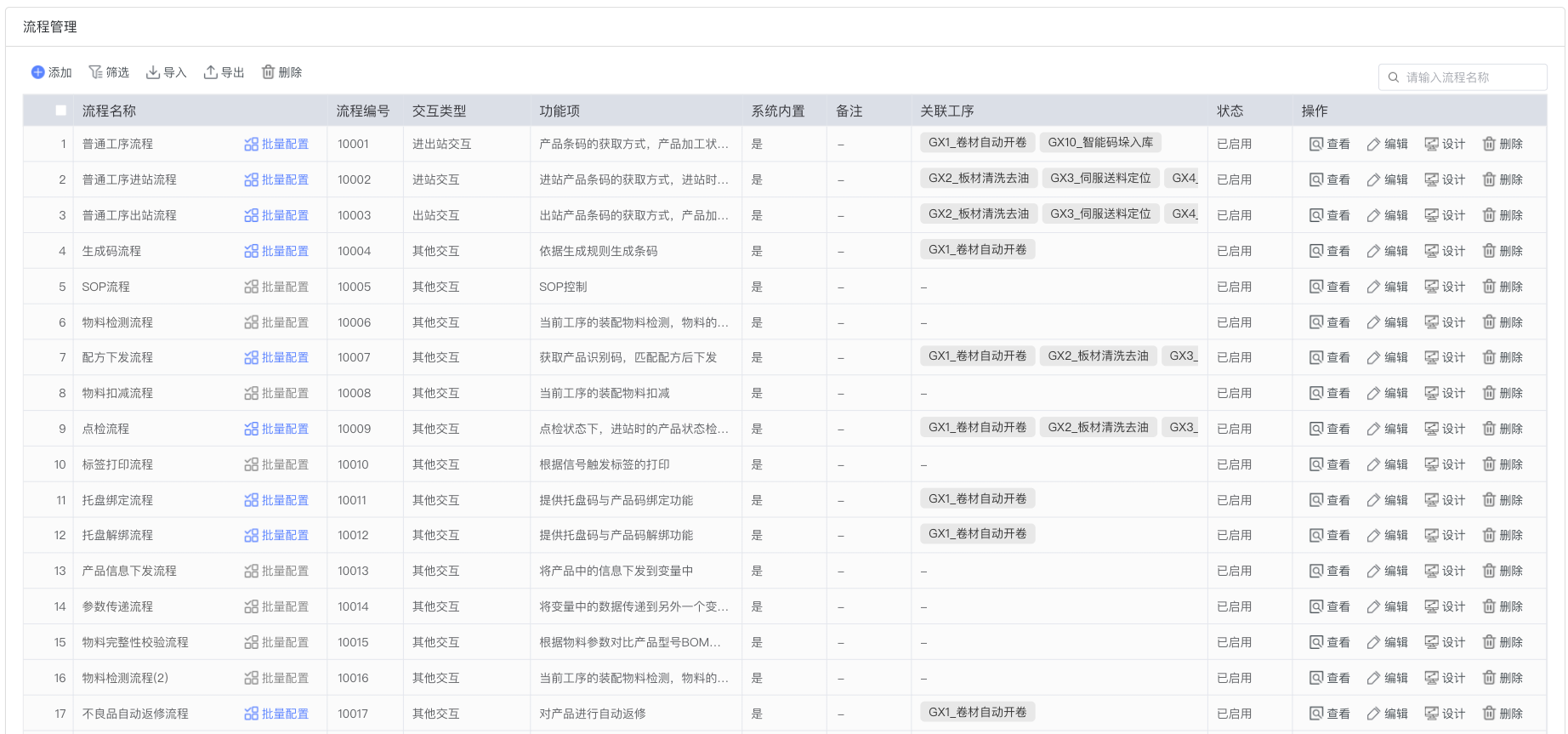
The Process Management main interface displays all created process templates in the system. On this interface, you can:
- View a list of all process templates
- Quickly find specific process templates through the search box
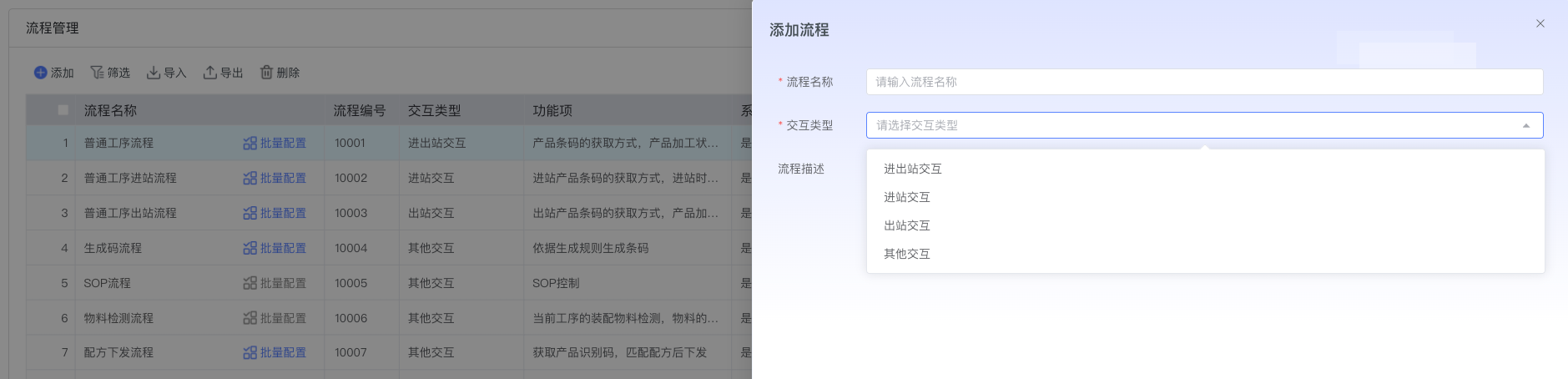
- Create new process templates
- Edit, copy, or delete existing process templates
1.2 Process Template Design Interface
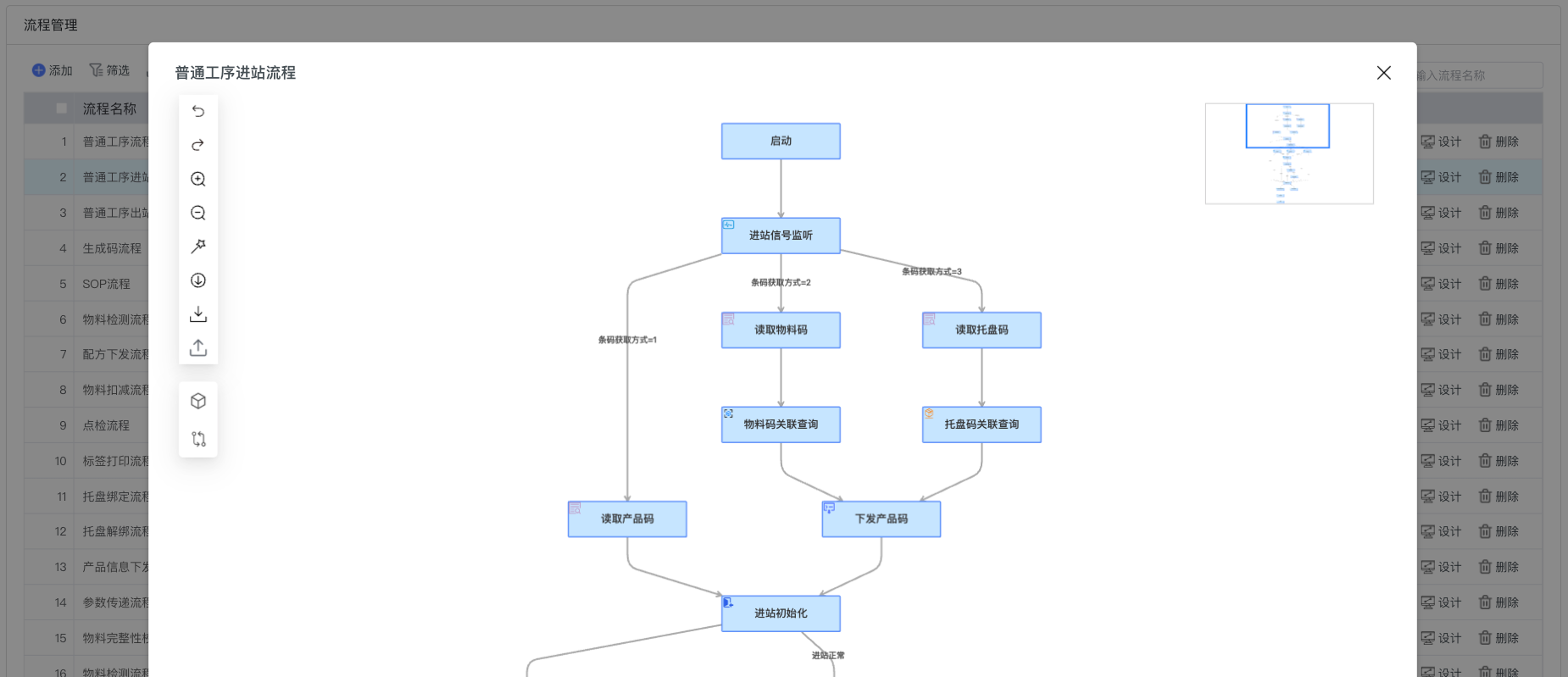
The Process Template Design interface is the core workspace for creating and editing processes, including the following main parts:
- Left side: Process node type library, providing various available node types
- Middle: Process design canvas for dragging and connecting nodes
- Right side: Node property configuration panel for setting detailed parameters of selected nodes
1.3 Process Node Types
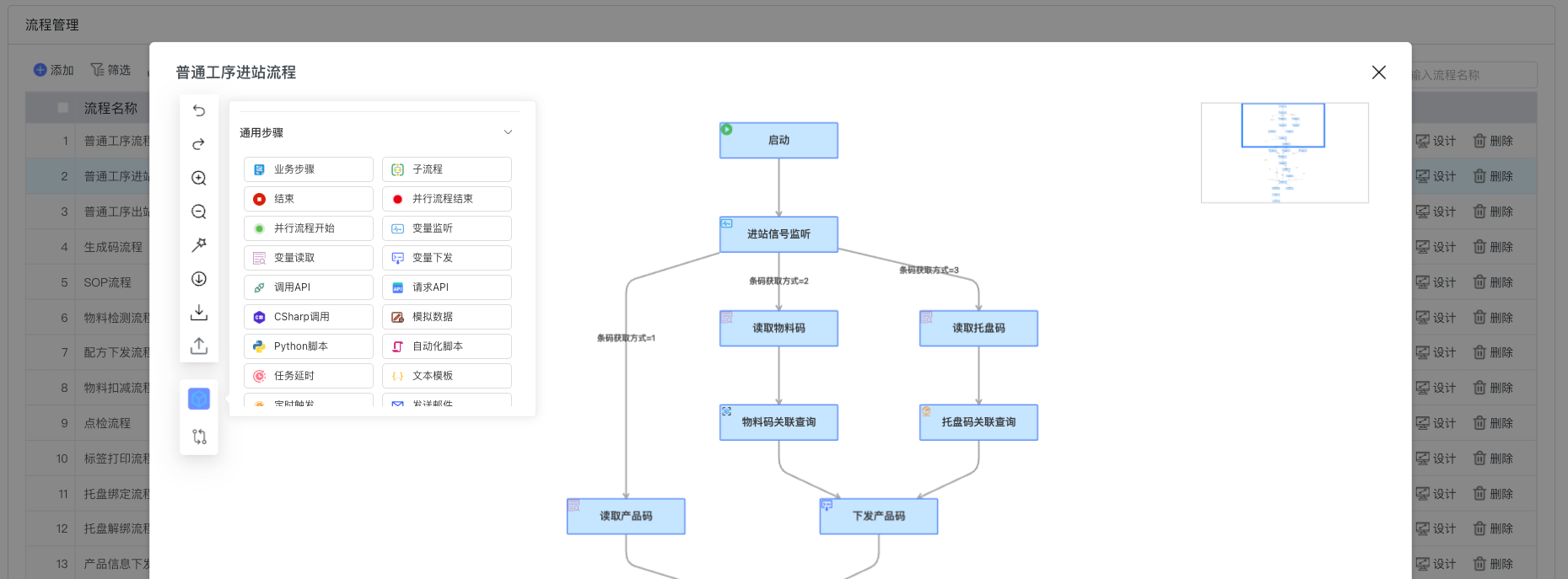
The system provides multiple process node types, including but not limited to:
- Basic nodes: Start, End, Conditional Branch, etc.
- Device interaction nodes: PLC communication, Equipment control, etc.
- Data processing nodes: Data collection, Calculation, Validation, etc.
- System integration nodes: Interfaces for interacting with third-party systems
1.4 Node Property Configuration
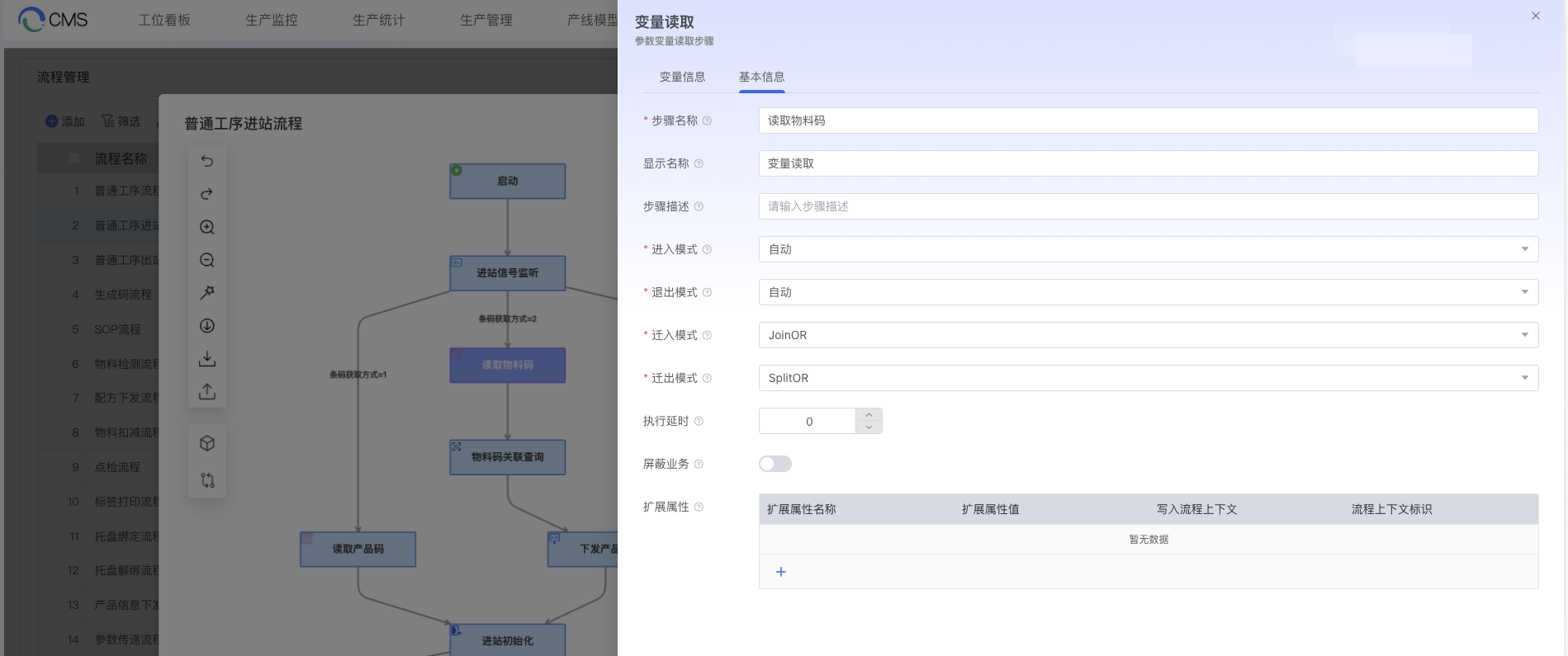
Each node has its specific property configuration options. Through the right property panel, you can set:
- Node basic information: Name, Description, ID, etc.
- Execution conditions: Trigger conditions, Preconditions, etc.
- Data mapping: Input/Output parameter configuration
- Timeout settings: Execution timeout duration and handling strategies
1.5 Process Connection and Logic Control
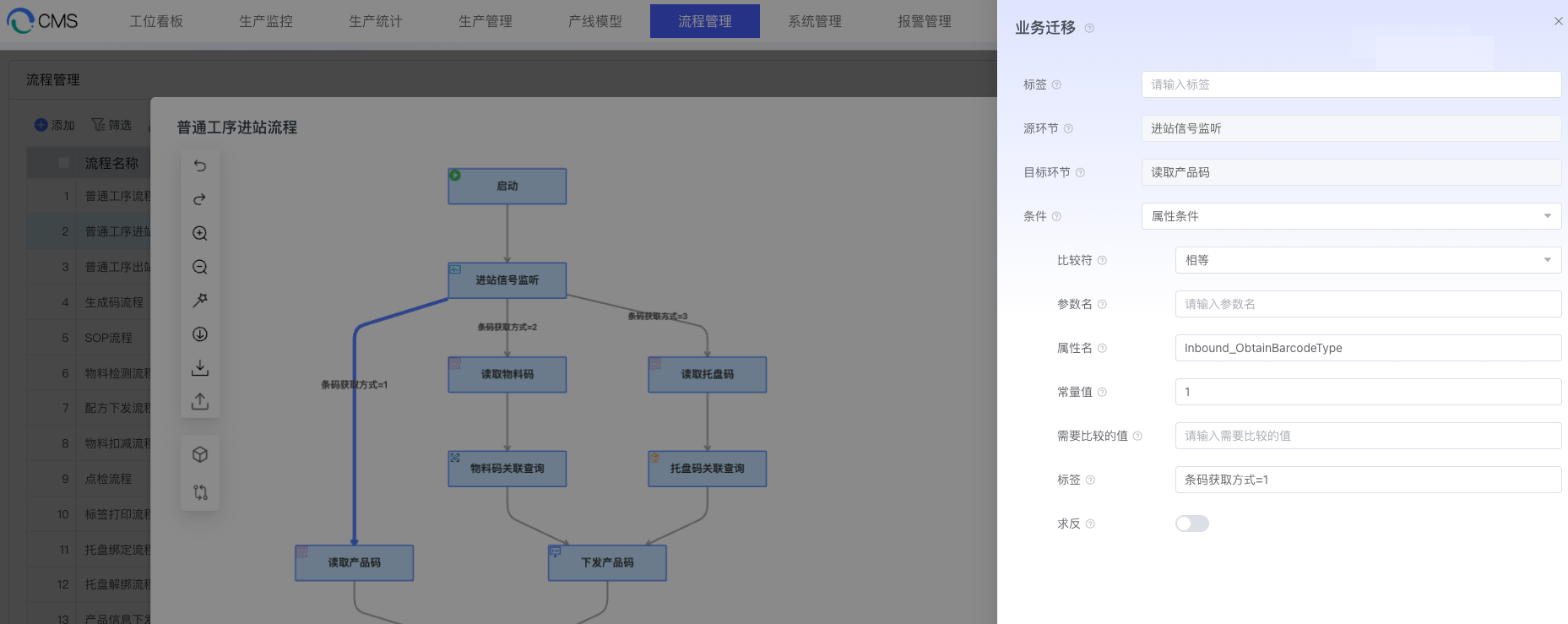
Process design supports complex logic control:
- Serial execution: Nodes execute sequentially in order
- Parallel execution: Multiple nodes execute simultaneously
- Conditional branching: Choose different execution paths based on conditions
- Loop execution: Repeat certain nodes under specific conditions
1.6 Process Parameter Settings
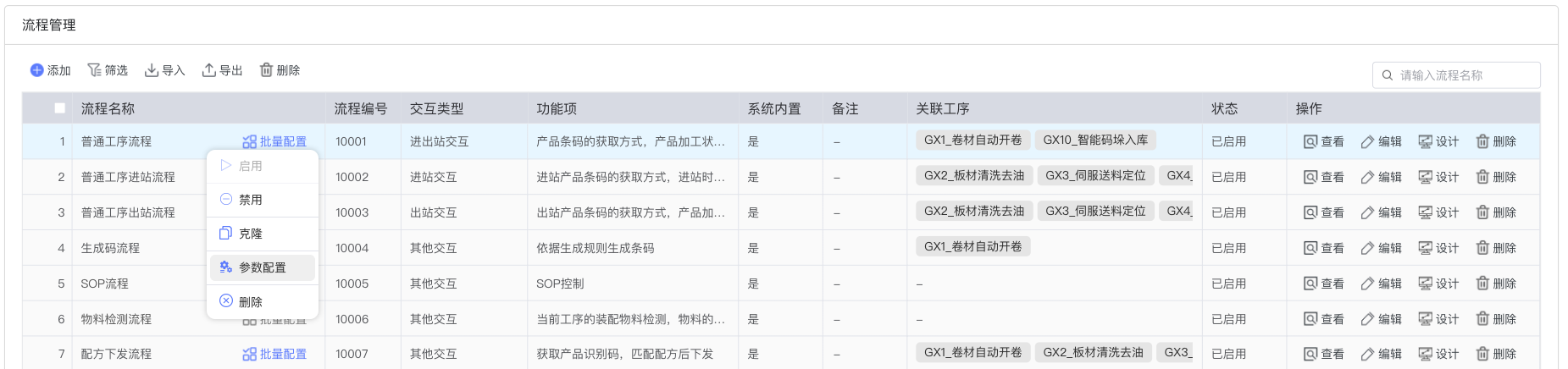
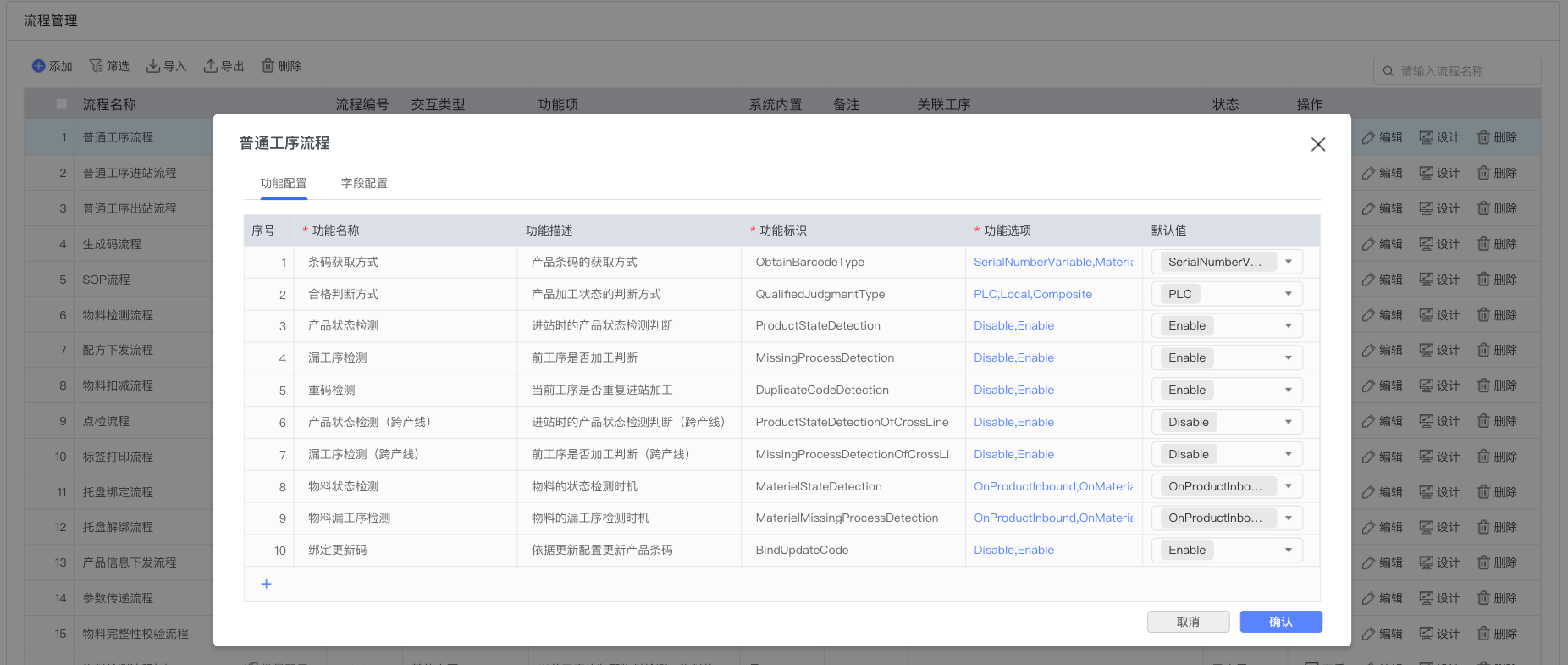
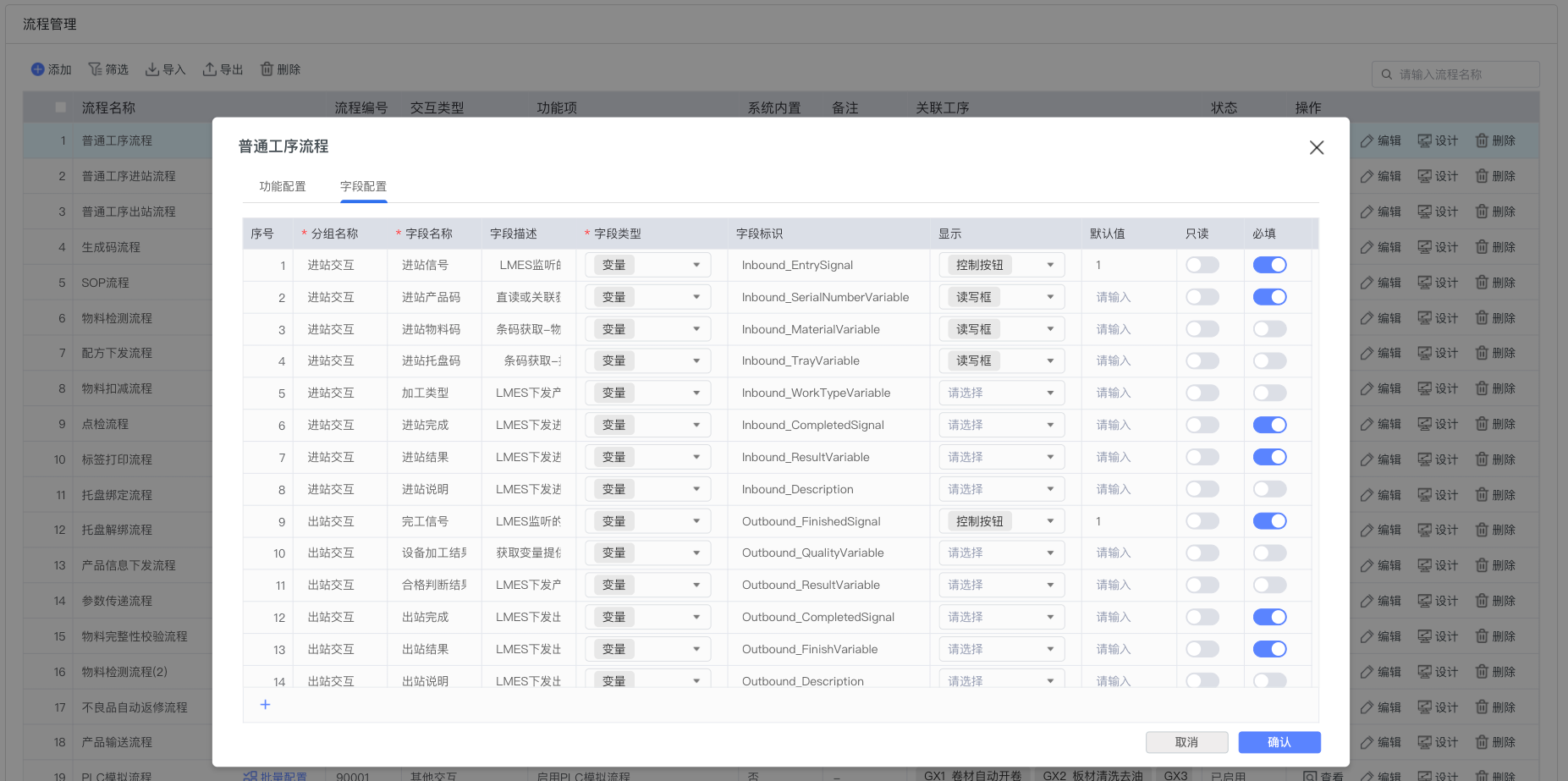
Through the "Parameter Settings" function accessed by right-clicking on the process, you can configure functions and fields for the process:
- Function configuration: Define functional parameters and properties required by the process
- Field configuration: Set data fields and variables used in the process
- Variable mapping: After the process is associated with a process, these fields can be associated with specific variables at the workstation level
- Parameter inheritance: Supports inheriting parameter settings from templates to improve configuration efficiency
1.7 Batch Configuration
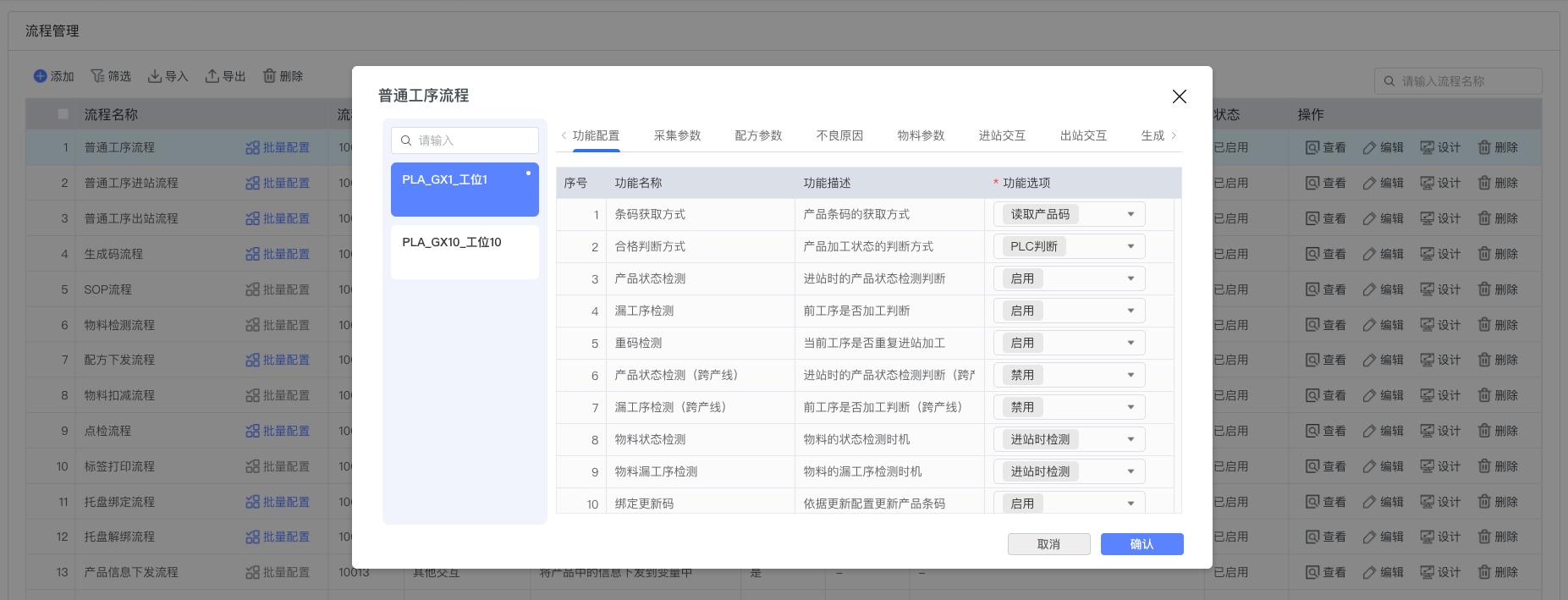
The batch configuration function is mainly used to facilitate users in batch modifying variable signal configurations for workstations associated with processes, significantly improving configuration efficiency and convenience:
- Function Purpose: Simplify the variable configuration process for multiple workstations with the same process
- Applicable Scenarios: Batch signal configuration when the same process is referenced by multiple process workstations
Specific Configuration Steps:
- Select the process, click batch configuration, and the system presents the batch configuration popup
- The workstation list will automatically filter out all workstations associated with this process
- Select the workstations that need to be configured, click the "Process Function Configuration" tab
- Batch define field variable rules to complete signal mapping configuration
Operation Tips: The batch configuration popup supports multi-selecting variables and filling them down in order, further improving configuration efficiency
2. Operation Guide
2.1 Create Process Template
- On the Process Management main interface, click the "New" button
- Enter the process template name and description
- In the design interface, drag the required nodes from the left node library to the canvas
- Configure the property parameters of each node
- Connect each node to establish execution order and logical relationships
- Click the "Save" button to save the process template
2.2 Edit Process Template
- On the Process Management main interface, find the process template that needs to be edited
- Click the "Edit" button to enter the design interface
- Modify node configurations, connection relationships, or add/delete nodes
- Click the "Save" button after completing modifications
2.3 Reference Process Template
- In the process or workstation configuration interface, select the "Associate Process" option
- Select the template that needs to be referenced from the process template list
- Configure the initial parameters of the process instance
- Confirm and save the configuration
2.4 Monitor Process Instance
Process instance monitoring is conducted through the [Workstation Control Panel](../../Production Operation Management/Production Management/Workstation Control Panel/README.md):
- Enter the Workstation Control Panel interface
- Select the workstation and its associated process instance that needs to be viewed
- View the real-time execution status and node information of the process instance
- Necessary manual intervention operations can be performed through the Workstation Control Panel
- Monitor various parameters and status changes during process execution
3. Frequently Asked Questions
3.1 What should I do if process execution gets stuck at a certain node?
Check whether the node configuration is correct, especially the execution conditions and timeout settings. If it is a node that interacts with external equipment, confirm whether the equipment connection status and communication are normal.
3.2 How to handle exceptions during process execution?
The system provides an exception handling mechanism. Exception handling strategies such as retry, skip, or terminate process can be configured for key nodes during process design. You can also manually intervene to handle exceptions in the monitoring interface.
3.3 Can a process template be referenced by multiple processes or workstations simultaneously?
Yes, a process template can be referenced by multiple processes or workstations. Each reference will create an independent process instance that does not affect each other.
3.4 How to optimize the execution efficiency of complex processes?
- Reasonably design node granularity to avoid overly complex single nodes
- Fully utilize parallel execution functions to improve processing efficiency
- Regularly check and optimize data interaction logic to reduce unnecessary data transmission
- Set reasonable timeout durations for key nodes to avoid long-term blocking