System Configuration
- Component Identifier: SystemManagement
- Component Name: System Management
- Component Category: run (Plugin)
Module Overview
System Configuration consists of the following five modules, used to uniformly manage the basic parameters, process control, and report display of the production site:
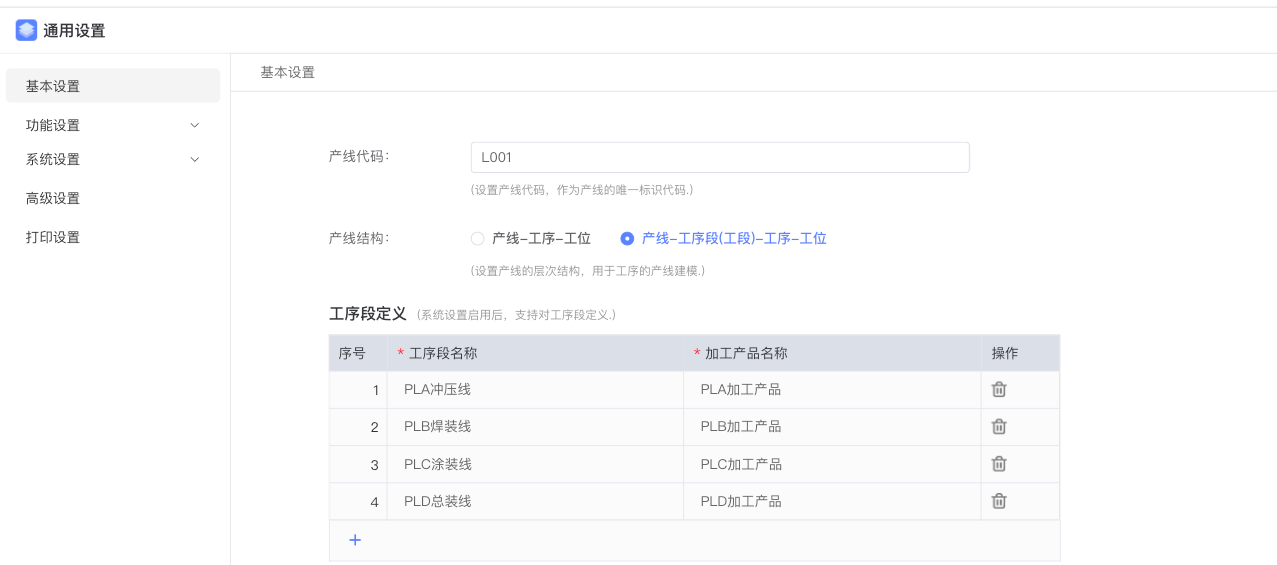
- Basic Settings: Configure line code, line structure, and process segment definition.
- Function Settings: Contains work order settings, defective product configuration, recipe control, process settings, and traceability reports.
- System Settings: System text resource customization, unified system display copy.
- Advanced Settings: Debug mode switch, supports modifying process and recipe requirements after work order dispatch.
- Print Settings: BarTender printer integration and parameter configuration.
Usage Suggestions:
- It is recommended to complete "Basic Settings" first, and then configure "Function Settings" and "Traceability Reports".
- Debug mode is recommended to be enabled only in the test/joint debugging environment, and used with caution in the production environment.
I. Basic Settings
Basic Settings contains the basic configuration of the LMES suite: line code, line structure, and process segment definition.
1. Line Code
Set the line code as the unique identifier of the production line.
Operation Steps:
- Find "Line Code" in "System Configuration -> Basic Settings".
- Enter a unique and standardized line code to avoid duplication.
- Click save, and the system will use this code as the primary key identifier of the production line.
2. Line Structure
Supports two line structures:
- Structure A: Line -> Process -> Station.
- Structure B: Line -> Process Segment (Section) -> Process -> Station.
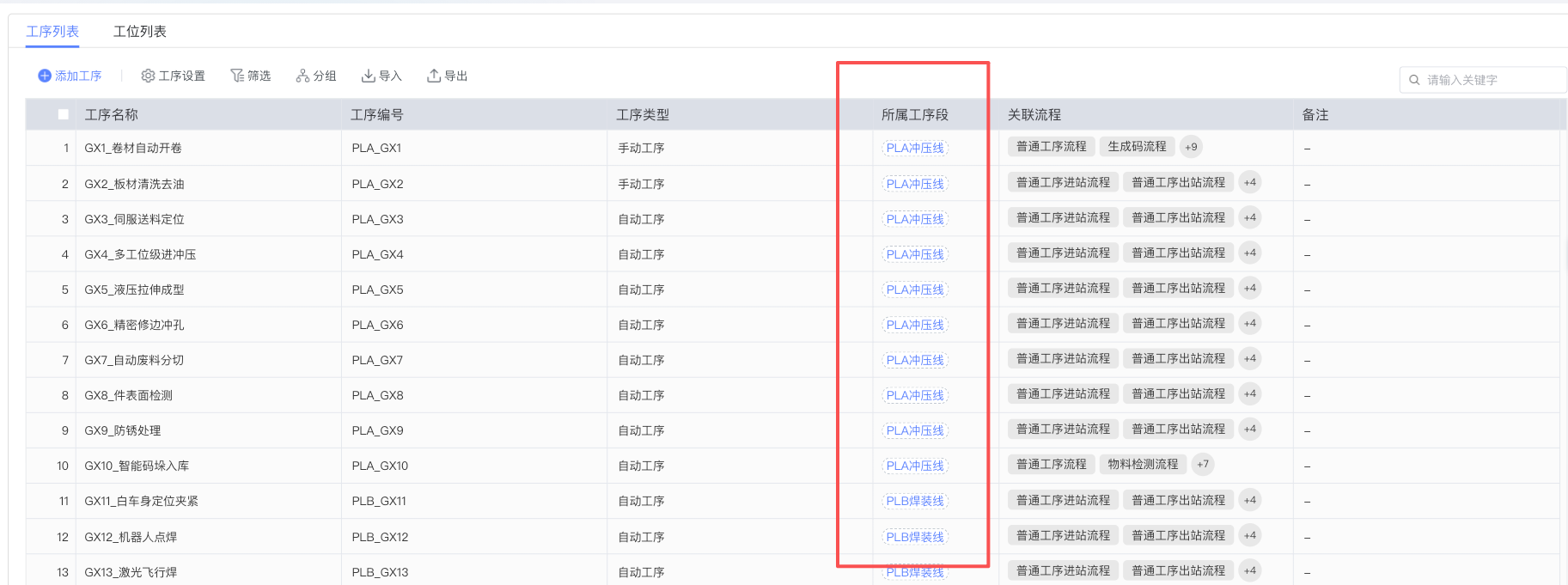
In LMES usage, the two structures differ in configuration and display:
In Process Management, if a structure containing "Process Segment" is selected, process segments can be configured and displayed on the page:
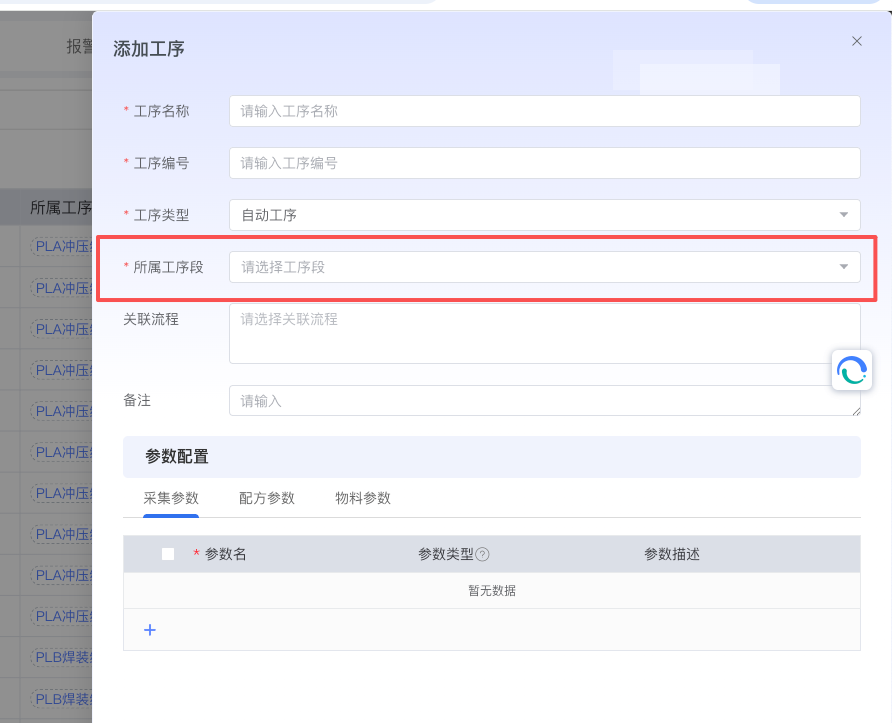
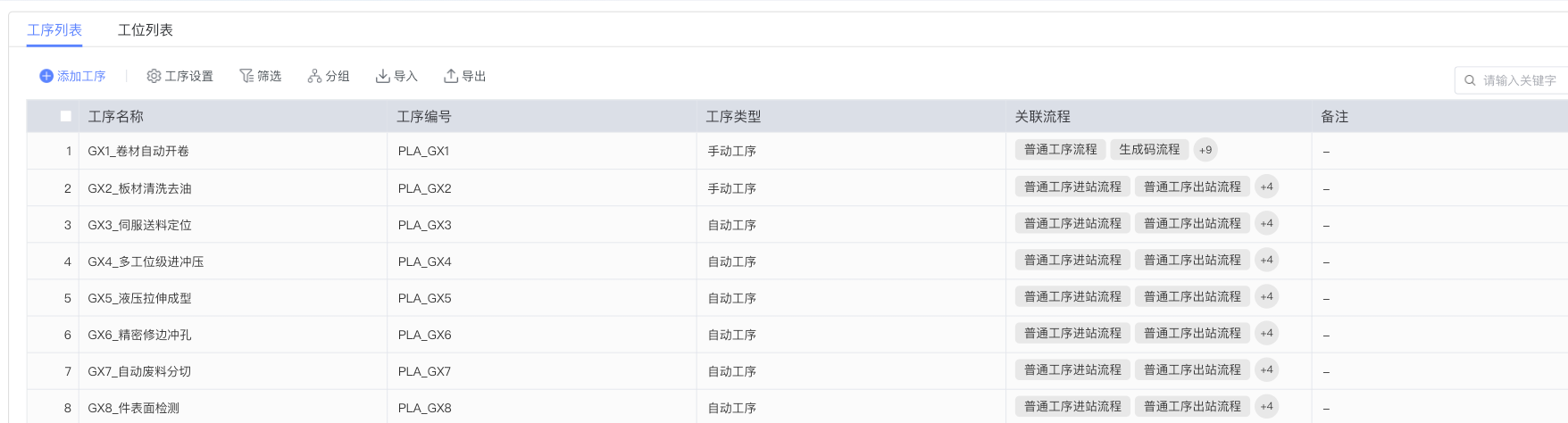
When the "Process Segment" structure is not selected, relevant configurations and displays are not shown.
3. Process Segment Definition
Process Segment Definition needs to be used with "Structure B (Containing Process Segment)":
After completion of configuration, it can be used in pages such as Process Settings, and supports query, filtering, and configuration:
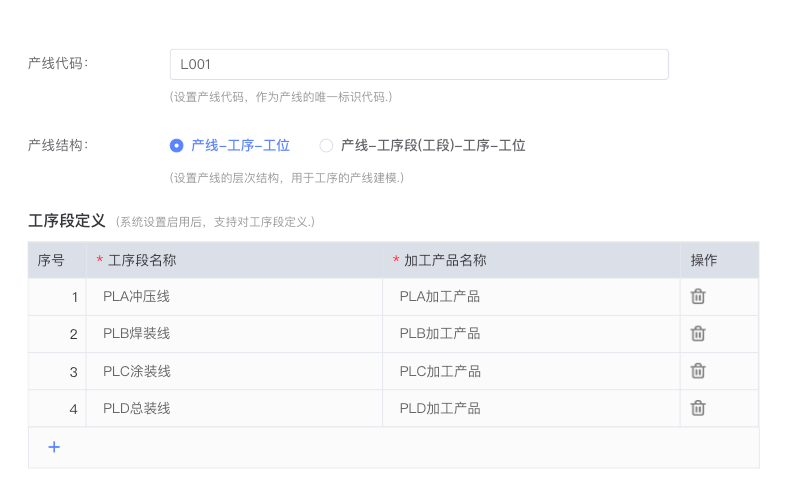
When clicking "+" to add a new process segment, note:
- Name cannot be duplicated and is required;
- The system will check for uniqueness and required fields when saving.
II. Function Settings
Function Settings contains: Work Order Settings, Defective Product Configuration, Recipe Control, Process Settings, Traceability Reports.
1. Work Order Settings
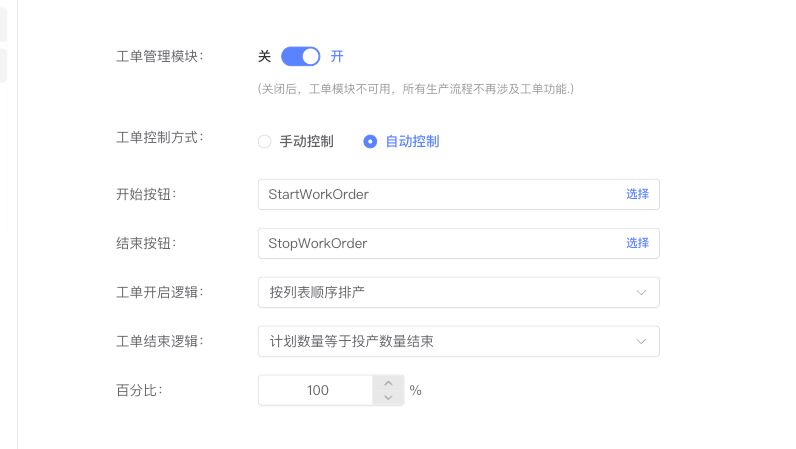
(1) Work Order Module Enable/Disable: After disabling, all production processes no longer involve work order functions.
(2) Work Order Control Method: Supports "Manual Control" and "Automatic Control".
Automatic control needs to be used with the following configurations:
- Start Button Variable and End Button Variable;
- Work Order Start Logic and Work Order Control Logic;
- Percentage Threshold.
After saving the configuration, you can click the "Start/End" button on the Work Order Management page to trigger automatic scheduling and ending:

After clicking "Start", the system refreshes every 5 seconds, and the status updates synchronously.
2. Defective Product Configuration
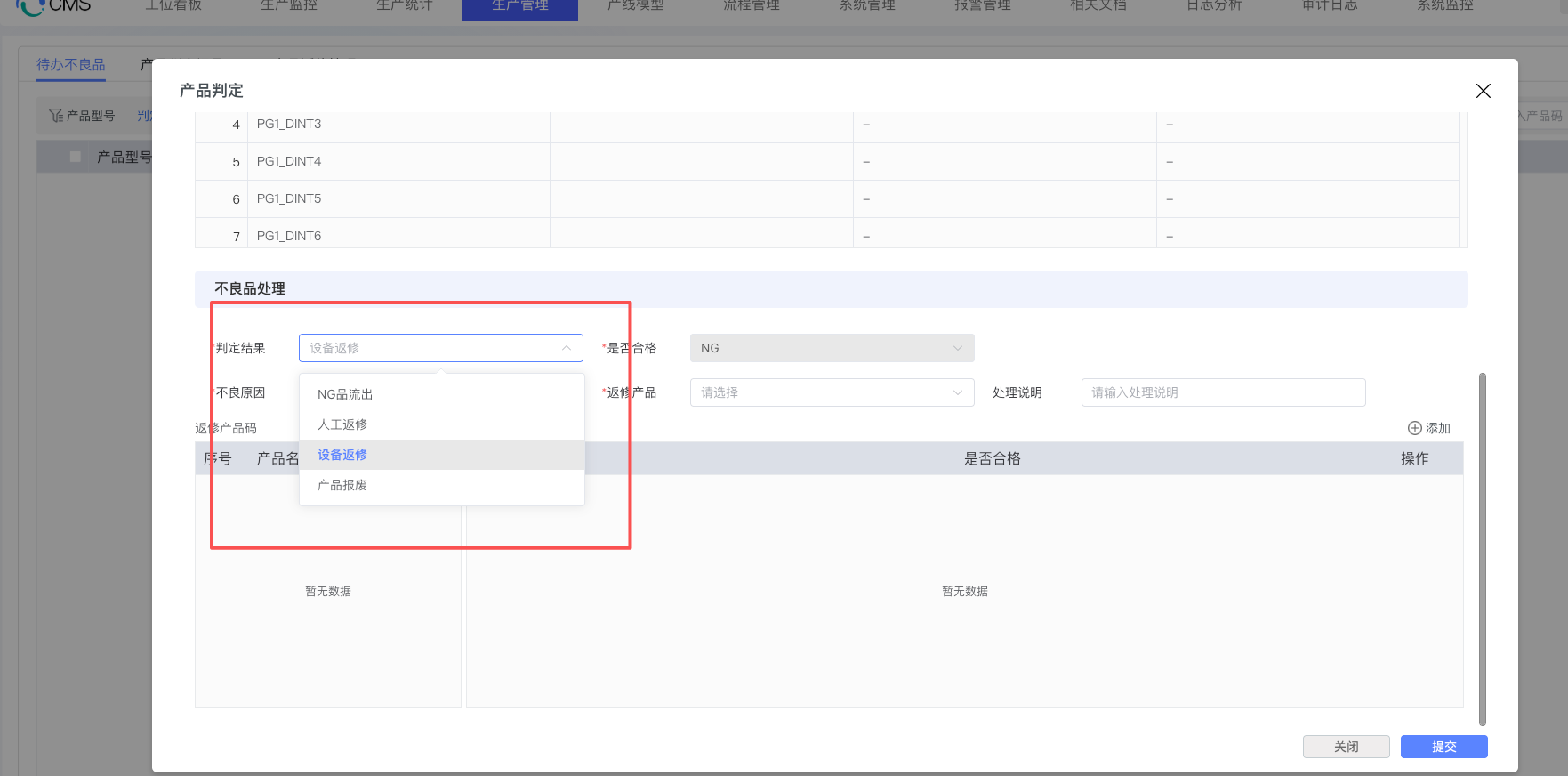
Used to control the judgment result options in Defective Product Management, supporting 4 judgment methods:
- Equipment Rework (Selected by default, not configurable)
- Manual Rework
- Product Scrap
- NG Product Outflow
After configuration is complete, the following effect can be seen in Defective Product Management:
3. Recipe Control
Process recipes support the following dispatch methods:
-
Dispatch work order linked recipe dispatch (Default).
-
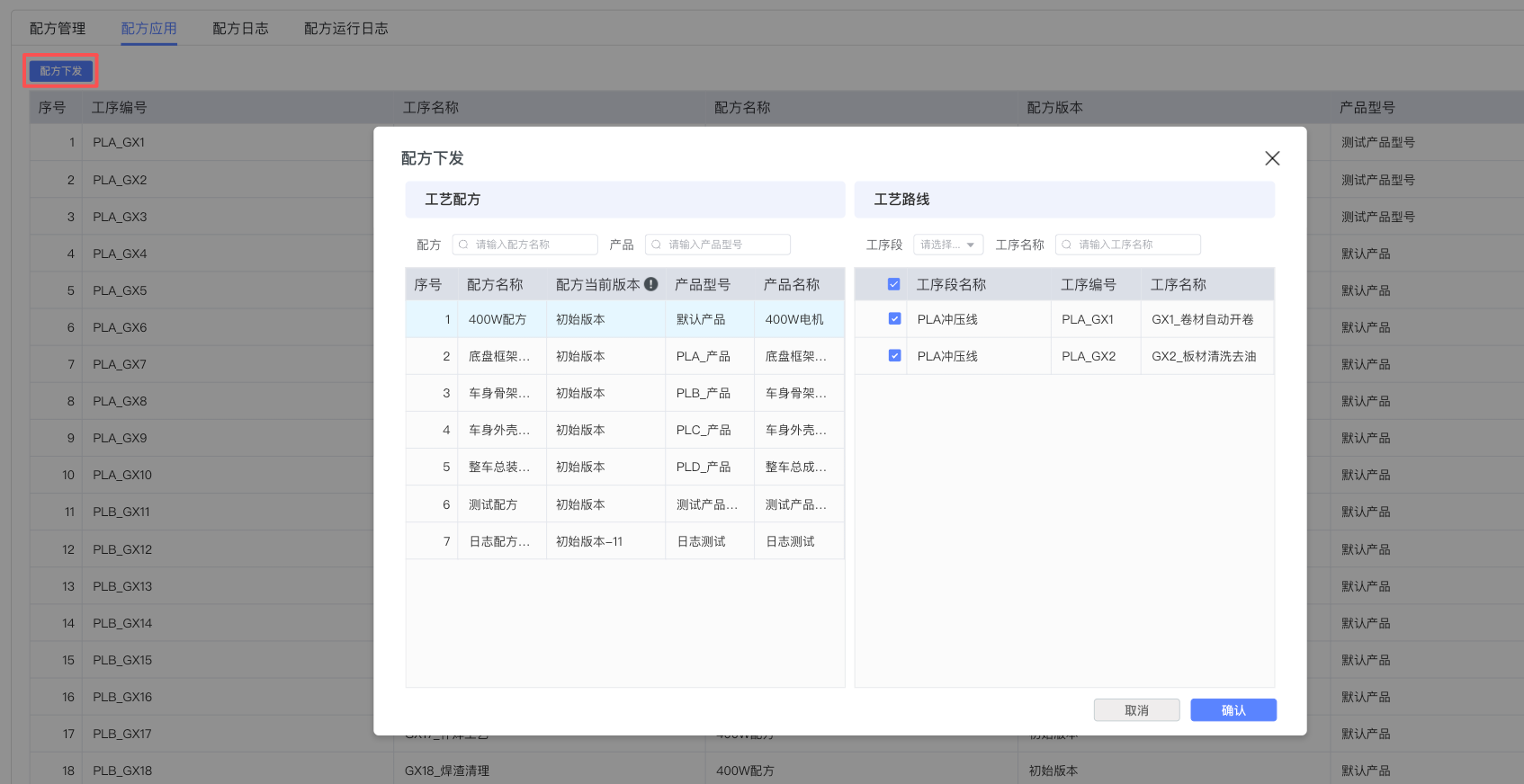
Manual dispatch on Recipe Application page:
Select the recipe in "Recipe Management -> Recipe Application" and click the "Dispatch" button:
- Dispatch recipe when process identifies product:
After configuring product identification code monitoring in the process flow, when the PLC dispatches the identification code and matches the switching signal, the recipe is automatically dispatched.
4. Process Settings
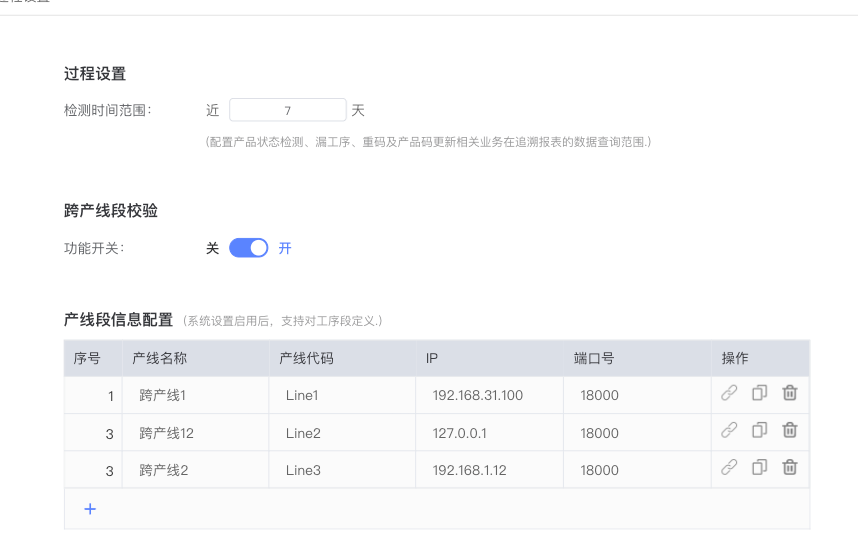
Supports detection time range configuration (default last 7 days), used to limit the query range of the following data in traceability reports:
- Product Status Detection
- Missed Process Detection
- Duplicate Code Detection
- Product Code Update
Cross-line segment verification: Can be set to Enable/Disable.
Line segment information supports cross-line segment configuration. After configuration is complete, it can detect whether the line segment exists:
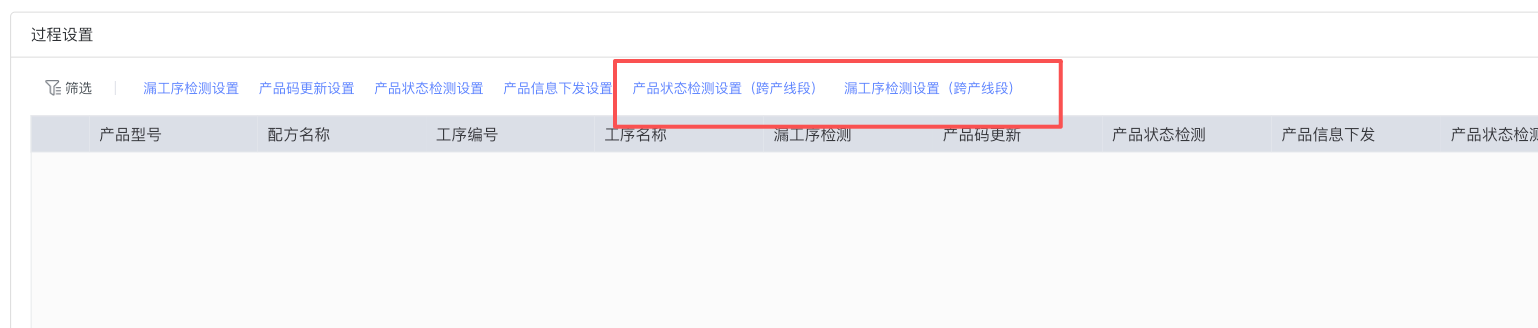
Cross-line usage and configuration can be performed in Process Management:
5. Traceability Report
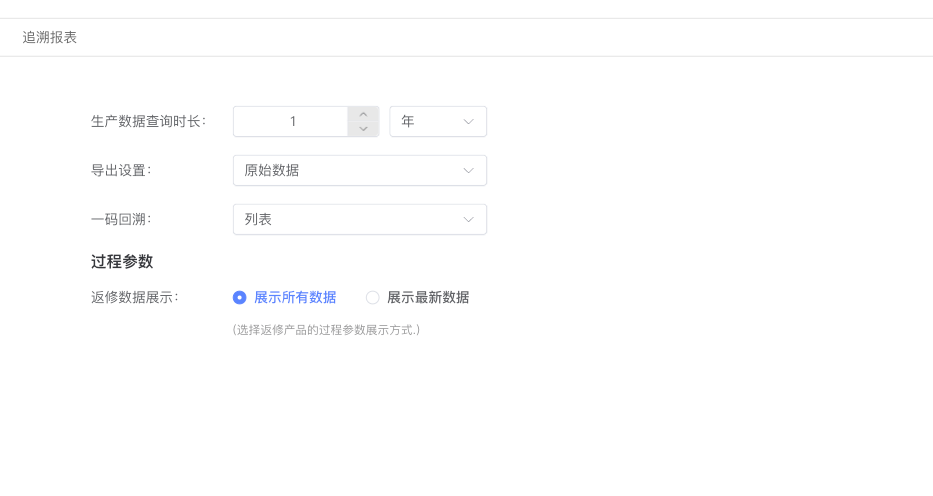
Traceability reports support querying data for the last 1 year by default, and can be configured to query by year, month, week, and day dimensions; export supports "Raw Data" and "Parsed Data".
One Code Traceability supports two display formats: List and Tile.
Process Parameter Display Configuration: Can select "Display All Data" or "Display Only Latest Data", and supports selecting the display method of process parameters for rework products.
III. System Settings
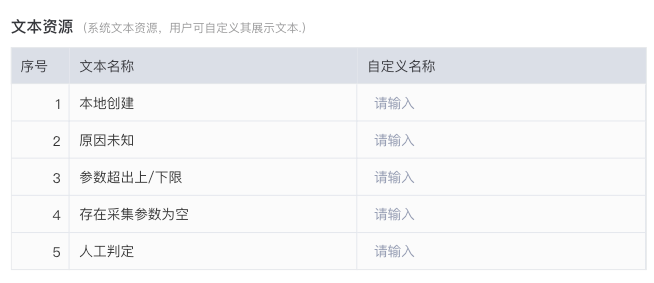
1. Text Settings
System text resources support custom display copy, used to unify multi-language or terminology specifications within the system.
IV. Advanced Settings

1. Debug Mode
After enabling, it supports modifying process configuration and process recipe requirements after work order dispatch. It is recommended to use in the test environment and enable with caution in the production environment.
V. Print Settings
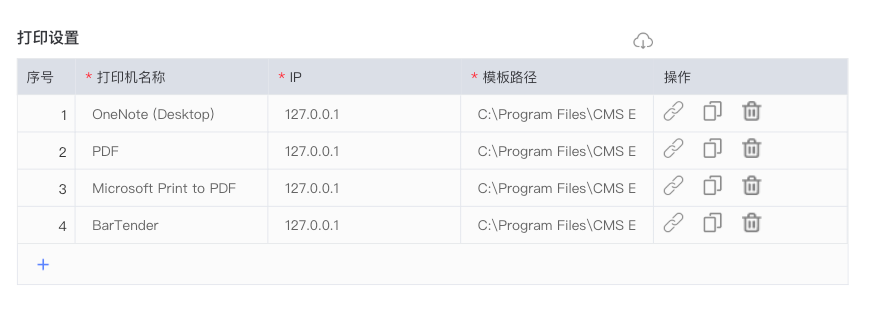
Supports BarTender Remote Print configuration, achieving cross-device label printing services through BarTender Agent.